
Telephony and call logging in Zoho CRM: the short answer
Telephony and call logging in Zoho CRM means you connect a phone system to the CRM. Each inbound and outbound call is then recorded in the Calls module without manual entry. Zoho's help pages state that all incoming and outgoing calls are logged automatically. Reps start calls from the record itself, and incoming calls open the caller's details.
Call logging is the registering of calls with their duration, date and time, and notes about the content. It covers inbound calls received from leads and customers and outbound calls made to them. A telephony integration is the connection between your phone provider and Zoho CRM. It places calls from records and writes the results back as call records.
The connection itself is usually the short part of the work. Most problems come from the things around it:
- user permissions on the Calls module
- the Calls layout and its mandatory fields
- who owns each call record
- callers who are not yet in the CRM
This guide covers each of these in turn. It includes a worked example of one outbound call and a checklist of the weak points to test before your team relies on the setup.
How a connected phone system logs calls in the Calls module
A connected phone system writes every call into the Calls module, the part of Zoho CRM that stores call records. Each call record holds the details a rep would otherwise type in by hand: duration, date and time, and notes about what was said. The Call Type field shows Inbound for incoming calls and Outbound for outgoing calls.
Telephony also adds two fields of its own. When a telephony integration is active, Zoho includes the From Number and To Number fields in the calls layout automatically after a call record is created by phone. The From Number captures the caller's phone number, and the To Number holds the recipient's number.
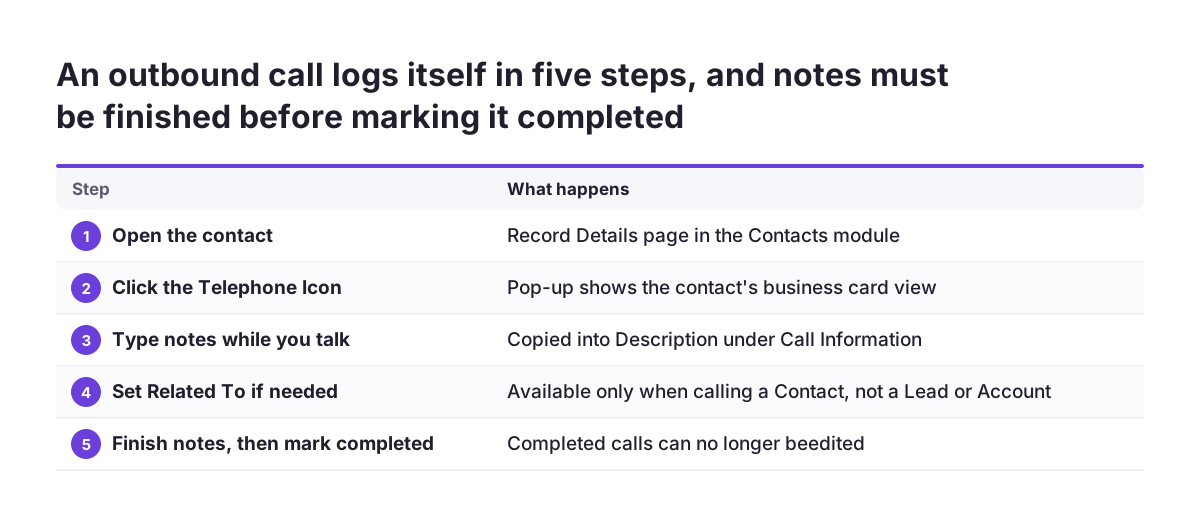
Outbound calls start from a record in the Leads, Contacts or Accounts modules. On the Record Details page, the rep clicks the Telephone Icon next to the phone number. The call then opens with a pop-up showing a business card view of the record, so the rep sees who they are calling.
Notes reach the call record without a separate step. A description entered during or after the call is updated automatically in the Description field, under the Call Information section of the Calls module.
You can log calls in three states: current, completed or scheduled. To see everything your team has logged, open the Calls module and select the All Calls list view.
Connection options: Zoho Built-in Telephony, Ringio and Zoho Voice
Zoho's own pages describe three routes to calling from the CRM, and each comes with a trade-off you should know before choosing. Zoho developed its Built-in Telephony on top of Twilio. Zoho explains why: Twilio is a development platform, and setting up a PBX (a private branch exchange, the system that routes a company's calls) with Twilio and connecting it to Zoho CRM is a tedious process.
The table below compares the three routes on what Zoho's pages say and what you should confirm before you commit.
| Route | What Zoho's pages say | What to confirm first |
|---|---|---|
| Built-in Telephony | Built by Zoho over Twilio to avoid connecting a Twilio PBX yourself | Whether it covers the countries and numbers your team calls |
| Ringio | When Ringio is configured, the keypad, mute and hold options are not available | Whether reps need the keypad, for example to get through phone menus |
| Zoho Voice | Used with Zoho One by 99 Calls to embed calling directly into CRM | Whether your licences include it, and which Zoho apps it should reach |
If you already pay for another phone provider, ask one question before anything else. Does it write each call into the Calls module, with the From Number and To Number filled in? If it only stores calls in its own portal, your CRM history will stay incomplete.
Preparing the Calls module: permissions, layout and mandatory fields
The Calls module needs three things in place before you connect a phone system: permissions, a planned layout and an understanding of the fixed fields. Every user who calls from the CRM needs access to Calls with View, Create, Edit and Delete permissions. Check each sales profile before go-live, because a rep without these cannot work with call records.
The Calls layout has four sections, each with default fields:
- Call information
- Purpose of outgoing call
- Outcome of outgoing call
- Reason for incoming call
You can add custom fields to every section except Call Information. You cannot add custom fields on the Log a Call page itself, although you can customise the existing fields through page layout customization. Plan outcome and reason fields as pick lists, so your reports can count them later.
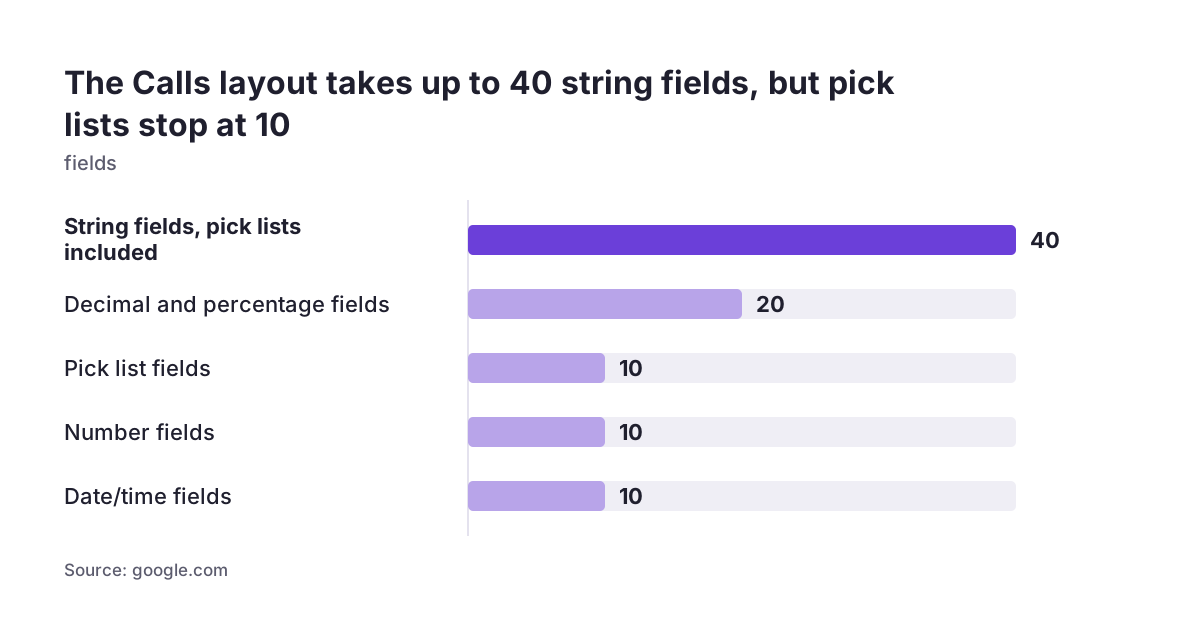
The field limits are generous but finite. Zoho allows 40 string fields, which covers single line, pick list, multi-select pick list and multi line, with at most 10 of each multi line, pick list and multi-select pick list. You also get 10 number fields, 20 decimal and percentage fields, 10 date fields and 10 date/time fields.
Two fields are fixed: you cannot mark Call Duration and Call Start Time as non-mandatory. If you use calendar bookings, the To Number field must also be enabled.
Worked example: an outbound call from a Contact record, logged automatically
This worked example follows one outbound call from a Contact record, using the screens and field names from Zoho's help pages. It assumes the telephony integration is active and the rep has full permissions on the Calls module.
- Open the record in the Contacts module.
- On the Record Details page, click the Telephone Icon next to the phone number.
- The call starts with a pop-up showing the business card view of the contact.
- Type notes into the call description while you talk. Zoho copies them into the Description field under Call Information.
- Fill in the Related To field if your process needs it. That field is available only when you are calling a Contact, not a Lead or an Account.
- Straight after the call, add a follow-up task, create an event or schedule another call, and assign it to the sales rep.
- Open the Calls module, select the All Calls list view and check the new record.
The new call record should show Call Type Outbound, the From Number and To Number, the duration and start time, and your notes. You appear as the Call Owner, because the user who logs a call is its owner.
Finish your notes before you mark the call as completed. Once a call is completed, Zoho no longer lets you edit the record entry. The owner cannot be changed either, so a call logged under the wrong user stays that way.
Inbound calls, unknown callers and missed calls
Inbound calls in Zoho CRM open the caller's record for the rep automatically. When a call comes in, Zoho CRM pulls out the details of the customer who is calling and shows them from the record's business card view. The rep knows who is on the line before saying a word.
Unknown callers need a deliberate habit. When a caller's details are not in the CRM database, you can add them as a contact after the call. Make this part of the call routine, otherwise the call record exists but the person behind it does not.
Missed calls are where workflow rules earn their place. A workflow rule for calls performs actions automatically whenever a call is received, made, missed or scheduled. A practical first rule creates a callback task for the record owner every time a call is missed. A second rule can act on scheduled calls, for example to notify a manager.
Call reminders keep scheduled calls from slipping. Zoho's Zoho One page states that call reminders occur automatically once your telephony system is connected. When a reminder appears at a bad moment, the rep can snooze it and call later instead of dismissing it.
Where telephony setups in Zoho CRM break, and how to check each one
Telephony setups in Zoho CRM usually break at a handful of predictable points, and each one can be checked before go-live. The table lists the weak points that follow from how Zoho's Calls module works.
| Weak point | What goes wrong | Check before go-live |
|---|---|---|
| Missing Calls permissions | Reps cannot work with call records | View, Create, Edit and Delete on Calls in every sales profile |
| Shared phone or CRM login | Calls land under the wrong Call Owner, which cannot be changed | One CRM user per person who makes calls |
| Notes added too late | Completed calls can no longer be edited | Reps finish notes before marking a call completed |
| Caller not in the CRM | The call has no person record behind it | Reps add unknown callers as contacts after the call |
| Ringio configured | No keypad, mute or hold during calls | Reps do not need those controls |
| Calendar bookings in use | Bookings need the To Number field | To Number is enabled in the layout |
| Custom fields planned for Call Information | That section does not accept custom fields | Custom fields sit in the other three sections |
At Svennis we check the phone number fields before we connect any provider, because numbers stored in mixed formats are the usual reason an incoming call opens no record. We standardise those fields first, then test inbound, outbound and missed calls on a few real records before the team starts.
Follow-up tasks, scheduled calls and manager review
Call logging pays off after the call, when follow-ups and reviews run from the same records. Each scheduled call offers three options on its details page: Mark as Completed, Reschedule Call and Cancel Call. Calls you mark as completed move to the Closed Activities related list on the associated record. That list becomes the call history a colleague reads before picking up the account.
Zoho's own page on automated call logging with Zoho One describes the wider effect. It says follow-up tasks trigger instantly after calls, and that sales managers can review team activity and assess call quality from within CRM. It also warns that manual call logging leads to overloaded teams, broken workflows and missed opportunities.
The same page describes 99 Calls, a lead generation and marketing company that previously relied on disconnected tools with limited integrations. With Zoho One and Zoho Voice, the company embeds calling directly into CRM and manages tasks with automated workflows. Zoho reports that it handles over 1,200 calls and manages over 40,000 leads every month.
Older call history does not have to stay behind. Zoho CRM imports call records for both scheduled and logged calls from csv or xlsx files. If you are moving from another CRM, our guide to migrating to Zoho CRM without losing your sales history covers how to bring that history across in order.
Call logging for EU companies: GDPR and calls across member states
EU companies should settle two questions before switching on call logging: how call data is handled under GDPR, and how phone numbers are stored across countries. Zoho's Zoho One page describes calls being recorded as well as logged. A recording holds far more than a duration and a note, so decide with your data protection lead how GDPR applies before recording starts.
Check the rules of each member state where you have staff or customers. Do not assume that one country's rule on call recording or employee monitoring applies everywhere you operate. Write down the decision for each country, and configure recording only where you have that answer.
Phone numbers cause most of the cross-border trouble. A company calling customers in several member states stores numbers with and without country codes, with spaces and without. Agree one format with the country code included, apply it to Leads, Contacts and Accounts, and keep new records in the same format.
Keep the Calls layout lean as well. Every custom field you add is more data your team collects on each call, so add only the fields your sales process and reports use. If you follow calls up by text message in Romania, our page on the SendSMS integration for Zoho CRM covers Romanian SMS from inside the CRM.
Next steps for connecting your phone system to Zoho CRM
Connecting a phone system to Zoho CRM goes most smoothly in a fixed order, testing as you go. Use this sequence as your checklist:
- Confirm which Zoho CRM edition you run and what it includes, using our guide to Zoho CRM editions and pricing.
- Choose the connection route: Built-in Telephony, Ringio or Zoho Voice, or your current provider if it writes calls into the Calls module.
- Grant View, Create, Edit and Delete on Calls to every sales profile, with one CRM user per person who makes calls.
- Plan the Calls layout: outcome and reason pick lists in the three editable sections, and To Number enabled if you use calendar bookings.
- Standardise phone numbers on Leads, Contacts and Accounts, with the country code included.
- Add workflow rules for missed and scheduled calls.
- Test an inbound, an outbound and a missed call on real records, then check the All Calls list view.
- Import older call records from csv or xlsx if you need the history.
If you want this set up alongside the rest of your CRM, our Zoho CRM implementation service for European companies covers telephony, layouts and workflows in one project.