
RFM customer segmentation in Zoho CRM scores every customer on three purchase measures
RFM customer segmentation in Zoho CRM is the built-in Segmentation feature. It scores each customer on recency, frequency and monetary value and gives the customer a label. It only works when those scores come from clean order data, and when your team filters, campaigns and reports on the resulting fields.
The three measures are simple. Recency is how recently a customer bought. Frequency is how often they buy. Monetary value is how much they spend.
DinMo's guide to RFM analysis adds that recency is usually expressed in days since the last purchase. It also notes that each score is usually scaled from 1 to 5.
Zoho describes segmentation as a way to "classify your customer base based on how they interact with your company". In Zoho CRM the model is fixed. Zoho's segmentation FAQ states that segmentation "can only be performed with the recency, frequency, and monetary (RFM) metrics". This is a system-defined model you cannot change.
Two practical points follow from Zoho's help pages:
- Only users with the Admin profile can open and configure Segmentation.
- Zoho lists customer segmentation under marketing automation, and it is separate from lead scoring, which ranks prospects rather than paying customers.
The rest of this guide covers what the feature needs from your data, how to configure it, and how to turn each segment into a concrete sales or retention action.
Edition limits for Zoho CRM Segmentation: Enterprise scores manually, Ultimate adds automatic scoring
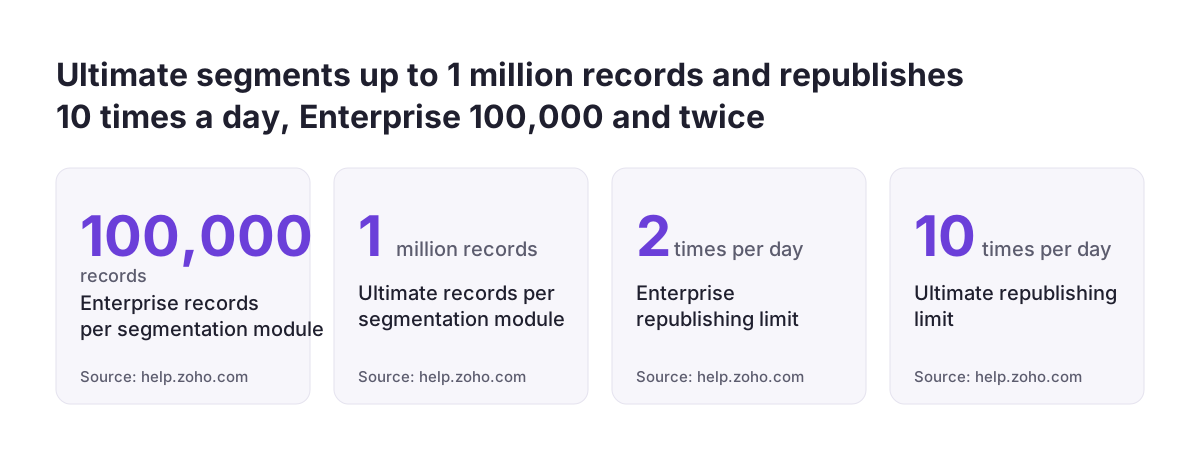
Your Zoho CRM edition decides how you calculate RFM scores and how many records you can segment. Zoho's Segmentation help page lists limits for the Enterprise and Ultimate editions. It states plainly that "automatic calculation is only available in the Ultimate edition of Zoho CRM".
On Enterprise you get 1 active or inactive segmentation and 5 unpublished or draft ones. The segmentation module can cover 100,000 records, expandable up to 200,000. You can republish twice a day.
On Ultimate you get 5 active or inactive segmentations and 20 drafts. The record limit is 1 million, expandable up to 2 million. Republishing is allowed 10 times a day.
For most mid-sized businesses the record limit is not the constraint. The real difference is the scoring method. On Enterprise you define every score range yourself. On Ultimate the system can compute scores for you from the distribution of your data, as described in the section on manual and automatic scoring below.
Check your edition before you plan the setup. If you are weighing an upgrade for this feature alone, our overview of Zoho CRM editions, users and add-ons sets out what changes between editions. A well-defined manual segmentation on Enterprise often beats an automatic one built on unreliable data.
Order data first: the contributing module and linking field decide every RFM score
Zoho CRM calculates RFM scores from the records in a contributing module, so the quality of that module decides the quality of every segment. Zoho calls it the contribution module. It is the module that stores purchase details such as the last purchase date, the number of purchases and the total amount spent.
A segmentation connects three things:
- The segmented module, which holds the customers you want to label.
- The contributing module, which holds their purchases.
- The linking field, the lookup field that bridges the two modules.
The segmented module must be a standard module, because Zoho shows the RFM values and the segment label field only in standard modules. If you have integrated Zoho Finance Suite, its modules can also serve as the source for segmenting your records. Once a segmentation is active, you cannot deactivate that Finance Suite integration.
Choose these modules carefully. When you edit a segmentation later, Zoho does not let you change the segmented and contributing modules. A wrong choice means building a new segmentation.
Clean history matters as much as structure. Duplicate customers split one buyer's orders across two records, and test orders inflate frequency. At Svennis we clean duplicates and test orders out of the contributing module before anyone publishes a segmentation, because the system-generated labels cannot be corrected by hand afterwards. If your history still sits in an old system, read our guide to migrating to Zoho CRM without losing your sales history first.
Choosing the recency, frequency and monetary fields for each metric
Each RFM metric reads from one field or one count in the contributing module, and each has its own rules. Picking the wrong field produces scores that look plausible but rank customers incorrectly.
Recency: a date field, read as a date only
Recency needs the date of the last purchase. Zoho allows date and date-time fields here. However, its FAQ notes that "only the date will be used in the criteria". Use the invoice or order date, not a record-modified date that changes whenever someone edits the record.
Frequency: by count or by field
Frequency by count means the system counts purchases from a lookup field or related records in the contributing module. Frequency by field means it uses a value someone entered manually. Counting is safer whenever every order exists as its own record. DinMo recommends matching the frequency period to your sales cycle. A quarter may suit e-commerce, while a real estate company should use at least a year.
Monetary value: revenue or margin
Monetary value is the customer's total spending. According to DinMo, it can be expressed as revenue or margin, depending on your goals. DinMo also measures it over the same interval as frequency. If discounts vary widely between customers, a margin field ranks them more honestly than gross revenue.
Manual score ranges or automatic percentiles: how Zoho CRM turns values into scores
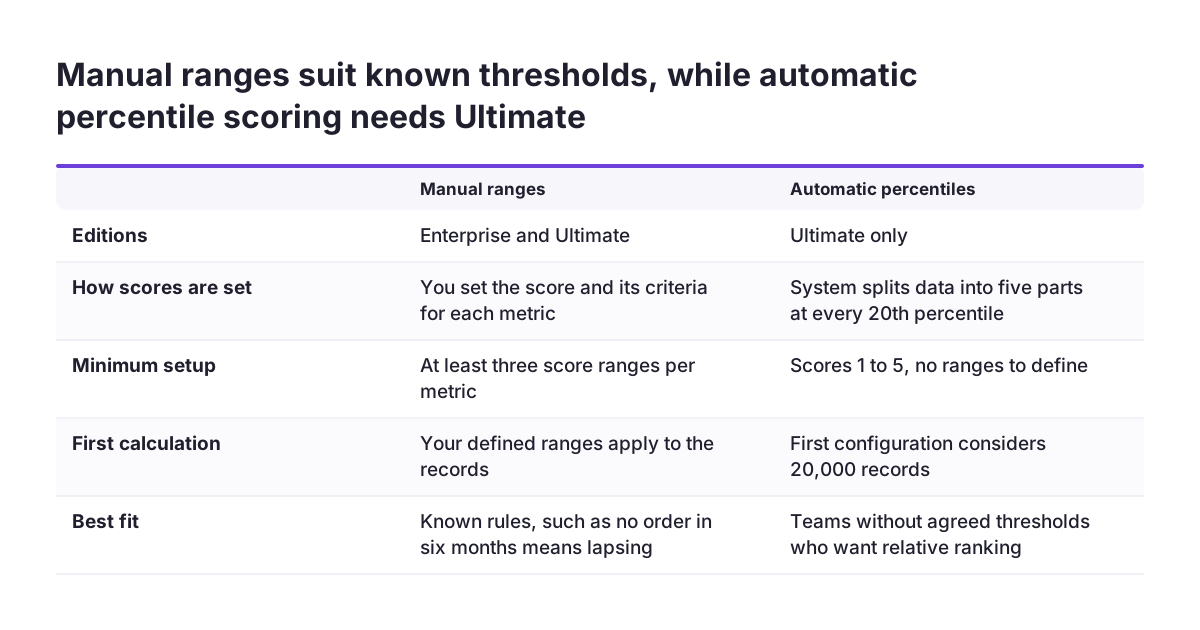
Zoho CRM offers two ways to convert raw purchase values into RFM scores: manual ranges and automatic percentiles. The segmentation score uses a range of 1 to 5 by default.
With the manual method, you must set both the score and its criteria for every metric. Zoho requires a minimum of three score ranges per metric. Manual scoring suits companies that already know their thresholds. One example is "no order in six months means a customer is lapsing".
With the automatic method, available only on Ultimate, the system uses the percentile method. It divides the data set into five parts, with a boundary at every 20th percentile, to give scores from 1 to 5. DinMo describes the same quintile logic: score 1 goes to the 20% of customers with the least favourable value. For the first automatic configuration, Zoho takes 20,000 records into account. After that, up to one million records can be computed.
Automatic scoring adapts to your data, but it is relative. A customer can drop a score because others bought more, not because they bought less. Manual ranges are absolute and easier to explain to a sales team.
Decide the scale before you publish. Zoho's FAQ warns that changing the scoring scale resets the evaluation. Existing scores are recalculated and new labels are generated for every record.
Worked example: segmenting B2B accounts from invoice data on the Enterprise edition
This worked example shows a manual RFM segmentation for a business-to-business distributor on Zoho CRM Enterprise. The company invoices through Zoho Finance Suite, which is integrated with CRM. The settings below follow the options described in Zoho's help pages.
- Segmented module: Accounts, a standard module, because the company sells to businesses rather than individuals.
- Contributing module: the invoices module from the Finance Suite integration, so every invoice counts as one purchase.
- Linking field: the account lookup on each invoice.
- Recency: the invoice date, scored in three ranges. Score 3 means invoiced within the last quarter, and score 2 means within six months. Score 1 means no invoice for more than six months, the inactivity threshold Splio uses in its reactivation example.
- Frequency: by count, measured over a year, because a distributor's buying cycle is longer than a web shop's.
- Monetary: the invoice total, in three ranges your finance team sets from last year's invoice history.
- Calculation method: manual, since automatic scoring needs Ultimate.
Next, the administrator assigns labels to score combinations. An account scoring 3 on all three metrics becomes a Champion. An account with high frequency and monetary scores but a recency of 1 becomes At risk.
After publishing, the team waits. Zoho states it takes at least 24 hours before the segmentation label appears on records. Once it does, a sales manager opens Accounts and filters by Segment label. That filtered list becomes the call list for the week.
Segment labels and the sales or retention action each one should trigger
A segment label is only useful when everyone knows the action it triggers. Zoho allows up to 8 labels per segment and offers eight predefined labels to start from. That is fewer than the "around fifteen segments" DinMo suggests as a sensible ceiling, which forces useful simplicity.
The table below pairs common RFM segments with an action. The definitions and actions come from Splio, Bloomreach and Zoho's own description of segmentation.
| Segment | RFM pattern | Action |
|---|---|---|
| Champions | Recent, frequent, high-value purchases | VIP programme, private sales and previews |
| Loyal customers | Frequency-dominant; they return most often | Cross-sell offers from the account owner |
| Big spenders | Monetary-dominant; the highest average basket | Up-sell to larger or premium ranges |
| At risk | Good history, but a low score on one or more metrics | Win-back discount and a personal call |
| Inactive | No recent purchases | Win-back campaign with a final incentive offer |
Retention segments deserve priority. Splio's article on RFM segmentation cites IDAIA Group (2024): reactivating an inactive customer costs up to 10 times less than acquiring a new one.
Segments also tell you whom to leave alone. Splio suggests excluding the least engaged segments from some weekly campaigns to prevent unsubscribes. It also suggests reserving paid channels such as SMS for certain segments to cut volume and cost.
Using segment scores in Zoho CRM views, Zoho Campaigns and Zoho Analytics
RFM scores only change revenue when sales, marketing and management use them in the tools they already open every day. Zoho CRM writes the results into fields on each record, which makes this possible.
Inside Zoho CRM
Creating a segmentation adds a section titled Segmentation to the record detail page. Reps see the label without opening a report. You can filter records by Segment label and Segment Score, which holds the RFM values, in the advanced filter of the segmented module. Combine this with tags, which Zoho lets you colour so reps can read priority at a glance.
In Zoho Campaigns and Zoho Marketing Automation
RFM values appear in Zoho Campaigns and Zoho Marketing Automation only if those platforms are integrated with your CRM account. Set up the integration before you plan segment-based mailings.
In Zoho Analytics
Zoho Analytics is listed among the connected applications that receive segmentation data. Bloomreach recommends tracking customer lifetime value, purchase frequency and retention rate across segments. These figures show whether your targeted campaigns work.
Labels cannot be edited manually, because they are system-generated from the scores and criteria. If a rep disagrees with a label, fix the data or the criteria, not the record.
Timing and change rules: the 24-hour refresh, republishing limits and locked settings
Zoho CRM Segmentation runs on a daily cycle, not in real time, and your processes need to allow for that. Zoho recalculates RFM scores and labels every 24 hours. After each refresh, an automatic sync updates segmentation data in connected applications such as Zoho Campaigns, Zoho Marketing Automation and Zoho Analytics.
A customer who places a large order this morning keeps yesterday's label until the next refresh. Do not build same-day processes that depend on the label changing. Use the order itself for anything urgent.
Configuration changes have their own rules:
- The first labels appear at least 24 hours after you publish.
- Republishing is limited to twice a day on Enterprise and 10 times a day on Ultimate.
- Changing the scoring scale resets the evaluation and regenerates every label.
- The segmented and contributing modules cannot be changed when you edit a segmentation.
- The Finance Suite integration cannot be deactivated while a segmentation is active.
Test new criteria in a draft before you publish. Both editions allow several drafts alongside the active segmentations, so you can compare criteria without disturbing the labels your team relies on.
What RFM segmentation means for companies selling across the EU
For a company selling in several EU countries, RFM segmentation in Zoho CRM depends most on where order data comes from and how buying cycles differ. DinMo points out that purchase cycles vary drastically between sectors, and even between products. A recency band that fits one product line can mislabel customers of another.
Recency uses only the date, not the time. Orders placed late in the evening in one time zone and early morning in another still count on their calendar date, so time-zone differences have little effect on the score.
The bigger issue is getting local order and invoice data into Zoho CRM at all. Many European companies invoice or sell through local systems. Our integration pages cover SmartBill invoicing with Zoho CRM and SAP Business One with Zoho CRM. For web shops, see Zoho CRM for e-commerce with PrestaShop and Shopify.
DinMo recommends bringing CRM and e-commerce data into a single source of truth before you calculate RFM values. In Zoho, that source of truth is the contributing module.
If your customers are individuals rather than businesses, RFM scores describe people's buying behaviour. Agree with whoever owns GDPR compliance in your company how you will use segments in campaigns before the first mailing goes out.
Next steps to set up RFM segmentation in your Zoho CRM
Set up RFM segmentation in a fixed order: data first, configuration second, actions third. These steps work on both Enterprise and Ultimate:
- Confirm your edition and whether you need automatic scoring or can define manual ranges.
- Choose the segmented module, the contributing module and the linking field, knowing you cannot change the modules later.
- Clean duplicates and test orders out of the contributing module.
- Pick the recency date, the frequency method and the monetary field, using a period that matches your buying cycle.
- Build the segmentation as a draft, assign no more than eight labels, and publish.
- Write down one action per label, and give each action an owner in sales or marketing.
- After 24 hours, check a sample of labelled records against what your account managers know.
If your order data is spread across several systems, start with step 2 before anything else. When you want help connecting those sources and configuring the segmentation, see our Zoho CRM implementation services for European businesses.