
Customising Zoho CRM with Zia: fields and layouts, and why the order matters
Customising Zoho CRM with Zia: fields and layouts is about shaping one module, the record your team opens every day, so that it holds the right data in the right form. Zia, the AI built into Zoho CRM, can create modules, reports and workflows on request, retrieve the data you ask for and turn images into Canvas views. That makes the first draft of a record much faster to produce.
The draft still needs a person to check it. The data model, the field names and the dependencies between fields decide whether the record keeps working once real users and real integrations touch it. Some decisions in Zoho CRM cannot be undone cleanly, which is why the order of work matters more than the speed.
This post is part 1 of a three-part series on customising Zoho CRM with Zoho's own AI. Part 1 covers the record itself: which modules and fields you need, custom field types, page layouts and layout rules, what Canvas changes about how a record reads on screen, and where Zia helps and where it does not. The next two parts move from the record to what happens around it: automating the process, and reporting on the results.
By the end you should be able to shape one module properly, from the field list to the layout your users see.
Decide which modules and fields you need before adding any
A module is a type of record in Zoho CRM, such as Leads, Contacts, Accounts or Deals. Zoho CRM also supports custom modules, meant to help your team capture, organise and highlight business-critical information that the standard modules do not hold. A field is one piece of data on that record, such as a contract value or a region.
Before you ask Zia for anything, answer three questions for every proposed field. Who fills it in, and at what moment? Which report, automation or decision uses it? Does the same information already exist elsewhere, for example on the linked Account through a lookup field? If a field has no user and no consumer, leave it out.
Take a company that sells several services: its sales process might run through four main stages, with extra stages for each service line. The structure should come from how the business sells, not from what the software can add.
At Svennis we write the field list, with name, type, owner and the layout each field belongs to, before anyone opens the layout editor or asks Zia to build a module, and we review that list with the people who will use it. That review is where most later rework is avoided.
Custom fields and their types
A custom field is any field you add beyond the ones Zoho CRM ships with. Custom fields are not available in the Free edition, so this whole guide assumes a paid edition. If you are still weighing a lighter tool, the comparison of Zoho Bigin and Zoho CRM helps you decide first.
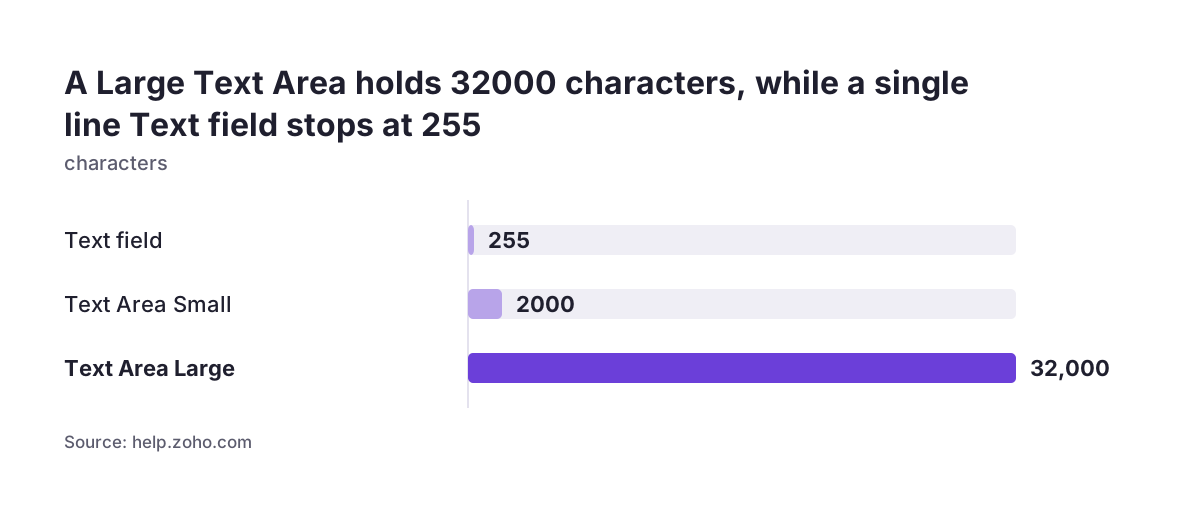
The most important rule: you can rename a custom field, but you cannot change its field type (Text, Integer, Date and so on) after creation. Choosing the wrong type means creating a new field and moving the data. The limits below come from Zoho's help page on creating custom fields.
| Field type | Limit | Typical use |
|---|---|---|
| Text | Maximum 255 characters | Short identifiers, names, codes |
| Text Area | Small 2000, Large 32000 characters | Notes and descriptions |
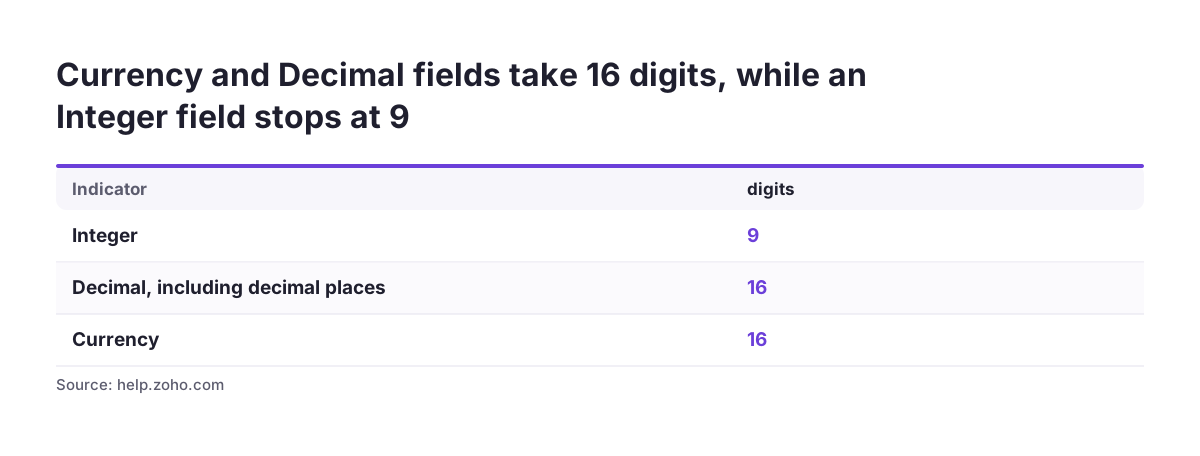
| Integer | Maximum 9 digits | Counts such as sites or seats |
| Long Integer | Maximum 18 characters, from Standard edition | Large numeric IDs |
| Decimal | Maximum 16 digits including decimal places | Measurements, rates |
| Currency | Maximum 16 digits | Contract and order values |
Two practical consequences follow. Store amounts of money in Currency fields, not Decimal or Text, so reports and conversions treat them as money. And keep identifiers that start with zeros or contain letters in Text, even if they look numeric.
When you remove a custom field from a layout, it moves to the Unused Fields section, where it stays in the database and can be restored with its data. Those fields still count toward the total number of fields your edition allows, and once you delete a field from Unused Fields, the field and its data cannot be brought back.
Unique fields, external IDs and field dependencies
Three field settings shape the data model more than any other, and they are the ones most often skipped in a quick build.
Unique fields
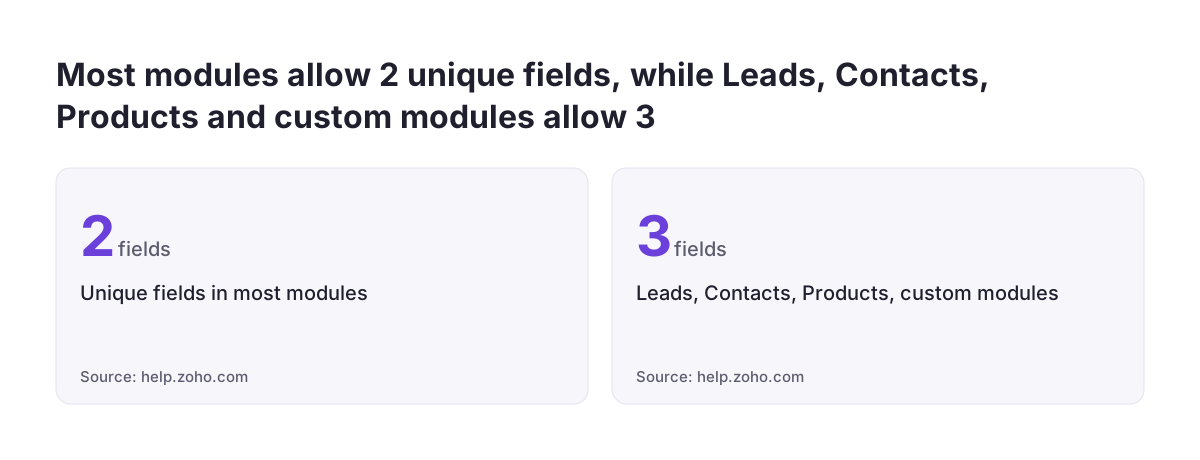
A unique field is one whose value makes the record unique, such as an email address, a passport number or a product code. It is available only in paid editions. A module can have 2 unique fields, while Leads, Contacts, custom modules and Products can have 3. The Tasks, Calls and Meetings modules cannot have one. Matching is not case sensitive, so "ABC" and "abc" count as the same value.
Unique fields are not enforced for records created through CRM migration, Microsoft Outlook and Google synchronisation, or restoration from the Recycle Bin. If you are bringing data in from another system, plan duplicate checks separately; the post on how to migrate to Zoho CRM without losing your sales history covers that step.
External ID fields
An external field is a custom single line field that stores the record's identifier in a third-party application, used in API calls to search, create, update or delete records. Its value can be updated only through the API, which suits integrations such as SAP Business One with Zoho CRM.
Map dependencies
A map dependency defines which options appear in a child picklist based on the option chosen in a parent picklist. Multi-select picklists can only be child fields, never parents. Draw the parent and child pairs on paper first, because a dependency built on the wrong parent confuses every user who meets it.
Page layouts: one module, several forms
Zoho describes page layouts as forms created within a module to store different kinds of records, such as products, service cards or enquiries. They let you manage the sale of multiple products and services in one CRM account, with a different combination of fields for each, and users can switch between layouts.
Layouts come in two types, Standard and Custom, and the Standard layout can itself be customised. Zoho recommends creating a new layout by cloning an existing one; when you clone a layout, its fields are cloned too. When a module has several layouts, users first choose a layout when they create a record, which keeps the database cleaner, and you can control which users can see and use each layout.
Two behaviours catch teams out:
- Deleting is per layout. A field deleted in one layout is not deleted from the other layouts.
- Mandatory is per layout. Making a field mandatory in one layout does not make it mandatory in the others.
Both behaviours are useful when intended and harmful when not. If your quote process relies on a field being filled in, check that it is mandatory in every layout that can reach that stage, not only the one you edited last. A short matrix of fields against layouts, with a mark for "shown" and "mandatory", is the simplest way to keep track.
Layout rules and conditional fields
A layout rule changes how a layout behaves when a condition is met. Zoho CRM lets you set conditions that hide or show fields or whole sections and make certain fields mandatory. A typical rule: when Contract Type is "Maintenance", show the Service Region section and make Renewal Date mandatory.
Layout rules keep forms short, because users see only the fields that apply to the record in front of them. They also add logic that someone has to maintain, so keep each rule readable and give it a name that says what it does.
One interaction matters for anyone running automation or integrations. When a field used in a layout rule is updated by a workflow field update or through the API, that update takes precedence over the rules. In other words, a rule that requires a field on screen does not stop a workflow or an integration from changing it. If a rule protects something important, protect it at the source as well, in the workflow or the integration logic.
Keep rules for what users do on screen, and do not rely on them as the only guard on data quality. Field permissions, available from the Professional edition, are the tool for controlling who can see or edit a field at all.
What Canvas changes about how a record reads
Layouts decide which fields a record has. Canvas decides how the record looks and reads. Zoho's Canvas help pages describe several parts of the design suite:
- Canvas list view: add record images, use custom buttons to represent fields, set font style or size for field labels and change the alignment of field types.
- Canvas Record Form: an advanced level of customisation for record creation, letting you design your own forms for creating records.
- Canvas Home View: a homepage designed to be more relevant, role based and action driven from the moment a user logs in.
- Mobile record detail page: Canvas can shape the overview that users see on their phones.
Canvas Templates for Form View is available to limited accounts for now and is being rolled out in phases across all data centres and paid editions, so check your own account before planning around it.
This is where Zia saves real time. It can turn an image, for example a sketch or a screenshot of how a record should look, into a Canvas view. Treat the result as a starting point: Canvas changes presentation, not structure. A well-designed view on top of badly chosen fields still produces bad data, only more attractively.
Where Zia helps and where it does not
Zia is useful across the build, but the table shows where its output still needs a decision from someone who knows the business.
| Task | What Zia can do | What you still decide |
|---|---|---|
| New module | Create a module on request | Whether a custom module is needed at all, and its lookups to existing modules |
| Record design | Turn an image into a Canvas view | Which fields exist, their types and names |
| Data entry | Extract information from images and map it to record fields (intelligent character recognition) | Which fields the extracted values may overwrite |
| Missing details | Data enrichment from the internet and email signatures, Enterprise and Ultimate editions only | Which fields may be enriched, and whether your data protection review allows it |
| Automation | Suggest workflows, macros and owner assignment rules | Whether they conflict with your layout rules |
| Predictions | Field prediction based on a selected record field | Whether that field is filled reliably enough to predict from |
The pattern is consistent. Zia is fast at producing structure and presentation, and the things it cannot judge are the irreversible ones: field types, unique fields and dependencies. If you want a broader view of whether your data is ready for AI features, the AI readiness page on our sister site walks through it.
Worked example: shaping the Deals module for service contracts
Take a company that sells both one-off installations and yearly maintenance contracts through the Deals module. Here is the order to follow.
- Write the field list. Contract Type (picklist: Installation, Maintenance), Annual Value (Currency), Renewal Date (Date), Service Region (picklist), Service Areas (multi-select picklist), Site Notes (Text Area, Small) and ERP Customer ID (external field).
- Check types. Annual Value is Currency, not Decimal. ERP Customer ID is a single line text field, because type cannot change later.
- Set the dependency. Service Region is the parent and Service Areas the child, which works because a multi-select picklist may only be a child.
- Build layouts. Keep the Standard layout for installations. Clone it into a "Maintenance Contract" layout, so fields carry over, then add Renewal Date and make it mandatory in that layout only.
- Add a layout rule. In the Maintenance Contract layout, show the service section only once Contract Type is Maintenance.
- Restrict access. Give the Maintenance Contract layout to the service sales team.
- Design the view. Sketch the record and ask Zia to turn the image into a Canvas view, then check that every field on the view exists in the layout.
Finally, test with two real users: one creates an installation deal, one a maintenance deal. Any field they skip or misread goes back to step 1.
What this means for a company in the EU
For businesses trading across the European Union, the field list is also where legal and local requirements show up. The EU framework is shared, but registration numbers, invoicing data and language vary by country, so design fields for the countries you actually serve rather than copying one country's rules into every record.
A company registration or VAT number is a good candidate for a unique field on Accounts, with the caveat that uniqueness is not enforced for migrated or synchronised records. Some countries also offer official validation; for Romanian companies, ANAF validation for Zoho CRM checks the CUI/CIF against the official register. Store such numbers as Text, since formats differ between member states.
Personal data deserves a deliberate decision under GDPR. Every field that holds data about a person should have a purpose you can state, and field permissions let you limit who sees sensitive fields. Zia's data enrichment adds information from the internet, so have whoever handles data protection in your company review it before it is switched on. Sectors with sensitive records need extra care; the page on Zoho CRM for healthcare shows how that looks in practice.
Finally, if your team works in several languages, choose field labels and picklist values that translate cleanly, and agree on a naming convention before anyone asks Zia to build anything.
Practical next steps
You can shape one module this week without touching anything irreversible until the end. Work in this order:
- Pick one module that causes the most complaints, usually Deals or Accounts.
- Write the field list with name, type, owner, consumer and layout for each field. Remove any field without a clear consumer.
- Mark the irreversible choices: field types, unique fields, external IDs and map dependencies. Have a second person review them.
- Check your edition: custom fields need a paid edition, field permissions need Professional or above, and data enrichment needs Enterprise or Ultimate.
- Build in a sandbox or test layout, clone rather than start from scratch, and keep a matrix of which fields are shown and mandatory in each layout.
- Use Zia for speed, for the module draft and the Canvas view, then compare its output against your list.
- Test with two real users before the change reaches the whole team.
If the module you are shaping sits inside a larger rollout, the overview of Zoho CRM implementation in Europe explains how the record fits with integrations, migration and user training. Part 2 of this series moves on to the automation that acts on the fields you have just designed.