Routing Backstage registrations into Zoho CRM: the short answer
To get event registrations from Zoho Backstage into Zoho CRM without duplicates, connect the native integration before you create the event. Sync attendees to the module where your existing people live, and map only fields with matching data types. Backstage checks the email address and does not create a new record when one already exists.
The Backstage integration with Zoho CRM is Zoho's built-in connector. It turns each Backstage event into a CRM campaign and sends attendee details to the Leads or Contacts module. Zoho Backstage itself is Zoho's event management tool for event websites, registrations, promotion and attendee contact.
The connector covers registration well. It does less for attendance and follow-up. For those two jobs you add Zoho Flow, Zoho's integration tool, which reacts to Backstage events such as a check-in. Flow then updates a lead or enrols a record in a follow-up sequence.
This guide takes you through:
- the requirements and permissions
- how the duplicate check works
- the field mapping rules
- a worked example for one webinar
- what happens when you pause or delete the connection
What the Backstage integration creates in Zoho CRM: campaigns, leads and contacts
The Backstage integration creates one campaign in Zoho CRM for every Backstage event. Zoho's help page on integrating Zoho CRM with Zoho Backstage states that events you create in Backstage are set up automatically as campaigns. They appear in the Campaigns module. That campaign is your anchor for reporting, because it records which event a person came from.
Attendee details go to one module of your choice. During setup you select Leads or Contacts to receive attendee data. Custom fields from the registration form can sync to the same module. Zoho says pushed data takes around two minutes to appear in your CRM organisation, so wait before you judge a test.
The integration has three more behaviours worth knowing:
- Events created before you set up the integration are not picked up. You have to sync them manually.
- You can stop automatic synchronisation of attendee details for an individual event. You then send the details manually when you want to.
- SalesSignals in Zoho CRM can notify you when someone buys a ticket to your event.
The per-event switch is useful for internal events, such as staff training, whose attendees you do not want in your sales data. SalesSignals suits paid events where a ticket purchase is a buying signal the account owner should see the same day.
Requirements before you connect: Enterprise plan, permissions and one linked CRM account
The Backstage integration needs a Zoho CRM account on the Enterprise plan. Zoho states this on its integration help page. On the Backstage side, the CRM integration is a paid feature enabled according to your subscription plan. Check both licences before you plan an event around the connection. Our post on Zoho CRM editions and pricing explains how Enterprise compares with the lower editions.
Plan changes can break the connection later. Zoho's troubleshooting page warns that downgrading or changing your CRM subscription can make some features inaccessible. If you run Bigin today, the integration described here is not open to you until you move up. Our comparison of Zoho Bigin and Zoho CRM covers when that move makes sense.
Permissions
Permissions decide who can set up the integration. By default, users with admin-level permissions or an admin profile can access extensions in Zoho CRM. Without the right permission or profile, you cannot integrate marketplace apps. To map custom fields, a user also needs permission to create and edit data in both Leads and Contacts.
One link per CRM account
A CRM account can be linked to Backstage only once. If it is already linked, the attempt fails with the message "Your org is already integrated." Zoho's troubleshooting page for the Backstage integration says that in most cases the link was made earlier from a forgotten test or trial account. Find that account before you try again.
How the integration avoids duplicate contacts: the email address match
The integration avoids duplicates by matching on email address. If a CRM record with the same email address already exists, Backstage does not push the attendee as a new lead or contact. Zoho states that this is to avoid duplication of records. The email address is therefore the only key, and its quality decides how well the check works.
The match has limits that follow from that design. A customer who registers with a personal address instead of the work address on file will not match. A contact with no email in CRM gives Backstage nothing to compare. Before your first synced event, fill in missing emails on active contacts.
Also merge records that share an address. If your data came from an older system, the clean-up steps in our guide to migrating to Zoho CRM without losing sales history apply here too.
Test the check yourself before a real event. The help page does not spell out whether the email check looks across both Leads and Contacts. It also does not say how an existing record shows the event afterwards. At Svennis we register once with the email of a known contact and once with a new address on a test event, and the duplicates we find at clients usually come from attendees using a second, personal email.
The test shows you what the duplicate check does in your own account. Your sales team then knows where to look for an attendee who is already a customer.
Field mapping rules that decide what reaches the lead or contact
Field mapping is the step that pairs each Backstage registration field with a CRM field. Zoho sets three rules for it. Most "missing data" complaints after an event trace back to one of them.
- Same data type. Map each CRM field to a Backstage field with the same data type. A dropdown goes to a picklist, and text goes to text.
- Right form section. Only custom fields created under the ticket information and buyer information sections are pushed to Leads or Contacts. A question placed elsewhere on the form stays in Backstage.
- Supported field types. Backstage does not support currency, decimal, integer or file upload fields. You cannot collect those types at registration and map them across.
The third rule changes how you design the form. To ask about company size, use a dropdown with ranges rather than a number field. Map it to a picklist in CRM with the same values. Spelling must match exactly, or reports split one answer into two.
Keep the mapped set short. Every field you map lands on a lead or contact that your sales team reads and maintains. Typical fields that earn their place are job role, company and the topic the person is interested in. Answers that matter only for the event, such as dietary needs or session choices, can stay in Backstage.
Remember who can do the mapping. Only users with create and edit rights in Leads and Contacts can map custom fields. If the option is greyed out, ask your CRM administrator to check your profile.
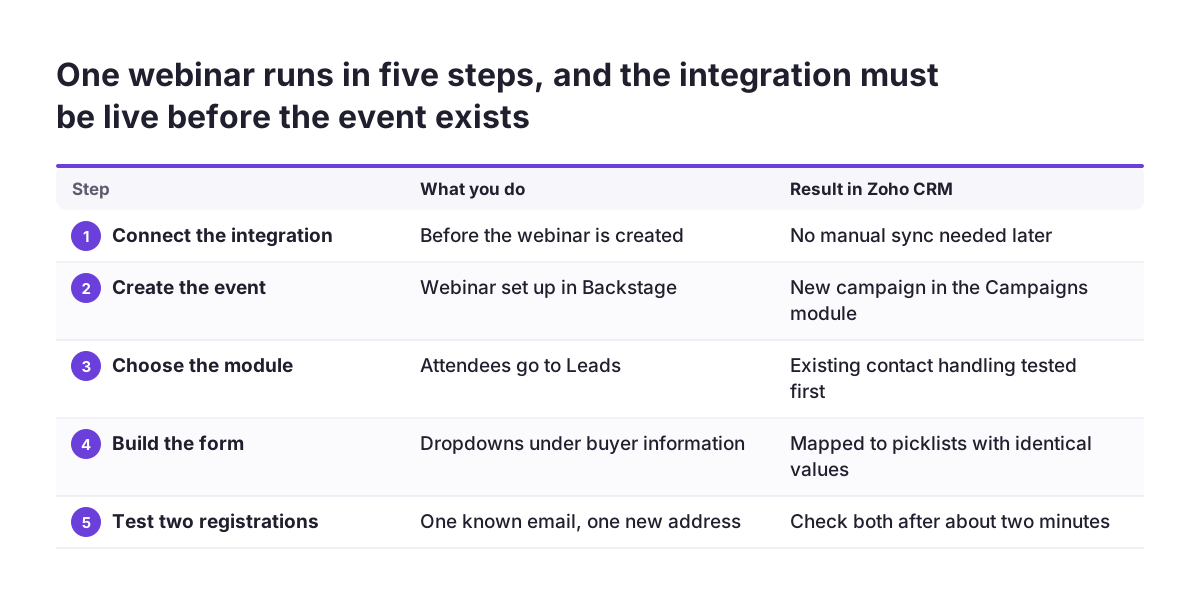
Worked example: one product webinar from registration to follow-up
The example below follows a single online product webinar run in Backstage, with Zoho CRM Enterprise already connected. The steps use the setting names from Zoho's own pages.
- Connect first. The integration is live before you create the webinar, so no manual sync is needed.
- Create the event. The webinar appears as a new campaign in the CRM Campaigns module.
- Choose the module. Your existing customers live in Contacts and newcomers in Leads. You sync attendees to Leads, and you test how an existing contact is handled before launch.
- Build the form. You add "Job role" and "Main interest" as dropdowns under buyer information. You map them to picklists with identical values.
- A known customer registers. Her work email already exists in CRM, so no new record is created.
- A newcomer registers. A new lead appears in CRM after about two minutes, with job role and interest filled in.
- Someone buys a paid add-on ticket. SalesSignals notifies the record owner.
- The webinar runs. A Zoho Flow on the "Attendee checked-in" trigger enrols each attendee in a thank-you cadence the same day.
Steps one to seven need only the native integration. Step eight is where Zoho Flow comes in, and the next section explains why. By the end of the week, every attendee sits on one record, the campaign shows the event and the follow-up is already running.
Attendance and same-week follow-up with Zoho Flow triggers and cadences
Zoho Flow adds the attendance data that the native integration does not give you. In a Zoho Community thread, one user could build a CRM view of customers who registered for a Backstage event. The same user could not filter it by "checked in / yet to check in". Flow closes that gap by reacting to Backstage events as they happen.
A trigger in Zoho Flow is the event that starts a flow. An action is the automated task that follows. The Zoho Flow page for Backstage and CRM lists these Backstage triggers:
- Attendee registered for event
- Attendee checked-in
- Registration cancelled by attendee
- Order created and order cancelled
- Event created, event published and event republished
Three Zoho CRM actions fit event follow-up. "Create or update lead" creates a lead, or updates it if the email already exists. That keeps Flow consistent with the native duplicate check. "Enroll cadence" puts an existing record into a cadence, which is a follow-up sequence you build in Zoho CRM. "Un-enroll cadence" takes a record out of one.
A practical pair of flows looks like this. On "Attendee checked-in", enrol the record in a thank-you cadence. On "Registration cancelled by attendee", un-enrol it so nobody thanks a person who never came. Flow also offers if-then branches and time delays for finer rules.
One caution applies. Flow has a prebuilt flow that creates a CRM campaign for every new Backstage event. The native integration already does that, so use only one of the two as your source of campaigns.
Native integration, manual sync or Zoho Flow: which to use for each job
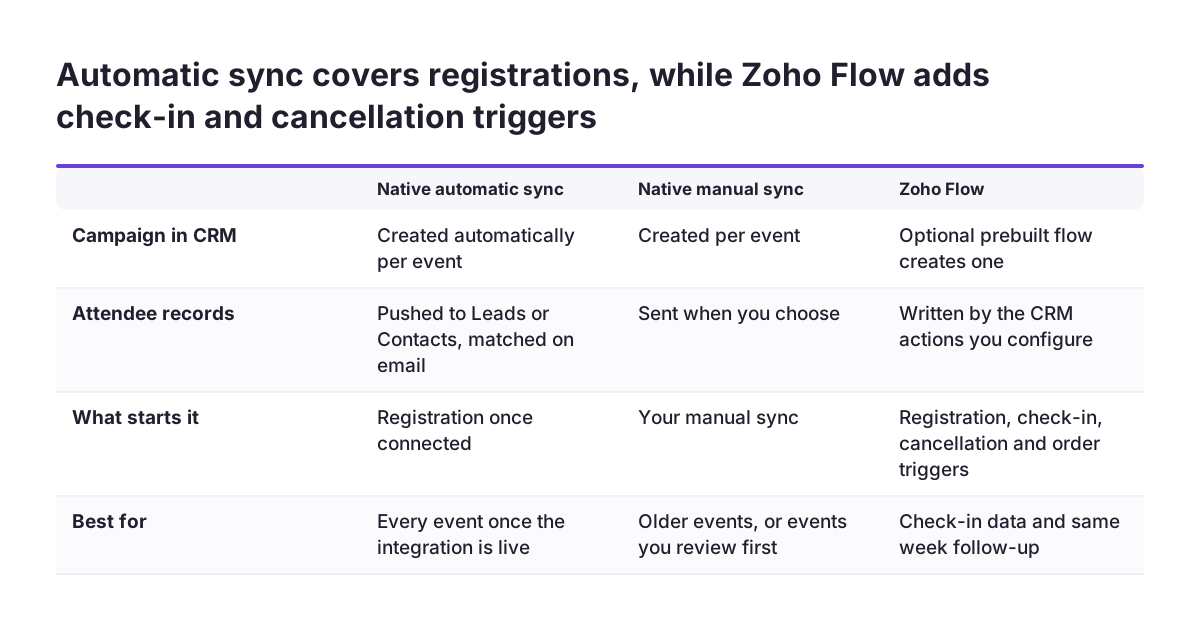
The three options below do different jobs, and most companies use the native integration with Zoho Flow on top. The table compares them on what each one does with Zoho Backstage data in Zoho CRM. It is based on Zoho's help and Flow pages.
| Option | Campaign in CRM | Attendee records | Check-in and cancellations | Best for |
|---|---|---|---|---|
| Native integration, automatic sync | Created automatically per event | Pushed to Leads or Contacts; same email is not duplicated | Not covered | Every external event once the integration is live |
| Native integration, manual sync | Created per event | Sent when you choose | Not covered | Events created before the integration, or events you review first |
| Zoho Flow | Optional prebuilt flow; avoid running it next to the native one | "Create or update lead" matches on email | Triggers for check-in, cancelled registration and cancelled order | Attendance data and starting or stopping a cadence |
The decision usually comes down to one question. Does your follow-up depend on who actually attended? If it does, you need Flow, because the native connector stops at registration.
Pausing, deactivating or deleting the Backstage integration and what each does to your data
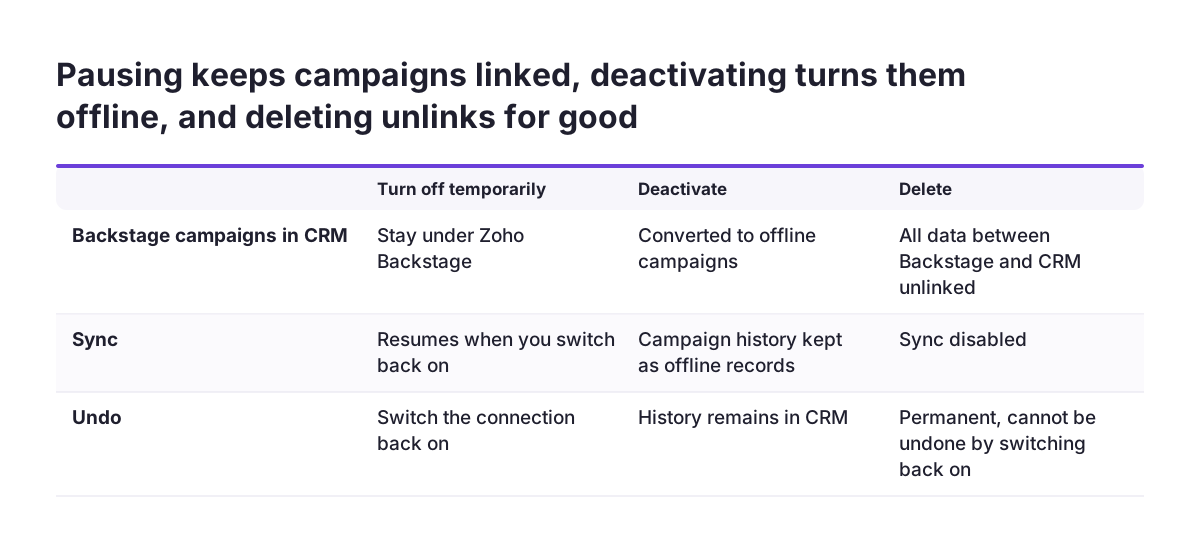
Turning off the Backstage integration has three levels, and each leaves your CRM data in a different state. Choose deliberately, because the last one cannot be undone by switching back on.
Turning it off temporarily
Your campaigns stay in CRM under Zoho Backstage. Data syncs again only when you re-enable the connection. Any campaign you create in CRM in the meantime is not synced to Backstage.
Deactivating it
Zoho states that all Backstage campaigns are converted to offline campaigns. Your history remains, but the campaigns no longer behave as event-linked campaigns.
Deleting it
Deleting the integration unlinks all data between Backstage and your CRM account. The sync is disabled and you cannot sync any live data.
Deletion is sometimes the right call, for example when a forgotten trial account holds the link. Do it between events, not during one. Before you delete, export the campaign list and the attendee views your team uses. You then keep a record of who came to what.
If you only need to keep one event out of CRM, none of these steps is necessary. Switch off automatic attendee sync for that event alone and leave the integration running.
What this means for companies running events across the EU
For a company in the EU, the Backstage and CRM setup raises three practical questions: licence, structure and personal data. None of them is specific to one member state, and all of them are worth settling before the first event.
The licence question comes first. The integration needs Zoho CRM Enterprise. A team on a lower edition must either upgrade or keep registrations in Backstage. Some consultancies suggest exporting attendee lists by hand instead. That brings back the duplicate problem the email check solves.
The structure question matters for groups with several country entities. A CRM account can be linked to Backstage only once. Decide which CRM organisation owns events before anyone connects a trial. If each country runs its own CRM, agree which one receives event data.
The personal data question sits under GDPR. Every field you map copies personal data into a second system, where sales teams read it and keep it. Map only what sales will use, and agree with whoever owns data protection in your company which registration answers belong in CRM. The field rules in this guide already push you toward a short mapping, and that also helps here. Our Zoho CRM implementation page describes how a CRM setup for European businesses is planned.
Next steps: set up and test before your next event
The order below gets your next Backstage event into Zoho CRM cleanly, with follow-up running the same week:
- Confirm you have Zoho CRM Enterprise and a Backstage plan that includes the CRM integration.
- Check that the person connecting has an admin profile and create and edit rights in Leads and Contacts.
- Clean emails on active contacts and merge records that share an address.
- Connect the integration, then create a test event and confirm it appears in the Campaigns module.
- Build the registration form with mapped fields under ticket or buyer information, using supported field types only.
- Register once with a known contact's email and once with a new address. Wait about two minutes and check both results.
- Add Zoho Flow for "Attendee checked-in" and "Registration cancelled by attendee", linked to your cadence.
- Delete the test event's records, then publish the real event.
If you want this set up alongside the rest of your event process, our Zoho Backstage setup page explains how we approach it. You can also run the steps above yourself on a test event first.