Zoho CRM mass email limits by edition, in short
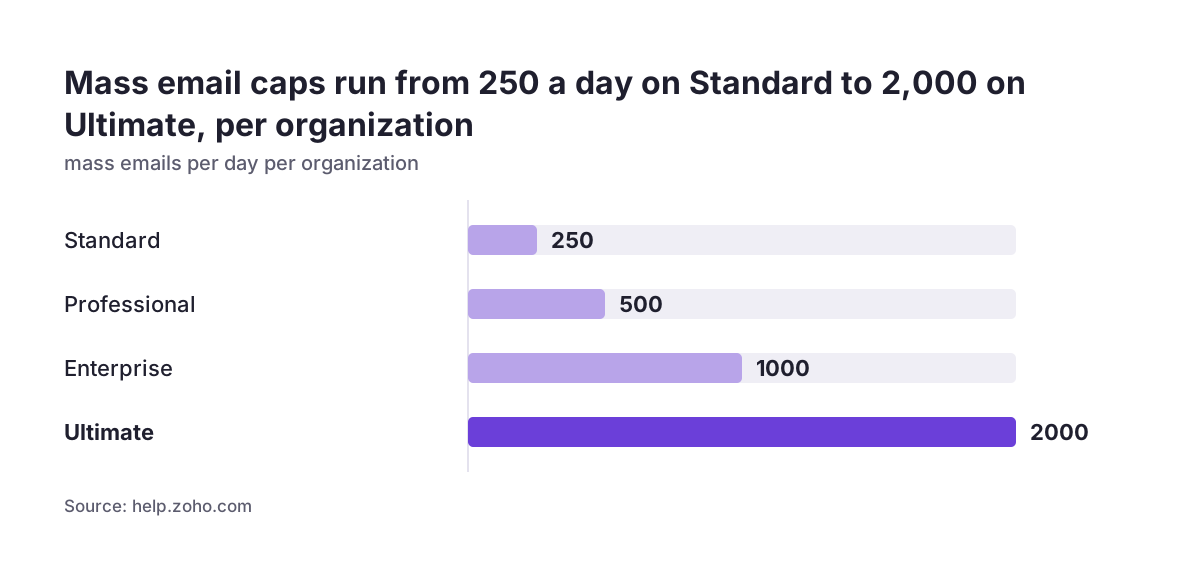
Mass emails from Zoho CRM and their limits come down to one daily cap per organization, set by your edition. Zoho's FAQ gives 250 a day in Standard, 500 in Professional, 1,000 in Enterprise and 2,000 in Ultimate. Trials allow 20 a day. The Free edition has no mass email at all.
A mass email is one message sent to a group of prospects or customers at the same time. Typical examples are an announcement, a newsletter, a transactional email or a follow-up. The cap applies to the whole organization, so every user's sends draw on the same daily count.
If your regular sends fit under the cap, mass email inside CRM is enough. If they do not, Zoho's own help page is explicit: mass emails "do not replace the more specialized features that dedicated email campaign software tools provide". At that point, look at Zoho Campaigns instead of splitting lists across several days.
If you are still on the Free edition, you need a paid edition before you can send a mass email at all. If you are still choosing a product, our comparison of Zoho Bigin and Zoho CRM helps you pick the tool that fits your stage.
Daily mass email limits and scheduling by Zoho CRM edition
Zoho CRM sets mass email limits per edition, per organization, per day. The figures below come from Zoho's FAQs on mass emails. Scheduling is the second dimension, because a scheduled send is how you spread a large list across days without someone pressing the button each morning.
| Edition | Mass emails per day, per organization | Scheduled mass email |
|---|---|---|
| Free | Not available | Not available |
| Trial (Standard, Professional, Enterprise, Ultimate) | 20 | Not possible in the Standard trial |
| Standard | 250 | Not included |
| Professional | 500 | Up to 10 per module at a time |
| Enterprise | 1,000 | Up to 10 per module at a time |
| Ultimate | 2,000 | Up to 10 per module at a time |
You can raise the limit to 2,250 emails per day per organization. Zoho grants the increase on request, at an additional cost. Even then, the ceiling stays close to the Ultimate figure. Raising the cap therefore buys headroom, not a different kind of sending.
Edition prices and add-ons are covered in our Zoho CRM pricing guide. Read the two together. An edition upgrade chosen only for the email cap is an expensive way to send a newsletter.
Mass emails skipped at the daily limit are not resent the next day
Zoho CRM does not queue emails that exceed the daily limit. The troubleshooting page says: "Emails will not be sent automatically on the next day." Records beyond the cap are skipped, and someone has to send to them again.
The question comes up often. One community user wrote that they had "exceeded my email limit for the day" and asked how to tell how many emails had gone out and "who it left off with". Zoho's answer sits in the list view. Filter the records with the smart filter Email status > Not sent > Yesterday to find the records that were skipped because of limits. A smart filter is one of the ready-made filters in a Zoho CRM list view.
Run that filter the day after a large send, not a week later. "Yesterday" is a relative period, so the window moves. If you leave it, you have to reconstruct the gap from the Sent Email Statistics instead. Save the filtered result as a custom view, then send the same template to that view.
The skipped records also tell you something about planning. If you find skipped records after most large sends, the cap is not an occasional nuisance. It is a sign that your volume belongs in a dedicated campaign tool.
Setting up a Zoho CRM mass email: templates, recipients and opt-out fields
A Zoho CRM mass email starts with a template. Zoho's help page calls it "imperative to create email templates before using the mass email feature". Write the template first, then choose recipients.
Mass email works in the Leads, Contacts, Deals and custom modules. Accounts are not in that list. That gap explains a recurring community question: how to email only people linked to accounts, or how to select contacts by account-level fields such as Industry or Territory. Plan your segmentation fields on the module you will actually send from.
You can choose recipients in three ways:
- from a module list view
- from a custom view
- by specific criteria
To see how many records are eligible, open the list view and apply three smart filters: email is not empty, email is not blocked and email opt out is not selected. The opt-out field is the checkbox that removes a record from mass sends. Add an unsubscribe link to every template, using either the system-defined default link or a custom one.
Mass emails go out only from the sender's primary email address, even when the user has several From addresses configured. Decide who sends before you build the template, because the sender also owns the send afterwards.
Scheduling, follow-up emails and trigger actions in a mass email
Mass email in Zoho CRM comes with its own small automation layer, and each part has a fixed limit. The help page allows up to 10 mass emails scheduled at a given time, and up to 10 mass email processes per module for any given period.
Each mass email can carry up to three follow-up emails. A follow-up aimed at customers who opened the first email cannot go out on a fixed date. You set it to send after a number of days instead.
Trigger actions react to three email events: opened, clicked or bounced. For each trigger action you can add up to three field updates, three follow-up tasks and three scheduled calls. Bounces are the exception, because a bounce allows only a field update.
Three rules catch teams out after the send is set up:
- Editing a scheduled email within 15 minutes of its delivery time moves it to the stopped list.
- Only the user who created a mass email can edit, stop or start it; others can only view or delete it.
- Deleting a mass email also deletes its follow-up emails.
The ownership rule matters most when someone leaves or goes on holiday. A colleague cannot restart their stopped send, only delete it and rebuild it.
Worked example: sending to 1,800 contacts on Zoho CRM Professional
The worked example uses illustrative numbers. Suppose your company runs Zoho CRM Professional, with a cap of 500 mass emails a day. A welcome autoresponder for new leads sends around 40 emails a day. Marketing wants a product update to reach 1,800 contacts.
- Create the template "Product update" before anything else.
- In Contacts, apply the three eligibility smart filters and save the result as a custom view.
- Check the count. Assume 1,800 contacts remain eligible.
- Send the mass email to that view. The autoresponder has already used about 40 sends, so roughly 460 go out and the rest are skipped.
- Next day, filter Email status > Not sent > Yesterday, save the view and send again.
Repeat the last step and the update reaches everyone after four sends. Each send has its own statistics, so your open and click figures arrive in four pieces. Meanwhile, every other user's scheduled send competes for the same 500.
Ultimate, at 2,000 a day, would cover this send in one go. The raised limit of 2,250 would too. Neither changes the pattern once your list grows or you send weekly. When the arithmetic needs a calendar, the list belongs in a campaign tool.
When Zoho CRM mass emails do not arrive: a troubleshooting checklist
Missing mass emails usually have one of a handful of causes, and Zoho's troubleshooting and FAQ pages cover each. Work through them in order:
- Eligibility. Records with an empty, blocked or opted-out email address never receive a mass email.
- Daily limit. Use the Not sent > Yesterday filter to find records skipped at the cap.
- Bounces. Undelivered emails count as Bounced in the statistics. A bounce warning means the recipient's server rejected the email, for example because of an invalid address, a full mailbox or a blocked domain.
- Blocked addresses. Blocked emails are not listed as bounced, so they do not appear in reports at all.
- Spam folders. Zoho advises setting up email authentication and email relay, then contacting support@zohocrm.com to whitelist the IP addresses Zoho CRM uses.
- Figures that do not match. If Sent Email Statistics differ from your smart filter results, check the audit log for records deleted or converted after the send.
Email relay is the setup that connects your own SMTP server to Zoho CRM, so mass emails leave through your servers. Without a relay, they leave through Zoho's servers. The statistics show sent, bounced, delivered, opened, unopened, clicked and not clicked, which is enough to see where a send failed.
When to move bulk sending to Zoho Campaigns instead of working around the cap
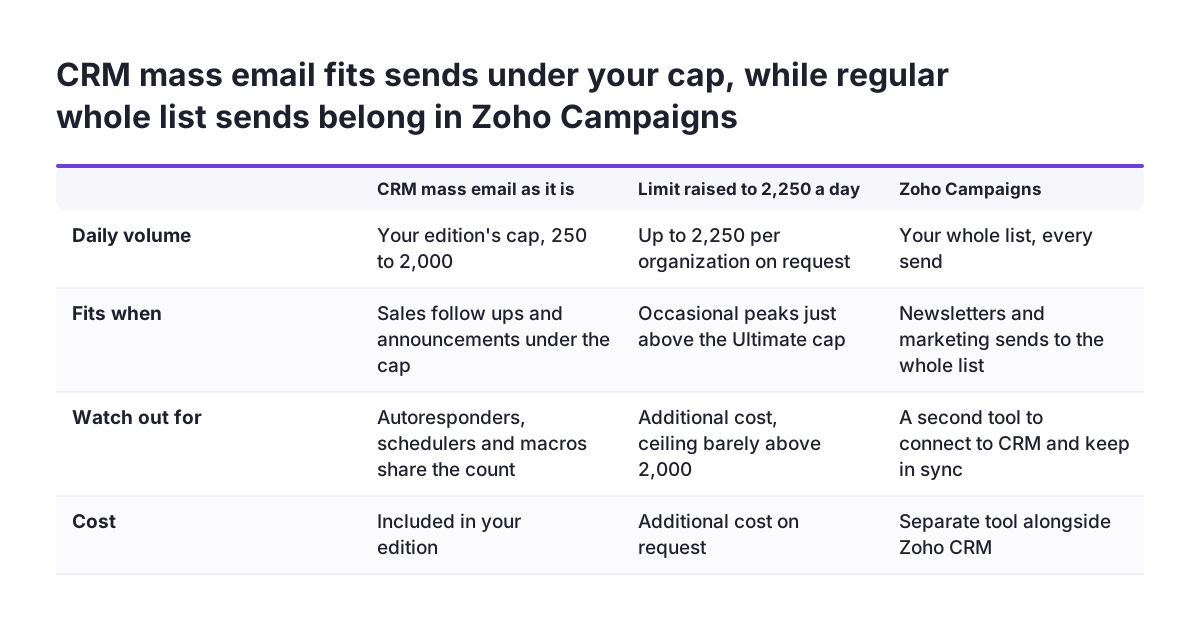
Move bulk sending to Zoho Campaigns when your normal volume, not an occasional peak, exceeds your edition's cap. Zoho itself positions CRM mass email as no replacement for dedicated email campaign software. The decision has three realistic options:
| Option | Fits when | Watch out for |
|---|---|---|
| CRM mass email as it is | Sales follow-ups and announcements that stay under your daily cap | Autoresponders, schedulers and macros sharing the same count |
| Limit raised to 2,250 a day | Occasional peaks just above the Ultimate cap | Additional cost, and a ceiling barely above 2,000 |
| Zoho Campaigns | Newsletters and marketing sends to your whole list, every time | A second tool to connect to CRM and keep in sync |
Volume also changes how mailbox providers treat you. Zoho's help page notes that Google, Yahoo and Outlook classify an organization sending more than 5,000 emails per day as a bulk sender. Providers also assign each incoming email a credibility score, a reputation measure that decides whether your mail is trusted. Splitting a large list across CRM days does nothing for that reputation.
For the connection itself, read our post Zoho Campaigns with CRM: marketing that updates the pipeline, set up to last. If your list comes from an online shop, our page on Zoho CRM for e-commerce shows how PrestaShop and Shopify customers reach CRM.
What Zoho CRM mass email limits mean for a company in the EU
For an EU company, the practical issues are time zones, languages, consent records and mail servers. None of them changes the cap itself, but each affects how you plan around it.
Time zones come first. Zoho resets the limit based on the time zone in your company details, while the FAQ describes a GMT day. A company with teams in several member states shares one organization-wide count. Agree which team sends large mailings on which day, rather than letting each country discover the cap separately.
Language matters for reporting. The Sent Email Stats appear in the language set in the sender's personal settings. If a German-speaking manager reviews sends made by a Romanian-speaking colleague, the labels follow the sender, not the reader.
Consent sits outside the mass email screen. The opt-out field and the unsubscribe link record a recipient's choice inside CRM. Whether you may send someone a marketing email at all is a question for the ePrivacy rules in each member state. Those rules usually require prior consent, with a narrow exception for your own customers. We cover how to record that in Zoho CRM in GDPR inside your CRM: how to set it up in Zoho CRM, step by step.
Finally, if your company policy requires outgoing mail to pass through your own servers, use email relay. Zoho supports sending mass emails through your SMTP server once it is connected to Zoho CRM.
Next steps: check your edition, count your sends, then decide
You can settle the mass email question in an afternoon with four checks:
- Confirm your edition and its daily cap against the table in this guide.
- List every autoresponder, active email scheduler and email macro, because they share the same count.
- Run the three eligibility smart filters on the module you send from, and note the real size of your list.
- Compare that number with your cap and how often you send, then choose a row in the decision table.
If CRM mass email is enough, tidy your templates, opt-out fields and unsubscribe links, and set a habit of running the Not sent > Yesterday filter after large sends. If your list regularly outgrows the cap, plan the move to Zoho Campaigns rather than buying an edition upgrade for email alone.
When the answer touches your wider CRM setup, such as editions, modules or data quality, our Zoho CRM implementation page explains how we work on Zoho CRM projects for European companies.
Sources
- Zoho CRM Help: FAQs on Mass Emails
- Zoho CRM Help: Troubleshooting Mass Emails
- Zoho CRM Help: Sending Mass Emails
- Zoho CRM Help: Email Limits and Availability
- Zoho Community: Mass Emails
- Zoho Community: How to Send Mass Email to Accounts Only
- Zoho Community: Mass Email to Contacts based on Account level field criteria