Cadences in Zoho CRM run multi-step follow-ups until a record is unenrolled
Cadences in Zoho CRM give you follow-ups that run themselves. You build a sequence of emails, calls and tasks once. Zoho CRM then runs it for every record in the audience you chose, until each record completes the sequence or is unenrolled. Your exit rules decide how quickly a record leaves when the prospect replies or the deal moves.
A cadence is a Zoho CRM feature for automated sequential follow-ups. Zoho made Cadences available for all Zoho CRM users in all data centres, in a change dated 1 April 2024. Before that, the feature was early access, available only on request, and it was known as Cadences Studio. If you read older material that mentions Cadences Studio, it refers to the same feature.
This guide follows the order in which you should build a cadence. It starts with the building blocks and a worked example. It then covers the exit rules and the ownership of calls and tasks. A checklist table comes next, followed by how to read the results and what European companies need to plan for.
Cadence building blocks: audience, follow-up steps and unenrolment
Every Zoho CRM cadence combines three parts: an audience, a chain of follow-up steps, and a way for records to leave. Getting each part right is what keeps a cadence useful rather than noisy.
The audience
When you create a cadence, the "Who is this for?" section lets you select a Custom View, which is a saved, filtered list of records in a module. A community user has noted that you pick this view during creation and has asked Zoho for the ability to change it afterwards. Treat the view as fixed, and design its filter carefully before you save.
The follow-up steps
The Zoho CRM API documents four types of follow-up action in a cadence: tasks, email notifications, scheduled calls and WhatsApp messages. Each follow-up can have a parent follow-up, which is the preceding action that triggers it. Only the first follow-up has no parent. A cadence is therefore a chain, and each step depends on the one before it.
Leaving the cadence
A record leaves a cadence when it completes the sequence or when it is unenrolled. Cadences also have creation and activation limits that depend on your plan, according to a guide from the translation company AbroadLink. Check those limits against your edition on the Zoho CRM editions and pricing guide before you plan many parallel cadences.
Worked example: a four-step Zoho CRM cadence for new web leads
A four-step cadence for new web leads shows how the parts fit together. Suppose your website form creates leads in the Leads module, and nobody calls them for days. You want every new web lead to get a consistent first contact.
Start with a Custom View called "Web leads - not contacted". Filter it on the lead source for your website and on a lead status that means nobody has spoken to the lead yet. Select that view under "Who is this for?". Then add the steps in order:
- Email, first contact. Use a template with merge fields, the placeholders that read values such as name and company from the record. Set a delay of at least 5 minutes rather than sending immediately, as the AbroadLink guide recommends.
- Scheduled call, two working days later. The call goes to a named person, so the lead hears a voice and not only emails.
- Task, after the call. For example, "Check company website and note the likely need", so the second email can be specific.
- Email, one week after the first. A short follow-up that refers back to the first message.
Timing around weekends needs a test. A community user believed that cadence emails are only sent during the organisation's working hours set in CRM. The same user asked what happens when a step falls on a Sunday. The pack gives no official answer, so enrol a test lead and watch when each step actually fires.
Exit rules: when a record should leave a Zoho CRM cadence
Exit rules are the conditions under which a record is unenrolled from a cadence, and they matter more than the email copy. A prospect who has already replied and then receives "just checking in" judges your whole company by it. Decide the exit events before you write a single template.
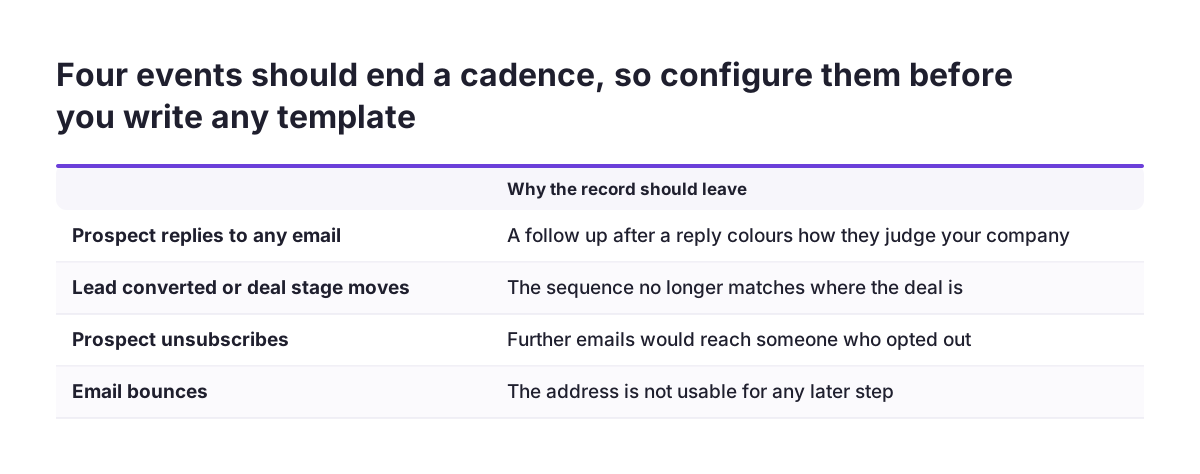
Four events usually justify ending a sales follow-up sequence:
- The prospect replies to any email in the sequence.
- The lead is converted, or the related deal moves to a new stage.
- The prospect unsubscribes.
- An email bounces, so the address is not usable.
Configure each event you choose in the cadence's unenrolment settings, then prove it with a test record. At Svennis we test every cadence with an internal lead: we reply to its first email, move its status and confirm no later step fires. When a client skips this test, the failure we see most often is a prospect who replied still receiving the next step.
Unenrolment is also hard to undo. A community user has stated that a record cannot be re-enrolled in the same cadence once it has completed or been unenrolled. The same user has asked Zoho to add that ability. Plan a separate cadence for a second attempt later, rather than relying on re-enrolment.
If your lead data came across from another system, clean it before you build the cadence. A wrong status can unenrol a record too early. The guide to migrating to Zoho CRM without losing your sales history describes how to clean it.
Ownership of calls and tasks inside a Zoho CRM cadence
Calls and tasks in a cadence only work when a named person owns them. An automated email sends itself, but a scheduled call needs someone to dial. Without a clear owner, the call steps turn into a list of overdue activities that nobody feels responsible for.
Decide the owner of each call and task step before you activate the cadence. In most sales teams the lead owner is the right default, because that person also reads the replies. If leads are assigned by round robin, check that the assignment happens before the record enters the Custom View. Otherwise the first call may land with the wrong person.
Keep control of the cadences themselves with a small group. The Zoho CRM API refers to a manage permission for cadences. A user without it who calls the Cadences Analytics API receives a NO_PERMISSION error with HTTP status 403. The message tells the user to contact the administrator to obtain manage permission for cadences. That permission is the lever that stops every salesperson from building a private sequence.
Check ownership from the results as well. The analytics for scheduled calls report missed and overdue counts, and the task analytics report open and failed counts. A rising overdue count tells you the owner cannot keep up with the volume of leads in the cadence.
Zoho CRM cadence setup checklist in one table
The table below collects the decisions to make before you activate a Zoho CRM cadence. Work through it top to bottom, because each row depends on the ones above it.
| Decision | What to set | Why it matters |
|---|---|---|
| Audience | A Custom View with a precise filter, chosen under "Who is this for?" | A community user reports it is chosen at creation, so a wrong filter means rebuilding |
| Step types | Emails, scheduled calls, tasks and, where used, WhatsApp messages | These are the four follow-up types the API documents |
| First email timing | A delay of at least 5 minutes, not immediate send | Recommended in the AbroadLink guide to Zoho CRM cadences |
| Call and task owner | A named owner per step, usually the lead owner | Unowned calls show up as missed and overdue counts |
| Exit events | Reply, conversion or stage change, unsubscribe, bounce | A record cannot rejoin the same cadence once unenrolled, per a community user |
| Plan limits | Number of cadences you need active at once | Creation and activation limits depend on the plan |
| Test record | An internal lead you enrol, reply from and move | Proves the exit events before real prospects meet them |
Leave the cadence switched off until every row has an answer. A cadence with an unclear audience or missing exit events does more harm than no cadence.
Reading Zoho CRM cadence results: replies, bounces and overdue calls
Zoho CRM reports what each cadence step did, and the reply count is the number to watch first. The Cadences Analytics API documentation lists the measures for each follow-up type.
- Emails: count, sent, unsent, opened, clicked, replied, bounced and unsubscribed.
- Scheduled calls: count, scheduled, completed, cancelled, missed, overdue, created and failed.
- Tasks: count, open, completed and failed.
- WhatsApp messages: count, delivered and failed.
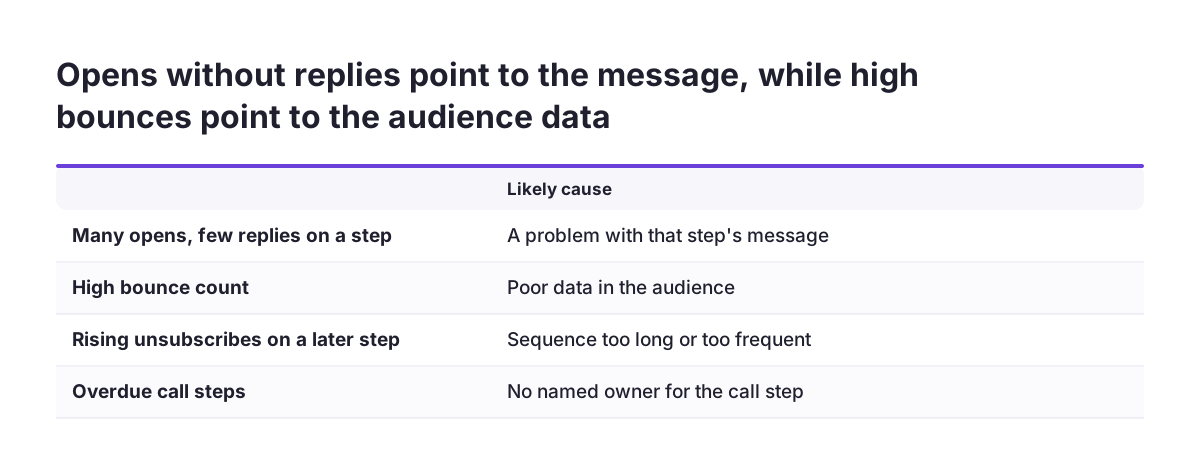
Read replies against sent emails for each step. A step with many opens and few replies has a message problem, while high bounces point to poor data in the audience. A rising unsubscribe count on a later step suggests the sequence is too long or too frequent.
If you want these figures in a report outside Zoho CRM, your developer can call the endpoint GET /settings/automation/cadences/{cadence_id}/actions/analytics. It requires the OAuth scope ZohoCRM.settings.cadences.ALL. The optional parameters follow_ups_executed_from and follow_ups_executed_till take ISO 8601 datetimes and must be sent together. The filters parameter narrows the result to one action type, and its values must be encoded. Each follow-up in the response carries its parent_follow_up, which is null for the first step, so you can rebuild the order of the sequence.
Cadences for European companies: languages, data centres and GDPR
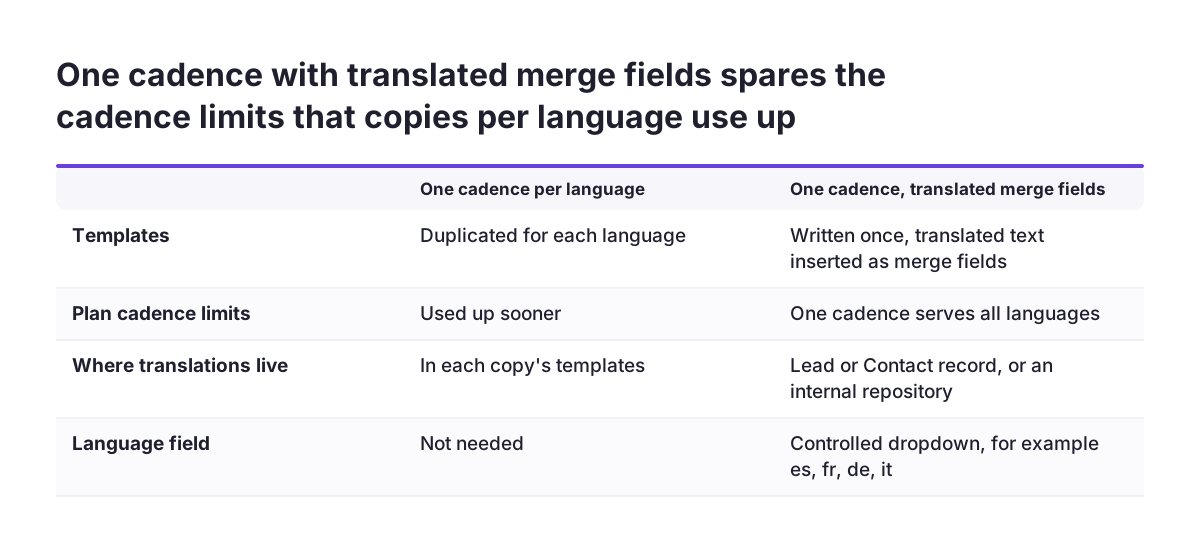
European companies usually sell in several languages, and Zoho CRM Cadences do not handle that natively. The AbroadLink guide to multilingual cadences in Zoho CRM states there is no native way to run the same cadence with multilingual templates without duplicating them. Duplicating a cadence per language also uses up your plan's cadence limits sooner.
The same guide describes a way around duplication. You store text that is already translated in the Lead or Contact record, or in an internal repository, and insert it into the template like any other merge field. It recommends a preferred-language field set up as a controlled dropdown, for example es, fr, de and it, to avoid inconsistent variants. It also suggests a custom module called "Message library" with one record per message and language, holding subject, body, status and version. With a Deluge function, only two fields, Subject and Body, are needed, filled by automation for the step about to run.
Data location is not a barrier. Cadences is available in all Zoho CRM data centres, so a company on the EU data centre has the same feature as anyone else.
GDPR applies to the personal data used in every email and call step. Agree the legal basis for this outreach with whoever handles data protection in your company before activation. Then watch the unsubscribed count in the cadence analytics, and make sure an unsubscribe also ends the cadence for that record.
Next steps for your first Zoho CRM cadence
Your first Zoho CRM cadence should be small, tested and measured before you build a second. A single audience, four steps and clear exit events teach you more than five parallel sequences.
- Pick one audience with a real follow-up gap, such as new web leads nobody has called.
- Build and save the Custom View, and check that it contains only the records you expect.
- Write the exit events down and configure them before the templates.
- Name the owner of every call and task step.
- Enrol an internal test lead, reply from it, move its status, and confirm the cadence stops.
- Activate, then review replied, bounced, unsubscribed and overdue counts after the first two weeks.
If your team only needs a simple pipeline and a few reminders, check first whether the lighter tool is enough, using the comparison of Zoho Bigin and Zoho CRM. If you later want help drafting or qualifying the leads a cadence produces, that is a separate subject, covered under AI for lead management.
When cadences are one part of a wider Zoho CRM setup, with pipelines, permissions and integrations to design together, the page on Zoho CRM implementation in Europe explains how Svennis approaches that work.