
What a migration to Zoho CRM really involves
If you plan to migrate to Zoho CRM from an established enterprise CRM, the work falls into three parts: moving the data, rebuilding the logic, and switching your team over on a fixed date. Zoho CRM offers dedicated migration setups for several major CRM vendors, so the first part is more structured than a generic spreadsheet import. The second and third parts are where projects usually slip.
One practitioner who reports more than 150 implementation projects over seven years calls data migration the most significant challenge in this move. The reason is structural: the two platforms have different system architectures, and that affects how the data is organised. Records land in modules differently, relationships behave differently, and some field types do not come across at all.
This guide covers what transfers cleanly, what you have to rebuild, how to prepare the export, and how to plan the cutover so deal history, activity trails and original dates survive. If you are still deciding whether to switch, compare the platforms against your own processes first. Everything below assumes the decision is made and you now need a plan that protects your pipeline.
What moves cleanly with the Zoho migration wizard
Zoho's own documentation for its dedicated migration setup lists the modules it supports. They include Users, Leads, Accounts, Contacts, Deals, Campaigns, Notes, Activities (tasks, events and calls), Attachments, Competitor and Cases, with Products, Quotes and Invoices among the others. For most sales teams, that covers the core of the pipeline.
The wizard reads your uploaded files and maps the data to the matching modules and fields automatically. Custom objects are handled too. Data from any custom module you built in the source system is stored in export files with a "_c" suffix, such as registrations_c.csv, and Zoho CRM recognises files named this way as custom modules and creates them during the migration.
Decisions to make before the data lands
Some supported modules raise a question about where the work should live after the move. Campaign records can come across into CRM, but you should decide early whether email sending will run in Zoho Campaigns. The same applies to Invoices, which you may prefer to handle in an accounting system such as Zoho Books.
Cases raise the same question. If your support team would work better in a dedicated helpdesk, read our Zoho Desk helpdesk comparison before you map them. Settling these points first saves you from migrating records twice.
What has to be rebuilt rather than migrated
The supported module list describes data. It does not include workflow rules, approval logic, validation rules or custom code. Treat every automation in your current CRM as something to redesign in Zoho, not something to export. That is the largest block of effort most teams underestimate.
Calculated and numbered fields
Zoho's documentation is explicit: Autonumber and Formula fields are not available during migration, so you cannot create them in that step. If your current objects rely on calculated values or running reference numbers, export the underlying data, then recreate the formulas and numbering in Zoho CRM after the import. Check every report and integration that reads those fields.
Automation and integrations
In Zoho, custom logic is written in Deluge, the platform's scripting language. The practitioner quoted above describes it as relatively easy to learn, even for non-developers. For connecting Zoho to other applications, the same source says Zoho Flow works well for out-of-the-box needs, and that Canvas can be used to improve the CRM user interface.
User experience
Expect some adjustment for your team. The same author states that Zoho CRM's interface and user experience are not as polished as those of the enterprise platform many teams in this situation are leaving, and that new Zoho features can be slow to arrive and sometimes never materialise. Plan your rebuild around what the platform does today, not around announced features, and budget time for user training.
Field and lookup limits that shape your data model
Objects in an older CRM that have grown over years often carry far more fields than a Zoho module can hold. Zoho's help pages state that the number of fields you can create depends on your Zoho CRM edition. The practitioner source gives specific figures, which you should verify against your own edition before you finalise the mapping.
| Limit (as reported per module) | Figure |
|---|---|
| Total fields | 300 |
| Lookup fields | 5 |
| Number fields | 40 |
| Decimal, percentage and currency fields | 60 |
| Date fields | 50 |
The lookup limit deserves the most attention. An object linked to many others may need its relationships restructured, for example by moving some related data into a custom module. The same source also notes limits on workflow rules per module and on API calls, which matter if you run heavy integrations.
There is some flexibility. According to that author, Zoho has extended certain limits when needed, either by selling extra capacity or by adjusting settings for the instance. Do not build your plan on that assumption, though. Count the fields and lookups on each object you intend to move, flag every object close to a limit, and decide what to merge, archive or restructure before you export.
Preparing the export from your current CRM
The dedicated migration in Zoho CRM expects a ZIP file containing your data as CSV files and a folder named Attachments. Additional folders can make the upload fail. A full backup from the source system, however, also includes folders named Attachments, Documents and Content Version, and Zoho states these will not cause the migration to fail. Remove anything else before you upload.
Size and file rules
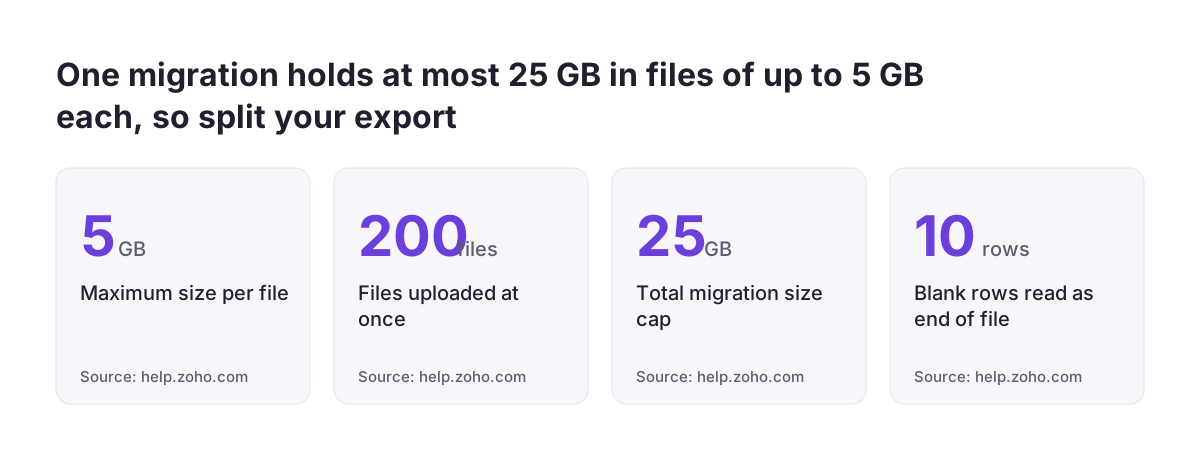
- Each file can be up to 5 GB.
- You can import up to 200 files at once.
- The total size of a migration is capped at 25 GB.
- More than 10 blank rows in a file may be read as the end of the file, and anything after them is ignored.
- Two or more files can be mapped to one module only if their column headers are identical.
Clean the data before, not after
Tags need a check. If a record has more than 10 tags, only the first ten are migrated, and each tag can have at most 25 characters. If your team uses tags for segmentation, consolidate them in the source system first so nothing is silently cut.
Blank rows are easy to miss in large exports. A stray gap in the middle of a contacts file could drop every record below it. Scan each file for gaps and confirm the row count against the source system before upload. This is also the moment to archive stale leads and duplicates, because cleaning data in the source is far cheaper than cleaning it after cutover.
Running the import without losing records
You need a Zoho CRM account with Administrator privileges to start the migration, found under Setup, then Data Administration, then Import. More generally, only users whose profile includes the Data Migration permission can use the feature. Settle who holds these rights before migration day.
Mandatory fields are the main cause of skipped records
If a field is mandatory in Zoho CRM and the source record has no value for it, the record is not imported. Zoho gives you two tools here. You can specify a replacement value for empty fields, and you can use the Assign Default Values tab to give every imported record a default for chosen fields. Decide these values deliberately, for example a placeholder owner or source, so the gaps are easy to find and fix later.
The 5,000 record pause
Zoho pauses the migration if more than 5,000 records in a module are skipped, and asks whether you want to discard it or continue. Treat that pause as a signal that the mapping is wrong, not as a nuisance to click through. Discarding and correcting the source file is usually faster than repairing thousands of partial records.
If a run goes badly, you can undo the data migration from Import History. That makes a test migration into a sandbox or trial account good practice: run it, inspect the results, undo it, adjust the files, and repeat until the skipped count is close to zero.
Keeping pipeline history and original dates intact
For a sales team, the value of old data lies in its timeline: when a deal was created, when a call happened, how long an opportunity sat in each stage. A migration that stamps every record with the import date destroys that. The way you load data decides whether the timeline survives.
Load the full history through the Data Migration feature rather than through the ordinary import on each module. Zoho describes Data Migration as a separate function for bringing a whole database over from another vendor. It also offers an upsert operation for restoring data missed during the migration. Unlike the module-level import, data restored this way keeps the same time recorded in your former CRM.
Choose the upsert resolution carefully
- Untouched changes only records that have not been edited since the migration, so work your team has done in Zoho is protected.
- All records overwrites every matching record with the file's data, whether or not it was modified, and this cannot be undone.
Rollback has a limit here too. Only new data inserted through an upsert can be rolled back. Existing data overwritten by the upsert file stays overwritten. In practice, default to Untouched once users are working in Zoho, and keep a copy of every upsert file you run. If sales reps have already updated deals after go-live, an "All records" upsert would quietly erase their changes.
Native wizard or third-party integration tool
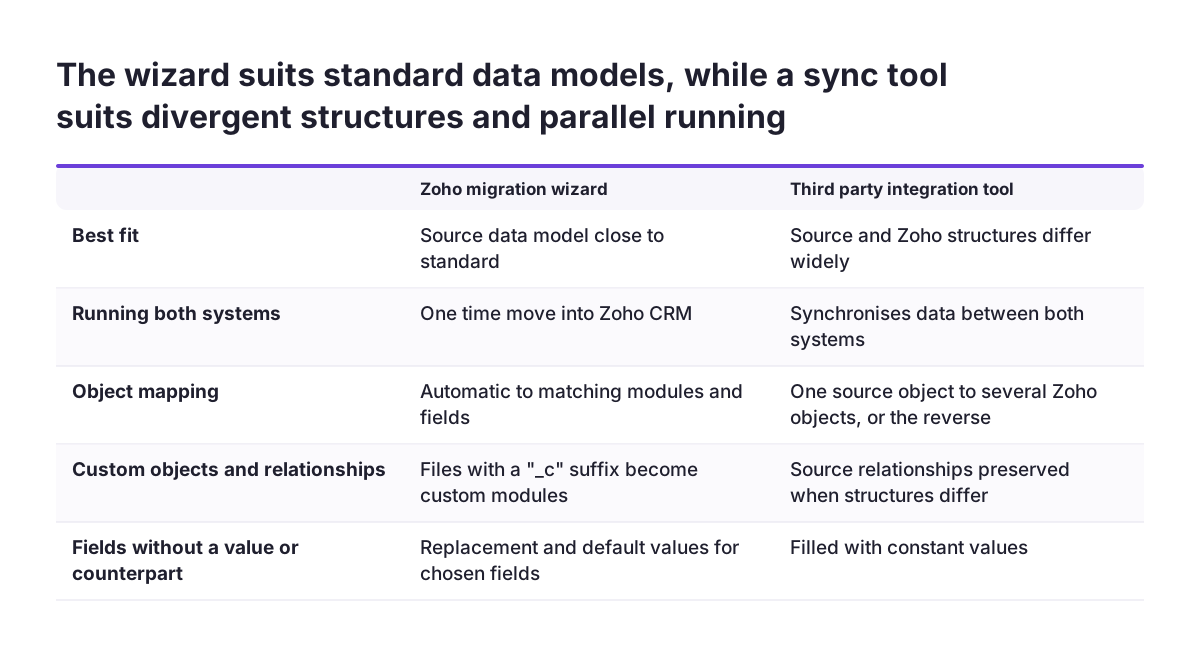
Zoho's migration wizard is enough for many organisations, especially when the source data model is close to standard. Third-party integration tools are an alternative when the structures differ widely or when you want both systems running side by side for a while.
One such tool advertises predefined integrations to import data from the source CRM into Zoho CRM and to synchronise data between the two. It lets you map one source object to several Zoho CRM objects or the reverse, preserve source relationships when the structures differ, and fill fields that have no counterpart with constant values. Its templates can be edited, and it offers a free plan with 10,000 loaded records per month.
| Need | Zoho migration wizard | Third-party integration tool |
|---|---|---|
| One-time move of standard modules | Built for this, with automatic mapping | Possible, adds setup work |
| Restructuring objects into different modules | Limited to file-to-module mapping | One-to-many and many-to-one mapping |
| Running both CRMs in parallel | Not designed for ongoing sync | Synchronisation available |
| Keeping original timestamps on restored data | Supported through upsert | Check before you commit |
Whichever route you choose, check how it handles personal data under the GDPR. A migration copies customer records into new systems, so document where the data is processed and who can access the files during the project.
Budgeting time and money realistically
Lower licence costs are often what starts the conversation. The practitioner source reports that Zoho's licence costs were lower than those of the enterprise CRM it replaced in these projects, but warns against looking at them in isolation and advises a proper implementation budget. The same author reports seeing migration projects to Zoho ranging from USD 60,000 to USD 1.4 million, which shows how far scope, data volume and customisation can move the figure.
Planning is where that range gets narrowed. The same author typically spends 25 to 75 hours on the planning phase with clients. That time goes on mapping objects to modules, auditing fields against Zoho's limits, listing every automation to rebuild and agreeing the cutover sequence.
We have delivered over 200 implementations, and the projects that hold their budget are the ones where the field mapping and rebuild list are signed off before anyone exports a file. Changing the data model halfway through means re-running imports and re-testing automations.
Leave room in the budget for reporting. Reports and dashboards are not in the list of supported migration modules, so they need rebuilding. If your current reports go beyond basic pipeline views, consider whether Zoho Analytics should carry that load rather than recreating every report inside CRM.
Practical next steps
A migration that protects your sales history is mostly careful preparation. The following sequence keeps the risky steps under control.
- Inventory your current CRM. List every object, its field count, its lookups and every automation, report and integration that touches it.
- Check against Zoho limits. Confirm field and lookup limits for your Zoho CRM edition and decide what to restructure, merge or archive.
- Decide where each process lives. Settle whether campaigns, invoices and support cases stay in CRM or move to dedicated Zoho applications.
- Clean the source data. Remove duplicates, trim tags to ten per record and 25 characters each, and fill mandatory values in the source system where you can.
- Prepare the export. Build a ZIP with only CSV files and the permitted backup folders, within the 5 GB per file and 25 GB total limits.
- Run a test migration. Import into a test environment, review skipped records in Import History, undo, correct and repeat.
- Rebuild logic before go-live. Recreate formula fields, numbering, workflows and integrations, and test them on migrated data.
- Cut over on a fixed date. Freeze edits in the old system, run the final migration, and use upsert with the Untouched resolution for anything missed.
Assign a named owner to each step and agree in writing what "done" means for each one. That single habit prevents most of the late surprises in a move to Zoho.