
How survey responses reach Zoho CRM records
Getting customer surveys from Zoho Survey into CRM works through Zoho Survey's built-in CRM integration. You connect a survey, map each question to a CRM field and choose a sync action. Each response then writes to the matching lead or contact record. The two settings that decide where a response lands are the sync action and how you send the survey.
The Zoho Survey CRM integration is the native connection that pushes each submitted response into Zoho CRM modules automatically. In Zoho's help guide on integrating Zoho Survey with Zoho CRM, Zoho says the integration synchronises "all your survey responses within your CRM modules automatically". You can also add survey links to CRM email templates and view the responses from leads and contacts inside Zoho CRM.
The rest of this post walks through the plan you need and the records a survey can reach. It then covers the three sync actions, the field mapping and one worked example. It ends with the duplicate-record mistakes that break the setup.
Plans and admin access needed before you connect Zoho Survey to CRM
The Zoho Survey CRM integration needs the Pro or Enterprise plan of Zoho Survey. Zoho states that "All Pro and Enterprise users can use the Zoho Survey and Zoho CRM integration." If you are on the Plus plan, you upgrade to Pro and pay the difference in cost.
You may already have access through a bundle. Zoho lists three routes in its Zoho Survey integrations knowledge base:
- a standalone Zoho Survey Pro or Enterprise subscription
- CRM Plus, which includes Zoho Survey; you add the survey app under the CRM Plus admin panel
- Zoho One, which gives access to Zoho Survey's Enterprise edition
Admin access is the second prerequisite. A Zoho Survey admin must first integrate one survey with Zoho CRM in the Hub tab. Only after that step can the other users integrate their own surveys with CRM. If a colleague reports that the CRM option is missing, check this before you check their permissions.
For the wider question of which CRM edition and add-ons fit your team, see the Svennis guide to Zoho CRM pricing, editions and add-ons.
Which CRM records a Zoho Survey response can reach
Zoho's help pages describe survey responses landing on leads and contacts, and surveys can also be integrated with the Accounts module. A lead is an unqualified prospect record in Zoho CRM. A contact is a person you already do business with, usually linked to an account, which is the company record.
Three rules from Zoho shape what you can do with these modules:
- You can send surveys from leads without converting them to contacts first.
- You can send survey emails from the Contacts module, but not from Accounts, because an account is a group of contacts.
- You cannot show CRM field values on a survey's introduction page.
Deals need a practical workaround. The Zoho pages used for this guide do not describe mapping responses straight onto deal records. For feedback after a deal closes, send the survey to the contact on that deal, so the answer lands on the person who bought. Check the module list in your own integration screen before you plan around anything else.
If your lead and contact structure is still settling, the Svennis overview of Zoho CRM implementation in Europe explains how the modules are usually set up.
Sending the survey from CRM or as a direct link changes how records are matched
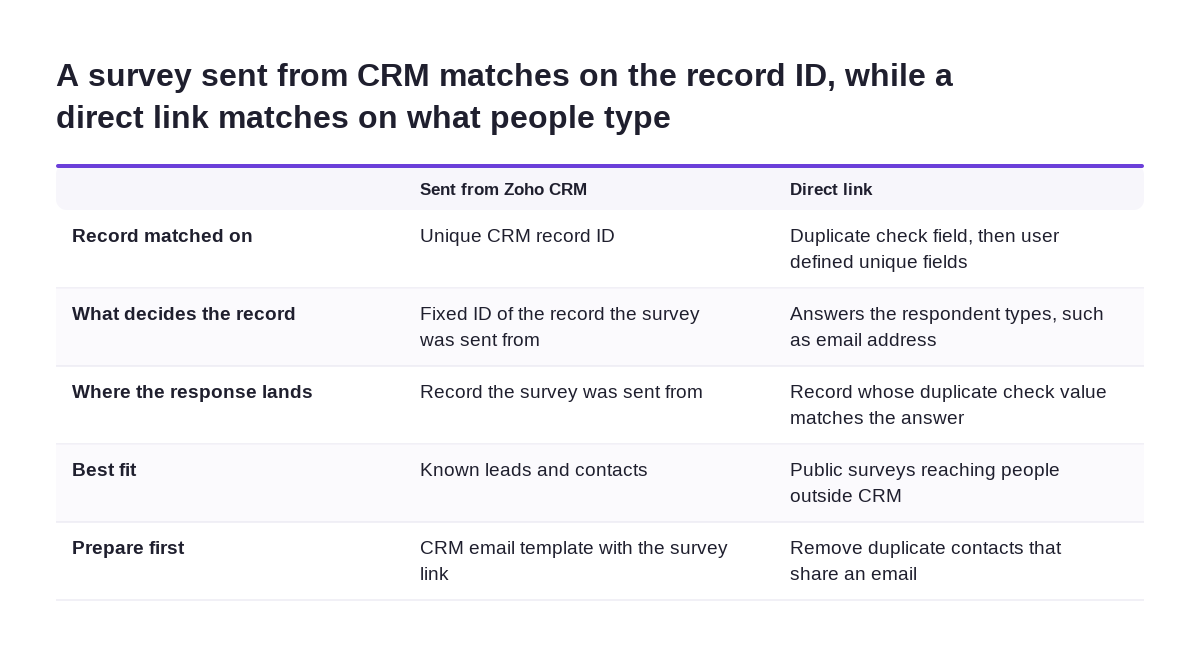
How you send the survey decides how Zoho finds the right record. When you send it through Zoho CRM, the record is matched on Zoho CRM's unique record ID. That ID is fixed for each record, so the response cannot land on the wrong person.
A direct send works differently. When a survey goes straight to the respondent, for example through a public link, Zoho matches on the system-defined duplicate check field. It then tries any user-defined unique fields. A duplicate check field is a field Zoho CRM uses to decide whether two records are the same person. In practice that means the respondent's answers, such as the email address they type, decide which record gets updated.
The difference matters most for customer feedback. With a CRM send, Zoho already knows who the respondent is. With a direct link, a typo or a second email address can create a new record or miss the existing one. For surveys tied to a specific customer relationship, send from CRM using an email template. Keep direct links for open feedback where you expect new people.
Add, Update and Add/Update: the three sync actions compared
The sync action tells Zoho what to do with each response, and it is the setting most likely to create duplicates. A sync action is the rule the integration applies when a response arrives: create a record, change an existing one, or do whichever fits. The table summarises Zoho's descriptions.
| Sync action | What it does | Duplicate risk | Fits |
|---|---|---|---|
| Add record | Creates a new CRM record for every submitted response | High; Zoho warns it "could lead to duplications" | Open surveys meant to capture new people |
| Update record | Updates an existing record without creating a new one | Low | Feedback from known customers, including retakes |
| Add/Update record | Updates a record if one with an identical value exists, otherwise creates a new one | Medium; depends on the matching field | Mixed audiences of known and new respondents |
Update record suits post-sale feedback best. Zoho notes that it helps "when an attendee wishes to retake the survey or provide fresh responses without creating duplicate CRM records." Add/Update is safe when you send from CRM, because matching runs on the record ID. With a direct link, it is only as reliable as the email address or unique field the respondent fills in.
Field mapping: how survey answers become CRM field values
Field mapping is the list that pairs each survey question with the CRM field that stores its answer. A response only reaches the record in a useful form if each answer has a matching field of a suitable type. An unmapped question still exists in Zoho Survey, but your sales team will not see it on the record.
Zoho offers a few mapping options beyond question-to-field pairs:
- Direct value: a fixed value you type into the mapping, written to a CRM field with every response. Examples are True or False for a checkbox, or a date in YYYY-MM-DD format.
- PDF attachment: each individual response can be attached to the CRM record as a PDF.
- Signature and File Upload answers: responses to these question types can also be attached.
Direct values are useful for follow-up. A fixed checkbox such as "Survey answered = True" gives you a field to filter on, with no need to read each response. Dates must follow the YYYY-MM-DD format, or the value will not fit the CRM date field.
Plan the CRM fields before you build the survey. Decide which answers your team will act on, create the fields to hold them, and keep the rest in the PDF.
Worked example: a feedback survey sent after a won deal
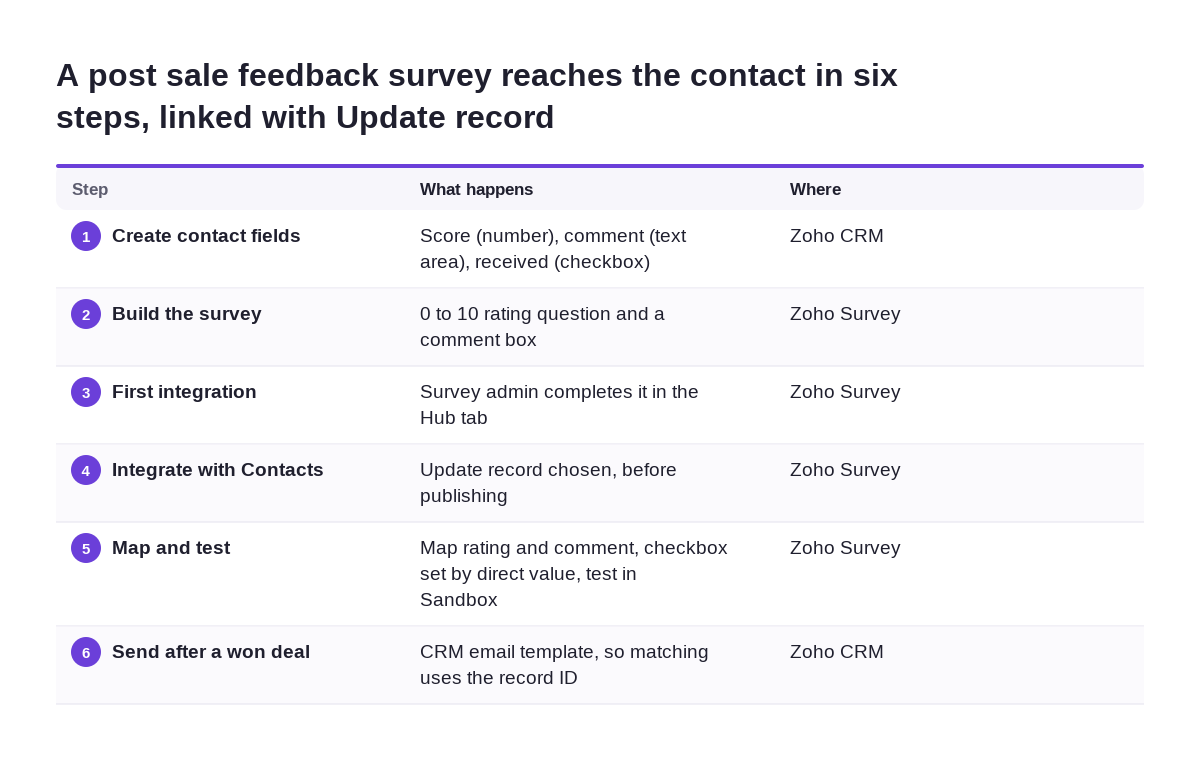
A post-sale feedback survey shows how the settings fit together. Say you sell training services and want feedback from the buyer once each deal is won. The goal is for the score and comment to appear on the buyer's contact record, where the account manager will see them.
- In Zoho CRM, create three contact fields: "Last feedback score" (number), "Last feedback comment" (text area) and "Feedback received" (checkbox).
- In Zoho Survey, build a survey called "Post-purchase feedback" with a 0 to 10 rating question and a comment box.
- Ask your Zoho Survey admin to complete the first integration in the Hub tab if nobody has done it yet.
- Integrate the survey with the Contacts module and choose the Update record sync action.
- Map the rating to "Last feedback score" and the comment to "Last feedback comment". Then set a direct value of True for "Feedback received".
- Switch on the PDF attachment so the full response sits on the contact.
- Add the survey link to a CRM email template and send it to the deal's contact from inside Zoho CRM.
Because the email goes out from CRM, Zoho matches the response on the contact's record ID. A buyer who answers twice overwrites the score instead of creating a second contact. Integrate the survey before you publish it, because responses received before the integration are not synced.
Duplicate records and mapping mistakes that break the setup
Most broken survey integrations come from a handful of avoidable choices. Each of the mistakes below either puts responses on the wrong record or leaves them out of CRM.
- Using Add record for known customers. Every response creates a new record, so a regular customer appears several times.
- Sending a direct link where a CRM send would work. Matching then depends on what the respondent types, not on the record ID.
- Existing duplicates in CRM. Zoho CRM checks for duplicates with its system-defined duplicate check fields. If two contacts already share an email address, a response cannot reliably pick the right one.
- Integrating after publishing. Only responses received after the integration are synced. Earlier ones must be updated manually.
- Mapping to the wrong field type. A date that is not in YYYY-MM-DD format, or a checkbox mapped from free text, will not fit the field.
Clean the duplicates first if your CRM came over from another system. The Svennis guide on how to migrate to Zoho CRM without losing your sales history covers deduplication during a move.
Checking sync status and testing in a Sandbox first
The sync status in Zoho Survey is where you confirm each response reached CRM. It labels every response as Successful, Untried or Failed. Untried means the response has not been pushed to CRM yet. The status also shows when each response was submitted and the IP address it came from.
Check the status on a schedule, not only when someone complains. A run of Failed responses usually points to a mapping problem, such as a removed CRM field or a value in the wrong format. Responses that stay Untried after an integration change deserve a look too.
Test before you go live. The integration lets you choose between the Production and Sandbox CRM environments. A Sandbox is a copy of your CRM setup where test records do not touch live data. At Svennis we connect a new survey to the Sandbox first, send it to a test contact from inside CRM, and confirm the sync status reads Successful with every mapped field filled. Only then do we switch the survey to Production.
What the survey integration means for companies across the EU
For companies in the EU, survey responses in CRM are customer data, and they fall under the same GDPR obligations as the rest of your CRM. The integration copies answers, attachments and PDFs onto contact records. The sync status also records the IP address of each response. Decide which of these your team actually needs, and keep the rest out of the mapping.
A few practical choices reduce your exposure:
- Map only the answers someone will act on; leave the full response in the PDF or in Zoho Survey.
- Ask for a contact preference in the survey itself, so follow-up matches what the customer agreed to.
- Use the Sandbox for testing so live customer data stays out of trial runs.
National rules on consent and marketing contact vary between member states. Check the rules in each country where you send surveys rather than applying one country's practice everywhere. Survey marketing flows need separate planning too. Zoho Survey integrates with either Zoho Campaigns or Zoho Marketing Automation, but only one of them at a time.
Next steps to connect Zoho Survey to your CRM
Start with the survey you send most often, usually post-sale or post-service feedback, and set it up end to end before adding more. A working first survey shows you where your data and fields need attention.
- Confirm you have Zoho Survey Pro or Enterprise, or access through CRM Plus or Zoho One.
- Have your Zoho Survey admin complete the first integration in the Hub tab.
- Create the CRM fields that will hold the answers your team acts on.
- Remove existing duplicate contacts before connecting anything.
- Integrate the survey before publishing, with Update record for known customers.
- Test in the Sandbox, check the sync status, then switch to Production.
- Send from a CRM email template so matching runs on the record ID.
If you want to see how Zoho Survey fits with the rest of your Zoho setup, read the Svennis page on Zoho Survey for online feedback and customer insights.