What won deal to delivery means in Zoho
This guide covers won deal to delivery: Zoho Projects with Zoho CRM, set up so that a project is ready for the delivery team the moment a salesperson marks a deal as won. A deal is the CRM record for one sales opportunity. Zoho CRM is where you manage customers and the sales process. Zoho Projects is where your team plans, tracks and completes the work you sold.
The handover is the point where responsibility passes from sales to delivery. When it happens by email or in a meeting, three things tend to get lost: the scope that was agreed, who owns the work, and the dates the customer was promised. Automating the handover means the deal record carries those details into a new project without anyone retyping them.
Zoho first announced a joint Zoho CRM and Zoho Projects integration in February 2011. That announcement described creating a new project for a customer who has decided to sign. Businesses still ask for more than that today. A user on the r/Zoho forum described wanting a won deal to create a project with its name, description and client information, and wanting changes to the project's status or due date to flow back to the deal.
The sections below explain what the native integration does, where automation takes over, and which checks keep the chain reliable once it is live.
How the native integration is set up
According to the Zoho Projects help article on the CRM integration, you can only enable and set up the integration from Zoho CRM, not from Zoho Projects. Plan the setup session with someone who has administrator rights in CRM.
Once it is on, you can create projects in two ways: from a supported CRM record, or directly from a CRM Teamspace. A Teamspace is a shared area in Zoho CRM for a group of users. The supported modules include Accounts, Contacts, Deals, Sales Orders, Invoices, Campaigns, Cases, Quotes, Purchase Orders and Products. Zoho notes that module availability depends on your CRM edition.
Client Projects and Team Projects
Zoho separates two kinds of project. Client Projects are linked to CRM records and are meant for customer-facing work such as onboarding, implementation and service delivery. Team Projects are internal and have no CRM link. Every project created from a won deal should be a Client Project. Otherwise sales loses sight of it.
Mapped and unmapped accounts
Zoho Projects has its own client accounts. A Mapped Account is a CRM account already matched to a Zoho Projects client account, and the name should be the same in both systems. An UnMapped Account has the same name in both but has not been linked yet. Before you automate anything, clean up company names in CRM so they match. If you are still moving data in from an older system, fix names during the migration to Zoho CRM, not afterwards.
What the sync carries over and what it does not
Zoho documents a two-way sync for task updates and comments between Zoho CRM and Zoho Projects. The synced task fields are:
- Task title
- Task description
- End date
- Priority
- Closed or reopened status
- Task owner
This list covers most of what a handover needs at task level: what the work is, who does it and when it is due. It does not include logged hours, budget or project-level status. If you want those back on the deal or account, as the forum user above did, you need custom logic that you design and test yourself.
Rules that will surprise your users
Zoho lists some behaviours to explain to your team before launch. A user cannot move a task's due date in CRM to a date beyond the schedule of a strict project in Zoho Projects. A user also cannot reopen a subtask in CRM while its parent task is still closed in Zoho Projects. Both are sensible rules, but a salesperson who meets them without warning will assume the integration is broken.
The Save and Add to Zoho CRM button, which pushes a task into CRM, is not shown when the project is not associated with a CRM account. When that button is missing, the likely cause is the project's account link, not the task.
Automating project creation when the deal is won
The native integration lets a person create a project from a deal. To make it happen automatically, you combine two Zoho CRM tools. A workflow rule watches for a change on a record. A custom function is a script written in Deluge, Zoho's scripting language, that the rule runs.
Zoho publishes a worked solution for creating Zoho Projects tasks from deals. It is written for closed-lost deals, but the page states that you can specify any other appropriate stage. That makes it a reliable template for the won stage. The rule fires when the deal's Stage field is modified to the value you choose, and the function creates a project with a task underneath it.
What you need before you start
- Edition: Zoho lists this solution for Enterprise and above.
- Permissions: Manage Extensibility to create connections and write functions, Manage Automation to create workflow rules, and Manage Sandbox to use the sandbox.
- A connection: created under
Setup > Developer Hub > Connections, with the scopesZohoCRM.modules.ALL,ZohoCRM.settings.ALL,ZohoProjects.projects.ALL,ZohoProjects.tasks.ALLandZohoProjects.portals.ALL. - A sandbox: Zoho recommends testing the workflow rule there before you deploy it to production.
Zoho gives an implementation time of 60 minutes for its sample. That covers the mechanics. Deciding which deal fields become which project details takes longer, and that decision is where most of the value lies.
| Step | Where or who |
|---|---|
| 1. Enable the integration | In Zoho CRM, by a CRM administrator |
| 2. Create the connection with the five scopes | Setup, Developer Hub, Connections |
| 3. Write the Deluge custom function | Reads deal name, description, owner and start date |
| 4. Add the workflow rule on the Stage field | Fires when Stage changes to your won value |
| 5. Test in the sandbox and check the association | Project linked to both the deal and the account |
Worked example: from won stage to first task
Take a services firm that sells implementation projects. The sales team keeps the agreed scope in the deal's description, the account manager is the deal owner, and the promised start date sits in a date field on the deal. The goal is a project that opens with all three filled in.
- Enable the integration in Zoho CRM and confirm that the company's account names match the client accounts in Zoho Projects.
- Create the connection under
Setup > Developer Hub > Connectionswith the five scopes listed in the previous section. - Write the custom function in Deluge. It reads the deal's name, description, owner and start date, creates a project named after the deal, and creates the first tasks. Zoho's sample sets a task's end date two days after the start. Replace that with dates that fit your own first phase.
- Create the workflow rule on the Deals module: when
Stageis modified to the stage that means won in your pipeline, run the function. - Test in the sandbox with a test deal. Open the new project, check the name, description, owner and dates, then open the deal and confirm the project appears on it.
- Deploy to production and watch the first real deals closely.
Step five is the one teams skip. The next section explains why it matters more than the others.
The association check most setups miss
A project that exists in Zoho Projects but is not linked to the deal defeats the purpose. Sales cannot see progress, and the task sync has nothing to attach to. Zoho's own help flags a related symptom: the Save and Add to Zoho CRM button disappears when the project has no CRM account.
A thread in the Zoho community on associating projects via Deluge shows how easy this is to get wrong. The author built a close-deal workflow that creates a project with Deluge, then noticed that associating a project manually sets three project-level values: primary_client_id, primary_client_name and finance_project_id, which sits under other_service. The author reported that primary_client_id and finance_project_id do not appear to be CRM record IDs. A script that simply passes the deal or account ID may therefore not produce the link you expect.
The fix is a test, not a guess. At Svennis we run the full won-stage chain in the sandbox with a throwaway deal, then open both records to confirm the project shows on the deal and the account shows on the project, because an unlinked project that looks correct in Zoho Projects is the failure we see most often at clients. Repeat that check after any change to the function or to your account structure.
Owners, access and licences
A project is only ready to run if the right people can open it. Zoho documents several access behaviours that affect this.
Teams created from Teamspaces
If you create a project from a Teamspace and set access to all users in that Teamspace, Zoho Projects automatically creates a Team with the Teamspace's name. That Team stays in sync with Teamspace membership and cannot be edited from Zoho Projects. This suits a delivery group that works as one unit. It suits less well if you want access decided project by project.
Licence limits
If adding users pushes you past your Zoho Projects user licence limit, the extra users are added as deactivated users. A portal administrator must activate them before they can open the project. In practice, a new starter may be named as a task owner but see nothing. Check your licence headroom before a busy sales month.
Project limits per Teamspace
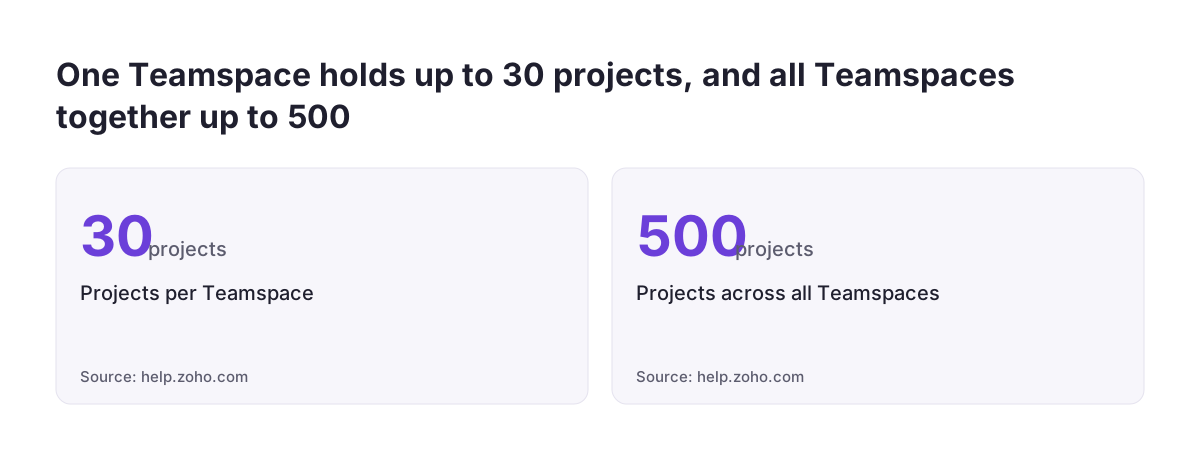
Zoho allows a maximum of 30 projects per Teamspace and 500 projects across all Teamspaces. A firm that closes many small deals should decide early whether every deal needs its own project, or whether smaller orders belong as tasks inside a running project.
Customer users
The original 2011 announcement described adding CRM contacts as project users and marking each as internal or customer. Decide deliberately who on the client side gets access, and to what.
Which approach fits your setup
You have three realistic routes from a won deal to a project. The table compares them on the points the pack sources document.
| Approach | What starts the project | What carries over | Where it falls short |
|---|---|---|---|
| Native integration, manual | A user creates the project from the deal or a Teamspace | The CRM link, plus two-way sync of task title, description, end date, priority, status and owner | Depends on someone remembering to do it; no hours or budget sync |
| Workflow rule with a Deluge function | The deal's Stage changing to your won value | Whatever fields you choose to read from the deal, plus the native task sync once the project is associated | Enterprise and above for Zoho's solution; the association must be verified |
| Zoho Flow | A trigger in Flow | Project creation, according to one forum user | That user found the data could not be synced afterwards, which created manual work |
The Teamspace route is available in all Zoho data centres for Standard, Professional and Enterprise editions. For most firms that already run Enterprise, the workflow route is the right default. If you run a lower edition, start with the manual route and a strict rule that no deal moves to won until its project exists.
Time, budget and the report your client gets
The brief for a good handover does not end at project creation. You also want delivery information back on the account, and a clear view for the client.
Progress back in the CRM
Zoho framed the integration from the start as a way for sales executives to know how customer projects are doing. Because task status and owner sync both ways, an account manager can see from CRM which tasks are closed and which are late. Encourage that habit, because it stops "where are we?" emails to the delivery team.
Hours and budget
Logged time and budget are not in Zoho's list of synced fields. If you need them on the account, plan a scheduled custom function that reads them from Zoho Projects and writes them to fields you create in CRM. Treat it as a separate build with its own sandbox test. If finance data lives in an ERP, Zoho's CRM Plus page describes connecting an existing ERP and reporting across it with Zoho Analytics. Our SAP Business One and Zoho CRM integration is one example of that link.
The client report
Keep the client report simple: completed tasks, upcoming end dates, and any task whose date has moved. Those fields already sync reliably, so the report stays accurate without extra work.
What this means for companies in the EU
For a company in any EU member state, the main extra consideration is personal data. When you add client contacts as customer users in Zoho Projects, you give people outside your company access to project content that may include names and contact details of your staff and theirs. Under the GDPR, decide and record who needs that access and why, and keep customer users out of projects they have no reason to see.
The Teamspace route to creating projects is available in all Zoho data centres, so your choice of data centre does not limit it. If you have not yet decided where your CRM data should be hosted, settle that before you connect Zoho Projects, because the two products work together as one set-up.
Many European firms sell across several countries with sales teams working in different languages. The automation helps here because it enforces one definition of a won deal and one project structure for every team. Write the won-stage criteria down once, in the language your delivery team works in, and apply them in every country pipeline. That way a project opened in one office looks the same as a project opened in another.
Finally, remember that the solution Zoho publishes requires Enterprise and above. Confirm your edition in every country entity before you design around automated creation.
Practical next steps
Work through these steps in order. Each one reduces the risk in the next.
- Write down what a handover must contain: scope, owner, start date and the first phase of tasks. Map each item to a field on the deal.
- Clean up account names so CRM accounts and Zoho Projects client accounts match exactly.
- Check your edition and permissions. Automated creation using Zoho's solution needs Enterprise and above, plus Manage Extensibility, Manage Automation and Manage Sandbox.
- Enable the integration from Zoho CRM and create the connection with the five scopes listed earlier.
- Build and test in the sandbox, and confirm the project is associated with the deal and account, not just created.
- Check licence headroom and Teamspace limits so new owners are not left deactivated.
- Brief your sales team on the strict-project and subtask rules before launch.
If you are still deciding how projects should be structured, start with our overview of Zoho Projects. If the problem is upstream, in how deals are recorded, our Zoho CRM implementation page explains how we set up pipelines so the won stage means the same thing for everyone.
Sources
- Zoho Projects Help: Zoho CRM Integration
- Zoho Blog: Go from selling to project delivery with the Zoho CRM + Zoho Projects integration
- Zoho Community: CRM project association via Deluge
- Zoho CRM Solutions: Create a Zoho Projects task for deals
- Reddit r/Zoho: Zoho Projects automation for won deals
- Zoho CRM Plus: Manage tomorrow's projects as well as today's