
Data alerts and scheduled reports in Zoho Analytics: the short answer
Data alerts and scheduled reports in Zoho Analytics deliver numbers to people instead of waiting for them to open a dashboard. Use an alert when a number crosses a line that demands action. Use a scheduled report when a manager needs the same view at a fixed rhythm. Give each one a named owner, a threshold the owner agreed, and a plan for empty results.
A data alert is a rule that watches a number in your data and sends a notification when a condition you define becomes true. A scheduled report is a report or dashboard that Zoho Analytics sends to a list of recipients on a timetable you set. Both run without anyone logging in.
The setup steps in the product take minutes. The decisions around them take longer, and those decisions are what this guide covers. An alert that fires too often gets filtered into a folder nobody reads. A weekly report that arrives empty teaches people to delete it unread. Both failures come from design, not from the software.
The menu paths in Zoho Analytics change as the product evolves. Check the current steps in Zoho's own help documentation while you work through the choices below.
Alerts versus scheduled reports versus dashboards: which one each number needs
Each number you care about belongs in one delivery channel, chosen by how quickly someone must react to it. Putting the same figure in an alert, a weekly email and a dashboard creates three versions of the truth and three reasons to ignore it.
The table below compares the three channels on the questions that decide between them.
| Question | Data alert | Scheduled report | Dashboard |
|---|---|---|---|
| When does it reach the person? | Only when a condition becomes true | At a fixed time, every time | When the person opens it |
| What should the reader do next? | Act on one specific problem | Review a trend and decide priorities | Explore and ask follow-up questions |
| Best for | Exceptions: stock-outs, overdue items, sudden drops | Routine reviews: weekly pipeline, monthly revenue | Analysis and meetings |
| Main failure mode | Too many triggers, so people stop reading | Empty or irrelevant sends | Nobody opens it |
| Who should receive it? | The one person who can fix the problem | The people who run the review | Anyone with access |
If you do not yet have a dashboard your managers use, build that first. Our guide to a first Zoho Analytics dashboard on Zoho CRM data covers that step. Alerts and schedules then reuse reports people already understand.
Choosing the numbers that deserve a data alert
A number deserves a data alert only if someone will do something specific within a day of receiving it. If the honest answer to "what will you do when this arrives?" is "look at it", the number belongs in a scheduled report or on a dashboard instead.
Good alert candidates share three traits:
- The number has a clear normal range, so a breach is obvious.
- One named person owns the response.
- Waiting for the next weekly report would cost money or customers.
Typical examples are overdue receivables above an agreed level, an open support backlog that keeps growing, or a sales pipeline for the current quarter that falls below target coverage. Each one points to a person and an action: chase payments, add agents to the queue, start more opportunities.
Weak candidates are vanity figures such as total website visits or the count of new contacts. They move constantly and rarely trigger a decision on their own. Alerting on them trains recipients to skim, and that habit spreads to the alerts that matter.
Start with no more than a handful of alerts across the whole company. Adding alerts later is easy. Winning back trust after a month of noisy emails is not.
Thresholds and conditions that make a data alert trusted
A trusted data alert fires rarely and is right almost every time it fires. The threshold is what controls that balance, so the person who will act on the alert must agree it, not the person who builds it.
Agree the threshold with the owner
Ask the owner what value would make them change their plans that day. Write that value down with the reason. When the business changes, the reason tells you whether the threshold should move.
Filter before you compare
Many false alerts come from data the owner never meant to include. Test records, cancelled orders, internal accounts or a closed subsidiary can push a total over the line. Build the alert on a report that already excludes them, and check that report against a figure the owner trusts.
Watch the data refresh
An alert can only be as current as the data under it. If your Zoho Analytics workspace pulls data from another system on a timetable, the alert sees the state at the last sync. Time alert checks so they run after the sync, not before it. Otherwise the owner acts on yesterday's problem.
Say what to do in the message
Write the alert text as an instruction: what crossed which line, and the first step to take. A recipient who knows the next step acts. A recipient who has to work it out postpones.
Recipients and ownership: one owner per data alert
Every data alert needs exactly one owner, the person who acts when it fires. Copying the whole management team feels safe, but it spreads responsibility until nobody acts because everybody assumes someone else will.
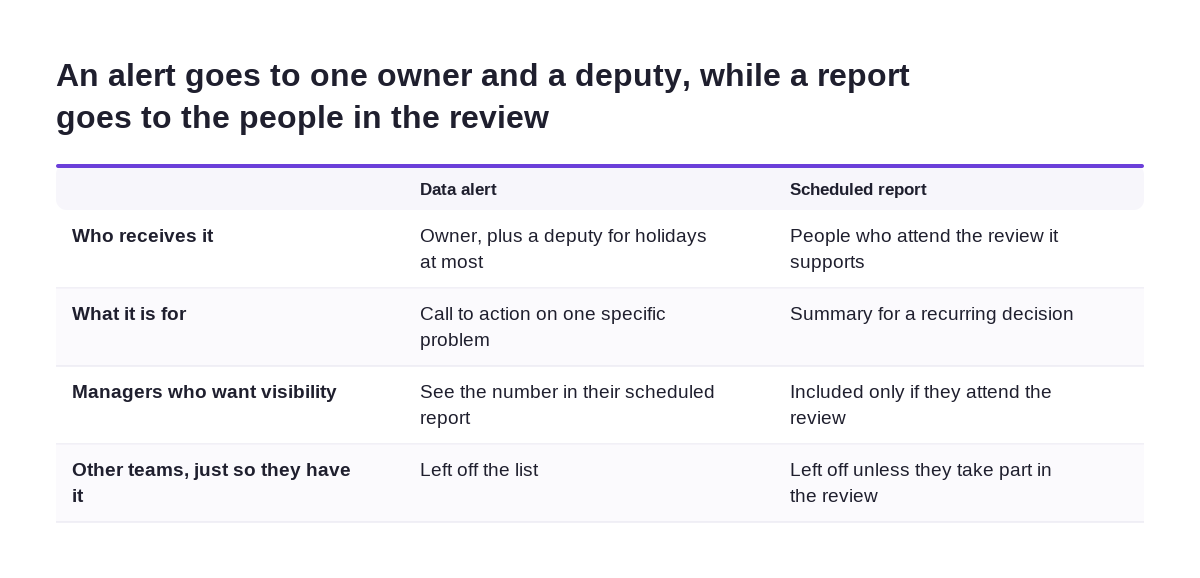
Keep the recipient list for an alert to the owner and, at most, the owner's deputy for holidays. Managers who want visibility can see the same number in their scheduled report. That keeps the alert as a call to action and the report as a summary.
Scheduled reports can go to more people, but each recipient should attend the review the report supports. A weekly pipeline report belongs to the people in the weekly sales meeting. Sending it to finance as well, "just so they have it", adds an email they will learn to ignore.
Review recipient lists whenever someone changes role or leaves. A report still arriving in the inbox of a former sales manager is noise at best. If the report contains customer or employee details, it is also a data protection problem, which the EU section below covers.
At Svennis we set each new alert to reach its owner alone at first, and we widen the list only after the owner confirms the alert fired for real reasons. This step catches threshold and filter mistakes before they reach a wider audience and cost the alert its credibility.
Scheduled reports in Zoho Analytics: frequency, content and empty sends
A scheduled report should arrive just before the decision it supports. It should contain only what that decision needs, and it should not arrive at all when there is nothing to say. Each of those three choices is easy to get wrong.
Match the frequency to the meeting
Send the weekly pipeline report on the morning of the pipeline meeting, not on Friday afternoon. Send month-end figures after finance has closed the month, so managers do not discuss numbers that will still change. A report that arrives at the wrong moment gets read at no moment.
Send one view, not the whole dashboard
If a dashboard has many charts and the meeting discusses three, schedule a report with those three. Recipients scan an email in seconds. Every extra chart lowers the chance they see the one that matters.
Decide what happens when the result is empty
Empty sends are a known frustration. A user on the Zoho community forum raised exactly this problem. They wrote: "I don't want to send a report/alert email if the query/condition is nonexistent/empty." An email listing zero overdue tickets, sent every day, teaches people that the email is usually blank.
Decide in advance whether an empty result is news. Sometimes zero is good news that nobody needs to hear. In that case the number fits a data alert better, because an alert fires only when its condition is true. Check Zoho's help documentation for how your edition treats empty results in a schedule before you rely on either behaviour.
A worked example: an overdue payments alert and a weekly pipeline report
This example shows how the decisions above fit together for a typical trading company. The company and its values are illustrative; replace them with your own owners and agreed thresholds.
The company has CRM and invoicing data in one Zoho Analytics workspace. If yours does not yet, our guide to blending Zoho CRM and Books data in Zoho Analytics explains how to get there. Two needs come up in the first conversation:
- The finance lead wants to know when total overdue payments rise above the level she considers dangerous for cash flow. That is an exception with a clear owner and an action, so it becomes a data alert. The alert uses a report that excludes disputed and written-off invoices, which she does not chase. It reaches her and her deputy only. Its message names the total and tells her to open the overdue list sorted by amount.
- The sales director wants the open pipeline for the current quarter, by salesperson, before the Monday meeting. That is a routine review, so it becomes a scheduled report. It goes out on Monday morning after the overnight data sync, to the people who attend the meeting. It contains one chart and one table, not the full sales dashboard.
Neither number appears in both channels. The sales director does not receive the finance alert, and the finance lead does not receive the pipeline report. Each email reaches the person who acts on it, at the moment it is useful.
Testing alerts and schedules before they reach managers
Test every data alert and scheduled report before it reaches anyone other than the person who built it. A broken first email costs more trust than the alert earns in its first month of working correctly.
A simple test sequence works for both:
- Compare the underlying report with a figure the owner already trusts, such as last month's closed total from finance.
- Run the alert or schedule with yourself as the only recipient, and read the email on a phone as well as a desktop.
- Force the condition with a known case, for example a test filter that should trigger, and check the alert fires once and only once.
- Check the empty case: what arrives when there is nothing to report.
- Add the real owner, and agree to review the alert together after its first real triggers.
Separate workspaces help here. Zoho's August 2026 update for Zoho Analytics, announced on the Zoho community, lets you "promote content safely between workspaces with Deployment Management". That makes it practical to build and test reports in one workspace and move them to the live one once they are checked. The same update also mentions more precise governance of data access and sign-in, which matters for who can see what an alert reports on.
What data alerts and scheduled reports mean for companies in the EU
For a company in the European Union, every scheduled report and data alert is a copy of business data leaving Zoho Analytics by email. Treat each one as a data flow you would be comfortable explaining to your data protection lead.
Most reports for managers do not need personal data. A pipeline total by salesperson, an overdue total by customer segment or a backlog count by team gives the decision maker what they need. Where a report would list named customers, contacts or employees, ask whether the recipient needs the names in the email, or only a link back to a report they can open with their own access. If personal data does travel, involve whoever handles GDPR in your company before the first send.
Recipients outside your organisation deserve extra care. An accountant, an investor or a group company in another member state may be a legitimate recipient. Record why they receive the report and remove them when the reason ends.
Multi-country groups should also watch definitions. A threshold that makes sense in one subsidiary can trigger constantly in another with different payment terms or seasonality. Agree thresholds per country or entity where the businesses differ, rather than one group-wide value that suits none of them.
Next steps for your first data alert and scheduled report
The fastest way to start is to pick one exception and one routine review, and set those up well before adding more. A short plan looks like this:
- List the numbers your managers check by opening a dashboard every day or every week.
- For each one, ask the owner what they do when it changes. Exceptions with an action become alerts; routine reviews become schedules; the rest stay on the dashboard.
- Agree each threshold with its owner and write down the reason.
- Build the alert or schedule on a filtered report, test it with yourself as the only recipient, then add the owner.
- Review recipients, thresholds and empty sends after the first month, and retire anything nobody acted on.
If your data in Zoho Analytics is not yet reliable enough to alert on, fix that first, because an alert on wrong data spreads the error faster. When you want help with the data model, the reports or the rollout across teams, see how we work on Zoho Analytics implementation and consulting.