Payment reminders and recurring invoices in Zoho Books: the short answer
To run payment reminders and recurring invoices in Zoho Books without manual chasing, you configure two things together. First, turn a standard invoice into a recurring profile and pick a preference that sends each new invoice automatically. Second, switch on automated reminders under Settings > Reminders, so customers hear from you before and after the due date.
A recurring invoice is an invoice that Zoho Books generates again at a fixed interval, for the same products or services, without anyone retyping it. A payment reminder is an email that Zoho Books sends to a customer, to you, or to both, about an invoice that is due soon or overdue.
The limits are worth knowing before you design a schedule:
- Zoho Books comes with three due-date reminders by default.
- You can enable up to 30 automatic reminders in total.
- When auto charge fails, Zoho Books makes at most 3 retry attempts.
The sections below cover each setting in turn. After them come a worked example, a checklist table and the mistakes that most often stop the automation working.
Creating a recurring invoice in Zoho Books from an existing invoice
You create a recurring invoice in Zoho Books by converting an invoice you already issued. Zoho's article on recurring invoices and auto charge describes the route in three steps:
- Go to the Invoices tab and select the invoice you want to repeat.
- Open the More drop-down and choose Make Recurring.
- Set the interval at which the invoice should recur, then click Save.
The result is a recurring profile. A recurring profile is the template and schedule from which Zoho Books produces each new invoice. Every invoice it generates carries the same customer, items and terms as the profile.
Start from an invoice that is already correct in every detail. Check the customer, the line items, the tax and the payment terms before you click Make Recurring. Any error in the source invoice repeats on every cycle, and customers notice a wrong amount faster than a late one.
If your recurring billing comes from deals closed in your CRM, the customer and item data should arrive in Zoho Books cleanly first. Our guide to setting up the Zoho CRM and Zoho Books integration covers that groundwork.
Recurring invoice preferences: drafts, send, auto-approve or charge
The recurring invoice preference decides what Zoho Books does with each invoice it generates. You set it under Settings > Module Settings > Sales > Recurring Invoices. You can also open it from the Recurring Invoices module through More > Preferences.
The preference set there applies to every recurring profile in the organisation. A different preference chosen while creating or editing one recurring invoice applies only to that profile, according to the Zoho Books help page on recurring invoice preferences.
The four options compare as follows:
| Preference | What happens to each new invoice | Manual work left | Prerequisite |
|---|---|---|---|
| Create Invoices as Drafts | Saved as a draft | Someone must send every invoice | None |
| Create and Send Invoices | Generated and sent to the customer | None for sending | Correct customer email address |
| Create, Auto-approve and Send Invoices | Approved automatically, then sent | None for sending | Transaction approval enabled |
| Create, Charge and Send Invoices | Paid by charging the saved card, then sent | Handling failed payments | Supported payment gateway and saved card details |
Drafts give you a review step but bring back the manual work you wanted to remove. Create and Send suits most fixed retainers. Choose the auto-approve variant if your organisation uses transaction approval, because a normal send would wait for an approver.
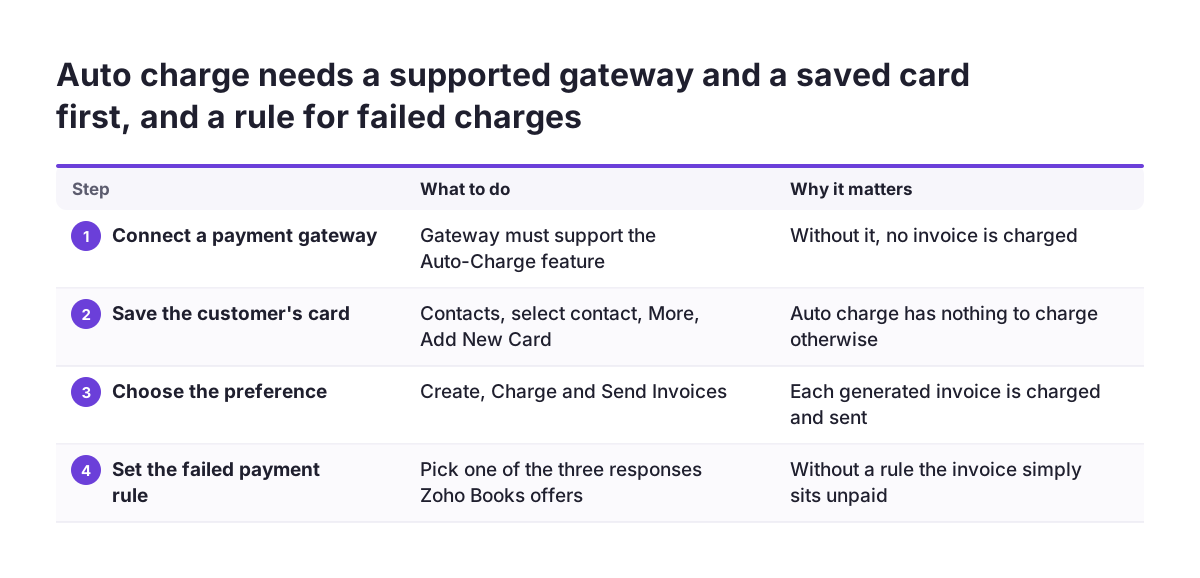
Auto charge on recurring invoices: gateway, saved cards and failed payments
Auto charge is a feature of recurring invoices that charges the customer's credit card, or debits their bank account through ACH payments, whenever a recurring invoice is generated. You enable it by choosing Create, Charge and Send Invoices in the recurring invoice preferences.
Two conditions must be in place first:
- Your Zoho Books organisation is integrated with a payment gateway that supports the Auto-Charge feature.
- The customer's card is saved, added through Contacts by selecting the contact and choosing Add New Card from the More drop-down.
Failed payments and retries
A failed charge needs a rule, or the invoice simply sits unpaid. Zoho Books offers three responses to a payment failure:
- Send a failure notification to the customer.
- Send a failure notification and retry the payment.
- Retry the payment without sending a notification.
Zoho Books makes a maximum of 3 attempts to charge a customer on a failed transaction. You can also tick "After all retries, suspend the recurring invoice". That option stops the profile generating new invoices for a customer whose card keeps failing.
Card storage and credits
If you do not want card details saved automatically, tick "Disable automatic saving of card details". The same preferences page can apply excess payments and credit notes to recurring invoices. When you select both, Zoho Books applies excess payments first and credit notes after. If Zoho Books is connected to Zoho Subscriptions, changing this credit preference in Zoho Books also changes it in Zoho Subscriptions.
Automated payment reminders: turning them on and setting the schedule
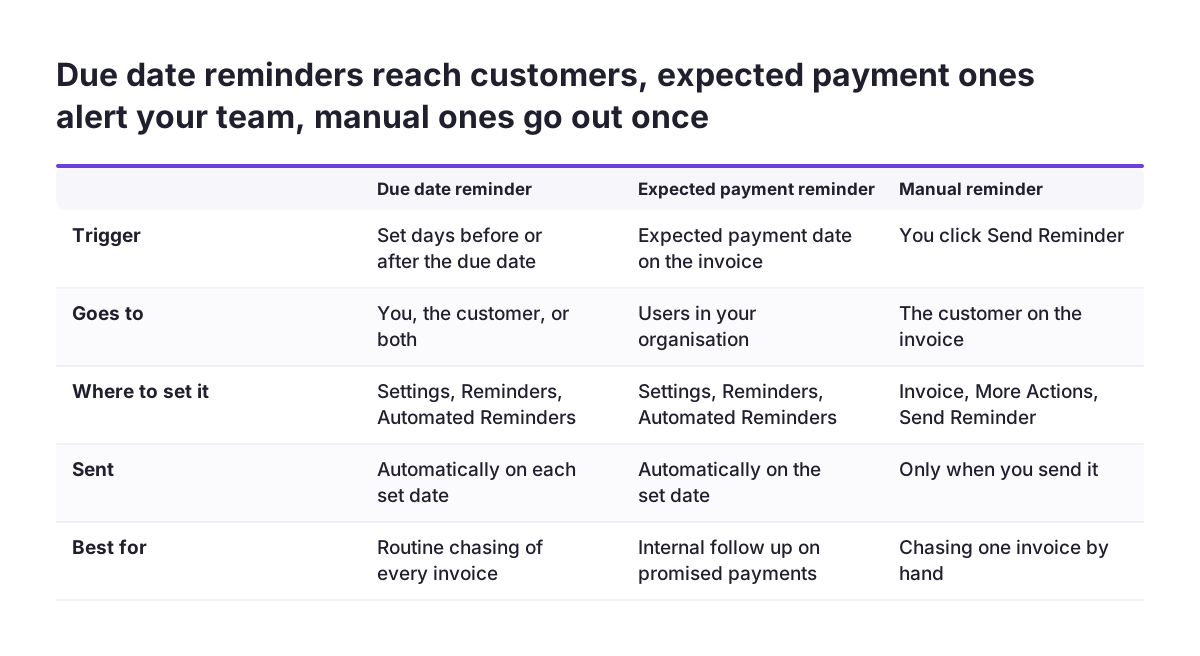
Automated payment reminders in Zoho Books are emails sent on dates you define relative to an invoice. You turn them on under Settings > Reminders, in the Automated Reminders section, by selecting Turn On. After that, Zoho Books sends each reminder automatically on its set date.
Each automated reminder can be based on one of two dates:
- The invoice due date. These reminders can go to you, to the customer, or to both.
- The expected payment date. These reminders notify the users of your organisation that a particular payment is due.
Zoho Books starts you with three reminders based on the invoice due date. Each one can be set to go out before or after the due date. You add more with + New Reminder, up to 30 automatic reminders in total, as the Zoho Books FAQ on invoice reminders notes.
Thirty is a ceiling, not a target. A short sequence usually works better: one friendly note before the due date, one on or shortly after it, and a firmer one later. Send the later reminders to yourself as well as the customer. That way someone on your side knows when an account needs a phone call rather than another email.
The same Reminders page also handles bill reminders for your payables. Those email your own users on or before a bill's due date, based on the due date or the expected payment date.
Manual reminders, stopping reminders and expected payment dates in Zoho Books
Manual reminders in Zoho Books are one-off emails you send yourself, for overdue invoices or for sent invoices whose due date is approaching. You send one from the invoice itself: open the invoice on which payment is due and click More Actions > Send Reminder.
The two Zoho Books pages describe the starting state differently. The Zoho Books Reminders help page says manual reminders are enabled by default for all customers. The FAQ says you must first enable and configure them in the Manual Reminders section under Settings > Reminders. Open that section either way, because that is also where you edit the reminder text.
Stopping reminders once a customer pays
Reminders keep going until you stop them for an invoice. If you received payment for a particular invoice, go to More > Stop Reminder on that invoice. This matters most when money arrives in a way Zoho Books has not yet recorded against the invoice.
Pausing reminders with an expected payment date
An expected payment date is the date a customer has told you they will pay. When you set one, tick "Don't remind about payment until then" to disable the regular reminders for that customer. The customer stops receiving chasers they have already answered, and you can still get a reminder yourself when that date arrives.
Worked example: a monthly retainer billed and chased automatically
Take a small IT services company that bills each support customer a fixed monthly maintenance retainer. The finance manager wants invoices to go out on the same day every month and late payers to be chased without anyone remembering to do it.
Recurring invoice
- She issues the first retainer invoice to one customer and checks every line.
- In the Invoices tab she selects it, opens More, chooses Make Recurring, sets the interval to monthly and clicks Save.
- For this first profile she chooses Create Invoices as Drafts at profile level, so she can check the first generated invoice.
- Once that draft matches the original, she edits the profile to Create and Send Invoices.
Reminders
- Under Settings > Reminders she selects Turn On in Automated Reminders.
- She keeps the three default due-date reminders and sets one before the due date and two after it, for example a week apart.
- The first two go to the customer only. The last goes to both the customer and her, as her signal to call.
- She rewrites the text of each reminder so the tone moves from friendly to firm.
When a customer promises payment on a specific day, she sets the expected payment date and ticks "Don't remind about payment until then". When a customer pays by a route not yet matched in Zoho Books, she uses More > Stop Reminder on that invoice. The rest of the month runs without her.
Configuration mistakes that stop recurring invoices and reminders working
Most failures in recurring billing come from a setting that looks correct but does something different from what the team assumes. At Svennis, the mistake we find most often is a recurring profile still set to Create Invoices as Drafts after go-live. The drafts pile up unsent, and the team only notices when customers ask why they have not been billed.
The other mistakes to check for:
- A profile-level preference overriding the organisation setting. Changing the organisation preference does not change profiles that have their own preference.
- Auto charge without its prerequisites. Create, Charge and Send Invoices needs a gateway that supports Auto-Charge and a saved card for the customer.
- No rule for failed charges. Without a notification and retry setting, a declined card leaves an unpaid invoice nobody is watching.
- Reminders sent only to yourself. Each automated reminder has a recipient choice, and the customer is not always selected.
- Reminders continuing after payment. Use More > Stop Reminder or an expected payment date for customers who have already responded.
- A changed credit preference in a connected Zoho Subscriptions account. Changing how excess payments and credit notes apply in Zoho Books also changes it in Zoho Subscriptions.
One expectation also needs checking. On Zoho's forum for Zoho Invoice, a user asked Zoho to add sending recurring invoices days in advance. Confirm how your own setup handles timing before you promise customers an invoice a few days early.
What recurring billing and reminders mean for companies across the EU
For a company in any EU member state, the Zoho Books mechanics are the same, but the settings should follow your own contracts and customers. Payment terms and late-payment rules differ between member states. Set reminder timing from the terms in your customer contracts, not from a template built for another market.
Three points deserve a decision before go-live:
- Reminder wording. The reminder text is configurable, so write it in the language and tone your customers expect. A firm third reminder reads very differently across cultures.
- Payment methods for auto charge. The Zoho article describes card charges and bank debits through ACH payments. Check which methods your payment gateway supports for your customers before you plan around auto charge.
- Stored card details. Saved cards are personal and payment data held in your account. Under GDPR you should be able to explain why you keep them. If you do not need them, tick "Disable automatic saving of card details".
Companies that bill subscriptions with frequent plan changes, trials or usage-based charges may outgrow recurring profiles in Zoho Books. Our page on Zoho Billing implementation and subscriptions covers that route, so you can compare it with the simpler Zoho Books setup described here.
Next steps: test one recurring profile and one reminder schedule
The safest way to roll out recurring invoices and payment reminders in Zoho Books is to prove the setup on one customer before you apply it to all of them. Work through this order:
- Check the organisation-level preference under Settings > Module Settings > Sales > Recurring Invoices.
- Convert one correct invoice with Make Recurring and run its first cycle as a draft.
- Compare the generated draft with the original, then switch that profile to Create and Send Invoices.
- Turn on Automated Reminders, set the three default due-date reminders and rewrite their text.
- Decide who receives each reminder and who acts on the last one.
- Only if you use auto charge: confirm gateway support, save the card and set the failure and suspension rules.
Then extend the setup to the rest of your customers and review unpaid invoices after the first full month. If supplier invoices are your other manual job, see our guide to invoice capture in Zoho Books with Autoscan. If you would rather have the configuration reviewed or built for you, start with our Zoho Books setup and cloud accounting page.