
Zoho CRM sandbox: test changes before live users see them
A Zoho CRM sandbox is a testing environment that simulates your production account. You build and test new configurations there, such as workflow rules, approval processes and blueprints. You then deploy them to production without interrupting existing processes. Zoho CRM sandbox: test before release is the working rule this guide follows.
Production is the live CRM account your sales and service teams use every day. Every change you test in the sandbox first is a change your users never meet half-finished. A broken rule in the sandbox costs you a rebuild. The same broken rule in production acts on records your team is working on.
This guide covers four things in order. First, how to create a sandbox and decide what goes into it. Second, what the sandbox copies and what it does not. Third, a worked example with a workflow rule on the Tasks module. Fourth, the checks to run before and after you deploy.
Which Zoho CRM changes to build and test in a sandbox
The changes that belong in a Zoho CRM sandbox are configurations that change how records behave. Zoho names workflow rules, approval processes and blueprints as typical examples. A workflow rule is an automation that runs actions when a record meets criteria you set. An approval process automates approvals in your organisation, with requests handled from one place called My Jobs.
You choose which configurations to include in each sandbox. Before a Zoho update, every configuration was copied by default and you could not pick one to test. Choosing lets you keep one sandbox focused on a single change while another holds unrelated work.
The Services and Appointments modules are supported too. These ready-to-use modules manage service categories, track appointments and handle job sheets. You can enable them in the sandbox, test them and their preferences, and deploy them to production. Later changes to these modules follow the same route.
That enhancement applies to the Enterprise edition and above, and Zoho released it in all data centres. If you are unsure which edition your account runs on, the overview of Zoho CRM editions and pricing sets them out side by side.
Creating a Zoho CRM sandbox: permission, access and status
Creating a Zoho CRM sandbox requires the Manage Sandbox permission. Zoho used to support one sandbox environment per account. An update now lets users with that permission create several sandboxes, shared with CRM users and with developers.
Access to a sandbox works in two ways. Invited developers and users receive the sandbox URL by email. Sandboxes shared with existing CRM users also appear automatically on their account's Sandbox listing page. When a user has more than one, the sandboxes appear in a dropdown under profile settings, where the user switches between them and sets a default.
The Sandbox listing page shows four details for every sandbox:
- No. Of Changes
- Accessible To
- Created By
- Status
A Status toggle activates or deactivates a sandbox. Zoho also renamed the Refresh Sandbox button to Rebuild Sandbox. Rebuilding matters for planning. You can edit a sandbox's settings, including Sandbox type and Data to be populated, only when the rebuild option is available. Until then the Save and Rebuild button stays disabled, and a tooltip explains why your edits cannot be saved.
Test data in a Zoho CRM sandbox: sample records or recent real records
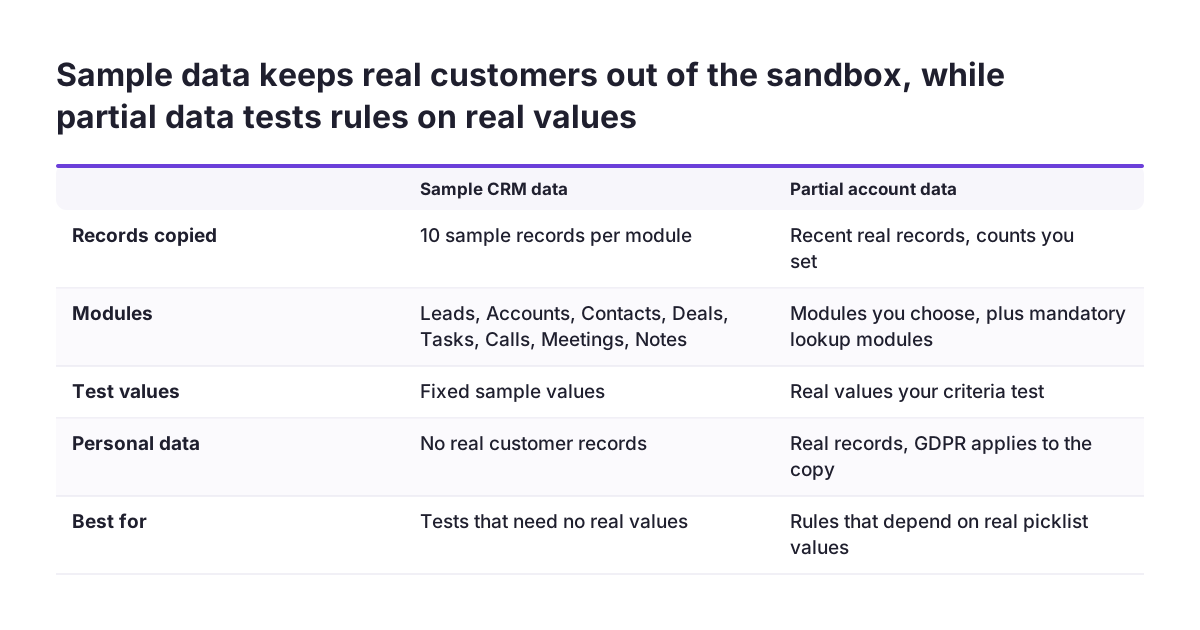
A Zoho CRM sandbox can be filled with test data in two ways when you create it. The choice decides how realistic your tests are.
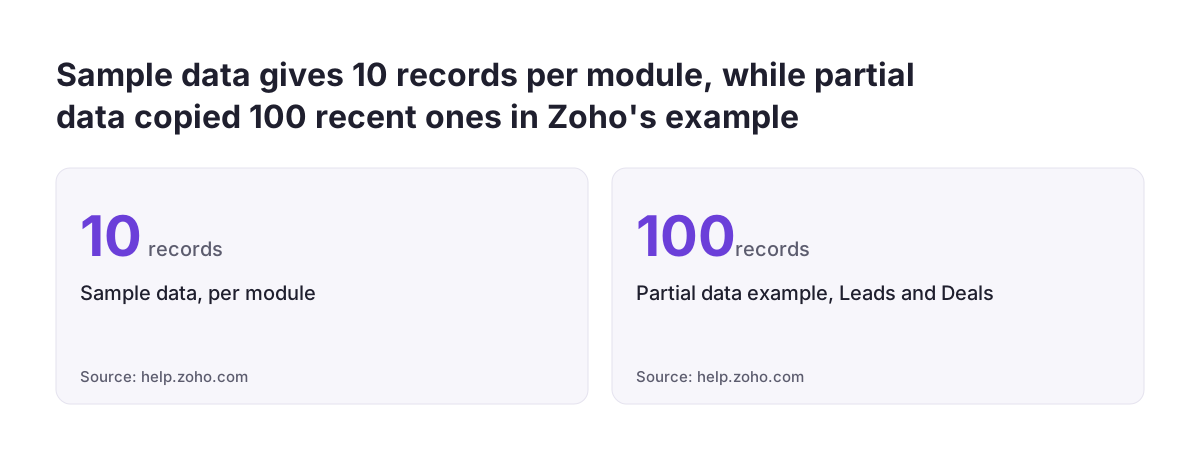
- Sample CRM data population adds 10 sample records each to Leads, Accounts, Contacts, Deals, Tasks, Calls, Meetings and Notes.
- Partial account data population copies your recently created real records. You set the modules and record counts, for example 100 recent records for Leads and Deals.
When you choose a module for partial population, its mandatory lookup modules are populated as well. A lookup is a field that links a record to a record in another module. So if a module's records require a link to another module, that module comes along.
Two rules shape how you use sandbox data. Populated data reloads fresh on every sandbox rebuild, so any test records you edited are reset. Changes you make to populated data cannot be moved to production. Treat the data as disposable.
Partial population is not a full copy of your account. In the Zoho community, one user asked how to create a sandbox containing a copy of all existing data and found no way to do it. The same user reported finding no way to restore a backup they had made. Plan your tests around recent records rather than your entire history.
What a Zoho CRM sandbox does not copy or deploy
A Zoho CRM sandbox is not a complete mirror of production. Knowing the gaps before you test stops you trusting a result the sandbox could not produce.
These are the limits that Zoho's announcements and community threads describe:
- Older records: partial population brings in recently created records only, for the modules and counts you choose.
- Data edits: changes to populated records never move to production and reset on each rebuild.
- Unselected configurations: anything you did not include is not in the sandbox to test.
- Connected reporting: a user asked whether a second Zoho Analytics workspace could connect to a CRM sandbox, because their existing workspace pulls production data. Zoho's sandbox announcements do not describe such a connection.
- Extensions: a CRM extension is tested in a separate developer sandbox, covered later in this guide.
Zoho Analytics added Deployment Management in its August 2026 update, to promote content between workspaces. That feature belongs to Analytics, not to the CRM sandbox. If your release also changes reports, plan them as a separate step and check them in production after the CRM deployment.
Worked example: testing a Task Type workflow rule in the sandbox
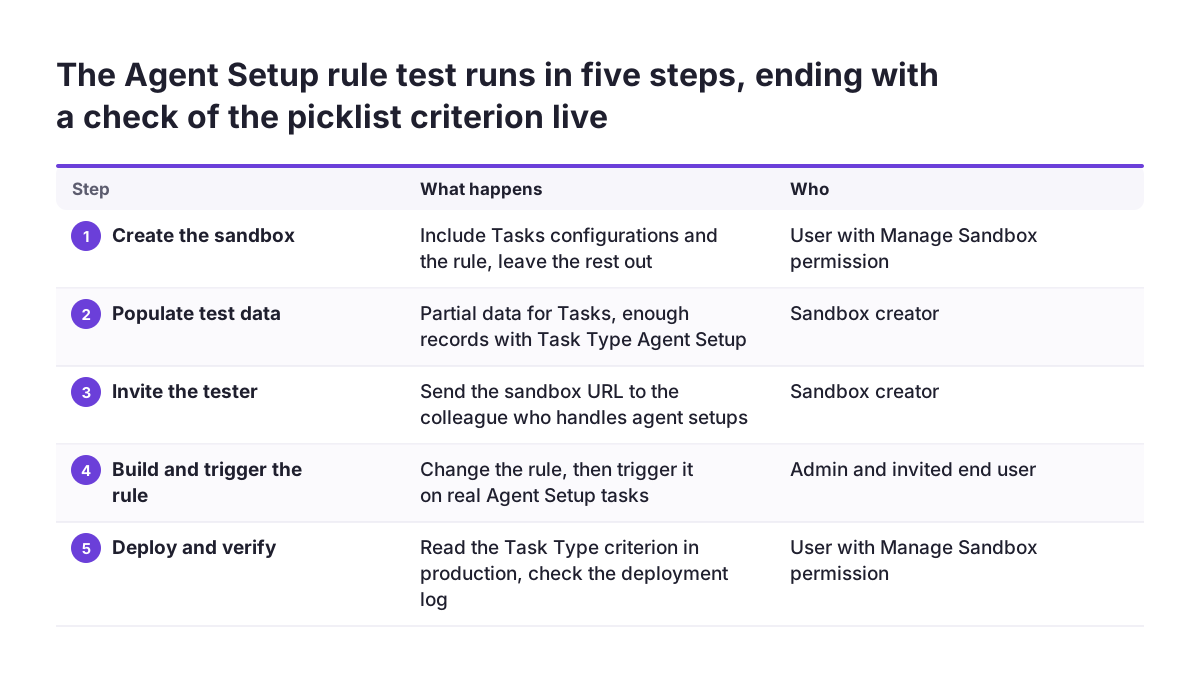
This worked example tests a workflow rule on the Tasks module that acts when Task Type is "Agent Setup". The value comes from a real case reported in the Zoho community, covered in the next section. You can follow the same order for any rule, approval process or blueprint.
- A user with the Manage Sandbox permission creates a new sandbox.
- Include the configurations for the Tasks module and the rule you will change. Leave unrelated configurations out.
- Choose partial account data population for Tasks. Set a record count large enough to include several tasks with Task Type "Agent Setup".
- Invite the colleague who handles agent setups, so the person who triggers the rule every day tests it.
- Build or edit the workflow rule in the sandbox, with the criterion Task Type is "Agent Setup".
- Create and edit tasks as that user would. Confirm the rule fires on "Agent Setup" and stays silent on other task types.
- Deploy to production, then open the rule there and read its criterion before telling users it is live.
Step 6 tests the rule the way the end user experiences it. Zoho recommends the same approach for extensions: trigger an automation rule as though you are the end user. Step 7 exists because of what one user found after deploying.
Picklist criteria after deployment: the failure to check for
Workflow criteria that test a picklist value are the first thing to check after a sandbox deployment. A picklist is a field with a fixed list of values to choose from. In a Zoho community thread, a user reported that deploying from sandbox to production replaced picklist values in workflow criteria with IDs.
The example in that thread was specific. A criterion that read Task Type is "Agent Setup" now displayed as Task Type is 37462830000000225705. Because the criteria no longer matched, none of the user's workflow rules worked. The user saw the problem in both production and the sandbox, leaving no working environment. They had spent most of three days configuring the sandbox rules beforehand.
This is a single user report. It still shows that a deployment is not finished when the deploy step completes. At Svennis we open every deployed workflow rule in production and read its criteria value by value before we tell users a change is live. A criterion that shows a long number instead of a picklist label gets fixed before anyone relies on it.
Pre-deployment checklist for a Zoho CRM sandbox release
A pre-deployment checklist is the short list of checks you run before and right after moving sandbox changes to production. The table sets out each check, where you run it and what it catches.
| Check | Where | What it catches |
|---|---|---|
| The sandbox includes every configuration the change touches | Sandbox settings | Untested dependencies, since only chosen configurations are copied |
| Test records cover each value the criteria test | Sandbox data population | Rules that work on sample values but miss real ones |
| An end user triggers each rule, approval and blueprint | Sandbox, used by the invited user | Behaviour that looks right in setup but fails in daily use |
| No result depends on edited sandbox records reaching production | Your release notes | Lost work, because data changes cannot be deployed |
| Picklist criteria show labels, not numeric IDs | Production, each deployed rule | Criteria that silently stop matching |
| The deployment appears with the right name and user | Deployment logs tab | Releases nobody can trace later |
| Reports that read CRM data still match | Zoho Analytics, after release | Reporting that was never part of the sandbox test |
Run the first four checks in the sandbox and the last three in production. Treat a change as released only when all seven pass.
Deployment logs: who released which sandbox change, and when
Deployment logs in Zoho CRM record each sandbox deployment with its date, the name of the deployed changes and the user who deployed, in chronological order. They are your audit trail when someone asks why a rule changed last week.
Zoho now keeps these logs in one place. Each sandbox used to hold its own deployment logs inside its environment. The logs of all deployed sandboxes now sit under one deployment logs tab, and you can filter them by sandbox name. Zoho has released this update for all users.
What a person sees in the deployment logs depends on permission. Users with the Manage Sandbox permission see the logs of every sandbox environment. Users with access to one particular sandbox see that sandbox's logs only.
Give each deployment a descriptive name, because the log shows that name to every later reader. A name such as "Tasks: Agent Setup workflow" tells someone what changed without opening the sandbox. Check the log entry straight after each deployment, as the last item on the checklist above.
Testing Zoho CRM extensions in the developer sandbox
A Zoho CRM extension is tested in its own sandbox in the Zoho Developer console, separate from the CRM sandbox described above. An extension packages components, customisations and automations that are added to a CRM account. The developer sandbox is a simulated end-user environment where you create sample data and test what the extension does.
To start a test, log in to your Zoho Developers account and open the extension in Sigma, Zoho's developer platform. Click Test your Extension in the top right corner. A sandbox simulation of your CRM account opens in a new tab. It includes a large number of Zoho CRM features, so you can test most or all of the extension's functions.
Nothing you do in the developer sandbox touches your real CRM. Modifying a record or sending an automated email stays inside the virtual instance. That instance is discarded when you finish testing. If you find an issue, go back to the Extensions page, amend the extension and test again.
When the extension works, you publish it privately or list it publicly on Zoho Marketplace. Test thoroughly before that first release. Not every element can be edited or deleted during later version upgrades.
Sandbox testing for EU companies: GDPR and teams across countries
For a company in the European Union, the main sandbox decision is whether to copy real records. Partial account data population puts recent real customer records into the sandbox. If those records describe people, GDPR applies to the copy just as it does to the original.
Three habits keep the copied data small and contained:
- Use sample CRM data population when a test does not need real values.
- Limit partial population to the modules and record counts the test needs.
- Invite only the people who test, and deactivate the sandbox with the Status toggle when the work ends.
Teams in several member states often run national integrations next to the CRM. Examples are ANAF company validation for Zoho CRM for Romanian companies, or SmartBill invoicing with Zoho CRM. Rules behind such integrations apply in one country, not across the EU.
Zoho's sandbox announcements do not describe connections to external systems. Test the CRM side of a change in the sandbox. Then confirm in production that each national integration still behaves as expected.
Next steps: run your first Zoho CRM sandbox release
Your first Zoho CRM sandbox release should be a small change you understand well. A single workflow rule, like the Task Type example in this guide, is a good start. Work through these steps in order:
- Confirm who holds the Manage Sandbox permission in your account.
- Create one sandbox with only the configurations the change touches.
- Choose sample data, or partial data limited to the records the test needs.
- Invite the end user who will trigger the change, and test it with them.
- Deploy, read every picklist criterion in production, and check the deployment log.
If your CRM is not yet live, the guide to migrating to Zoho CRM without losing your sales history covers that earlier stage. When you want help setting up a release process, the page on Zoho CRM implementation in Europe explains how Svennis works with teams like yours.
Sources
- Zoho Community: Introducing Multiple Sandbox Types and Support for Module's Data Population
- Zoho Community: Introducing Multiple Sandbox Types and Support for Module's Data Population (listing details)
- Zoho Community: Introducing Common Deployment Logs in Sandbox
- Zoho Community: CRM sandboxes now support Services and Appointments modules
- Zoho Community: Sandbox deployment replaced all picklist criteria with IDs
- Zoho Community: Create Sandbox with valid data
- Zoho Community: CRM Sandbox Workspace
- Zoho Help: Testing your Extension
- Zoho Community: Extension pointers #11, Testing an extension in sandbox