
Two business lines in one Zoho CRM: one org usually works better than two
Two business lines in one Zoho CRM usually work better in a single org than in two separate accounts. The condition is that you separate layouts, pipelines, ownership and reporting from day one. A company selling products and services, or selling to two markets, then keeps one record per customer and one set of reports, filtered by line.
Zoho's own guidance points the same way. Its multiple sales pipeline tutorial states that if your company uses different sales processes for different deals, it is best practice to design unique pipelines for each one. The same tutorial notes that sales stages can vary between businesses, industries, products or services.
The question comes up often in Zoho's community. One member asked about running two complementary businesses, with two products and two brands, that target the same prospect companies and the same decision-makers. That overlap is the strongest argument for one org. If both lines sell to the same people, two accounts mean two copies of every contact.
This guide covers the decision first, then the build. It defines the building blocks, compares one org with two in a table, walks through a worked example, and lists the defaults that put records in the wrong place. It ends with what this means for a company operating in the EU and the practical next steps.
Layouts, pipelines and stages: the building blocks of a split CRM
A business line is a distinct offer with its own sales process, such as products versus services, or one market versus another. Zoho CRM separates business lines with three building blocks that work together: layouts, pipelines and stages.
In Zoho CRM, a layout is a form that captures the details of a record. A module can have multiple layouts for records that need different information. Zoho's tutorial adds that layouts let you set permission access for each layout, so only the users who need it can open it.
Sales stages are the steps a deal moves through before it is won or lost. A sales pipeline is a structure in your CRM account that holds all of those stages. Zoho describes it as a digital version of your sales process, built to give a complete picture of it.
Multiple Sales Pipelines is the Zoho CRM feature that ties these together. It lets you set unique stages for each process or product in the Deals module. Zoho's community announcement explains the alternative plainly: with a single pipeline, you have to combine all the processes or product stages into one.
The feature works on the web app and in both the iOS and Android apps. Zoho states that users on the Standard edition or later can access it. If you are still choosing an edition, the Zoho CRM pricing guide sets out what each edition includes.
One org or two separate orgs: a decision table for two business lines
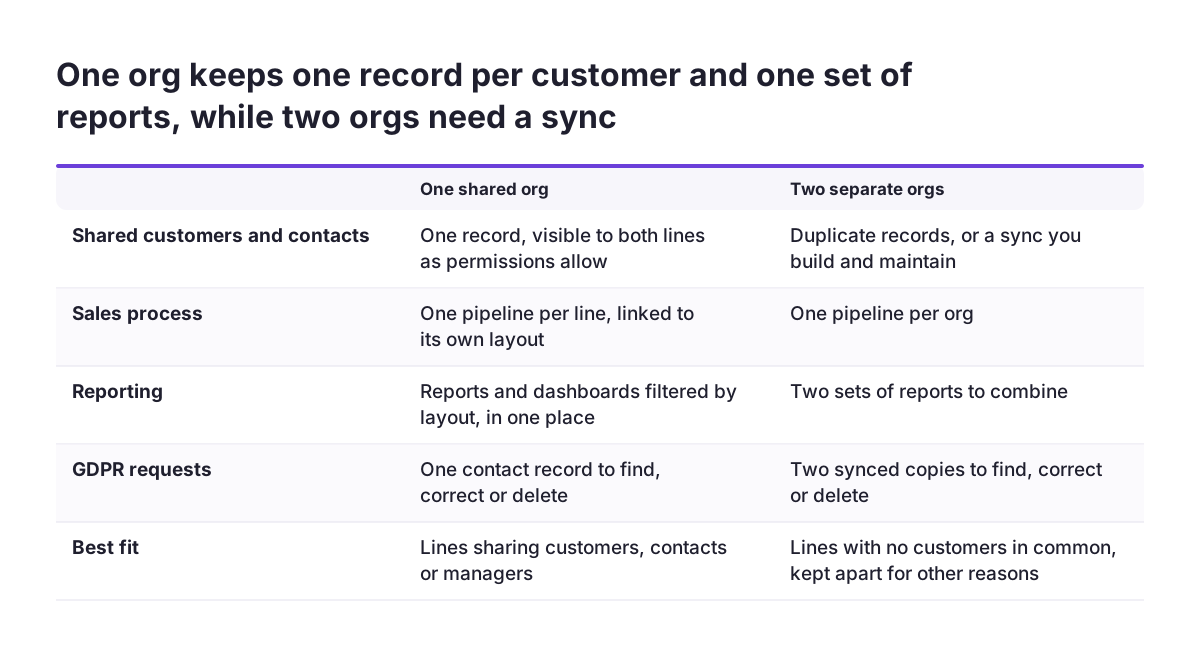
Choose one Zoho CRM org when the two business lines share customers, contacts or managers who need a combined view. Choose two orgs only when the lines have no customers in common and must stay apart for other reasons. The table compares both options on the points that usually decide it.
| Criterion | One shared org | Two separate orgs |
|---|---|---|
| Shared customers and contacts | One record, visible to both lines as permissions allow | Duplicate records, or a sync you build and maintain |
| Sales process | One pipeline per line, linked to its own layout | One pipeline per org |
| Reporting | Reports and dashboards filtered by layout, in one place | Two sets of reports to combine |
| Team communication | Everyone in one organisation | A forum user reports the Cliq mobile app logs in to one org at a time |
| Licences | One subscription | A forum user reports an extra application-level org billed as a new single-app licence |
The community poster who split into two subscriptions describes the cost. Users in the two organisations could not message each other directly and worked as separate silos. Opening the second account also required a second mobile phone number for the same person.
The second option in Zoho's "Two Businesses / One CRM" thread was two accounts sharing lead, account and contact details through some kind of sync. That sync becomes software you own. One org with clean separation avoids building it.
Separate layouts per business line, with permissions by profile
Separate layouts give each business line its own form, its own fields and its own access rules inside the same module. Build them before you build pipelines, because Zoho links each pipeline to a layout.
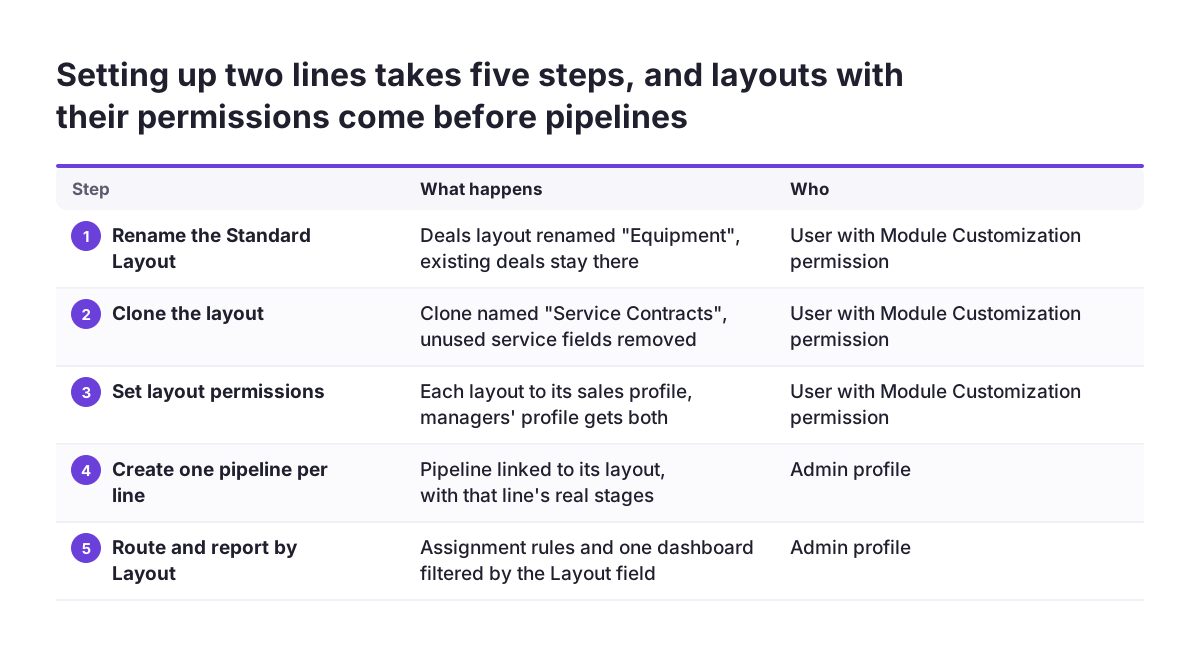
You need the Module Customization permission to create layouts. Go to Setup > Customization > Modules and Fields, then click the module that needs a new layout. Zoho provides a Standard Layout by default. You can rename and customise it, or clone it to create a new layout.
Access is set at the moment you save. Zoho CRM then opens the Layout Permission popup, where you enter the user profiles that may use the layout. A product sales team can therefore work only in the product layout, while managers see both.
Details that differ per layout
- The quick create form is layout-specific, so each business line can have its own short form.
- On the quick create form, only the show fields and set mandatory fields actions apply.
- The business card in the detail view can show up to 5 standard or custom fields, chosen per layout.
Creating a new layout also creates a system field called Layout. It carries the name of the layout through which each record was created. That field later drives your views, assignment rules and reports, so keep layout names short and clear.
One pipeline per business line, linked to its layout
Each business line gets its own sales pipeline, attached to the layout that line uses in the Deals module. Users with the Admin profile can design pipelines under Setup > Customization > Pipeline > + New Pipeline.
When you add a pipeline, you choose the layout it belongs to. You can then pick pre-defined stages or create new stages that match the line's real process. If the layouts already exist, Zoho lets you associate a pipeline with the right layout after creating it.
The first custom pipeline triggers a system step. Zoho automatically creates a standard pipeline containing all stages in the existing Deal Stage picklist field. This happens only if deals are present in that layout, or if a Blueprint already uses those stages. The standard pipeline exists so every existing deal belongs to at least one pipeline.
Moving deals between pipelines
You can rename the standard pipeline and add or remove its stages. Deals can be transferred to a more suitable pipeline, and exported or imported from one pipeline to another. If you delete a pipeline, Zoho offers to transfer its deals elsewhere. With no other pipeline configured, those deals go back to the standard pipeline automatically.
Mobile users need one extra step. After you add a pipeline on the desktop site, they force close the app and relaunch it so the pipeline syncs. The stages shown on a deal then follow the value in its Pipeline field.
Worked example: equipment sales and service contracts in one org
Take a company that sells machines and also sells maintenance contracts for them. Both lines sell to the same customers, so the company keeps one Zoho CRM org. The example below is illustrative, but every setting and menu path comes from Zoho's documentation.
- In Setup > Customization > Modules and Fields, open Deals and rename the Standard Layout to "Equipment". Existing deals stay there.
- Clone it and name the clone "Service Contracts". Remove fields that service deals never use.
- In the Layout Permission popup, give "Equipment" to the equipment sales profile and "Service Contracts" to the service sales profile. Give both to the managers' profile.
- Create an "Equipment" pipeline on the Equipment layout with Qualification, Proposal or Price Quote, Negotiation, Sales Order, Payment, Close won and Lost.
- Create a "Service" pipeline on the Service Contracts layout with fewer stages, for example Qualification, Proposal or Price Quote, Negotiation, Close won and Lost.
- Build a quick create form for each layout, and create custom views filtered on the Layout field.
The stages in step 4 are the typical stages Zoho lists in its tutorial. The service pipeline drops Sales Order and Payment because a contract renewal may not need them. Your own stages should mirror how each team actually sells.
The result is one account record per customer, with machine deals and contract deals listed side by side. Each team sees only its own form and stages. Managers see both lines on the same account.
Ownership and assignment when both business lines sell to the same customer
When both business lines sell to the same customer, keep the company and contact details shared and give each line its own deals and owner. That is the first option described in Zoho's "Two Businesses / One CRM" thread. Each lead or account has one owner per product, the company and contact details are common, and opportunities are unique to the product.
The Layout field makes this ownership automatic. Zoho's page layout documentation confirms the field can be used in record assignment, approval processes and auto-follow rules. An assignment rule can therefore route every Service Contracts deal to the service team without anyone choosing an owner by hand.
Profiles decide who may open each layout, as the Layout Permission popup shows. Keep the profile design simple: one profile per line, plus one for people who work across both. Every extra profile is another set of permissions to check whenever you add a field or a layout.
Records sometimes start in the wrong line. A customer may ask the equipment team about a service contract. Zoho's documentation notes that a workflow rule with a field update can move a record from one layout to another. Workflow rules are actions such as email notifications, tasks and field updates that run when set conditions are met.
Reporting by business line with the Layout field, without splitting reports
Reporting by business line in one Zoho CRM org works through the layout, not through separate report sets. Zoho states that you can create reports and dashboards for a module based on the different layouts created for it. One dashboard can show both lines, and each chart can filter to one.
The practical design is a small number of shared reports with a layout filter. A pipeline report grouped by Layout shows open value per line next to the combined total. A won-deals report filtered to one layout gives that line's manager a clean view without a second CRM.
Custom views follow the same logic for daily work. Zoho lists custom views among the places the Layout field can be used. A sales rep in the service line opens a "My service deals" view filtered on the Service Contracts layout and never scrolls past equipment deals.
Keep the pipelines comparable where it matters. If both lines use Qualification and Negotiation, you can compare conversion between the two lines stage by stage. Stages with different names for the same step make that comparison harder, so agree on shared stage names before you build the second pipeline.
Standard Layout and standard pipeline defaults to fix before go-live
Zoho CRM sends records to the Standard Layout whenever nothing says otherwise, and that default is the most common source of mixed data. Check these defaults before anyone starts working in the second business line.
- When you create a page layout for the first time, existing records are assigned to the module's Standard layout.
- Records pushed through the API go to the layout set by the Layout ID, or to the Standard Layout if none is set.
- Leads and contacts from Zoho CRM integrations such as Visitor Tracking, Zoho Books and Zoho Survey go to the module's Standard Layout.
- Creating a pipeline does not change how stages update in the layout, so check stage values on existing deals separately.
The fix is to decide which business line owns the Standard Layout. Rename it after the line that receives most integration and import traffic. Then add a workflow field-update rule that moves the other line's records to their own layout. Ask whoever maintains your API integrations to send a Layout ID with every record.
At Svennis, we create the second layout and its pipeline before importing any historical deals, then check that the Standard Layout holds only records that belong to its line. If you are bringing records in from an older system, the guide on how to migrate to Zoho CRM without losing your sales history covers the import itself.
What two business lines mean for an EU company with separate legal entities
Many companies in the EU run each business line as its own legal entity, sometimes in different member states. Accounting, invoicing and tax rules then apply per entity and per country. The CRM structure does not change those obligations, so separate the questions: where you sell, and where you book.
The CRM side can usually stay as one org, even when each line is its own legal entity. Customer records, pipelines and sales reports can live in that one org. Sharing customer data between entities, however, is a GDPR question, not a layout setting. Each entity needs a lawful basis to use the shared records, and both must tell customers about it.
If the entities decide together how the data is used, they need a joint controller arrangement. One shared contact record is easier to find and correct when a customer uses their GDPR rights. Agree in advance which entity answers requests, and what happens to the record when only one entity has to delete it.
The finance side deserves its own decision. One Zoho community poster ran two businesses in one Zoho One subscription, using reporting tags in Books for separate profit and loss statements. It became complicated as they grew. Splitting into two subscriptions meant combing through Books to separate every transaction, and they lost stock transfers between the businesses as warehouses.
Another forum user found that extra organisations could be created only at application level, such as in Zoho Books or Zoho Inventory, not across Zoho One as a whole. That organisation was billed as a new single-app licence. Check licensing before you plan two finance orgs, and compare bundles in the post on Zoho CRM Plus versus Zoho One.
Next steps: plan the split on paper before you build it
Planning the split on paper first saves you from moving records between layouts later. Work through these steps in order, and build nothing until the first three are agreed.
- List both business lines and confirm whether they share customers. If they do, plan one org.
- Write down each line's real sales stages, and agree shared names where steps are the same.
- Decide which line owns the Standard Layout, based on where integrations and imports send records.
- Define one profile per line, plus one for managers who work across both.
- Create the layouts, then the pipelines, then assignment rules and custom views based on the Layout field.
- Build one dashboard with a layout filter and test it with real deals from both lines.
- Ask mobile users to force close and relaunch the app so the new pipelines appear.
Check that your edition is Standard or later before you start, since multiple pipelines need it. Run the first month with weekly checks of the Standard Layout for records that landed in the wrong line.
If you want a second pair of eyes on the design, the Zoho CRM implementation page explains how a structured setup is planned and delivered.
Sources
- Zoho CRM tutorial: Multiple Sales Pipeline Overview
- Zoho Help: Why your business needs multiple sales processes in your CRM
- Zoho Help: Page Layouts in Zoho CRM
- Zoho Community: Multiple Sales Pipeline in the Zoho CRM mobile app
- Zoho Community: Using Zoho One to manage two (or more) businesses
- Zoho Community: Two Businesses / One CRM
- Zoho Community: Multiple Organizations in Zoho One