
What a sales pipeline is and why the design matters
Designing a sales pipeline in a CRM means deciding which stages a deal passes through, what must be true before it moves to the next stage, and who is responsible at each point. When those three decisions are sound, the pipeline gives you a reliable picture of your sales. When they are vague, your team keeps the real picture in spreadsheets and chat threads, and the CRM shows something else.
A few definitions first. Pipedrive describes a sales pipeline as "a structured system for tracking and managing opportunities from first contact to closed deal." The Zoho CRM help centre adds what a pipeline should show you: where prospects are in the buying cycle, how many open deals you have, how long a deal stayed in each stage and whether you have a good chance of winning it.
A pipeline is not the same as a funnel. Salesforce draws the line this way: a pipeline maps the seller's steps to close a deal, while a funnel follows the buyer's journey from awareness to purchase. Zoho describes the funnel as a view of how many leads enter and leave. You need both, but this guide is about the pipeline, the part your sales team updates every day.
The design work comes down to four decisions: the stages, the exit criteria for each stage, who owns what, and the two reports you will read every week to check that the design holds up.
Build stages around what the buyer has decided
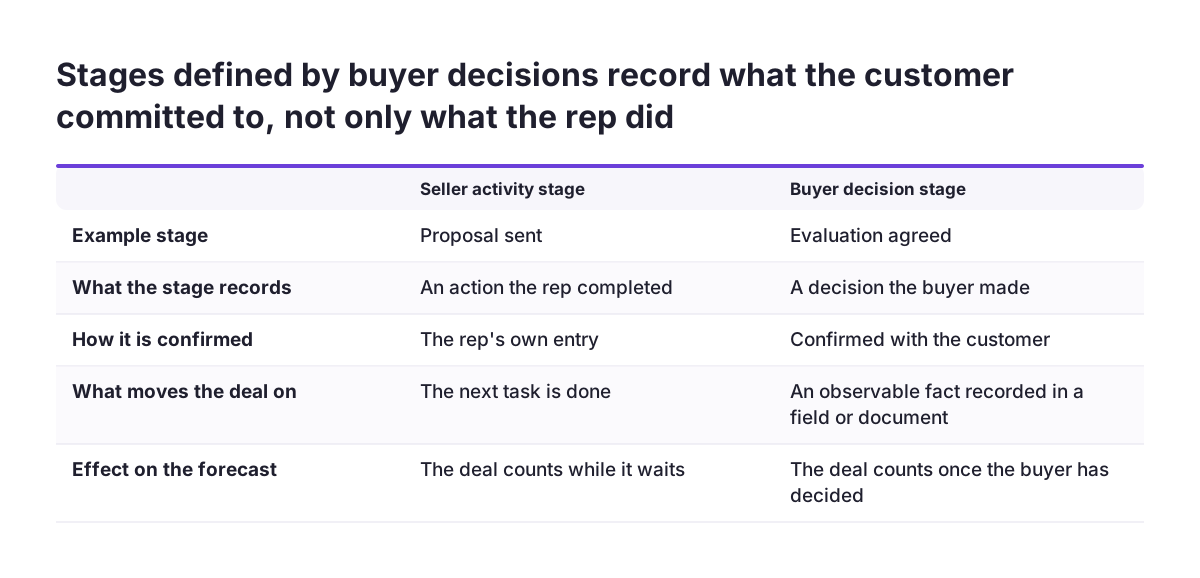
Most pipelines are built from seller activity: call made, demo given, proposal sent. These are easy to record, but they tell you what your rep did, not what the customer committed to. A deal marked "proposal sent" can sit untouched for months while it still counts in your forecast.
A more useful approach is to name each stage from your side but define it by a decision the buyer has made. The buyer's decision is what actually moves a deal closer to revenue, and it is something you can confirm with the customer rather than assume. A typical sequence for business sales looks like this:
- Problem agreed: the buyer confirms there is a problem worth spending time on.
- Evaluation agreed: the buyer agrees to evaluate your offer and names who takes part in the decision.
- Solution fit confirmed: the buyer confirms your proposal fits their scope and budget.
- Terms agreed: the buyer accepts the commercial terms, pending signature.
- Closed won or closed lost: the contract is signed, or the buyer has said no.
This structure also makes it harder to fall into one of the mistakes Pipedrive calls among the most common in pipeline management: keeping low-probability opportunities active for too long. If a deal cannot show the next buyer decision, it is visibly stuck, and someone has to decide whether it stays open.
Write exit criteria that anyone can check
An exit criterion is the condition that must be true, and recorded on the deal, before the deal may move to the next stage. Good exit criteria share three properties: they describe something observable, they are captured in a field or an attached document, and a manager can answer them with yes or no without asking the rep.
Compare two versions. "Customer seems interested in a proposal" is an opinion. "Customer has named the decision makers and agreed a date to review the proposal" is a fact you can see in the record. The second version gives two reps the same answer for the same deal, which is what makes your pipeline comparable across the team.
Salesforce lists the reasons pipelines fail: deal stages are unclear, data is outdated, or reps do not follow a consistent process. Written exit criteria address all three at once, because each stage now has a definition, each move requires current data, and every rep follows the same rule. At Svennis we write the exit criteria with the sales manager, one line per stage, before anyone opens the stage builder, because a stage without an agreed exit rule tends to become a place where deals wait.
Once the criteria are agreed, you can decide which of them the CRM should enforce and which stay as guidance. The guide on how to automate your sales process covers the automation side; the criteria themselves should exist on paper first.
How many stages you need
There is no correct number, but two reference points help. Salesforce describes a typical pipeline with seven stages: prospecting, lead qualification, sales call, proposal, negotiation, contract signing and post-purchase, noting that stages vary by team and industry. Pipedrive's own framework uses five: opportunity capture, qualification, opportunity development, commitment and post-sale expansion.
The risk is usually too many stages rather than too few. Stacey Clarke, Senior Customer Success Specialist at Pipedrive, puts it plainly: "users create stages that cause bottlenecks. Due to repetitive stages and redundant stages." A simple test works well: a stage earns its place only if it has its own buyer decision and its own exit criterion. If two stages share the same exit rule, merge them.
Also check where the pipeline actually starts in your CRM. In Zoho CRM, pipelines can only be created for the Deals module, and not for custom modules. Prospecting and early qualification, before a deal exists, therefore belong in the lead process rather than in the deal pipeline. Mixing them makes the pipeline look fuller than it is.
Scale matters too. Pipedrive suggests a spreadsheet template makes sense when you manage fewer than 10 deals at the same time. If you are close to that point and unsure how much CRM you need, the comparison of Zoho Bigin and Zoho CRM helps you decide whether a lighter pipeline tool is enough.
Worked example: two pipelines in Zoho CRM
Take a company that sells equipment to businesses and also renews annual service contracts. New business and renewals involve different buyer decisions, so they get separate pipelines. Here is how the settings from Zoho's documentation apply.
Setup decisions
- Who configures it: users with the Module Customization permission profile can access the multiple pipeline feature.
- Standard pipeline: when you create a pipeline for the first time, Zoho CRM creates a system-defined standard pipeline from your existing deal stages and associates all existing deals with it.
- Layouts: pipelines are layout specific, and you can create several per layout. Both pipelines here sit in the same Deals layout.
- Default pipeline: a pipeline cannot be attached to a deal automatically at creation, but you can set a default. New business is the default, since it is the more common case.
- Probabilities: a stage used in several pipelines keeps the same probability value. Renewals therefore get their own stage names instead of reusing new-business stages.
- Closing: for Closed Won the forecast category maps automatically to Closed; for Closed Lost it is omitted.
| Pipeline | Stage | Exit criterion (buyer decision) |
|---|---|---|
| New business | Problem agreed | Buyer confirmed the problem and a contact person |
| New business | Evaluation agreed | Decision makers named, review date set |
| New business | Solution fit confirmed | Buyer confirmed scope and budget in writing |
| New business | Terms agreed | Commercial terms accepted, contract sent |
| Renewals | Renewal review booked | Buyer agreed a date to review the service year |
| Renewals | Renewal terms agreed | Buyer accepted renewal terms, contract sent |
| Both | Closed Won / Closed Lost | Signed contract attached, or loss reason recorded |
Decide who owns each stage and the pipeline itself
Ownership has two layers. The first is the deal owner at each stage. If one person qualifies deals and another closes them, the handover belongs in the exit criterion: the deal does not leave "Evaluation agreed" until the new owner is assigned and has accepted it. Without that rule, handovers become the place where deals go quiet.
The second layer is the owner of the pipeline design: one person who decides when stages change. Zoho CRM gives you some controls to support this. Only users with the Module Customization permission can manage pipelines, and you can set an approval process based on the pipeline so that reps can only act on a deal once it is approved.
Some things you cannot control per field. According to Zoho's FAQ, you cannot set visibility criteria for the pipeline and stage fields because they are mandatory in the Deals module, and the pipeline field's visibility follows layout permission rather than its own field permission. If certain teams should not see a pipeline, you control that through layouts.
Design changes need care. Stages you remove from a pipeline are not deleted and stay in the stage builder. Deleting a pipeline also deletes its blueprints; open deals must be transferred to another pipeline in the same layout, closed deals stay in the deleted pipeline, and deals locked for pending approval or review are not transferred. You find those under the Kanban view by selecting "Unaccounted". The pipeline owner should check that view after every change.
The two reports that tell you if the design works
Once the pipeline is live, two reports show whether your stages and exit criteria reflect reality. Pipedrive's pipeline guide makes the underlying point: looking at your activities, how long deals have been sitting and your conversion rates tells you where you are and what is not working.
Report one: stage-to-stage conversion
This shows what share of deals that enter a stage move on to the next one, and what share are lost there. A sharp drop between two stages usually means the earlier exit criterion is too loose, so weak deals pass through, or the later one asks for something buyers rarely give. Salesforce notes that Zoho CRM includes funnel reports, which are a natural starting point for this view.
Report two: time in stage
This shows how long open deals have been sitting in their current stage. Zoho's own definition of a pipeline includes how long a deal stayed in each stage, and other tools flag the same thing; Salesforce mentions Pipedrive's "rotten deal" indicators for stagnated deals. Deals that age in one stage point to an exit criterion the buyer cannot act on soon, or to a missing owner.
Salesforce advises updating pipelines at least weekly and notes that many teams review them daily. A short weekly review of these two reports is enough to catch most design problems early. If you later want AI to summarise or explain them, that is a separate step, covered in the overview of AI for reporting.
Where pipelines go wrong after go-live
Even a well-designed pipeline drifts. The problems below appear repeatedly, and most of them can be avoided with a rule written down at the start.
- Activity stages creep back in. Someone adds "Follow-up call" as a stage. Hold every new stage to the test of its own buyer decision and exit criterion.
- Shared probabilities surprise the forecast. Because a stage keeps one probability across pipelines, reusing a stage name in a pipeline with a different sales cycle distorts the weighted forecast.
- Imports skip records. When importing deals, Zoho CRM skips records with a layout-pipeline or pipeline-stage mismatch. Map layout, pipeline and stage together before any import; the guide to migrating to Zoho CRM covers the rest of that preparation.
- Deals cannot move across layouts. To move a deal to a pipeline in another layout, you must first change the deal's layout, then select the pipeline. Reps need to know this.
- Automation moves deals without a buyer decision. Zoho CRM can update pipeline and stage fields as a follow-up to a mass email that is clicked, opened or bounced. An opened email is not a buyer decision, so use this for lead handling rather than stage progression; see marketing that updates the pipeline for a safer design.
Behind all of these sits one habit. Pipedrive's internal observations link stronger pipeline outcomes to consistent execution habits rather than activity volume alone, which is exactly what clear exit criteria are meant to produce.
What this means for a company selling across the EU
If you sell in several EU countries, the main design question is whether country teams share one pipeline or each get their own. Start from buyer decisions again: if a buyer in one market goes through the same decisions as a buyer in another, one pipeline with one set of exit criteria keeps your reporting comparable across countries.
Separate pipelines make sense when the sales motion genuinely differs, for example direct sales in one market and distributor sales in another. In Zoho CRM, pipelines are layout specific and pipeline visibility follows layout permission, so if country teams must not see each other's deals, separate layouts are the tool. Remember that reusing a stage name across those pipelines also reuses its probability.
Language is a practical point. Your reps will apply exit criteria more consistently if the definitions are written in the language they work in, while stage names stay identical across countries so the two reports can be compared side by side.
Finally, write exit criteria about the deal, not about private details of the people involved. A criterion such as "decision makers named" needs names and roles, not personal opinions or background notes. Keeping stage fields to what the decision requires makes your GDPR review of the CRM simpler and keeps the pipeline focused on what it is for.
Practical next steps
You can do most of this design work before you change a single setting. Work through these steps in order.
- Review recent deals. Take your latest won and lost deals and write down, for each, the decisions the buyer made on the way. The common decisions become your candidate stages.
- Draft the stage table. For each stage, write one exit criterion that a manager can check with yes or no, and name the field or document where it is recorded.
- Merge and cut. Remove any stage that shares an exit criterion with another, and move prospecting activity out of the deal pipeline.
- Assign ownership. Name the deal owner at each stage, put handovers into the exit criteria and appoint one person who owns pipeline changes.
- Configure the CRM. In Zoho CRM, confirm who has the Module Customization permission, decide on layouts, set a default pipeline and give stages with different likelihoods different names.
- Build the two reports. Set up stage-to-stage conversion and time in stage, and review both every week for the first months, adjusting criteria where deals pile up.
If you want support turning your stage table into a working setup, the Zoho CRM implementation page explains how we approach configuration, data and training for teams across Europe.