
Workspace Groups, variables and share filters: the building blocks of per-team access
Per-team access in Zoho Analytics rests on four pieces that work together. The Zoho Analytics help centre describes each of them:
- Workspace Group: "a collection of email addresses of your users". You can use a group to share views, to email views and to create variables.
- Variables: placeholders that assign dynamic values for individual users or Groups in the workspace. When you create a variable, you can name a Group instead of listing individual email addresses.
- Share filter criteria: conditions attached to a shared view that limit the data it shows to the people it is shared with. Variables can be used inside these criteria.
- User Filters: the filters a viewer works with on a dashboard. A variable can set their default value dynamically for each user or group.
The difference between the last two matters for security. Share filter criteria decide which data a shared user receives. A User Filter default only sets the starting point of a filter. Treat the share filter as the control and the User Filter default as a convenience.
Groups also save repeated work. The Zoho Analytics help page on managing groups notes that a group lets you share or email reports and dashboards with the same permission for a set of users. You no longer type the users in each time. For a dashboard that several teams use, that means one group per team and one share per group.
Who can set up shared dashboards: administrator roles and plan requirements
Only administrators can build the group structure that per-team sharing needs. According to Zoho's help on managing groups, three roles can create Groups in a workspace: Account Administrators, Organization Administrators and Workspace Administrators. Users with administrative profile permission can access the feature.
The Groups option needs the Standard Plan or above. On the Standard, Premium and Enterprise plans the number of groups is listed as unlimited. You can therefore create one group per team, region or function without running into a cap.
The people you share with need a few things too. The help page on accessing shared views in Zoho Analytics lists them:
- A Zoho account is required to open reports shared privately.
- A shared user who has not registered must sign up with the email address named in the invitation email.
- Shared reports and workspaces appear under the Shared Databases tab on the Home page.
The same page sets the boundaries of what a shared user can change. Shared users cannot edit reports in a workspace; editing a report needs Workspace Administrator privilege. A shared user can edit table data only if an Admin or Workspace Administrator has granted Write permission. Keep the list of Workspace Administrators short, because that role reaches well beyond a single team's view.
Worked example: one sales dashboard filtered by region for four teams
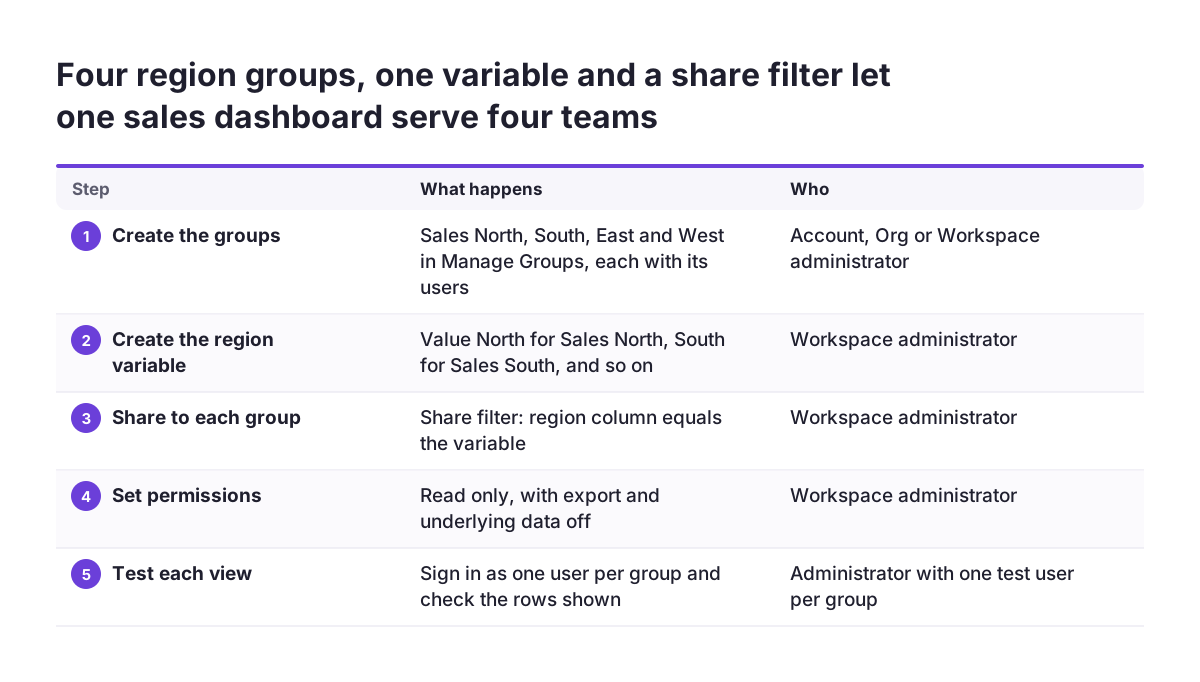
A regional split shows the method most clearly. One Zoho community thread describes six users who manage data for four areas: North, South, East and West. Each user should see only their own area in the dashboards. The steps below use that scenario. The group names are our examples.
- In Explorer, open the Settings tab and then the Manage Groups tab.
- Create four groups, such as Sales North, Sales South, Sales East and Sales West. Add the email addresses of the users responsible for each area.
- Create a variable for the region. Assign the value North to the Sales North group, South to Sales South, and so on.
- Share the dashboard to each group. In the share filter criteria, set the region column to equal the variable.
- Keep the permission read-only. Leave export and access to underlying data switched off unless a team needs them.
- If the dashboard has a region User Filter, set its default value from the same variable.
- Sign in as a test member of each group and check what that person sees.
The last step is the one most often skipped. At Svennis we sign in as a test user from every group before a per-team dashboard goes to its audience. The owner's own view shows all rows, so it hides a filter that is wrong for the viewer.
The result is one dashboard to maintain instead of four copies. When someone moves from South to East, you change their group membership, since users can be added to or removed from a group at any time. You can also modify the permission and filter criteria for each view shared to a group.
Permissions to decide for each shared dashboard: read-only, export, underlying data and write
Every share in Zoho Analytics carries its own permissions, and each one widens what a viewer can take away. Zoho's blog on collaboration options describes fine-grained choices over what a shared user can do. These include read-only access, exporting data and viewing the underlying data. You can also let colleagues upload or add data and analyse and develop the reports you share.
For a team dashboard, decide each permission on purpose:
- Read-only: the sensible default for managers and team members who only need to look.
- Export: lets the data leave Zoho Analytics, where your filters no longer follow it.
- Underlying data: shows the rows behind a chart, which may include columns the chart never displays.
- Write: lets a shared user edit table data, so grant it only to the people who own that data.
Base tables need a separate decision. According to Zoho's help, users can create their own reports over shared data once the base table or query table is shared to them. Share a table only when you are content for its recipients to build anything they like on top of it.
Editing reports is a common frustration. In one community thread, a user wanted shared users to edit text box fields on a report and found that they could only view it. The user called view-only sharing pointless when an email as PDF already exists. The help pages confirm that editing a report needs Workspace Administrator privilege. That is a trade-off between convenience and control, not a setting you switch on.
Choosing a sharing method: private sharing, permalinks, public views, embeds and email
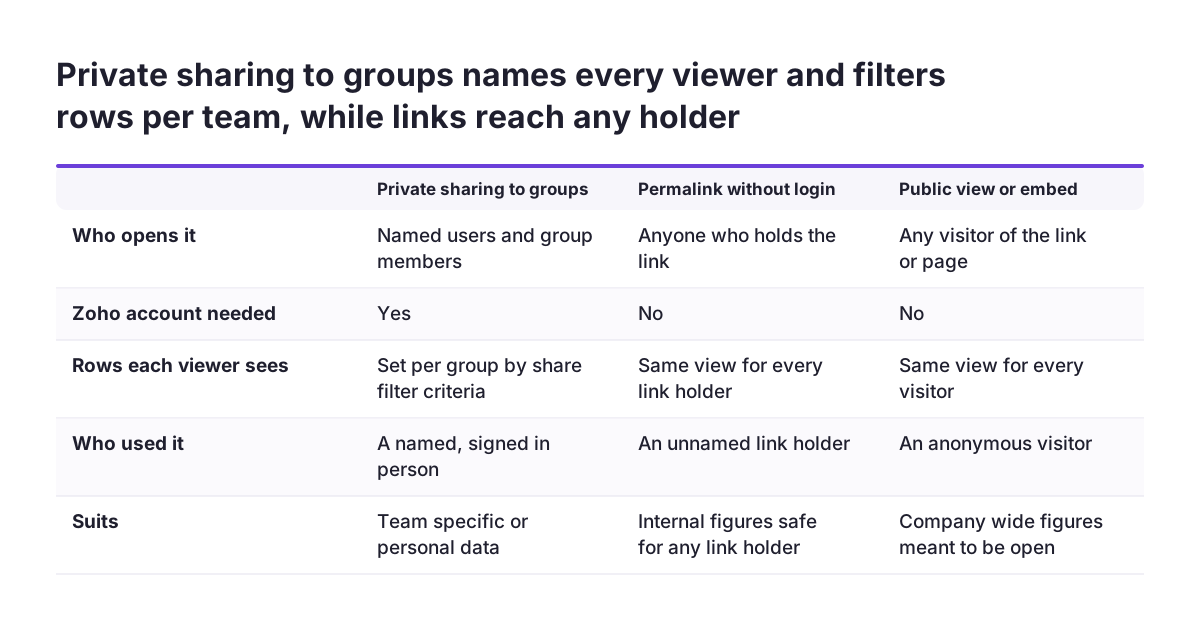
Private sharing to groups is the only method in Zoho's help pages that ties access to a named, signed-in person. A permalink is a standalone permanent URL for a report or dashboard. Zoho Analytics can make a permalink available with a secured login, as a private permalink or with public access. Embedding places a table, report or dashboard on a website, web application, blog or intranet page.
| Method | Who can open it | Zoho login needed | Per-team control |
|---|---|---|---|
| Private sharing to users or groups | Named users and group members | Yes, a Zoho account | Yes, through permissions and share filter criteria |
| Private access without login | Anyone who holds the link | No | The link is the key; you cannot tell who used it |
| Public access | Any remote user | No | None |
| Embed on a website or intranet | Visitors to that page | No, for a public view | Only the host site's own login |
| Email as PDF | Everyone on the distribution list | No | One file per team, or everyone sees the same data |
Export behaves differently across these methods. A community user who shared dashboards through a permalink from the publish options found that viewers could open them. Those viewers had no Export option, which the user saw only for logged-in Zoho users. If people outside your Zoho account need to export, plan for that limit before you choose a public or private link.
When a shared dashboard does not appear for a user: what to check
A shared dashboard that a user cannot see usually points to an account or invitation problem, so check those first. In one community thread, a paying customer shared a new dashboard with two newly licensed users, and neither could see it. Deactivating, reactivating, revoking and re-granting access did not help. The customer's other shared dashboards still worked for other users.
The thread does not record a fix, but Zoho's help on accessing shared views gives you a checklist:
- Confirm that the user signed up with the exact email address named in the invitation email.
- Ask the user to look under the Shared Databases tab on the Home page, where shared reports and workspaces appear.
- Have the user open the dashboard's URL directly. A Request Access button means the share does not cover that account.
- Check that the user is a member of the group the dashboard is shared to.
- Check that the user has not removed the workspace with Unsubscribe Workspace, which removes the workspace and its views from their account.
If all five checks pass, raise a ticket with Zoho support. Include the dashboard URL and the affected email addresses. Do not fix it by switching the dashboard to public access, because that removes the per-team control you set up.
Dashboard permissions and GDPR: what an EU company should add
For a company in the EU, a dashboard that shows personal data raises a GDPR question as well as a reporting question. HR dashboards are the obvious case, but sales dashboards also list contact names and owners. The same per-team design that keeps regions apart also limits who sees personal data.
Three habits help when your data protection lead or an auditor asks who can see what:
- Keep the Manage Groups list as the record of which team sees which dashboard, and review it when people join, move or leave.
- Write down the share filter criteria and permissions for each view, since you can change them per view.
- Remove sensitive fields before they reach Zoho Analytics where you can. Zoho CRM, for example, offers field masking to keep sensitive customer data private.
Blended data needs extra care. A dashboard that combines CRM and accounting data can expose figures that one system alone would not. Our guide to Zoho CRM and Books data blended in Zoho Analytics covers how such views are built. Apply the same group and filter rules to every blended view.
Rules on employee data can also differ between member states. Agree the sharing design for HR dashboards with whoever handles data protection in each country where you employ staff.
Next steps: map teams to groups, share one dashboard, test each view
Per-team sharing is easiest to get right on one dashboard before you roll it out widely. A practical order:
- List your teams and the column that separates their data, such as region, branch or owner.
- Check that your plan is Standard or above, so Groups are available.
- Create one Workspace Group per team under Settings and Manage Groups in Explorer.
- Create a variable that assigns each group its value, and use it in the share filter criteria.
- Share one dashboard read-only, with export and underlying data off.
- Sign in as a test user from each group and confirm what each sees.
- Review any public permalinks, embeds and all-staff PDFs, and replace those that carry team-specific data.
If you want help designing the group structure or reviewing the shares you already have, see our Zoho Analytics implementation and consulting page.
Sources
- Collaboration (Sharing & Publishing) Options in Zoho Analytics - Zoho Blog
- Managing Groups, Zoho Analytics Help
- Accessing Shared Views, Zoho Analytics Help
- How are you sharing your reports with others in your organization? Zoho Community
- Shared Dashboard Not Displaying to the User, Zoho Community
- How to restrict access to row level to Zoho Analytics users, Zoho Community
- Restrict Access to Dashboard Tab to some users, Zoho Community
- How do I give shared users the ability to edit a report, Zoho Community
- Analytics: How to share to an external client? Zoho Community
- Allow non-logged in users to export from Dashboard, Zoho Community