
Approval workflows inside Zoho Creator apps: what holds up in daily use
Approval workflows inside Zoho Creator apps hold up when you give each decision its own approval level. Assign approvers by role or by a Users field rather than by named individuals. Then configure messages for submission, approval and rejection, and rely on the approval history for the record. Most failures come from approvers who leave, forms that skip approval, and edits that never trigger it.
An approval workflow is a predefined set of rules and actions that routes form entries in a Zoho Creator app to decision-makers for approval or rejection. That definition comes from Zoho's guide to creating approval workflows. An approver is the person with authority to approve or deny a record after it is submitted.
Approval workflows are available in all Zoho Creator plans. Super admins, admins and developers can build them. You do not need a higher edition to follow this guide. You need admin or developer access to the app.
This guide follows one worked example, a purchase request that needs two sign-offs. It then covers absent approvers, notifications, actions after a decision, the audit trail and the gaps to test. A checklist table near the end summarises the checks before go-live.
Approval levels and the three approver types in Zoho Creator
An approval level in Zoho Creator is one stage of review, and each level holds one approver or several. A form can have one level or many. Records move through the levels in the order the application admin configured. A record only reaches the second level after the first level has acted on it.
Zoho Creator lets you define approvers in three ways, described in Zoho's overview of approval workflows:
- User: specific people the application has been shared with.
- Role: every user in the selected role can approve or deny the record.
- Field: the approver is taken from a Users field in the form, so each record can name its own approver.
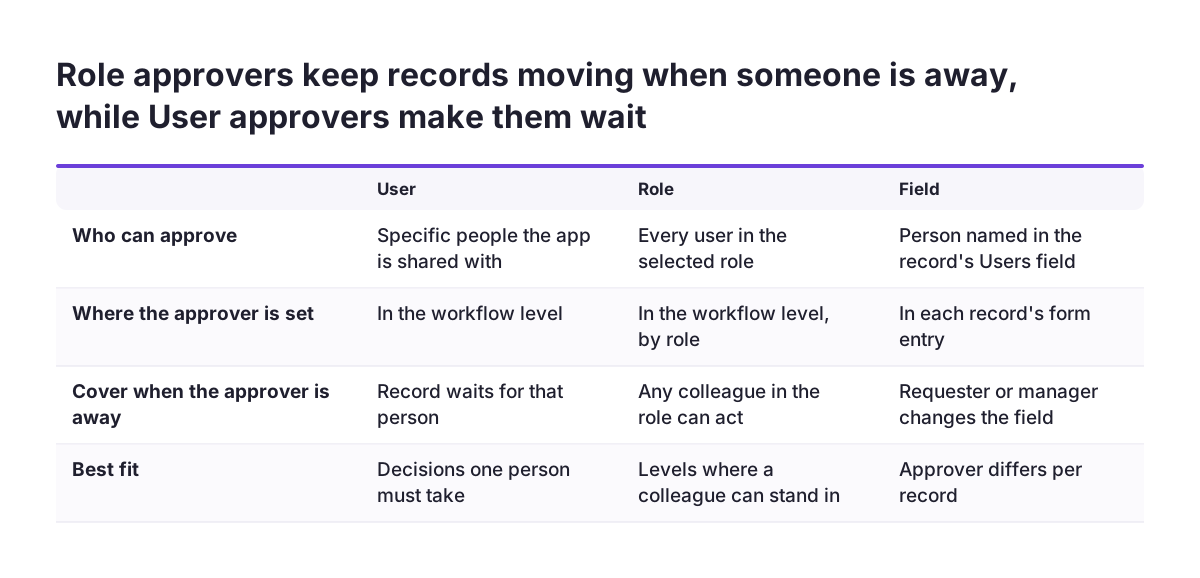
The choice of approver type decides how the workflow behaves when people change jobs or go on leave. The table compares the three types.
| Approver type | Who can act | When someone is absent | Maintenance |
|---|---|---|---|
| User | The named users only | Records wait until that person acts or you edit the approver | Edit the level whenever staff change |
| Role | Anyone in the role | A colleague in the same role can act | Keep role membership up to date |
| Field | The user named on the record | Depends on who fills the field | Control who may set the field |
Worked example: a two-level purchase request approval
A two-level purchase request is the clearest way to see approval levels in practice. Zoho's own example routes requests below ₹50,000 to the department head. Requests above that amount move to the finance team for a second approval. In your app, you would set the threshold in your own currency and amount.
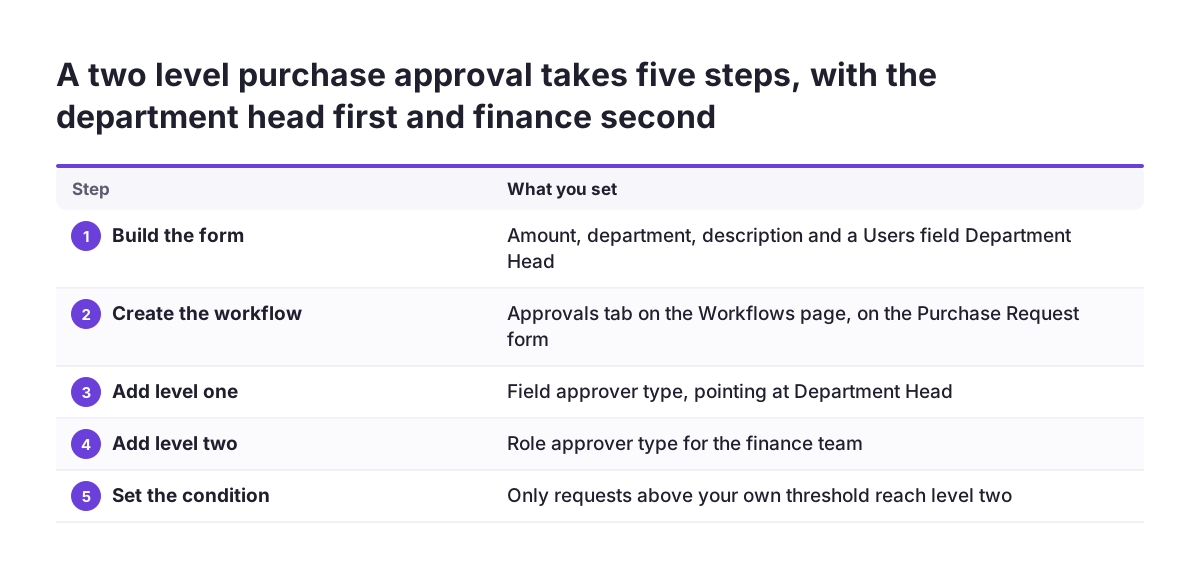
A build for that process in Zoho Creator follows these steps:
- Create a Purchase Request form with fields for amount, department, description and a Users field called Department Head.
- Open the Approvals tab on the Workflows page and create an approval workflow on that form.
- Add level one with the Field approver type, pointing at the Department Head field.
- Add level two with the Role approver type, choosing the finance role.
- Set the condition for level two so that only amounts above your threshold reach finance. The default condition is Always, which runs the approval for every record.
- Review the default email to the submitter on approval and on rejection, and adjust its wording.
In this design, no single person blocks the queue. The department head is taken from the record, and anyone in the finance role can handle the second level. Approvers work from the Approvals section of the live application. Pending Tasks holds ongoing approvals and Completed Tasks holds finished ones.
Conditions, labels, recall and visible fields to set before go-live
Zoho Creator approval workflows have several properties that change daily behaviour, and each one is worth a deliberate decision. Leaving them at their defaults is a choice too. The defaults are documented in Zoho's workflow creation guide.
Conditions
The condition defaults to Always, so every record goes through approval. A condition lets small or routine requests skip a level. Without one, approvers receive work that does not need their judgement, and they start approving without reading.
Labels
The default decision labels are Approve and Reject, and you can rename them. Labels such as "Release order" or "Return for changes" tell approvers what their click actually does.
Recall
Submitters can be allowed to recall approval requests from the Pending Tasks module. This option is set to No by default. Turn it on if people often submit too early and need to correct a request.
Visible fields
Workflow properties let you select, rearrange or remove the fields approvers see. Show approvers what they need to decide, and nothing more. A short, ordered view speeds up decisions and keeps unrelated data out of sight.
Covering an absent approver without breaking the workflow
Absent approvers are the most common reason approval workflows stall, so plan for absence when you choose the approver type. The Zoho help pages cited in this guide do not describe a time-based escalation setting. The dependable cover therefore comes from how you assign approvers.
Three design choices keep records moving when someone is away:
- Use the Role type for any level where a colleague could stand in, so every user in the role can act.
- Use the Field type where the right approver differs per record, and let the requester or a manager change that field.
- Keep the User type for decisions that one person must take, and accept that those records wait.
When an approver leaves, change the approver rather than removing it. In Zoho Creator, open the Approvals tab on the Workflows page and click the workflow name. Hover over the approval block header and click the Edit icon. In the Edit Approver window, change the approver type or person and click Save Approver. The block header then shows the new name, as described in Zoho's guide to editing an approver.
Do not delete the approver to replace it. Deleting an approver permanently deletes the entire approval level, including every action set to run on approval or rejection.
Notifications on submission, approval and rejection
Notifications in a Zoho Creator approval workflow tell people that a decision is waiting or has been made. Actions can run when a record is sent for approval, when it is approved and when it is rejected. By default, Creator emails the submitter on both approval and rejection. The Send Email action is available in every approval block, and you can edit it, delete it or add more actions.
An email notification has From, To and Message fields. Each field accepts dynamic values from Zoho variables, system fields and form fields, as listed in Zoho's guide to the send email action. Useful values include these:
zoho.adminuserid, the email address of the application admin.zoho.loginuserid, the email address of the logged-in user.${ID}, the unique number of the record.- Any form field, such as
${Employee_name}, which inserts what the user entered.
The Message field accepts HTML tags, so you can format the text. Put the record ID and the decision in the subject line, because people search their mailbox for them later. Besides email, approval and rejection blocks can also send an SMS or an in-app notification.
Actions after a decision: updating records and pushing data to other apps
Actions after a decision turn an approval into work done, so the approved record does not wait for someone to copy it elsewhere. Zoho Creator supports four groups of actions in approval and rejection blocks:
- Notification actions: send email, send SMS, send notification.
- Data access actions: add record, update record, delete record.
- Integration actions: QuickBooks, Salesforce, Zoho CRM and Zoho Recruit.
- Deluge script, for logic the other actions cannot express.
Actions run in the order they appear in the builder, and you can reorder them by drag and drop. Order matters. Update the record's status first, then notify, so the email never announces a change that has not happened.
Integration actions push data to the connected service. For Zoho Recruit, you add an action to the approval block and choose the Integrations action type. Then you select Zoho Recruit and the target module. Creator lists that module's mandatory fields, which you must map to form fields.
Mapping other fields is optional. The setup is described in Zoho's Recruit integration guide.
When the approval concerns a CRM deal rather than an app record, the process may belong in the CRM. Our post on Zoho CRM workflows and Blueprint compares those tools.
Audit trail and approval history: what Zoho Creator records
The audit trail of an approval workflow in Zoho Creator starts with the approval history, which requesters can view for their own submissions. Approvers review, approve, reject or recall records from the live interface. Completed Tasks lists the records that have finished the approval process. Together, these views answer the daily questions of who decided and when.
Wider auditing has grown recently. Zoho's community digest for late September 2026 reported that Creator's audit trail had become a full enterprise-grade auditing system. That digest appears on a Zoho community thread about approval comments. Check what your own app now records before you design extra logging around it.
Approver comments need a test of their own. On the same thread, a user asked how to store the comments entered during approval or rejection on the record and reuse them in Deluge emails. The page shows no answer. Your process may require the reason for a rejection in later emails or reports. If so, confirm in a test app that you can capture it before you promise it to the business.
For trends such as approval volumes or waiting times per level, plan a reporting step separately. Our Zoho Analytics implementation page covers that kind of dashboard work.
Known gaps to test: published forms, edits and records pending review
Three behaviours of Zoho Creator approval workflows surprise teams after go-live, so test each one in your own app first.
Published forms skip approval
Approval workflows do not apply to records submitted through published forms. A community user planned an approval on a referral form embedded on a public website. That user asked whether the approval would run, and the thread shows no reply. The help documentation already answers the question: it does not apply. Public submissions need a different route to a reviewer, such as a status field that staff work through.
Edits may not restart approval
The help pages describe routing form entries when they are submitted. A community member asked whether an edit could trigger approval and could not find a way. Design as if approval starts at submission. Then test what happens when someone edits an approved record.
Pending records may appear in reports
A user reported that submitted records appeared in the form's report while still under review. Check who can see that report. People may act on a request that has not been approved yet.
Approval workflows for companies operating across the EU
Approval workflows for an EU company mostly need decisions on data in messages, language and currency. Zoho Creator's settings support each of these choices, but none of them is made for you.
Notification emails can carry system fields such as ${Added_User_IP_Address}, the IP address of the user who added the record. Under GDPR, decide whether an approver's inbox really needs that kind of data. The same applies to the fields you make visible to approvers. Rules on retention and employee data can also differ between member states, so check the ones that apply where your staff work.
Language is the second decision. You can rename the Approve and Reject labels and write messages in HTML. A team working in German and English can therefore get labels and emails in the wording it uses. Currency is the third. Zoho's example threshold is in rupees, so set your own conditions in euros or your local currency.
Finance approvals may belong elsewhere. Zoho's August 2026 Books update expanded approval workflows to Sales Returns and Journals. If the record you want approved is a journal, the accounting system may be the better home. Our Zoho Books setup page covers that side.
Testing checklist for a Zoho Creator approval workflow before go-live
A testing checklist for a Zoho Creator approval workflow catches the problems users would otherwise find in the first week. At Svennis, we test every approval level with a separate test user for each approver type, including one user outside the role, before we enable the workflow for live records. That last user confirms that people who should not approve cannot.
| Check | How to test | What a pass looks like |
|---|---|---|
| Level order | Submit a record that needs every level | Each level receives it only after the previous one acts |
| Conditions | Submit records below and above the threshold | Only the larger request reaches the second level |
| Role cover | Approve as a second user in the role | The record moves on without the usual approver |
| Notifications | Approve one record, reject another | Each email shows the right record ID and decision |
| Action order | Read the record after approval | Status updated before the email went out |
| Recall | Recall from Pending Tasks, if enabled | The request leaves the approver's queue |
| Edits and reports | Edit an approved record and open the report | Behaviour matches what the business expects |
If a check fails, disable the workflow while you fix it. Disabling suspends execution temporarily without deleting the workflow.
Next steps for your first Zoho Creator approval workflow
Your first Zoho Creator approval workflow should cover one real process with two levels, not every approval in the company. Pick a process people already complain about, such as purchase requests or leave of absence. A narrow first workflow shows quickly whether your approver types and conditions fit how people work.
These steps turn this guide into a working setup:
- Write down each decision in the process, who takes it, and who covers when that person is away.
- Map each decision to a level and choose User, Role or Field as the approver type.
- Set conditions, labels, recall and visible fields on purpose rather than by default.
- Write the notification texts and order the actions so the status changes before people are told.
- Run the checklist above with test users, then enable the workflow for live records.
If the approval is part of a larger custom app, settle the data and users first. Our Zoho Creator page explains how custom business apps are planned and built, and it is the place to start if you want help with your own.
Sources
- Zoho Creator Help: Creating and managing approval workflows
- Zoho Creator Help: Understanding approval workflows
- Zoho Creator Help: Edit approver
- Zoho Creator Help: Understand send email action in approval process
- Zoho Creator Help: Configure Zoho Recruit integration in approval workflows
- Zoho Community: Use approval workflow comments in record scripts
- Zoho Community: Approval flow for embedded forms
- Zoho Community: Initiate approval workflow after on edit on success
- Zoho Community: Approvals in Zoho Creator