
Zoho One admin in short: users first, SSO second, apps last
Zoho One admin (users, SSO, apps) is one job done in a fixed order. You get users into Zoho One first. Then you connect single sign-on through custom authentication for a test group. Only after that do you assign apps and open them to everyone. Reversing the order is how admins get locked out or end up with accounts nobody can trace.
Single sign-on (SSO) is a setup in which your people reach multiple Zoho applications with one set of credentials. An identity provider checks those credentials, so users need no separate Zoho password. Scalefusion's Zoho SSO integration page notes that Zoho SSO is configured at the account or organisation level. One identity provider connection therefore covers Zoho CRM, Mail, Books and the other apps in your Zoho organisation.
This guide covers the three tasks with real menu names and settings. They come from Zoho's admin guide, Microsoft Learn and the identity vendors' own documentation. You will find options for adding users and a worked SAML example on the EU data centre. The guide also explains the lockout risk and how to assign apps safely. If you are still deciding whether the suite suits your company, our Zoho One review for 2026 weighs that question first.
Key terms in Zoho One admin: IdP, SAML, custom authentication, SCIM and ACS URL
Zoho One admin relies on a handful of identity terms that the help pages assume you already know. The list below defines each one as Zoho and the identity vendors use it.
- Identity provider (IdP): the system that authenticates your users, such as Microsoft Entra ID, Okta, OneLogin or miniOrange. In SAML terms, the application your users sign in to is the service provider (SP).
- SAML (Security Assertion Markup Language): the industry-standard protocol that carries the sign-in result from the IdP to the service provider.
- Custom authentication: the Zoho One feature where you add an external IdP. It supports both SAML and JWT single sign-on. Zoho One documentation also calls this setup a custom IdP.
- Directory store: a Zoho One feature for organisations that use another directory service. It lets you delegate some users or apps to that directory and manage them from Zoho One.
- SCIM integration: a sync method in which your directory pushes user accounts into Zoho One. It uses a Sync Endpoint and a SCIM token that Zoho One gives you.
- ACS URL: the address in Zoho One that receives the sign-in response from your IdP. You copy it from Zoho One's Custom Authentication page.
- NameID: the value that tells the service provider who is signing in. The NameID format defines how that value is written, for example as an email address.
Adding users to Zoho One: by hand, from a directory store or by SCIM sync
Users reach Zoho One in one of three ways, and you should choose the way before you touch SSO. Single sign-on only decides how existing users prove who they are. Microsoft's Entra ID tutorial states that in Zoho One, provisioning is a manual task. Connecting an IdP does not create the accounts for you.
Provisioning is the act of creating a user account and giving it the right access. These are the provisioning options the sources describe:
- Manual provisioning: an admin adds each user in Zoho One. This works for a small team, but every joiner and leaver becomes a task someone must remember.
- A directory store: Zoho One takes users from another directory, such as JumpCloud, and you manage them from Zoho One. The next section walks through JumpCloud.
- SCIM sync from an identity provider: Scalefusion's OneIdP, for example, can sync accounts with Zoho via SCIM. It provisions new hires and revokes access for departing employees.
The right provisioning choice depends on where your people already live. If you maintain users in a directory, syncing from it means a leaver is removed in one place. If Zoho One is your only system, manual provisioning with clearly named groups is simpler to run.
Syncing users from JumpCloud: API or SCIM, and only by group
JumpCloud can be added to Zoho One as a directory store through either an API integration or a SCIM integration, according to Zoho's guide to adding JumpCloud. You need the Organization Owner or Organization Admin role in Zoho One. You also need the Admin role in JumpCloud. The guide lists the Zoho One Free plan as the plan dependency.
API integration
For the API route, you generate an API key in your JumpCloud administrator account. You then add the JumpCloud directory store in Zoho One and use that key to authenticate. JumpCloud displays the key only at the moment it is generated, so store it safely before you close the window.
SCIM integration
For the SCIM route, you add the JumpCloud store in Zoho One first and note down the Sync Endpoint and SCIM token. You then use those values to configure identity management in JumpCloud.
What syncs from JumpCloud and what does not
JumpCloud syncs groups of users, not individual users. Only people in the groups you select reach Zoho One. Extra attributes such as Location, Employee ID and Job Title must be added one by one to appear in Zoho One. To map a custom JumpCloud attribute, hover near the Zoho One field, click Edit and enter the name in the Custom JumpCloud Attribute field.
You can also map a field to a hard-coded value, so every synced user gets the same value. The Password Notification setting applies only to users whose email address has a verified domain. The steps differ between the two Zoho One interfaces, One Experience UI and Spaces UI, so check which one your organisation uses.
Setting up SSO in Zoho One through custom authentication
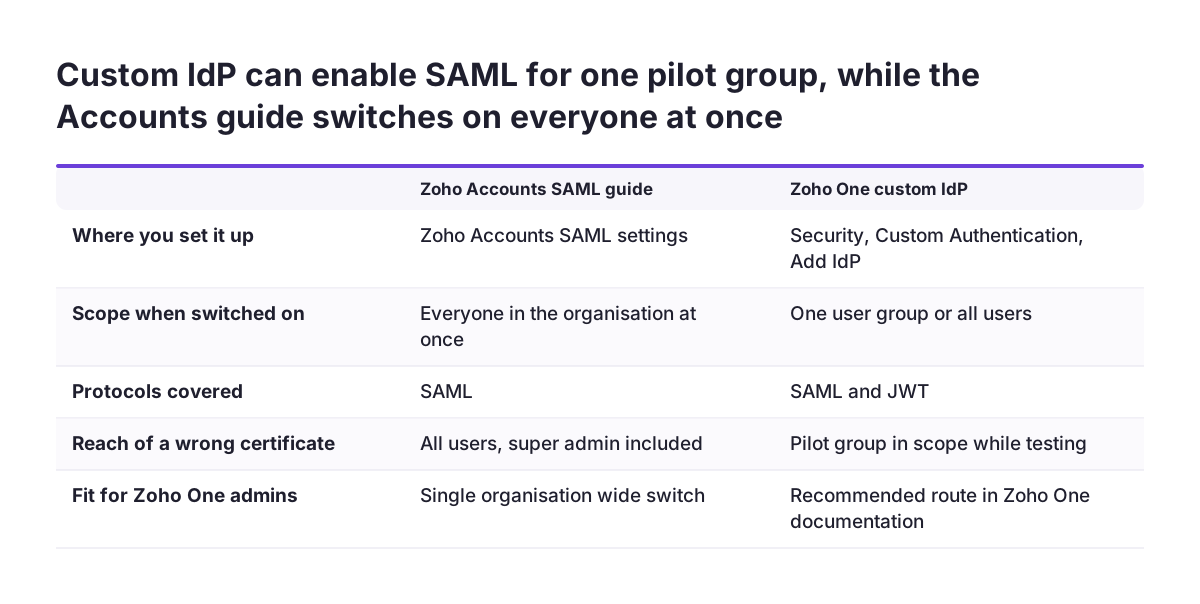
SSO in Zoho One is set up under custom authentication, which accepts SAML and JWT single sign-on from identity providers such as Okta or OneLogin. miniOrange's Zoho One SSO guide gives the path. Sign in to the Zoho One admin console, open the Security tab, then Custom Authentication, then Add IdP. There you choose SAML as the protocol and copy the ACS URL.
The most important custom authentication setting is scope. Zoho's admin guide states that you can set it up for a specific user group or for all users in the organisation. Zoho One supports SP-initiated sign-in, which starts at Zoho, and IdP-initiated sign-in, which starts from your IdP.
Requirements when your IdP is Microsoft Entra ID
Many companies want to keep their existing Microsoft sign-in instead of a Zoho password, as one admin wrote in the Zoho community. The Microsoft Learn tutorial for Zoho One sets out these requirements:
- A Zoho One subscription with single sign-on enabled.
- The Application Administrator, Cloud Application Administrator or Application Owner role in Entra ID.
- Zoho One added from the Entra gallery as a managed SaaS app, with SAML as the sign-on method.
- A verified domain in Zoho One, used in the Sign-on URL for SP-initiated sign-in.
For IdP-initiated mode, the tutorial gives the Identifier as one.zoho.com. That identifier is a fixed string, so one Entra tenant can hold only one Zoho One instance. Once SSO works, you can enforce session control with Microsoft Defender for Cloud Apps, which extends Conditional Access.
Worked example: SAML single sign-on with miniOrange on the EU data centre
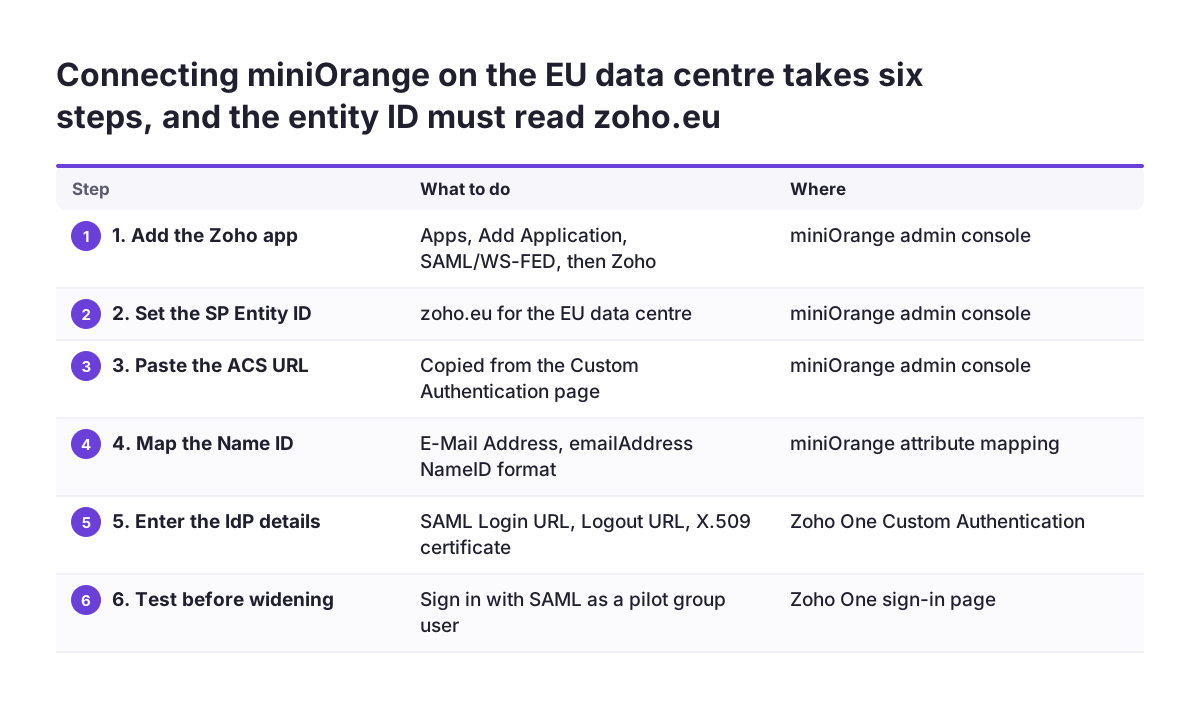
This worked example connects miniOrange as the IdP for a Zoho One organisation hosted in the EU data centre. It follows Zoho's miniOrange custom authentication guide. The steps run in this order:
- In the miniOrange admin console, click Apps, then Add Application. Choose SAML/WS-FED and select Zoho.
- Enter the SP Entity ID for your data centre. Zoho's table gives zoho.eu for the EU, zoho.com for the United States and one.zoho.com for Japan.
- Paste the ACS URL, which you copy from Zoho One's Custom Authentication page.
- Under attribute mapping, select E-Mail Address as the Name ID. Select urn:oasis:names:tc:SAML:1.1:nameid-format:emailAddress as the NameID format.
- On the Login Policy page, keep the Group Name DEFAULT, which cannot be edited. This group holds the users who may sign in with SAML.
- Back in Zoho One, paste the miniOrange SAML Login URL into Sign-in URL and the SAML Logout URL into Sign-out URL. Upload the X.509 certificate in the Verification Certificate field.
- Add yourself to the DEFAULT group in miniOrange. Then sign in to Zoho One using Sign in with SAML.
Two details trip people up in the miniOrange setup. miniOrange can also act as a broker between your actual IdP and Zoho One. In that case you take the metadata from Show Metadata Details under Information Required to Authenticate via External IdPs. Second, miniOrange's own guide shows https://accounts.zoho.in as the entity ID, which is not the EU value in Zoho's table.
Avoiding SAML lockout: enable SSO for one group before everyone
A wrong SAML setting can lock every user out of Zoho One, including the super admin. An admin in the Zoho community thread on SAML documentation described this risk. An incorrect certificate locks out all users and creates a loop when you try to disable SAML. The same post says the Zoho Accounts SAML guide enables SAML for everyone in the organisation at once.
The safer route to Zoho One SSO is the custom IdP method in the Zoho One documentation. The poster found it more flexible because you can enable SAML for individual users or groups. Zoho's admin guide confirms that custom authentication can target a specific user group. Use that group as your test bed.
At Svennis, we switch on custom authentication for a pilot group that leaves out at least one admin, who keeps a normal Zoho sign-in. We widen the scope to all users only after the pilot group has signed in without errors, so a bad certificate never blocks the account that could fix it.
The community post makes two further points worth knowing before you start. Microsoft's documentation differs slightly from Zoho's on creating the SSO app in Azure. In the poster's experience, the Azure identifier was always one.zoho.com regardless of data centre. That matches the Microsoft tutorial rather than Zoho's per-data-centre table.
Assigning apps in Zoho One: install, assign yourself, test, then unhide
App assignment in Zoho One follows a test-first pattern. You install the app, assign it to yourself, confirm SSO works, and only then make it visible to everyone. Zoho's guide to adding Lattice from the Directory Marketplace shows the steps with a third-party app. You need Lattice administrator privileges to complete it.
- Sign in to Zoho One, click Directory in the left menu, go to Marketplace and click Browse Applications. Search for Lattice and install it.
- Enter the ACS URL in the pattern https://router.latticehq.com/sso/[subdomain]/acs. For a Lattice URL of https://zylker.latticehq.com, the subdomain is zylker.
- In the Single Sign-On tab, open Identity Provider Details and click Download IDP Metadata to get an XML file.
- In Lattice, go to Admin, then Single Sign On, and paste the metadata. Tick Force login through SSO to hide the email and password fields.
- Click Assign Users, choose yourself and click Assign. Then click the icon next to the app name to test.
- After a successful test, click Unhide so all users see Lattice on their My Apps page.
If you run Zoho Directory on its own, you add the app from Admin Panel, then Applications, then Add Application. Scope access by group where an app holds sensitive data. Scalefusion notes that its Extended Access Policies can apply stricter device or location rules to finance staff using Zoho Books. If finance is part of your rollout, our Zoho Books setup page covers that app on its own.
Setup order and checklist for Zoho One users, SSO and apps
The setup order below is the sequence this guide recommends for a clean Zoho One admin. Each row names where the work happens and the check that must pass before you move on. Work from top to bottom, and keep the pilot step even when the first IdP test passes.
| Step | Where | Check before moving on |
|---|---|---|
| 1. Verify your domain | Zoho One | Domain shows as verified |
| 2. Add users | Zoho One, or a directory store such as JumpCloud | Expected groups appear, extra attributes mapped |
| 3. Add the IdP | Security, Custom Authentication, Add IdP | Entity ID matches your IdP and data centre, certificate uploaded |
| 4. Enable SSO for a pilot group | Custom authentication scope | Pilot users sign in with SAML, a fallback admin still signs in |
| 5. Widen SSO to all users | Custom authentication scope | Pilot ran without errors |
| 6. Install and assign apps | Directory, Marketplace | You open the app from its icon |
| 7. Unhide apps | App settings in Directory | Users see the app on My Apps |
Steps 1 and 2 are prerequisites, not formalities. SSO only authenticates accounts that already exist. Entra ID needs the verified domain for its Sign-on URL. The Password Notification setting for synced users also depends on a verified domain.
What Zoho One SSO settings mean for a company on the EU data centre
For a company in the European Union, the data centre that hosts your Zoho One account changes the SSO settings. Zoho's miniOrange guide lists zoho.eu as the entity ID for the EU data centre. The United States value is zoho.com. A tutorial written for another region can hand you the wrong value, as the India address in miniOrange's own guide shows.
Microsoft Entra ID is the case to check carefully. Microsoft's tutorial uses one.zoho.com as the identifier. The community poster reported that value working regardless of data centre. If your IdP is Entra ID, start from Microsoft's value. For other IdPs, start from Zoho's table and confirm it on your pilot group.
Groups operating in several EU countries should also plan their tenant structure early. Zoho One's identifier in Entra ID is a fixed string, so one Entra tenant can hold only one Zoho One instance. If each country runs its own Zoho One organisation, they cannot all connect to a single tenant. Our comparison of Zoho CRM Plus and Zoho One helps if some subsidiaries only need the sales and service apps.
Next steps for your Zoho One admin setup
Your first step is to decide which identity provider you use and how users will reach Zoho One. That decision settles whether you provision by hand, through a directory store or by SCIM sync. Write it down before you open the admin panel.
Then work through these actions in order:
- Confirm your data centre and note the matching entity ID for your IdP.
- Verify your company domain in Zoho One.
- Create a small pilot group, plus one fallback admin outside it.
- Configure custom authentication for the pilot group only and test Sign in with SAML.
- Widen SSO to all users, then install, test and unhide apps one at a time.
Keep the pilot group in place after go-live. New IdP settings and new certificates can then be tested on it before they reach everyone. If you want the whole suite planned with users, SSO and apps in place from the start, see how we approach a Zoho One implementation.
Sources
- Zoho One Admin Guide: Add JumpCloud to Zoho One
- Zoho One Admin Guide: Custom Authentication with miniOrange
- Zoho Community: Better docs for SAML IdP
- Zoho Community: Introducing SAML-Based Single Sign-On for Cloud Apps
- Zoho Directory: Lattice installation guide
- miniOrange: Zoho One Single Sign-on (SSO)
- Microsoft Learn: Configure Zoho One for single sign-on with Microsoft Entra ID
- Scalefusion: Zoho SSO Integration with OneIdP