
Zoho CRM and Books data blended in Zoho Analytics: the short answer
To get Zoho CRM and Books data blended in Zoho Analytics, add the Zoho CRM connector and the Zoho Finance connector (which covers Zoho Books) to the same workspace. Zoho then creates the lookup relationships between the CRM and Books tables automatically. One report can then show a customer's won deals next to its invoices and payments. When the result looks wrong, the cause is usually unlinked or duplicate customer records, not the report.
Blending, in Zoho Analytics, is reporting across tables from different apps that are connected by lookup relationships inside one workspace. For sales and finance, the payoff is one revenue picture per customer. You see what was won, what was invoiced and what was actually paid, instead of three numbers from three places.
This guide is the middle post in a set of three on Zoho Analytics. If you have not built a report on CRM data yet, start with our guide to a first Zoho Analytics dashboard on Zoho CRM data. The third post in the set covers query tables and formulas with SQL, for the cases where the automatic join is not enough.
How Zoho Analytics joins CRM and Books tables through lookups
Zoho Analytics joins tables through lookup relationships. A lookup relationship is a link between two tables defined on a common column, such as Customer ID or Email. Zoho's help on joining tables states that two tables need at least one common column before you can define a lookup between them.
Zoho Analytics offers two ways to join tables for reports:
- Auto-Join joins tables automatically when you create a report, as long as the tables are connected by a lookup column.
- Query Table combines data from one or more tables in a workspace with standard SQL SELECT queries.
For CRM and Books, you rarely define the first lookup yourself. The Zoho CRM connector documentation lists Zoho Books among the apps with which Zoho Analytics creates lookup relationships automatically. The Zoho Finance connector page says the same from the other side: combining it with Zoho CRM creates the lookup between the CRM and Finance modules.
By default, Zoho Analytics joins tables with a Left Join. A Left Join keeps all rows from the child table and only the matching rows from the parent table, matched on the lookup columns. Any record that fails to match therefore shows up as a blank on one side, or disappears from the other. That behaviour matters later, when you look for missing revenue.
Plans, admin roles and sync frequency you need before you start
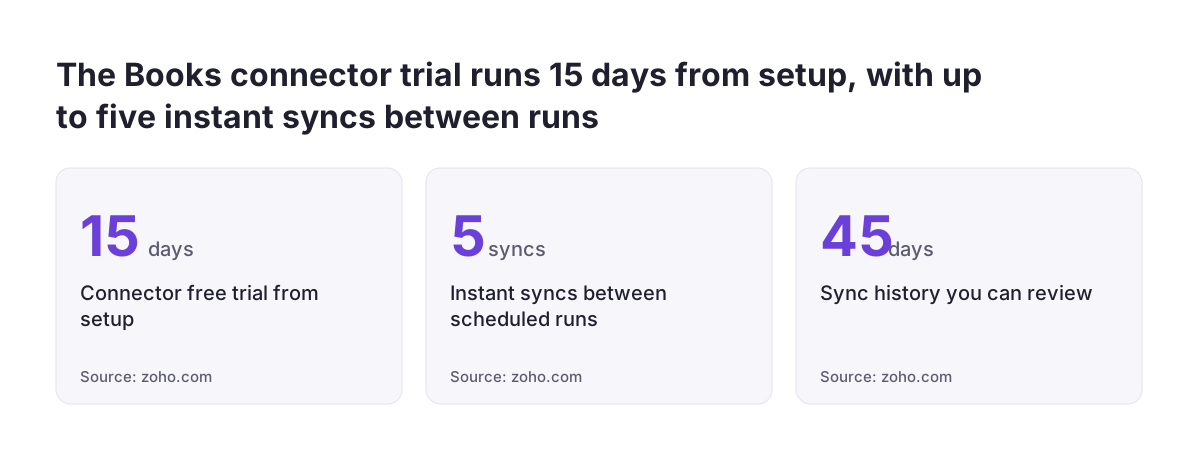
The Zoho Books connector needs paid accounts of both products. The Zoho Books connector page puts the requirement as any paid Zoho Analytics plan plus Zoho Books on at least the Professional plan. Zoho CRM Plus and Zoho One users can also use the connector. If you are weighing those bundles, our post on Zoho CRM Plus versus Zoho One compares them. Zoho offers a 15-day free trial of the connector, counted from the date of setup.
Admin rights sit on both sides. Only a Zoho Books Administrator can configure the Books connector. On the CRM side, an Account admin or Org admin in Zoho Analytics configures the integration.
Sync frequency depends on your Zoho Analytics plan, and Zoho's two connector pages do not agree on hourly sync. The CRM page offers 1 hour on Premium and above. The Books page reserves 1 hour for Enterprise only. Plan on the more cautious figure for the Books side:
| Sync interval | Zoho CRM connector | Zoho Books connector |
|---|---|---|
| Real-time | Enterprise plan | Not listed |
| 1 hour | Premium plan and above | Enterprise plan only |
| 3, 6 or 12 hours | Standard plan and above | Standard plan and above |
| Daily | Basic plan and above | Basic plan and above |
A blended report is only as fresh as its slower source. On the Books side, you can use Sync Now up to five times between scheduled syncs.
Setting up the blend: both connectors in one workspace
Blending CRM and Books data works only when both data sources live in the same Zoho Analytics workspace. Two separate workspaces give you two separate sets of reports and no automatic lookup between them. Before you start, make sure the integration between Zoho CRM and Zoho Books itself is set up properly. The analytics join depends on the customer records those two apps already share.
The setup follows this order:
- Create or open the workspace that holds your Zoho CRM data, with the CRM connector configured by an Account admin or Org admin.
- Add the Zoho Finance connector to that same workspace, signed in as a Zoho Books Administrator, and choose your Books organisation.
- Wait for the initial import. Zoho says it takes from a few minutes to a few hours, depending on data volume.
- Look at the default content. The Books connector creates 75+ default reports and dashboards on setup, and Zoho advertises 150+ prebuilt reports and dashboards for Zoho Finance.
- Open the relationships between the CRM and Books tables and confirm which columns the lookup uses. The next section explains how.
Note two limits on the synced tables. You cannot edit synced Books data or add records or columns in Zoho Analytics. You can add custom and aggregate formulas, which is enough for most revenue measures.
Check the lookup Zoho created before you trust a cross-app report
The automatic lookup between Zoho CRM and Zoho Books is a starting point, not a guarantee. Zoho does not state in these connector pages which column it joins the two apps on. According to the joining-tables help, Zoho Analytics suggests lookups from metadata such as column names and data types. So open the relationship and read it before you share any report built on it.
The joining-tables help gives you three places to inspect and change a lookup:
- Table Designer, where you can see and edit the lookup column on a table.
- Reports Editor, where you can define a lookup while building a report.
- View Relationships icon in the chart designer, which shows the table relationships a report uses and lets you switch between Left Join and Right Join.
The Configure Lookup Path option controls the route between tables when more than one path exists, for example from deals through accounts to invoices. You can select multiple lookup columns between each pair of tables in a path. However, you can configure only a single path between two tables, and you cannot give two columns from the same table different paths in one report.
Also add a Data Source Permalink to the dashboard. It shows whether the last sync succeeded and when the next one runs, so readers know how fresh the numbers are.
Worked example: won deals, invoiced and paid per customer in one pivot
The most useful first blended report is a pivot with one row per customer account and three values side by side. Zoho itself names a deals to invoice funnel as an example of a report that combines Zoho Books and Zoho CRM data. The pivot below takes the same idea down to each customer.
Build the pivot
- Rows: the account name from the Zoho CRM Accounts table.
- Value one: the total amount of won deals from Zoho CRM.
- Value two: the total invoiced amount from the Zoho Books invoice table.
- Value three: the total paid amount from Zoho Books.
Auto-Join connects the three through the lookup you checked earlier. If you need a gap measure, such as invoiced minus paid, add it as an aggregate formula on the Books table. Zoho Analytics allows formulas on synced tables even though it does not allow new columns.
Read the pivot
Two patterns are worth acting on. First, an account with high invoiced value and low paid value buys but pays late, which is a conversation for finance and the account owner together. Second, an account with won deals and no invoices points to work that was won and never billed.
Before anyone relies on the paid column, compare it with real invoices. Pick a few invoices whose payment status you know. Check which invoice status values in the synced table mean paid, part-paid or open, and make sure the paid figure counts only the right ones.
Why the CRM and Books join breaks: unlinked and duplicate customer records
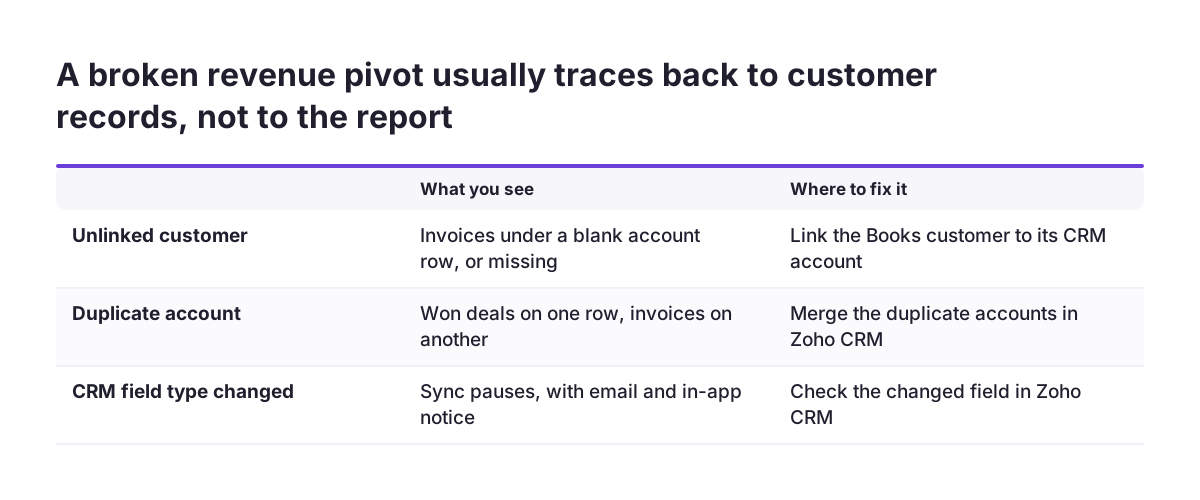
A blended CRM and Books report usually breaks because the customer records underneath do not match one to one. The report logic is rarely the problem. A lookup can only match rows that share a common value. When the same company exists as two CRM accounts, or a Books customer was never linked to its CRM account, the join has nothing reliable to match on.
These record problems show up in the pivot in predictable ways:
- Unlinked customer: invoices appear under a blank account row, or drop out, because the default Left Join finds no match.
- Duplicate account: won deals sit on one account row and invoices on another, so each row looks wrong.
- Parent and child accounts: in Zoho CRM, Parent Account Name is a self-lookup of Account Name. Zoho notes that you need a query to separate the two in Zoho Analytics, or group totals and site totals mix.
At Svennis we test the blend with a handful of customers finance knows well. We trace each one from deal to invoice to payment in the pivot before the dashboard goes to anyone, and duplicate or unlinked accounts almost always surface in that check. Fixing those records in Zoho CRM and Zoho Books then fixes the report, because Zoho Analytics only reads what the apps hold.
A data-quality checklist for CRM and Books customer records
Clean customer records in both apps decide whether blended revenue reports can be trusted. Run the checks below before building reports, and again whenever someone changes fields in Zoho CRM. The CRM connector documentation lists three causes of a failed sync: a field's data type changes in Zoho CRM, selected modules or fields are deleted, or the user who configured the integration loses access to the modules. Any of these pauses the sync, and Zoho notifies you by email and in-app notification.
| Check | Where to look | What goes wrong if you skip it |
|---|---|---|
| Every Books customer links to one CRM account | Zoho Books customers against Zoho CRM Accounts | Invoices land under blank or wrong account rows |
| No duplicate accounts for one company | Zoho CRM Accounts | Deals and invoices split across two rows |
| Lookup column and path are the ones you expect | Table Designer, View Relationships, Configure Lookup Path | Totals join on the wrong column or route |
| Parent accounts separated from child accounts | Query on the Accounts table | Group and site revenue double up |
| Invoice status values mean what the paid column assumes | A sample of real invoices | Paid revenue is overstated or understated |
| Sync is running on both connectors | Sync History, kept for 45 days | Reports show stale figures without warning |
On the Books side, a failing schedule does not retry forever. Zoho suspends the import schedule after five successive failures, so check Sync History rather than assume the data is current.
What blended revenue reporting means for a company trading across EU countries
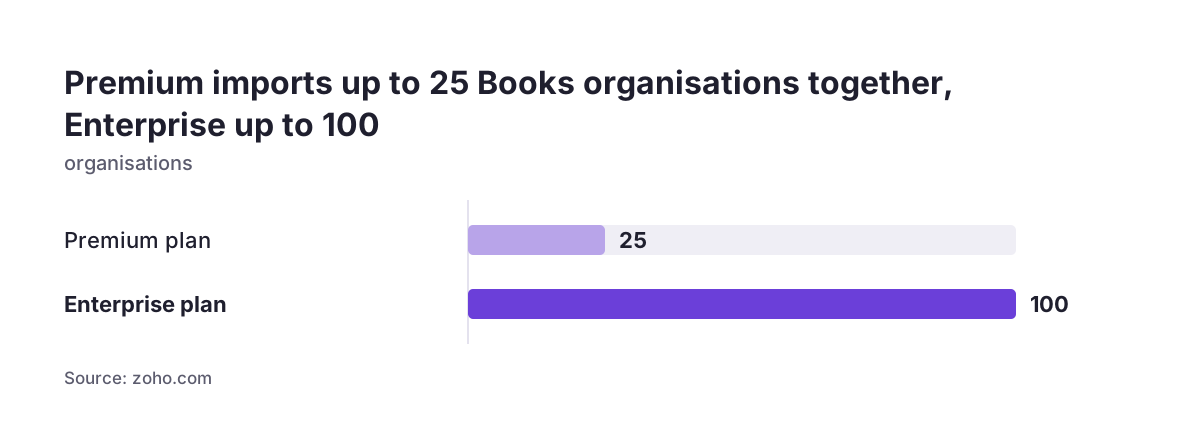
Companies with a Zoho Books organisation in more than one EU country meet a currency rule first. The Zoho Finance connector can import data from several organisations together only if all of them share the same base currency. Zoho sets the ceiling at 25 organisations on the Premium plan and 100 on the Enterprise plan. A group with one organisation in euro and another in a different base currency cannot combine them this way.
Two further limits apply to multi-organisation imports. First, reporting tags are not imported from the base organisation or from the others. Second, the base organisation sets the modules, fields and data formats for all the rest. If your country-level analysis depends on reporting tags, keep that analysis in each Books organisation. Alternatively, test carefully before combining organisations in one blended workspace.
Duplicate customers are also more likely when the same buyer trades with several of your entities. Checking identifiers at the point of entry helps. For example, if you sell in Romania, ANAF validation of CUI and CIF numbers in Zoho CRM stops a second record for the same company. Finally, treat the blended workspace as a system holding customer data under GDPR. Share customer-level revenue reports only with the people who need them.
Next steps: from a first dashboard to one revenue picture per customer
The fastest route to a trustworthy blended report is to fix the records before you polish the charts. Work through these steps in order:
- Confirm your plans: a paid Zoho Analytics plan plus Zoho Books Professional or above, or Zoho CRM Plus or Zoho One.
- Add the Zoho Finance connector to the workspace that already holds your Zoho CRM data.
- Open the lookup Zoho created and confirm the column and the path.
- Build the per-customer pivot of won, invoiced and paid values.
- Trace a few well-known customers end to end, and fix any duplicate or unlinked records in Zoho CRM and Zoho Books.
- Add a Data Source Permalink so readers see when the data last synced.
If your CRM data is not in Zoho Analytics yet, begin with the first-dashboard guide in this set, then return to this post. If you would rather have the connectors, lookups and customer records set up and checked for you, see our Zoho Analytics implementation and consulting page.