
Zoho CRM data backup and restore: export files, not a restore button
Zoho CRM data backup and restore works differently from what many admins expect. The built-in Data Backup gives you CSV files packed in a ZIP archive. It does not give you a button that rolls the account back to an earlier date. You therefore need your own restore routine, written down and tested before the day you need it.
A data backup, in Zoho's own definition, is a copy of your CRM data that you keep for reference. Zoho notes that keeping one may be mandatory under company guidelines and regulations. A restore is the opposite step: putting data from that copy back into the live CRM.
The gap between the two shows up on Zoho's community forum. One forum thread on backup and restore describes how the poster could not find instructions to restore complete account data from a backup. The same poster asked for a restore button that would use all of the backup data at once. In another thread on restoring from backup, a user asked whether data and attached documents could be reset to the exact state at backup time.
The restore options Zoho does document are the recycle bin for deleted records and importing your own backup file. The rest of this guide covers what the file holds, how to schedule and store it, and how to put records back after a bad import or an accidental deletion.
What a Zoho CRM backup file contains and what it leaves out
A Zoho CRM backup contains your record data as CSV files, compressed into a single ZIP archive. CSV (comma-separated values) is a plain text table that any spreadsheet tool can open. According to the Zoho CRM Data Backup API documentation, the backup covers the CRM data including attachments.
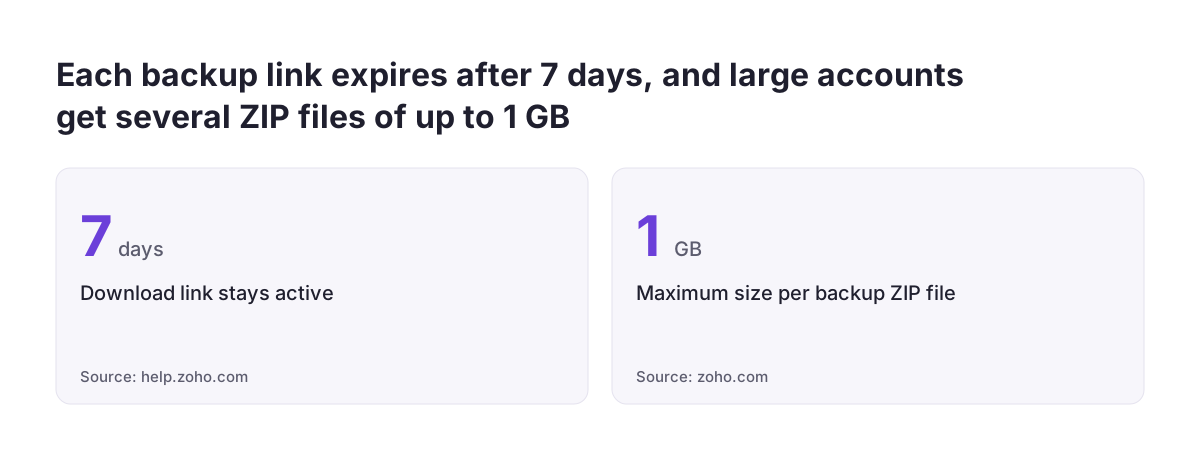
Size matters for large accounts. The maximum ZIP file size is 1 GB. If your data or attachments exceed that, Zoho creates several files, each up to 1 GB. Plan your storage and your download routine around more than one file.
The Zoho CRM help article on data backup lists what is not part of the backup:
- Email content and email attachments.
- Documents.
- Any data that is obtained through integration.
The same article states that backup of emails with IMAP configuration is not supported. IMAP is the protocol that keeps a mailbox in sync between your mail server and the CRM.
The integration exclusion deserves a second look. If data reaches Zoho CRM through a connector, for example a SAP Business One and Zoho CRM integration, ask whoever built it which of those fields the backup covers. The source system may be your real backup for that data, and you should know that before an incident.
Who can run Zoho CRM backups, and what each edition allows
Only users with an administrative profile can request a data backup in Zoho CRM. The API documentation confirms the same rule for programmatic backups. If your company has one admin, that person becomes a single point of failure for the whole routine.
The number of backups depends on your edition. The help article sets out the allowances:
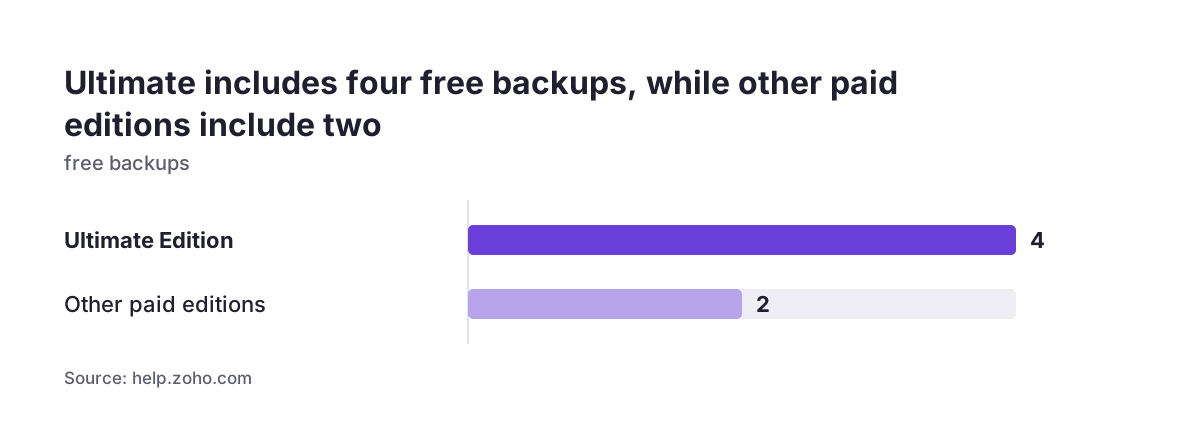
- Ultimate Edition users get four backups without payment.
- Users of other paid editions are entitled to 2 free backups.
- Free edition users must buy a one-time data backup add-on or upgrade to a paid edition.
Check how your planned schedule fits the allowance on your edition before you choose a frequency. A weekly schedule produces more backups than a monthly one, and the help article is the place to confirm what your edition covers. If you are still choosing an edition, the guide to Zoho CRM editions, users and add-ons sets out what each tier includes.
Make a second person an administrator, or at least give a deputy the steps in writing. A backup routine that depends on one person's login stops when that person is on holiday.
Scheduling a recurring backup in Zoho CRM, step by step
You schedule Zoho CRM backups from the Setup area, and the whole task takes a few minutes. The steps below follow Zoho's help article and a walkthrough by Max Tyack on LinkedIn.
- Open Setup through the gear icon. In the new Zoho CRM interface it sits in the bottom left; in the older interface it is in the top right corner.
- Search for "data backup" in the Setup area.
- Choose a frequency: Every week, Twice a month, Once a month, or Download immediately.
- Save the schedule.
- Wait for the email. When the backup is ready, Zoho sends an email with links to download the files.
Run one immediate backup on the day you set up the schedule. You then have a known starting point, and you can check the file before relying on the routine.
Teams with a developer can automate the same work through the Data Backup API. The API overview lists calls to schedule a backup, get backup details, get the download URLs, download the backed-up data, cancel a scheduled backup and fetch backup history. The history call is useful for monitoring, because it shows whether recent backups actually ran.
Storing Zoho CRM backup files securely before the link expires
A Zoho CRM backup download link stays active for at most 7 days from the date the backup is created. After that, the file is no longer available through the link. Someone has to download every backup within that week, or the backup effectively does not exist.
Zoho stores the backup in the same data centre where your account is held. That keeps the file in your region while it waits for download. Once you download it, the location and protection of the file become your responsibility.
Treat the ZIP with the same care as the CRM itself, because it holds the same customer records. A practical storage routine looks like this:
- Save each file to one restricted location that only named people can open.
- Name files by date, so you can find the last backup before an incident quickly.
- Keep a second copy in a separate location, in case the first one is lost.
- Decide in advance how long you keep old backups, and delete them on that schedule.
Put the download in someone's calendar for the day the email usually arrives. The 7-day window is the most common way a scheduled backup quietly fails.
Restoring Zoho CRM data: recycle bin, audit log, import or a third-party tool
The right restore method depends on what went wrong, and the cheapest option is often not the backup file. Zoho's help article describes the recycle bin, the audit log and a full import it calls data migration. Data migration, in Zoho's definition, is a complete import of your backup file into the CRM. Zoho recommends it when lost records have related lists from other modules, or when all CRM data was erased.
The table below matches common incidents to the first tool to reach for.
| What happened | First tool | Time limit | What it gives back |
|---|---|---|---|
| Records deleted by mistake | Recycle bin | 60 days from deletion, unless the bin was emptied manually | The parent record and its associated data |
| Unclear who changed or deleted what | Audit log | Up to 60 days of history | Which user changed or deleted data and when; diagnosis, not data |
| A bad import or mass update overwrote fields | Backup file, then import of corrected values | Depends on your last backup before the incident | The earlier field values from the CSV |
| Records with related lists lost, or all data erased | Data migration from the backup file | Depends on your latest backup | A complete import of the backup |
| Related records needed with their links, or into another account | A third-party backup tool | Depends on the tool's retention | Records and relations, as the vendor describes |
Start with the audit log in almost every case. It tells you the time of the incident, and that time decides which backup file you need.
Worked example: undoing a bad import on the Zoho CRM Contacts module
A bad import is the classic case where the recycle bin cannot help, because nothing was deleted. Suppose a colleague imports a trade fair list into the Contacts module. The import matches existing contacts and overwrites their phone numbers and owners with values from the spreadsheet.
The recovery follows five steps:
- Find the time. Open the audit log and note which user ran the import and when.
- Pick the backup. With an Every week schedule, take the most recent backup created before that time. Confirm you downloaded it while its 7-day link was active.
- Open the file. Unzip the archive and open the CSV for Contacts.
- Build a correction file. Keep only the affected contacts and only the fields the import damaged.
- Import the corrections. Import that file back into Contacts, matching on a field that uniquely identifies each record.
Restore only the damaged fields. If you reimport whole records, you also overwrite every legitimate change made since the backup. That is the main trade-off of a CSV-based restore.
Field mapping during the import is the step most people get wrong. The guide on how to migrate to Zoho CRM without losing sales history covers mapping and matching in detail, and the same discipline applies here.
Prevention is cheaper than repair. Run a Download immediately backup before any large import or mass update, so the last clean copy is minutes old.
Third-party backup tools for Zoho CRM and what they add
Third-party backup tools fill the gaps that the built-in export leaves, mainly restore features and longer retention. Two examples in this guide's sources show what to look for.
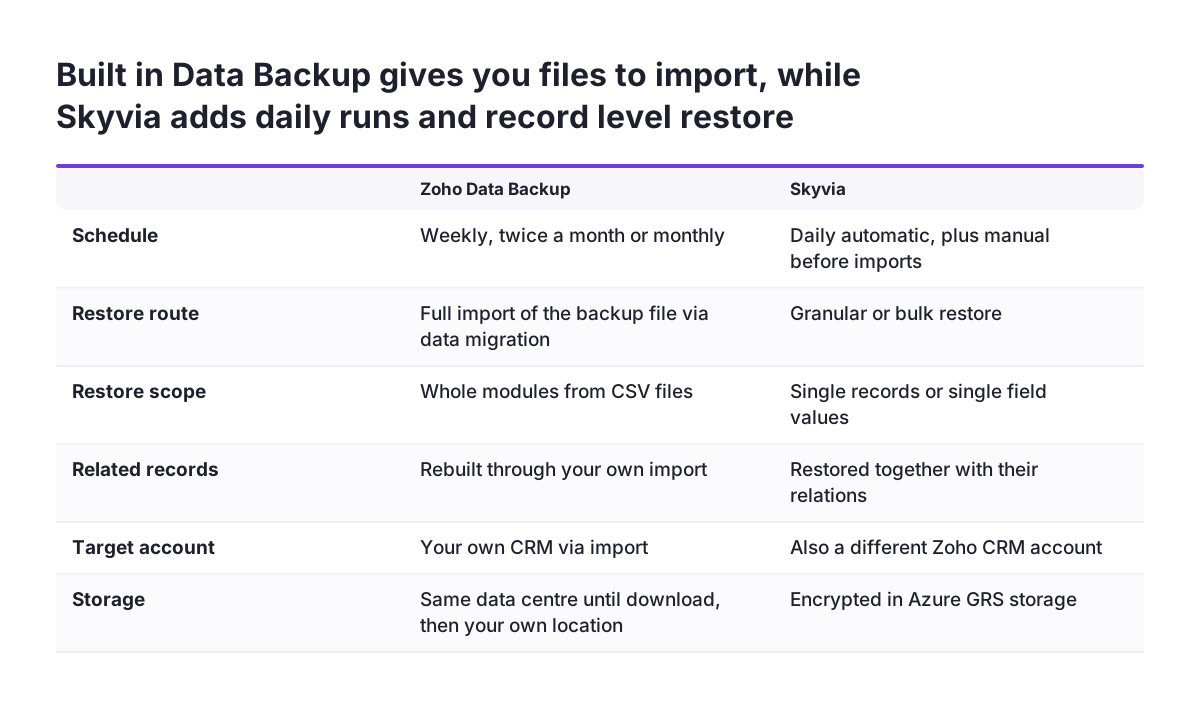
Skyvia's Zoho CRM backup offers daily automatic backups and manual backups, for example before an import or mass update. It describes two restore modes. Granular Restore puts back separate records, or even separate field values of modified records. Bulk Restore puts back all backed-up data or all records from specific objects.
Skyvia states that it can restore related records together with the relations between them, and can restore into a different Zoho CRM account. It stores backups encrypted in Azure GRS storage, with AES 256-bit encryption at rest and TLS with at least 128-bit keys in transit.
Pro Backup for Zoho CRM is a paid app on the Zoho Marketplace from a company based in Hasselt, Belgium. The listing promises daily automated backups and positions the app for keeping backups longer than 60 days or for compliance needs. It says you can recover data that was permanently deleted and create copies of previous versions of leads, deals or notes. Backups can sync to Google Drive. The listing offers a 10-day trial.
Use any trial to test a restore, not only a backup. A tool earns its fee on the day you put data back.
Testing the Zoho CRM restore routine before you need it
A restore routine is only proven once someone has used it to put data back. Backups fail in quiet ways: an expired link, a missing module, a field that does not map on import. You discover those failures during a test, or during an incident.
When Svennis sets up backups for a client, we restore one module from the latest ZIP into a separate test account before we sign the routine off. The gaps in a backup only show when you try to put the data back, never when you look at the file.
A useful test covers these checks:
- The latest backup was downloaded within its 7-day window and opens without errors.
- Every module you rely on appears as a CSV in the archive.
- One module imports cleanly into a test environment, with fields mapped correctly.
- The person who would run a real restore can follow the written steps alone.
Write down how long the test took. That figure tells management how long a real restore would take, which is the question they will ask during an incident. Repeat the test whenever you add modules or change the field layout.
What Zoho CRM backups mean for a company in the EU
For a company in the EU, the main questions are where backup copies sit and who can open them. Zoho stores the built-in backup in the same data centre as your account until you download it. If your account sits in Zoho's EU data centre, the waiting file stays there too.
The location changes once the file leaves Zoho. A ZIP on a laptop or a shared drive sits wherever that device or service stores its data. Include backup copies in your records of where customer data lives, alongside the CRM itself.
Third-party tools make their own statements, and you should check them against your obligations. Pro Backup says it stores everything in the EU, keeps data in encrypted files and is compliant with GDPR. Skyvia says it complies with GDPR and stores backups in Azure GRS storage. Read each vendor's terms with your data protection lead before you sign up.
Retention also needs a decision. Backups hold personal data, so a deletion you carry out in the CRM may still exist in older files. Agree how long you keep backups and how you handle them when someone asks for their data to be removed. The answer depends on your own legal obligations, which vary by sector and member state.
Next steps: a Zoho CRM backup and restore checklist for this month
You can put a working backup and restore routine in place within a month. Work through these steps in order:
- Confirm who holds an administrative profile, and add a deputy.
- Check your edition's backup allowance in Zoho's help article.
- Run a Download immediately backup and open the ZIP.
- Set a schedule: Every week, Twice a month or Once a month.
- Book a recurring calendar slot to download each backup within 7 days.
- Choose a restricted storage location and a second copy location.
- List what the backup excludes, such as emails, documents and integration data, and note where each lives instead.
- Write the restore steps for a deletion and for a bad import.
- Test one restore into a separate account and record how long it took.
- Decide whether a third-party tool is worth a trial for longer retention or granular restore.
If you want help designing the routine around your modules and integrations, the Zoho CRM implementation page describes how Svennis sets up and supports Zoho CRM for European companies.