
Zoho CRM roles, profiles and sharing rules: the short answer
Zoho CRM roles, profiles and sharing rules work as one system. A role decides which records a user can see. A profile decides what the user can do with those records. A sharing rule opens a deliberate exception to what the roles allow. If you design all three together from a Private starting point, your sales team keeps working and sensitive data stays contained.
Access control in Zoho CRM is the combination of these three settings plus the organisation-wide default permission you choose for each module. Zoho's own help centre describes a profile as "a collection of permissions for actions that a user will require to perform their job". It says roles "represent your organization's hierarchy". Sharing rules give "uninterrupted access to a record across teams and departments".
The three settings are not interchangeable. According to Zoho, every user is assigned a role based on their position in the hierarchy, and a user cannot hold more than one role. Each user also has a profile. When you mix up the jobs of the three, you get the familiar symptoms. One rep sees every deal in the company, another cannot open the account they are meant to call, and the administrator gives up and makes everything public.
This guide explains each setting on its own terms. It then walks through one worked example, gives you a decision table and lists the edition limits that catch administrators out.
Roles decide which records a user can see
A role in Zoho CRM is a user's position in the CRM hierarchy, and that position decides record visibility. Zoho states that "users at a higher hierarchy can always access all the records of at a lower hierarchy". A sales manager above three reps therefore sees everything those reps own, without any extra setting.
Every new account starts with two roles, CEO and Manager. Zoho suggests adding roles that match your structure, such as sales manager and sales rep, to build a role hierarchy. Each user holds exactly one role, so design roles around who needs to see whose records. Do not add a role for every job title on the organisation chart.
Peers and the Share Data with Peers setting
Users on the same level of the hierarchy do not see each other's records by default. The default record access in Zoho CRM is Private, which means only the record owner and their manager can oversee a record. The Share Data with Peers permission changes that for users at the same level. Zoho's FAQ is explicit that this permission "always takes precedence over data sharing rules". Decide peer sharing on purpose for each role, because a sharing rule cannot undo it later.
A good test for a role hierarchy is simple. For any two users, you should be able to say in one sentence why one can or cannot see the other's deals. If you cannot, the hierarchy is carrying a job that belongs to a sharing rule.
Profiles decide what a user can do with the records
A profile in Zoho CRM is a collection of permissions that controls which tools, features and actions a user can use. The profile does not change which records a user sees; the role does that. Zoho notes that you can "restrain or permit access to specific features by using the manage profile permission option".
Zoho CRM ships with two system-defined profiles:
- Administrator: has every permission and can perform all available activities in the CRM.
- Standard: has the features needed for daily work, with all admin-level permissions disabled.
Every account needs at least one Administrator. Keep that group small, because Zoho states that users with the Administrator profile "will be able to view other users' data irrespective of their role". An Administrator profile given to a sales director as a shortcut quietly bypasses your whole role hierarchy.
Field-level permissions inside a profile
Field-level permissions let you make a single field hidden, read-only or editable for each profile. Use them for fields such as margin, discount approval or personal notes. The rest of the record then stays open to the people who need it.
Plan profiles by job type, for example sales rep, sales manager and support agent. Decide which risky actions each job really needs, such as deleting or exporting records. Before you can delete a profile later, Zoho requires you to transfer its users to another profile first. Fewer, well-named profiles are easier to maintain.
Organisation-wide permissions set the starting point for every module
The organisation-wide permission is the default visibility of a module for everyone, before roles and sharing rules add anything. Zoho's help centre defines four levels:
- Private: only the record owner and their superior can view the record.
- Public Read Only: users can view others' records but cannot modify or delete them.
- Public Read/Write: users can view and modify others' records but cannot delete them.
- Public Read/Write/Delete: other users can view, modify and delete the records.
The choice matters more than it looks. If a module is set to Public Read/Write or Public Read/Write/Delete, Zoho states that "Role Hierarchy and Sharing Rules will not be applied". Your careful hierarchy simply stops working for that module. For Leads, Accounts, Contacts and Deals, a growing team usually starts from Private and opens access with rules.
A few modules follow their own logic. Forecasts are always private. Emails sent from Zoho CRM, including individual, mass and workflow emails, default to Public Read/Write/Delete. Attachments, Notes and Competitors follow their parent record, so anyone who can view the record can see them.
The organisation-level sharing model is not yet implemented for Notes, Reports and Dashboards. These settings apply only to org modules, not team modules.
Only users with the Manage Data Sharing permission can change these settings. Give that permission to as few people as you give the Administrator profile.
Worked example: two sales teams that share accounts and one that does not
A question on the Zoho community forum about roles and sharing describes a common need. A company has three roles, A, B and C. It wants A and B to share their accounts and contacts, while C neither shares its data nor sees data from A or B. Here it is with realistic names: Team A is Field Sales, Team B is Inside Sales, and Team C is Public Tenders, which handles confidential bids.
- Set the defaults. In the organisation-wide permissions, set Accounts and Contacts to Private. Public Read/Write would switch off roles and sharing rules for those modules.
- Build the roles. Under the CEO role, create a Sales Manager role. Below it, create Field Sales, Inside Sales and Public Tenders as separate roles, so each user holds exactly one of them.
- Check peer sharing. Review Share Data with Peers for each of the three roles. It overrides sharing rules, so confirm it cannot expose Public Tenders records to the other teams.
- Write two sharing rules per module. Share Accounts owned by Field Sales with Inside Sales, and Accounts owned by Inside Sales with Field Sales. Repeat both rules for Contacts.
- Write nothing for Public Tenders. Its records stay Private, visible only to their owners and to the users above them in the hierarchy.
- Decide on superiors. Enable Superiors Allowed on the rules if managers need to see the records shared into their teams.
At Svennis we test a design like this by signing in as one test user per role and trying to open a record that should be hidden, before any real user is moved over. That check takes little time and catches the peer-sharing and Administrator-profile mistakes that the settings screens do not show.
Which Zoho CRM control to use for which access need
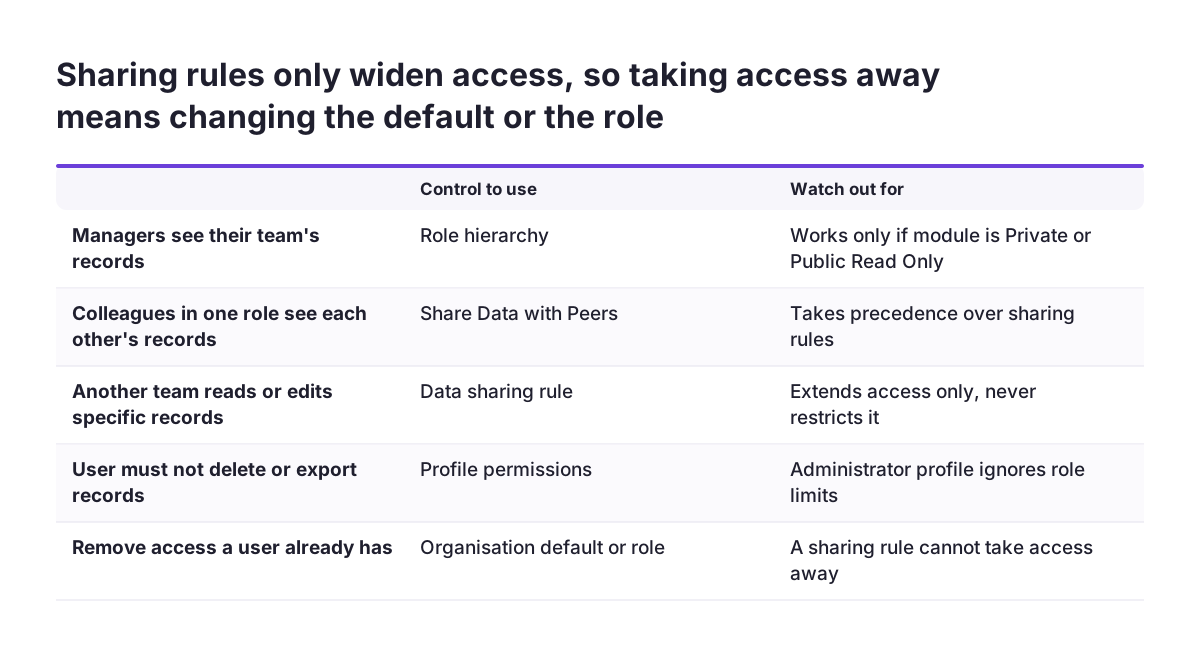
The table below maps common access needs to the Zoho CRM control that handles them, with the behaviour to watch for. Use it as a checklist when a user asks for more, or less, access.
| Access need | Control to use | Watch out for |
|---|---|---|
| Managers see their team's records | Role hierarchy | Only works if the module is Private or Public Read Only |
| Colleagues in the same role see each other's records | Share Data with Peers | Takes precedence over sharing rules |
| Another team reads or edits specific records | Data sharing rule | Can only extend access, never restrict it |
| A user must not delete or export records | Profile permissions | Administrator profile ignores role limits |
| A sensitive field stays hidden or read-only | Field-level permissions in the profile | Set per profile, so check every profile |
| Everyone sees and edits everything in a module | Public Read/Write or Read/Write/Delete | Roles and sharing rules stop applying |
Two rules of thumb follow from the table. When a request is about which records a user sees, the answer is a role, a peer setting or a sharing rule. When it is about what a user does, the answer is a profile.
Edition limits and default behaviours that surprise administrators
Custom roles and profiles in Zoho CRM require the Professional, Enterprise or Ultimate edition. In the Free edition, only the Administrator profile and the CEO role are available. If you are still deciding between products, the post on when Zoho Bigin is enough and when to move up to Zoho CRM covers that choice.
A new account has further conditions that affect the order of setup:
- You can add users only within the edition you bought and your number of user licences.
- You need more than one user before you can create roles or profiles.
- The first user you add can be given only the system-defined roles (CEO, Manager) and profiles (Administrator, Standard).
- Users you import receive the Manager role and the Standard profile by default.
The import default deserves attention during a move from another system. Every imported user lands one level below the CEO with Standard permissions. They can see more than intended until you reassign their roles. Plan role assignment as a named step in the project. The guide on migrating to Zoho CRM without losing your sales history covers the wider migration order.
Roles need the same care as profiles when you retire them. Transfer users to their new role or profile first, then delete the old one, so nobody is left with broader access in between.
What role and sharing design means for a company selling across the EU
A company selling in several EU countries usually needs country or regional teams that stay separate by default and share selectively. Zoho CRM's model fits that pattern. Give each country team its own role under a regional or sales manager role. Keep the core sales modules Private, and add sharing rules only where teams genuinely work the same customers.
Documented access design also helps with GDPR accountability. When your data protection officer or a customer's procurement team asks who can see which personal data, you can answer from four lists: the role hierarchy, the profiles, the organisation-wide defaults and the sharing rules. Field-level permissions add a further control for personal fields that only certain profiles should see. National rules on specific data types vary between member states, so check the requirements that apply in each country where you operate.
Some sectors need more care. The post on Zoho CRM for healthcare and patient data shows how the same controls apply where records are especially sensitive. Also remember the email default. Emails sent from Zoho CRM are Public Read/Write/Delete by default. Confidential correspondence therefore needs a deliberate decision, not an assumption that the Private setting on the parent record covers it.
If your team also compares platforms, the Zoho CRM and Salesforce comparison for EU businesses sets out the wider differences.
Next steps: design access on paper, test with real roles, then go live
A secure Zoho CRM setup starts before anyone opens the Setup menu. Work through these steps in order:
- List every job type and write down which records it must see and which actions it must perform.
- Draw the role hierarchy as a hierarchy of record visibility, with one role per user.
- Create profiles by job type, keep Administrator for as few people as possible, and set field-level permissions for sensitive fields.
- Set organisation-wide defaults to Private for the core sales modules.
- Add sharing rules only for named exceptions, and decide Superiors Allowed and Share Data with Peers for each rule and role.
- Sign in as a test user in each role and confirm what they can and cannot open.
- Review the rules whenever a team, territory or country is added.
Keep the resulting lists in one document and update it with every change. That document is what a new administrator, an auditor or your own management will ask for.
If you would rather have the design reviewed or built for you, see the Zoho CRM implementation service for European companies. It covers role and profile design alongside the rest of the setup.