
Offline data entry in Zoho Creator mobile apps: what works without signal
Offline data entry in Zoho Creator mobile apps works by caching selected forms and reports on the phone or tablet, so field staff can submit records without a connection. The records wait on the device and sync automatically when it reconnects. Not every form qualifies, and some validation waits until sync. That is why you decide which forms go offline before rollout.
Offline access is a capability of the Zoho Creator mobile app that stores chosen forms and reports locally on the device. Users can then submit entries, edit their offline entries and view report data without internet access. The data syncs when the device is back online. The rules below all come from Zoho's help page on offline access in Creator.
Planning offline use comes down to four questions:
- Which forms can be cached, and which form features block caching.
- Which reports field staff need to look things up without signal.
- How and when queued records reach the server on iOS and on Android.
- Which checks run only after sync, and what happens to entries that fail them.
This guide answers each question in its own section, then works through one example form.
Where Zoho Creator offline access is available: devices, plans and the mobile app
Zoho Creator offline access is available on iPhones, Android phones, tablets and iPads, and only inside the Creator mobile application. A browser on a laptop in a van does not get it. If your field staff are meant to work without signal, they need the Creator mobile app installed and signed in.
Offline access is included across all Creator plans, according to Zoho's help documentation. You therefore do not need a higher edition to switch it on. The licence decision rests on other features you need, which our post on Zoho licences and plans covers in detail.
The mechanism is caching. The app keeps a local copy of the forms and report data you mark as offline components. Offline components are the forms and reports an app designer has chosen to make available without a connection. Anything you do not mark stays online only. So the first planning step is a short list. Which forms do field staff fill in where signal is weak, and which reports do they need to read there?
Keep that list small. Every offline component has its own constraints, covered in the next sections. Each one you add is one more thing to test on real devices before go-live.
Forms that cannot go offline: formula fields, integration fields and pre-submit workflows
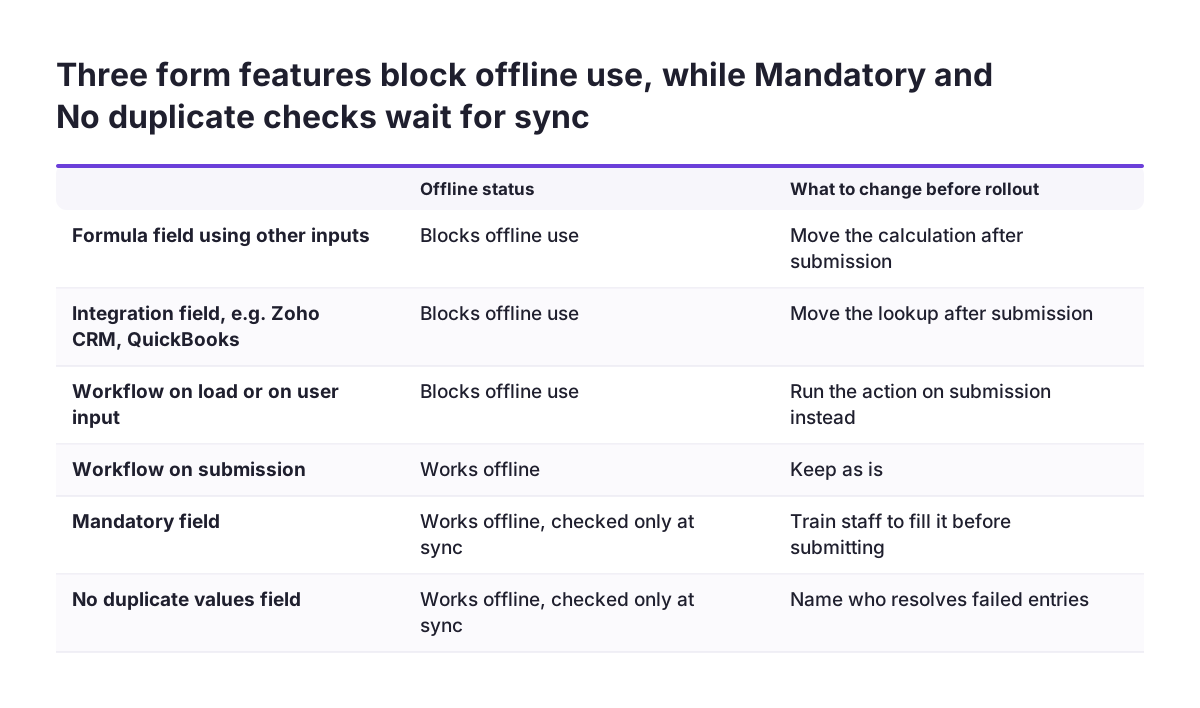
A Zoho Creator form cannot be used offline if it contains any of three features. Zoho's help page lists them explicitly, and each one depends on a live connection while the user is still typing.
The three blocking features are:
- Formula fields that depend on other field inputs. A formula field calculates its value from other fields, for example a total from hours and a rate.
- Integration fields. These fields connect to other Zoho services or third-party applications, and Zoho names Zoho CRM and QuickBooks as examples.
- Workflows triggered before form submission. Zoho means actions on load of the form and actions on user input of a field.
Workflows that run on submission are not on that list. That gives you the usual fix: move the logic out of the form while it is being filled in, and into a step after the record is submitted. A calculation can run after submission instead of live in a formula field. A link to a CRM record can be set after the record reaches Creator instead of through an integration field. Test any such change with a record queued offline, so you see that the step fires once it syncs.
If the after-submission step includes a review by a manager, our guide to approval workflows inside Zoho Creator apps shows how to design it.
Offline reports in Zoho Creator are view-only, so use them for reference data
A Zoho Creator report added as an offline component can only be viewed. The help page states that duplicate, edit, delete and print are not available in offline mode. Field staff can read the records, but cannot change them from the report while offline.
That limit shapes which reports are worth caching. Good candidates are reference lists a technician looks up on site, such as a customer's equipment list, the last visit notes or a price list. Poor candidates are work queues where the user is expected to update a status, because the update has to wait until the device is online.
Users can still edit their own offline entries, which are the records they submitted through an offline form while disconnected. Zoho's definition of offline access covers submitting entries, editing offline entries and viewing report data. Editing existing server records through a report is the part that is not available.
Remember too that a cached report shows the data as it was at the last sync. For decisions that need current figures, such as stock levels, tell staff to check when they are back online. If managers want charts of field activity rather than lists, that is a reporting job for the office, for example in Zoho Analytics, not for the offline app.
How queued Zoho Creator records sync: on reconnect, every 24 hours and manually
Records submitted offline in the Zoho Creator mobile app are synced automatically once the device reconnects to the internet. The user does not have to resend them. Until then they wait on the device as queued entries.
Two different things sync, and it helps to keep them apart:
- Submitted records travel from the device to the server when the connection returns.
- Offline components, the cached forms and reports, refresh on a schedule. By default the app syncs them automatically every 24 hours.
Users can also start a sync manually. That matters in two situations. First, after you change a form, a device may keep the older cached version until its next scheduled sync. Second, a technician about to drive into a valley with no signal should refresh the cached reports first, so the reference data is current.
Put the manual sync into the daily routine. A simple instruction works: sync before leaving for the first job, and sync again on returning to signal at the end of the day. That keeps cached data fresh and moves queued records to the server, where office staff and follow-up workflows can use them.
iOS and Android sync Zoho Creator records differently, so instruct staff per platform
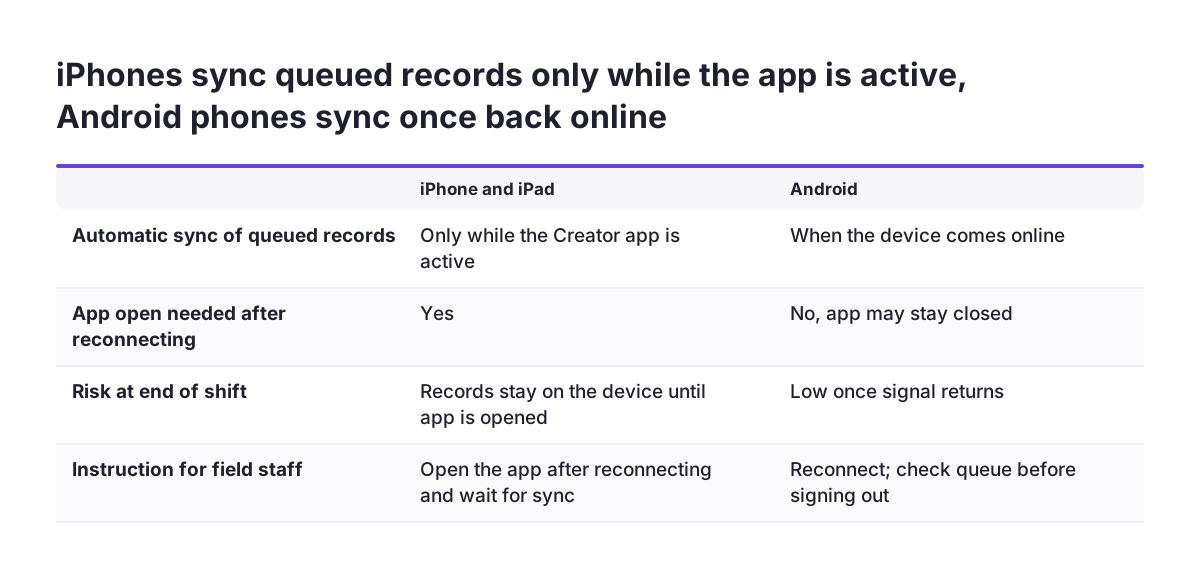
On iOS devices, the Zoho Creator app must be active for automatic syncing of records to happen. On Android devices, automatic syncing takes place when the device comes online, whether or not the app is active. The same app behaves differently depending on the phone in the technician's pocket.
The practical result shows up at the end of a shift. An Android user whose phone regains signal in the car park will see records sync in the background. An iPhone user who reconnects but never opens the app may still have records sitting on the device the next morning. To the office, those records simply look missing.
Handle this with platform-specific instructions rather than one generic rule:
- For iPhone and iPad users: open the Creator app once you are back online and leave it open until the queue clears.
- For Android users: no action is needed for records, but run a manual sync if you need fresh reference data.
If your company issues a mix of devices, test the whole flow on both. We at Svennis test every offline form on an iPhone and on an Android phone in flight mode before rollout, because the difference in background sync only becomes visible on real devices, not in the designer.
Mandatory and No duplicate values are checked only after sync, which creates failed entries
Zoho Creator does not validate field properties that depend on a cloud connection during offline form submission. The help page names Mandatory and No duplicate values as examples. Both are checked only when the device reconnects.
A technician can therefore submit a form offline with a required field left empty, and the app accepts it at that moment. The problem appears later, during sync, when the server applies the rule and the entry fails. The help page refers to these as failed entries, and they stay on the device until someone deals with them.
No duplicate values creates the closest thing to a sync conflict. If two technicians both work offline and both enter the same serial number in a field set to No duplicate values, neither device can know about the other. The clash can only surface when the second record reaches the server.
Three design choices reduce failed entries:
- Keep Mandatory fields on offline forms to the ones that truly cannot be added later.
- Make field labels say what is required, since the app will not stop the user offline.
- Ask whether a No duplicate values field really must be unique at entry time, or whether the office can merge duplicates afterwards.
Then train staff to look for failed entries after each sync and correct them while they still remember the visit.
Signing out of the Zoho Creator app deletes cached data and failed entries
When a user signs out of the Zoho Creator mobile app, all cached data on the device is removed. Zoho's help page states that this includes cached offline components and failed entries. Anything not yet safely on the server is gone.
This rule turns a routine habit into a data loss risk. Shared devices are the obvious case: a tablet passed between shifts, where each person signs out and the next signs in. If the first user had a failed entry waiting for correction, signing out deletes it. The same happens when someone signs out to fix a login problem, or when a support person tells a user to sign out and back in.
Write the rule into your field procedures in plain words:
- Before signing out, connect to the internet and sync.
- Check that no failed entries remain on the device.
- Only then sign out or hand the device over.
Brief your internal helpdesk on the same point. "Sign out and sign back in" is a common first fix for app problems. For an offline Creator user with unsynced or failed records, it is the one instruction that guarantees those records are lost.
Worked example: making a service visit form work offline in Zoho Creator
Take a field service company whose technicians fill in a Service Visit form at customer sites, often in basements with no signal. The form in its first version cannot be used offline. Here is what blocks it and how to change it.
The original form
The form has a Customer integration field that pulls the account from Zoho CRM. It has a Labour Cost formula field that multiplies Hours by Hourly Rate. An on-load workflow fills in the technician's region. Serial Number is set to No duplicate values, and Customer Signature is Mandatory.
The offline version
The table below lists each element, whether it blocks offline access, and the change made.
| Form element | Blocks offline? | Change made |
|---|---|---|
| Customer (integration field to Zoho CRM) | Yes | Replace with a plain customer reference field; link to the CRM account after the record reaches Creator |
| Labour Cost (formula from Hours and Hourly Rate) | Yes | Remove from the form; calculate in a workflow after submission |
| Region (on-load workflow) | Yes | Remove the on-load action; set region after submission |
| Serial Number (No duplicate values) | No, but checked only after sync | Keep, and tell technicians a clash appears as a failed entry |
| Customer Signature (Mandatory) | No, but checked only after sync | Keep, and label it clearly as required |
Finally, cache a view-only Equipment report so technicians can read past visits on site, and test the full form in flight mode on both platforms.
What offline field apps mean for a company operating in the EU
For a company in the EU, offline caching means business and personal data sits on the device itself, not only on the server. A cached customer report or a queued visit record with names and addresses is personal data carried in a technician's pocket. Under GDPR you remain responsible for that data wherever your staff hold it.
Three points follow from the rules described in this guide. First, cache only the reports staff genuinely need offline, because every cached report puts more personal data on more devices. Second, the sign-out rule cuts both ways: it removes cached data from a device, which helps when a phone changes hands, but it also deletes failed entries, so sync first. Third, count the device fleet in your records of where data is held, alongside the Creator app itself.
Teams that cross borders or work in rural areas across several member states meet patchy coverage as a normal part of the day. Plan for the worst signal your staff will meet, not the best. If your national labour or sector rules add their own requirements for field records, check them locally; they differ by country and are not covered by the Zoho rules here.
Mixed device fleets are also common in European companies, with personal and company phones side by side. Given the iOS and Android difference in background sync, write instructions per platform from the start.
Next steps for planning offline data entry in Zoho Creator
The next step is an inventory of the forms and reports your field staff use where signal is weak. Keep it to what they truly need without a connection. Then work through the list in this order:
- Mark each form for formula fields that depend on other inputs, integration fields and on-load or on-input workflows, and plan where that logic moves after submission.
- Choose the reports to cache, and accept that they will be view-only offline.
- Review every Mandatory and No duplicate values field on the offline forms.
- Write sync instructions per platform, including opening the app on iPhones and iPads after reconnecting.
- Add the rule "sync and clear failed entries before signing out" to field procedures and helpdesk scripts.
- Test each offline form in flight mode on an iPhone and an Android phone before rollout.
If you would rather have the app designed and tested with offline use built in from the start, see our Zoho Creator implementation service. Either way, keep Zoho's offline access documentation open while you plan, since it is the reference for what the app supports.