
Qualified electronic signatures in Zoho Sign, in short
Qualified electronic signatures in Zoho Sign come from integrated trust service providers such as SIGN8 and itsme. Both are available on all paid plans in the EU data centre. Most contracts do not need one, because Zoho Sign's own certificate covers most documents. You need a qualified signature when the law or the receiving body demands the signer's own certificate.
A qualified electronic signature (QES) is an advanced electronic signature created with a qualified signature creation device (QSCD) and based on a qualified certificate. In the European Union, Zoho's help centre states that a QES is considered the equivalent of a hand-drawn signature. The SIGN8 help page ties this to Article 25 of the eIDAS Regulation, the EU rulebook for electronic identification and trust services. That is Regulation (EU) No 910/2014, as amended by Regulation (EU) 2024/1183.
This guide covers three things in order:
- how the three signature levels differ and which one a document needs
- which providers Zoho Sign offers for a QES in the EU, and what they cost in credits
- how to set them up so that contracts sent from your Zoho Sign setup reach the right level without manual steps
Simple, advanced and qualified electronic signatures compared
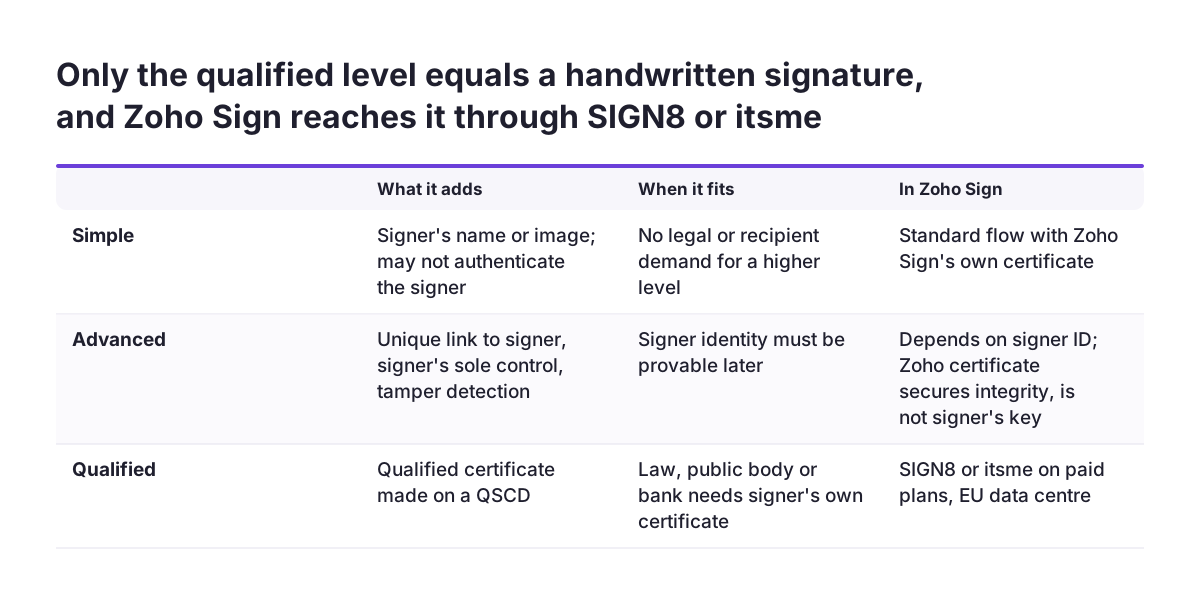
The three levels of electronic signature differ in how firmly they tie a person to a document. An electronic signature is a digital alternative to a hand-drawn one, such as an image of a signature or the signer's name in a stylised font. Zoho notes that a basic electronic signature may or may not authenticate signers at the time of signing. That makes signer identity harder to prove later.
An advanced electronic signature adds requirements. It must be uniquely linked to the signatory and capable of identifying them. The signer must be able to use the signing key under their sole control, with a high level of confidence. The signature must also be linked to the signed data so that any later change is detected. A qualified signature goes one step further: it is created with a QSCD and based on a qualified certificate.
| Level | What it proves | Typical use | In Zoho Sign |
|---|---|---|---|
| Simple | Intent to sign; identity may not be checked | Low-risk internal or routine documents | Standard signing flow |
| Advanced | Unique link to the signer, signer's sole control, tamper detection | Documents where signer identity must be provable later | Depends on how the signer is identified; Zoho's own certificate secures the document's integrity but is not the signer's own key |
| Qualified | Signer's own qualified certificate; equivalent to handwriting in the EU | Documents where the law or recipient demands it | SIGN8, itsme and other providers |
A digital signature, in Zoho's terms, attaches the signer's identity by appending a certificate. It uses public key infrastructure (PKI), the cryptographic technology that identifies signers. Changes to the document after signing render the signature invalid.
When a contract needs a qualified electronic signature
A contract needs a qualified electronic signature when a law or the receiving organisation requires the signer's own certificate. For everything else, Zoho's help centre says the certificate issued to Zoho Sign can sign most documents, because it still ensures validity and data integrity. That is the default to start from.
Zoho names two triggers for the signer's own certificate. First, national law in some member states requires a qualified signature for certain types of documents. eIDAS itself does not name those documents; it sets out what each signature level is worth. Second, public bodies, banks and financial institutions often ask for the signer's own certificate. Whether they do depends on the country and the recipient, so check before you send.
Zoho lists the documents that companies commonly sign across departments: non-disclosure agreements, invoices, estimates, sales orders, purchase orders and onboarding documents. For most of these, the standard flow is the right choice. Zoho also gives KYC documents, loan applications and tax forms as examples of financial documents. Those are the ones to check first, because they often end up with a bank or a public body.
A practical way to decide is to ask three questions about each document type:
- Does it go to, or belong to, a public body, agency, bank or financial institution?
- Has your legal adviser or the recipient named a qualified signature as a requirement?
- Would you otherwise need a handwritten signature on paper?
A yes to any of these means you should check whether a QES is enough. Some documents, such as notarial deeds, need a notary under national law, and a QES alone does not replace that step. Three noes usually mean the standard Zoho Sign flow is enough.
Zoho Sign's QES providers for the EU: SIGN8, itsme and others
Zoho Sign does not issue qualified signatures itself; it connects to providers that do. A Qualified Trust Service Provider (QTSP) is a provider with qualified status under eIDAS that issues the qualified certificates a QES is based on. A QES made this way is recognised as qualified in every member state. SIGN8 is one such QTSP, according to Zoho's integration page.
Zoho's provider list for Zoho Sign includes TrustFactory, InfoCert, Uanataca, European Union eID, itsme, Swisscom and others outside Europe. The help centre lists them all as available in all paid plans. The Zoho pages describe the European options this way:
| Provider | Availability | How the signer proves identity |
|---|---|---|
| SIGN8 | All paid plans, EU data centre | Cidaas, fidentity, Adesso ODIS, EUDI wallet, AusweisApp or Nect, on SIGN8's page |
| itsme | All paid plans, EU data centre; aimed at Benelux and the EU | Registered phone number on the itsme website |
| Evrotrust | All paid plans, all data centres except Japan, India and Saudi Arabia | Not described on the pages used for this guide |
| Swisscom | Described by Zoho as a leading QTSP for Switzerland | Not described on the pages used for this guide |
The choice usually follows your signers. If most of them already use itsme, that route asks nothing new of them. If they are spread across countries, SIGN8's range of identification methods gives them more options.
Plans, data centre and credit costs for QES in Zoho Sign
QES in Zoho Sign requires a paid plan, and the EU providers require the EU data centre. Zoho Sign has a free plan for up to five documents per month, but the provider integrations are listed for paid plans. Zoho licenses Zoho Sign by users per organisation or by documents sent per month.
The data centre matters because SIGN8 and itsme are available only in the EU one. Zoho chooses your data centre automatically from your location and IP address, and stores all your data exclusively there. Zoho Sign runs in ten data centres. If your account sits in the wrong one, Zoho can migrate the account and its data on request.
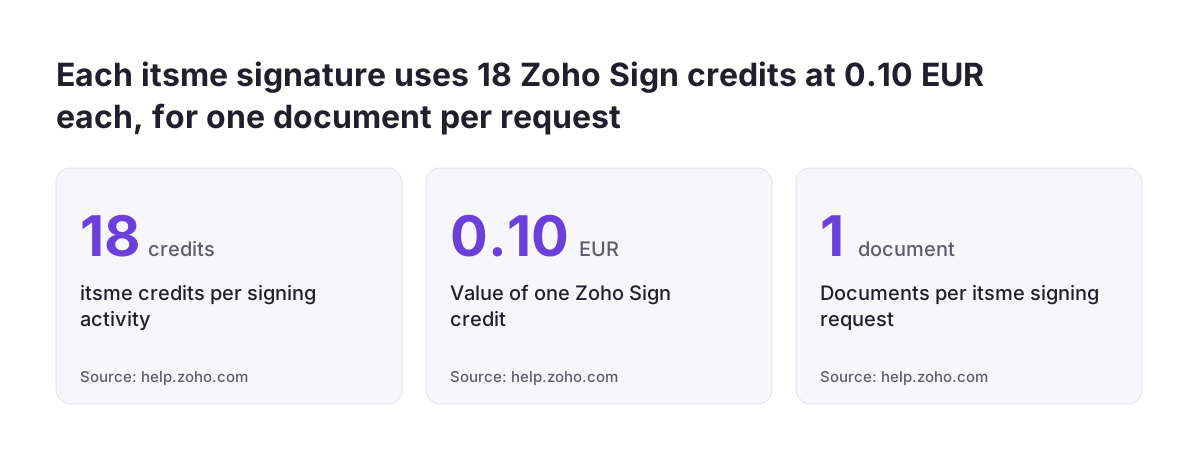
Signing with a provider consumes Zoho Sign credits. The itsme page gives a precise figure: each signing activity consumes 18 credits, and one credit equals €0.10. One itsme signature therefore costs €1.80 in credits. Enabling the itsme integration deducts no credits.
Two smaller cost rules are worth knowing:
- If you disassociate a user from a provider integration and associate the same user again, Zoho Sign consumes credits.
- The SIGN8 page used for this guide does not state a credit cost, so confirm it in your account before you budget.
To test the whole flow before paying, Zoho offers a 14-day free enterprise trial.
Setting up SIGN8 in Zoho Sign, step by step
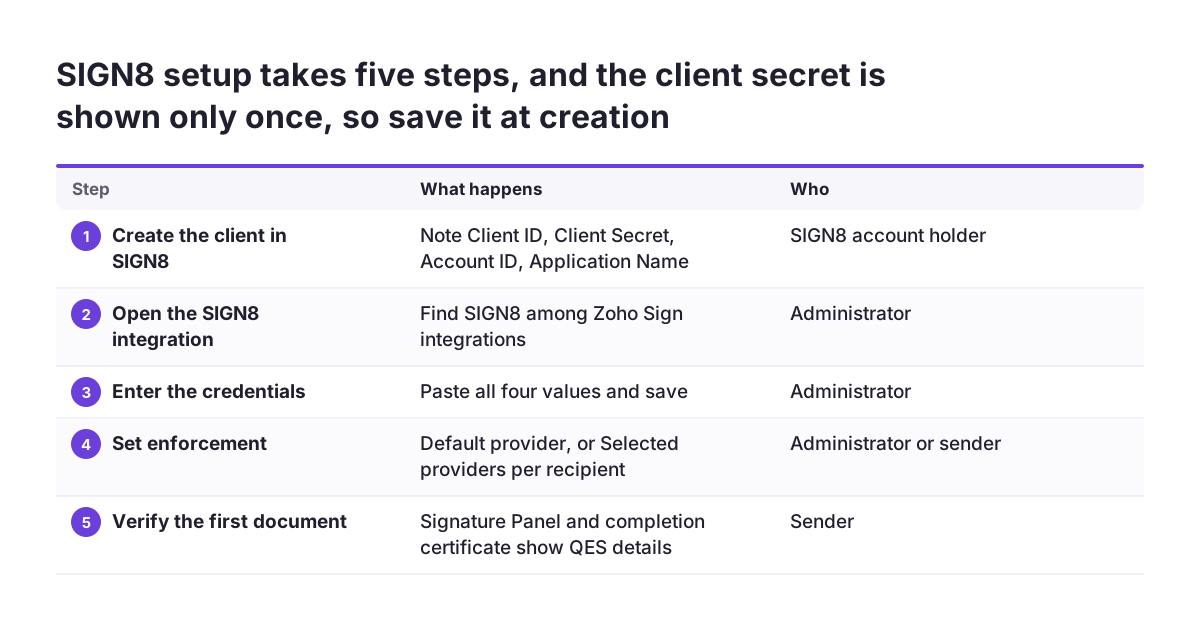
Only an administrator can enable the SIGN8 integration in Zoho Sign. Before you start, create a client in your SIGN8 account. Zoho warns that SIGN8 will not show the client secret and account ID again after the client is created. Copy them into your password manager at that moment.
The setup then runs in this order:
- In SIGN8, create the client and note the Client ID, Client Secret, Account ID and Application Name.
- In Zoho Sign, open the SIGN8 integration as an administrator.
- Enter the Client ID, Client Secret, Account ID and Application Name, and save.
- Decide whether SIGN8 becomes a default provider for recipient workflows, or is applied per recipient.
The fourth step is where automation starts. Zoho's help centre states that administrators can configure default digital signature providers for recipient workflows. They can also enforce specific providers per recipient. A default removes the need for each sender to remember the setting.
For a single document, a sender can also require SIGN8 directly. In the recipient's settings, under Digital signature providers, choose Selected providers, select SIGN8 and click Save. The signer then identifies on SIGN8's page with one of its supported methods, such as the EUDI wallet or AusweisApp.
Setting up itsme and enforcing it per recipient
The itsme integration is enabled from Settings, then Integrations, in the Zoho Sign dashboard. Hover over Settings in the left navigation pane and select Integrations. Type itsme in the search box, or find it listed under Digital signatures. Enabling it deducts no credits.
Both internal users of your Zoho Sign organisation and external signers can use itsme. Senders can enforce itsme for their signers, so a customer cannot fall back to a lower signature level. itsme is a third-party service, and the signer is redirected to its website to authenticate. There, the signer enters their registered phone number and follows the on-screen instructions.
One limit shapes how you package documents. Only one document per signing request can be signed with itsme. If a deal produces a contract and a separate annex, either merge them into one PDF or send two requests. Each request then consumes its own 18 credits.
Two points to brief your sales team on before the first live send:
- The signer needs an itsme account with a registered phone number; without one, the signature cannot complete.
- Redirection to the itsme website is expected, so tell signers in the request note that they will leave Zoho Sign briefly.
Worked example: a financing agreement sent from a Zoho CRM deal
Take a company whose partner bank requires a qualified signature on its financing agreements. A bank asking for the signer's own certificate is one of the triggers Zoho names. Ordinary NDAs and sales orders from the same CRM stay on the standard flow.
The setup follows the order of this guide. The administrator enables SIGN8 with its Client ID, Client Secret, Account ID and Application Name. The financing template then gets SIGN8 enforced for the customer recipient, under Digital signature providers, Selected providers. The send itself runs from the deal, as described in our guide to contract signing from Zoho CRM with Zoho Sign.
The customer receives the request, identifies on SIGN8's page and signs. The signed PDF and its completion certificate return to the deal. Nobody on the sales team chose a provider by hand, because the template carried the rule.
At Svennis we set the qualified provider on the template or as the default before we connect any CRM send, then sign one test document from a test deal and open it in a PDF viewer. A missing provider setting is invisible in the CRM and only shows when the signature properties are checked.
If the same company runs Zoho Contracts for contract lifecycle management, apply the same rule to its templates.
Checking that a signed document really carries a QES
You verify a qualified signature by opening the signed PDF and reading its certificate details. For SIGN8, Zoho's instructions are to open the document in a PDF viewer such as Adobe Acrobat and click the Signature Panel. The digital signature properties then show the SIGN8 certificate details.
The completion certificate is the second check. Zoho Sign includes a free completion certificate with every signed document, containing timestamps, IP addresses and signer actions. For SIGN8 signatures, the downloaded completion certificate also shows the QES details. Store it with the contract, because it is your record of who signed and how.
A short verification routine for your first live documents:
- Open the signed PDF in Adobe Acrobat and check the Signature Panel names the provider.
- Download the completion certificate and confirm the QES details appear.
- Confirm nobody edited the file after signing, since changes render a digital signature invalid.
Repeat the routine whenever you change a template, a default provider or the CRM send. Those are the moments when a setting most often falls out of place.
Plan one more administrative point. If a user leaves and their credentials are unknown, the organisation's admin must email support@zohoaccounts.com with the reason to recover their documents.
What QES means for a company in your EU country
A QES from a qualified trust service provider is recognised across the European Union, not only in the signer's country. SIGN8's help page states that its qualified signatures are legally binding and recognised across the EU under eIDAS. That matters if you sign with customers or banks in several member states.
Which documents need a QES in your country is a separate question. That depends on national law and on what the recipient asks for. eIDAS does not list document types that need a QES. The Zoho pages behind this guide do not list those types for each member state either. Ask your legal adviser or the receiving bank or authority, and record the answer per document type.
Provider choice can follow geography. itsme is positioned for Benelux and the EU, and SIGN8 offers identification methods including the EUDI wallet. Zoho's provider list also includes a European Union eID option. Swisscom covers Switzerland, if you sign with Swiss partners.
Data residency also counts for GDPR planning. Zoho Sign stores all your data in the data centre assigned to your account. For EU signing, confirm the account sits in the EU data centre, since SIGN8 and itsme are available only there. Zoho states that Zoho Sign helps users comply with GDPR, and encrypts data at rest with AES-256 and in transit with TLS/SSL.
Next steps to set up qualified signatures in Zoho Sign
Start with a list of your document types, not with the integration settings. Mark each one as standard or qualified, using the three questions earlier in this guide. Most will stay standard, which keeps credit costs down.
Then work through this order:
- Confirm your Zoho Sign account is on a paid plan and in the EU data centre.
- Choose SIGN8, itsme or both, based on where your signers are.
- Have an administrator enable the integration and store the SIGN8 credentials safely.
- Enforce the provider on the templates for qualified documents, or set it as the default.
- Send one test document from a test CRM deal and verify the Signature Panel and completion certificate.
If your CRM is not yet sending contracts through Zoho Sign, begin with our setup guide for contract signing from Zoho CRM. It covers the send flow that this post builds on. For signed contracts that need follow-up after signature, our post on contract renewals and obligations in Zoho Contracts covers what happens next.