
Building forms and reports in Zoho Creator: design the data first
Building forms and reports in Zoho Creator works best when you design the data before the screens. Use one form for each real thing you track and link the forms with lookup fields. Then build reports on those forms, with filters, grouping and access set by user profile. Get that structure right before real data arrives, and the app keeps working as it grows.
Zoho Creator is Zoho's low-code platform for building custom business apps. A form in Zoho Creator is the screen where users enter records, one field at a time. A report is the view that lists those records and lets you filter, group and sort them. Forms decide what data exists. Reports decide who sees it and in what shape.
This guide picks up where planning ends. You already know which data, users and integrations the app needs. The task now is to turn that plan into working forms, reports and user permissions that are ready for real data. The two examples below come from questions people raised in Zoho's own community, because they show where Creator builds tend to break.
Zoho Creator form components and which ones shape your data
A Zoho Creator form has eight basic components, and only some of them affect your data model. Zoho's help centre lists them as follows:
- Fields
- Form editor
- Field properties
- Form properties
- Form actions icon, for rename, duplicate and delete
- Themes
- Label placement
- Sections
Fields carry the data. In Zoho Creator, fields are the places where users enter specific data, and Creator offers many field types. Each type is designed to capture one kind of data, such as a phone field for phone numbers. Choosing the right type matters more than any visual choice, because it decides what a user can type and what a report can later filter on.
Field properties come next. The form builder lets you modify the properties of each field to suit your requirements. Form properties apply to the whole form.
Themes and label placement shape how the app looks, not what it stores. You can change them later without touching the data. Sections sit in between: they group forms, reports and pages so users can find them, which we cover further down. If you are short of time, spend it on field types and field properties first.
Split large forms into linked forms with lookup fields
A large Zoho Creator app should use several smaller forms linked by lookup fields, not one form that holds everything. A lookup field is a field that points to a record in another form. The data is then stored once and referenced wherever it is needed.
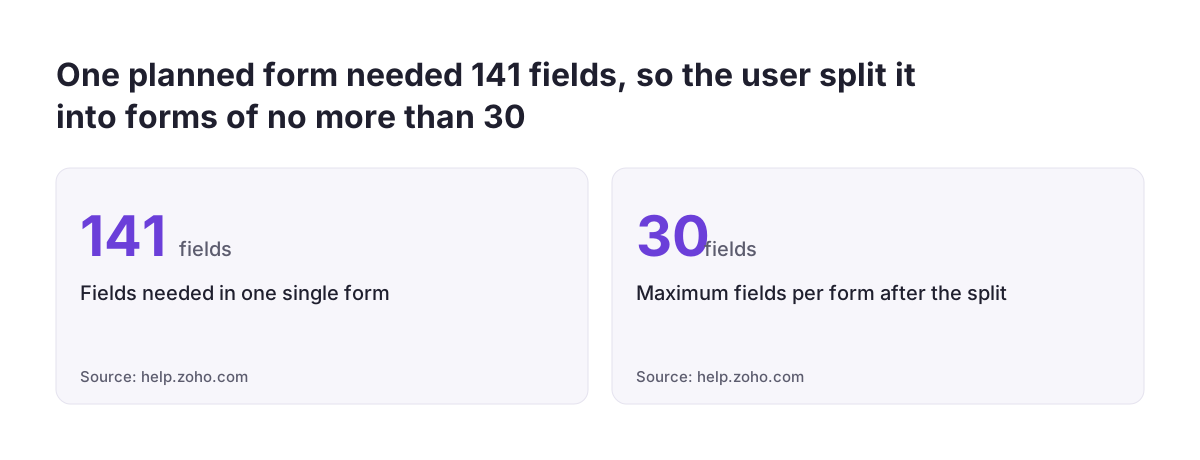
One user in the Zoho community described the problem clearly. Their planned application would have needed 141 fields in a single form to keep all the data in one place. They decided instead to split the fields into common areas, each its own form of no more than 30 fields.
Their test design used three forms:
- A contact form holding the person and a unique ID
- A call results form, with the unique ID as a lookup back to the contact form
- An email results form, with the same lookup back to the contact form
That shape follows a simple rule. Each form describes one kind of thing or event, and every event points to the thing it belongs to. A contact can then gather any number of calls and emails without new columns being added to the contact form.
At Svennis, we build small reference forms, such as category, product or people lists, before the transaction forms that use them. We also test every lookup with real sample records before users see the app, because broken links after go-live mean cleaning live data.
Worked example: an imported order list with categories and sub-categories
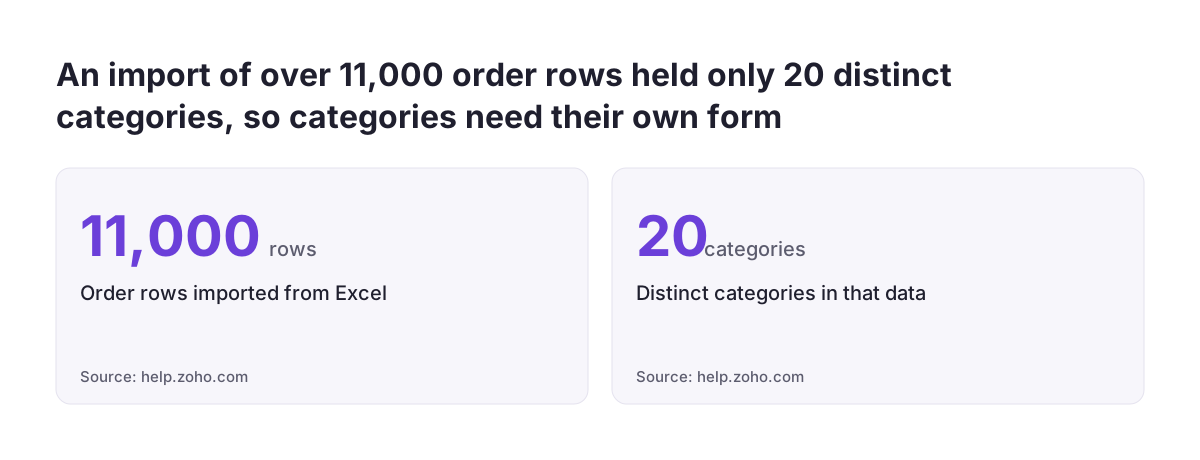
An imported spreadsheet shows why reference data belongs in its own form. A user new to Zoho and Deluge, Zoho's scripting language, imported an Excel order list of over 11,000 rows into Zoho. In the form that Zoho created automatically, the Category dropdown listed all 11,000+ values, although there were only 20 distinct categories.
The cause is the shape of the spreadsheet. Column 1 held the category, and columns 2 to 9 held sub-categories, each dependent on the main category and its parent sub-category. Every order row repeated those values as text. A form built straight from that sheet treats every repeated value as an option.
Rebuilt with linked forms, the same data looks like this:
- Create a Category form with one field, Category Name, and enter the 20 distinct categories once.
- Create a Sub-Category form with a name field and a lookup to Category. For deeper levels, add a lookup to the parent sub-category.
- Create an Orders form whose category and sub-category fields are lookups to those two forms, not free text.
- Bring the order rows in only after the reference forms are complete, so each order points to an existing category.
The user's next question was how to show only the sub-categories that belong to the chosen category. Filtering the second dropdown by the first is a configuration step on top of this structure. Without separate Category and Sub-Category forms, there is nothing clean to filter on.
Zoho Creator reports are built on one form, so plan them with the forms
A Zoho Creator report is built on a single form, so you should plan each report while you design the forms behind it. The community user with the contact, call results and email results forms ran into exactly this. When creating a report, Creator seemed to limit them to one form.
They found a partial answer. A report built on the call results form or the email results form could link back to the contact form through the lookup. What they could not get was all three forms in one report.
The practical lesson is to start each report from the form that holds the event, then pull in the parent's details through the lookup. A report of calls made this week belongs on the call results form, showing the contact through its lookup. Ask "which form does this list start from?" for every report in your plan. If a report needs data from two unrelated forms, that is a sign the design needs another lookup.
Some outputs are documents, not lists. Zoho Creator held a community webinar on 23 March 2021 on building complex reports and documents with Zoho Writer. It covered advanced JSON formatting from Creator, Writer merge templates and next stages with Zoho Sign. It was aimed at developers and required extensive knowledge of Deluge, so treat formatted documents as a separate piece of work.
If you only need to collect entries and review them, Zoho Forms with its own report builder may be enough. Its reports offer List and Kanban views and can be sent as CSV files daily or weekly.
Customising a Zoho Creator list report: filters, grouping and sorting
A Zoho Creator list report is customised in the Report Customization window, opened by clicking the edit icon beside the report name. According to Zoho Creator's help on list reports, you can do five things there:
- Define layout properties
- Set field properties
- Add filters, with multiple criteria if needed
- Group records under the values of a selected field
- Sort records
Grouping is where your form design pays off. If Category is a lookup to a form of 20 categories, grouping by Category gives 20 tidy groups. If Category were free text typed by each user, every spelling variant would become its own group.
Filters work the same way. A filter on a lookup or a dropdown matches reliably, while a filter on free text depends on how people typed. This is why field types, chosen when you build the form, decide how useful your reports can become.
Users can also create list reports themselves from the live app. In live mode, a user with access through shared analytics selects the form, enters a report name and selects the user profiles to share it with. The admin must grant the Create Report permission first. That is a decision about control, covered in the next section.
Report access in Zoho Creator: user profiles, permissions and ownership
Access to a Zoho Creator report is set by user profile, so decide your profiles before you build the reports. A profile is a group of users who should see and do the same things, such as sales staff, managers or finance.
Every list report is shared with selected profiles when it is created. Afterwards, the report settings let you change the report name and modify which profiles can access it. Design the profiles around roles, not individual people, so that a new hire inherits the right reports on day one.
Ownership matters as well. Only the owner of a report can edit or delete it. When users build their own reports from the live app, they own those reports. If that person leaves, someone has to take over what they built.
That makes the Create Report permission a deliberate choice. A workable pattern has three parts:
- The app builder creates and owns the core reports that everyone relies on.
- A small number of experienced users get the Create Report permission for their own analysis.
- Helper and admin reports sit in a hidden section, out of ordinary users' menus.
Review the profile list each time you add a form. A new form often holds data that not every profile should see.
Checklist: Zoho Creator form and report decisions before real data
The table below collects the design decisions from this guide in the order you would make them. Work through it before importing real records or inviting users.
| Decision | Where you set it in Zoho Creator | Check before real data |
|---|---|---|
| One form per real thing or event | Form editor | No form tries to hold everything; large forms are split by area |
| Reference lists as their own forms | Form editor, then data entry | Categories and similar lists hold each value once |
| Links between forms | Lookup fields | Every child record points to an existing parent |
| Field types and field properties | Form builder, field properties | Each field uses the type built for its data |
| Buttons and the workflows they start | Form buttons | Submit, update and clear behave as users expect |
| Which form each report starts from | Report creation | Each report lists the event and pulls parent data via the lookup |
| Filters, grouping and sorting | Report Customization window | Groups and filters run on lookups or dropdowns, not free text |
| Profiles and report access | Report settings | Each profile sees only the reports its role needs |
| Who may create reports | Create Report permission | Granted to a named few, with ownership understood |
| Menu layout | Sections and themes | Hidden sections hold admin items; the menu works on each device |
If a row fails its check, fix it before go-live. Each of these decisions is quick to change in an empty app and slow to change once records depend on it.
What Zoho Creator form and report design means for EU companies
For a company in the European Union, form and report design is also how you control who sees personal data. Under the GDPR, you should be able to explain which people in your organisation can see which personal data, and why. In Zoho Creator, that answer lives in your profiles, report sharing and hidden sections. A clean design makes the explanation short.
Keeping personal data in one form helps. If customer details sit only in a contact form and other forms reach them through lookups, there is one place to correct or remove them. Copying names and addresses into every order record spreads the same data across many forms.
Many EU companies work across borders, with teams in several countries. Profiles built around roles, rather than countries, usually keep the report list manageable. Add a country-specific profile only when a team genuinely needs different access. Check any national rules that apply where you operate separately, rather than assuming one country's practice holds everywhere.
Creator apps rarely stand alone. A two-day, English-language Zoho Creator workshop in Munich, co-hosted by Zoho, SCE & HM and Start Munich, has participants build an invoice management app from scratch. It also teaches using Zoho Flow to connect the app with other business tools. Our guide to first workflows in Zoho Flow for a small business covers that next step. If invoicing is the main job, first check whether Zoho Books as cloud accounting already covers it before you build.
Next steps: turn your planned Creator app into working forms and reports
The next step is to build the reference forms, link them, and test them with a small sample of real data. Work in this order:
- List every real thing and event in your plan, and give each its own form.
- Build the reference forms first and fill them with each value once.
- Build the transaction forms, using lookup fields wherever a value already exists in another form.
- Set field types, field properties and buttons, then open the Form Properties panel for each form.
- Write down every report you need and the one form it starts from.
- Define user profiles, build the core reports, and decide who gets the Create Report permission.
- Run a sample import, group and filter the reports, and fix anything that splits into messy groups.
- Check the menu, sections and theme on each device your users have.
Keep the checklist table above open while you work, and do not import the full data set until every row passes. If you want to see what a finished Creator build looks like, or want a second pair of eyes on your data model, read our page on custom business apps built with Zoho Creator.
Sources
- Zoho Creator FAQs: Components of Form
- Zoho Creator Help: Create List Report from Live Application
- Zoho Community: Building a form with Categories and multiple sub-categories
- Zoho Community: report with multiple forms
- Zoho Community Webinar: Build complex reports and documents with a Zoho Creator & Zoho Writer integration
- Zoho Forms: Creating Reports
- SCE: Building Business Apps with Zoho Creator, two-day hands-on low-code workshop