
Per diem and travel policies in Zoho Expense: where each part is set up
Per diem and travel policies in Zoho Expense are configured in two places. Per diem rates and allowance rules sit in the per diem settings of a policy. Currency, policy admins, the travel policy document and trip options sit under Policy Settings. Once both are set, Zoho Expense highlights violations to users while they create, submit and reimburse expenses, before an approver has to find them.
A per diem is a daily allowance that an organisation pays an employee travelling for work. Depending on the country and your policy, it can cover meals, incidental expenses and lodging. An expense policy is a written guideline that tells employees the rules, limits and exceptions for expenses they incur on behalf of the company.
This guide walks through each setting in the order we configure them. It covers rates, rules, policy settings and limits, then a worked example of a three-day trip. It closes with what changes for a company in the European Union and a checklist you can work through. If you are still deciding whether the product fits your company, start with our overview of Zoho Expense setup and automated expense management.
Policy Settings in Zoho Expense: currency, policy admins and the travel policy file
Policy Settings in Zoho Expense hold the rules that apply to everyone on a policy. According to Zoho's Policy Settings user guide, you can set the policy currency, assign a policy admin and upload a travel policy. You can also configure a surcharge on foreign currency expenses and set trip options preferences.
Policy currency
The policy currency is the currency in which an employee on that policy is reimbursed. Employees on a policy with a configured currency can create reports only in that currency. The feature is in early access, so you request it from Zoho Expense support. You cannot change the policy currency in the default policy, so plan separate policies if teams are reimbursed in different currencies.
Policy admins
A policy admin is a user who can see all corporate cards, trips, reports and advances created under a policy. Policy admins reach these by switching to the Admin View. Only policy admins can receive policy based permissions, and a policy can have more than one admin.
Travel policy file and uncategorised expenses
You can upload your written travel policy so employees read the same document the system enforces. The file must be smaller than 7MB, in png, jpg/jpeg, PDF or doc/docx format. You can also stop uncategorised expenses: if you disable that option, users cannot add such expenses to a report until they assign a category.
Four ways to set per diem rates in Zoho Expense, and when to use each
Zoho Expense offers four ways to set per diem rates. You can fetch government rates automatically, configure custom rates, import rates manually, or add a rate for a single location. Automatic fetching currently covers Germany, the United States, Australia, Singapore and Spain. Manual imports accept CSV (comma separated values) or TSV (tab separated values) files.
The table compares the four methods so you can pick one per policy.
| Method | Best when | What to watch |
|---|---|---|
| Fetch government rates | Your employees are based in one of the five supported countries and you follow those official rates | Coverage is limited to Germany, the United States, Australia, Singapore and Spain |
| Custom rates | Your company sets its own daily allowance by destination | Someone must own the rates and update them as prices change |
| Manual import | You already keep a rate table for many destinations | The file must be CSV or TSV, and every later change needs a fresh import |
| Rate for a location | You only need to add or adjust one destination | Single entries drift if nobody reviews the full list |
For expensive cities, Zoho's own guide to effective expense policies recommends basing per diem and meal allowances on the regional average. It also recommends updating them at frequent intervals. A custom or imported rate table needs a named owner and a review date for that reason.
Per diem allowance rules in Zoho Expense, and why rule order decides the amount
An allowance rule in Zoho Expense changes how much of the main per diem rate a user receives, based on the details of the trip. Each rule can hold up to 10 criteria. The criteria can filter on travel duration, whether the day is a travel day, the number of travel days, departure time and arrival time.
Rule order matters more than any other setting. Zoho Expense applies the amount from the first rule, in order, that a per diem expense satisfies. The remaining rules do not run at all. A broad rule placed above a narrow one will therefore hide the narrow one completely.
The three predefined rule templates
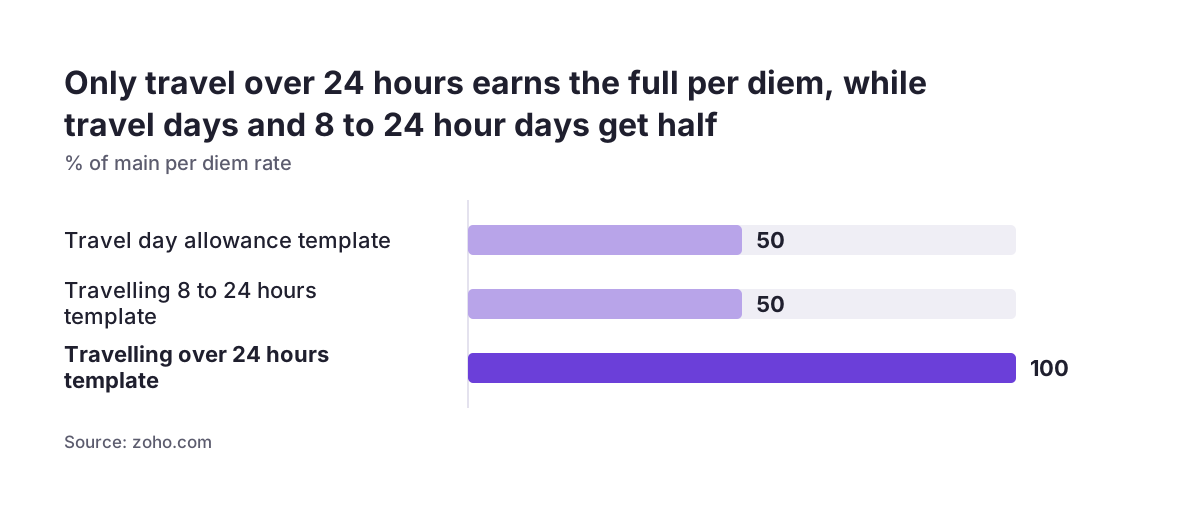
Zoho provides three templates you can add with one click:
- Travel day allowance: 50% of the main rate for the first and last day of a trip.
- Travelling between 8 and 24 hours: 50% of the main rate.
- Travelling for more than 24 hours: 100% of the main rate.
Treat the templates as a starting point and check them against your own written policy. If your policy pays travel days differently, edit the percentage or the criteria rather than adding a second, overlapping rule. At Svennis, we place the most specific rules at the top and test each one with a sample trip before go-live, because a general rule sitting first quietly overrides the exceptions below it.
Per diem components and supplements in Zoho Expense
Components and supplements control how a per diem is split and what is paid on top of it. Both rely on expense types. An expense type is a group that consolidates several expense categories, such as all the categories that relate to meals.
Components split the main rate
Components divide the main per diem rate among expense types by percentage. For example, one share can go to meals and another to incidentals. The shares must add up to 100%, and Zoho Expense will not accept a split that does not. Splitting the rate this way lets your accountant see what the allowance was paid for, not just the daily total.
Supplements add to the main rate
Supplements are allowances paid in addition to the per diem for a selected expense type. You choose between two forms:
- Percentage of Per Diem Rate, where the supplement is a share of the main rate.
- Fixed Allowance, where the supplement is a set amount.
Use a percentage when the supplement should rise and fall with the destination rate. Use a fixed allowance when the extra cost is the same wherever the employee travels. Write down in the travel policy document which expense types attract a supplement, so employees know before they travel and approvers know what to expect on the report.
Worked example: a three-day trip claimed through Zoho Expense per diem rules
This worked example shows how the rules combine for one trip. A sales engineer at a company in Germany travels to Madrid for three days. The company fetches German government per diem rates, since Germany is supported for automatic rate fetching, and uses the German rate for Madrid.
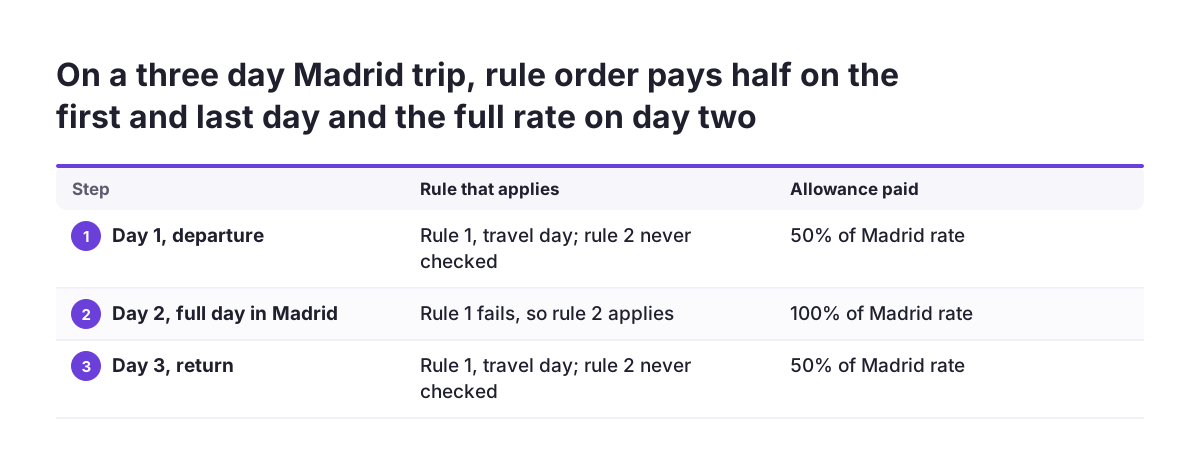
The policy admin has set up the rules in this order:
- Travel day allowance: 50% of the main rate on the first and last day.
- Travelling for more than 24 hours: 100% of the main rate.
On day one, the expense satisfies rule 1 because it is a travel day. The engineer receives 50% of the Madrid rate, and rule 2 is never checked. Day two is not a travel day, so rule 1 fails and rule 2 applies, paying 100%. Day three is the last day, so rule 1 applies again at 50%.
Now reverse the order. If rule 2 sits first, every day of a trip longer than 24 hours may satisfy it, and the travel day rule never runs. The engineer would then be paid the full rate on days the policy meant to pay at half. Nobody receives an error, because the system is doing exactly what the order tells it to.
The engineer also pays a hotel bill by card in a foreign currency. If the policy allows a 5% surcharge, Zoho's own example shows a $100 expense recording a $5 surcharge. That amount is handled separately, as the section on surcharges explains.
Expense limits, budgets and policy violations flagged before approval
Expense limits and budgets in Zoho Expense stop overspending before a report reaches the approver. Zoho's product page describes budgets set per category, department or user. You can choose between a warning notification and blocking approvals that exceed the budget limit. Zoho's policy guide adds that limits can apply across categories, hierarchies and departments.
Zoho Expense highlights violations and notifies users throughout creation, submission and reimbursement. The employee sees the problem while filling in the claim, which is the cheapest moment to fix it. This matters because finance teams often end up checking many reports at once, close to the submission deadline.
Setting limits that hold up
Zoho's guide recommends basing limits on historic spend in categories such as lodging and cab fares for regions you visit often. Combine that data with feedback from the employees who travel. It also suggests stating the consequences of breaking the policy. Its example is denying reimbursement for bills submitted more than eight months after the expense, or reducing later budgets after overspending.
Exceptions then go to the right person. Zoho Expense supports simple, multi-level, ad-hoc and parallel approval workflows. Zoho's guide gives the example of extra approval levels for expenses above $1,000 on business trips shorter than three days. How those approval steps are built is covered in our post on expense claims and approvals in Zoho Expense.
Foreign currency surcharges and how they reach Zoho Books
A surcharge in Zoho Expense is an amount the organisation pays employees to cover the extra fee charged when exchanging a foreign currency. You configure it as a percentage in Policy Settings. Like the policy currency, it is an early access feature that you request by email from Zoho Expense support.
The surcharge can be booked apart from the expense it belongs to. If Zoho Expense is integrated with Zoho Books, you select a category from the Processing Account dropdown to track the surcharge amount. The hotel bill keeps its own category, and exchange costs land in the category you chose. Your accountant can then see what travel cost and what currency exchange cost.
Zoho also describes processing reimbursements directly from Zoho Expense and syncing settlements with payroll and ERP. For the accounting side, check three points before your first live trip:
- The category chosen for surcharges exists in Zoho Books and is the one your accountant expects.
- Per diem components map to expense types your accountant recognises.
- The policy currency matches the currency in which employees are reimbursed.
If the accounting side is not set up yet, our page on Zoho Books setup and cloud accounting explains how we approach it.
Trip options and booking permissions in Zoho Expense
Trip options in Zoho Expense decide what happens to tickets and bookings made for a traveller. In Policy Settings you choose whether creating an expense for tickets and bookings is optional, mandatory or not required. The choice determines whether a booked flight or hotel automatically becomes part of the employee's claim.
Mandatory is the right setting when bookings are paid by the employee and must appear on the trip report. Not required suits companies where travel is booked and paid centrally, so the cost never passes through the employee. Optional leaves the decision to each traveller, which tends to produce reports that look different from person to person.
Roles and who may book
Booking permissions are tied to user roles. The default roles, Approver and Submitter, have fixed permissions that you cannot change. If you need a different mix, such as an assistant who books travel for others, you create a new role and configure its booking permissions.
Zoho's policy guide also advises that the written policy names every approver in a complex workflow. Its example is a trip that needs both the manager and the project head to approve. Make sure the roles you create match the approvers named in the travel policy document you uploaded.
What per diem and travel policy setup means for a company in the EU
For a company in the European Union, the main question is whether your country is covered by automatic rate fetching. Of the EU member states, Zoho Expense currently fetches government rates for Germany and Spain. Companies elsewhere in the EU use custom rates, a CSV or TSV import, or rates added by location.
Each member state sets its own allowance and receipt rules. A rule that applies in one country does not carry over to another. Zoho's policy guide notes that businesses can configure policies around local tax laws, per diem regulations and mileage rate advisories. It also notes that, depending on national requirements, employees may need to submit both digital and paper receipts.
Several countries, several policies
If you employ people in more than one member state, create one policy per country rather than one shared policy with exceptions. Each policy gets its own rates, rules, currency and admin. Zoho states that the product comes in more than 15 languages and 15 regional editions, so check which edition fits each entity.
Policy currency is the setting most often missed. It cannot be changed in the default policy, so a company reimbursing in euros and another currency needs a separate, non-default policy for the second currency. Confirm with your tax adviser which rates and receipt rules apply in each country before you load them.
Next steps: a setup checklist for Zoho Expense per diem and travel policies
Work through these steps in order, and test each one with a sample trip before inviting employees:
- Write or update the travel policy document, naming limits, approvers and consequences.
- Create one policy per country or reimbursement currency, and request policy currency access if needed.
- Assign at least one policy admin per policy.
- Load per diem rates by fetch, custom entry, import or location.
- Add allowance rules, most specific first, and check the order with a test trip.
- Split the main rate into components that add up to 100%, then add supplements.
- Set category, department or user budgets, choosing warning or blocking.
- Set trip options and create any custom booking roles.
- Choose the Zoho Books category for surcharges and upload the travel policy file.
Once claims are flowing, configure the approval chain next. Our post on setting up expense claims and approvals continues from where this guide stops. If you later want to report on travel spend by destination or department, see our Zoho Analytics implementation page.