
Sales forecasts and quotas in Zoho CRM rest on hierarchy, periods and stages
Sales forecasts and quotas in Zoho CRM are reliable only when three things underneath are right first. These are the hierarchy that targets roll up through, the fiscal year and its forecast periods, and the forecast category of every deal stage. Set those, then choose a forecast type and assign quotas. After that, compare the forecast with closed revenue every month.
A sales forecast in Zoho CRM is a prediction of what your team will close in a period, measured against targets. Zoho's own help compares it to a weather forecast, built from several factors rather than one. A quota, which Zoho CRM calls a target, is the amount a role or a user is expected to achieve in a forecast period.
The Zoho CRM forecasting help page describes the purpose plainly: to assign and monitor targets based on an organisational or territorial hierarchy. Every word of that sentence depends on setup. If the hierarchy is wrong, targets roll up to the wrong manager. If stages are categorised badly, open deals land in the wrong column.
This guide follows the order that avoids rework. It covers edition requirements, hierarchy, fiscal year, stage categories, forecast type and quotas. A worked example and a monthly review routine come at the end.
Forecasting needs the Enterprise or Ultimate edition of Zoho CRM
Forecasting in Zoho CRM is available in the Enterprise and Ultimate editions only. Zoho states this in its announcement of the deal likelihood enhancement to forecast reports. If your company runs a lower edition, the forecasting module is not there to configure.
Check your edition before you plan any of the steps below. Our overview of Zoho CRM editions, users and add-ons explains what each edition includes and what an upgrade involves. If you are still deciding whether you need the full CRM at all, our comparison of Zoho Bigin and Zoho CRM sets out when a lighter pipeline tool is enough.
Data centre matters for one feature. The forecast report's likelihood labels, which mark each open deal by its chance of success, are available in all Zoho data centres except IN. A company hosted in the EU data centre therefore gets the feature. Companies on other data centres should confirm availability before they build a review process around it.
Edition and data centre are the only prerequisites outside your own configuration. Everything else in this guide is a decision you make inside your account.
Role hierarchy or territory hierarchy: choose the one your targets follow
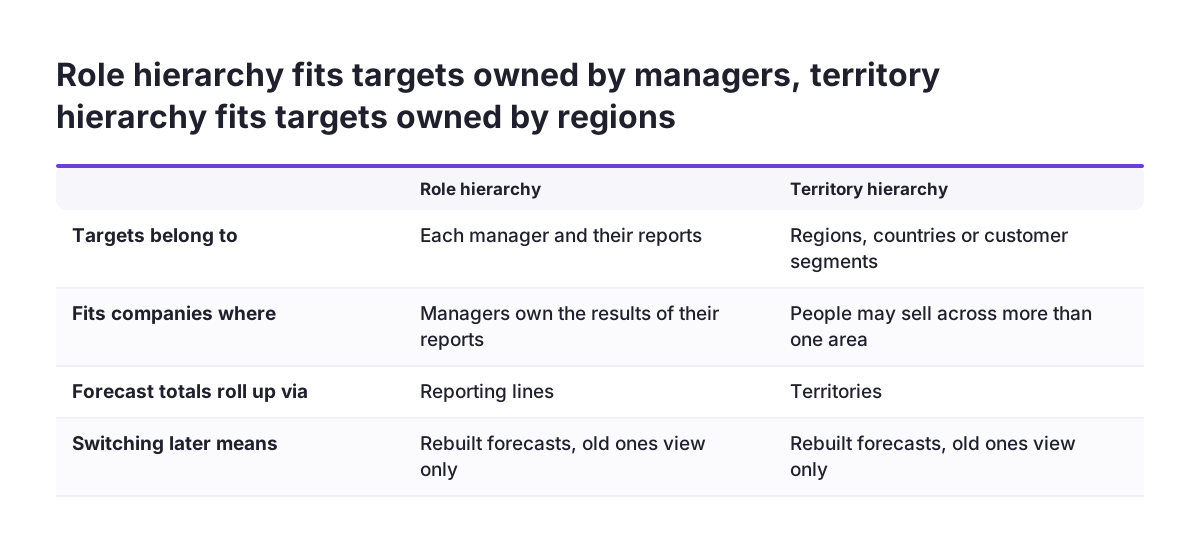
Zoho CRM builds forecasts on one of two hierarchies: the role hierarchy (who reports to whom) or the territory hierarchy (which region or segment owns which deals). Pick the one that matches how your company actually sets and reviews targets. A forecast that rolls up through the wrong structure gives managers totals they do not own.
When each hierarchy fits
The role hierarchy suits companies where each manager owns the results of the people who report to them. The territory hierarchy suits companies where targets belong to regions, countries or customer segments, and people may sell across more than one. Zoho's forecasting help lists forecasts based on role hierarchy and on territorial hierarchy as the two routes.
Why changing it later is expensive
Changing the forecast hierarchy after go-live means rebuilding your forecasts under the new structure. The forecasts created under the old hierarchy can no longer be edited. Clean up the role or territory structure first, then create forecasts.
Ownership of the setup matters too. Zoho's help states that once a user has been deleted, all the configurations that user set up stop working. Have forecasts configured by an administrator account that will outlast staff changes, not by a sales manager who may leave.
Fiscal year and forecast periods: fix both before the first forecast
The fiscal year in Zoho CRM must be correct before you create any forecast. A fiscal year is the one-year period a business uses to plan, track and analyse its activities, including sales. Zoho notes that many organisations' fiscal years do not run from 1 January to 31 December.
Changing the fiscal year start date later deletes all existing forecasts, including archived ones. That makes this the single most destructive setting in the module. Confirm the start month with your finance team before anyone touches forecasting.
Monthly or quarterly periods
Forecasts in Zoho CRM run monthly or quarterly. The current period covers the 12 months or 4 quarters of the current fiscal year. The future period covers the next fiscal year, and completed forecasts cover the previous 2 fiscal years.
Choose the period that matches your sales cycle and your review rhythm. Short cycles with frequent closes suit monthly periods. Longer cycles, where single deals swing a month, read more honestly by quarter.
At Svennis we confirm the fiscal year and freeze the role or territory structure before the first forecast is created, because both settings undo forecast history when changed later. We then check stage categories against the client's own won and lost deals before any number reaches a manager.
Stage forecast categories and probabilities decide which deals count
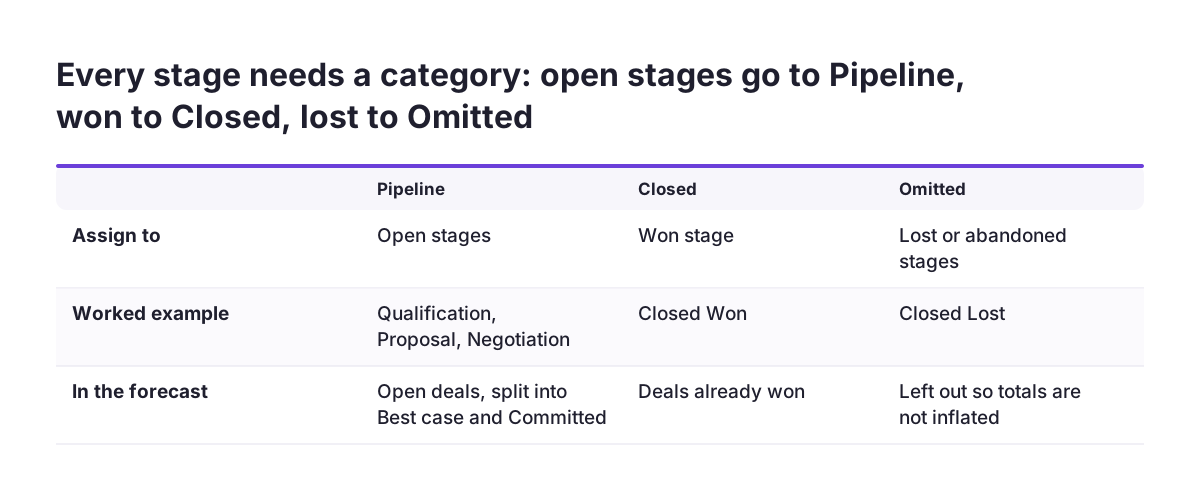
Every deal stage in Zoho CRM carries a forecast category, and that category decides where the deal appears in the forecast. When you edit a stage, the Forecast Category field offers three options: Pipeline, Closed and Omitted. A user on the Zoho community forum asked exactly which to pick, which shows how easy this setting is to skip.
The rule of thumb is simple. Open stages belong in Pipeline. Your won stage belongs in Closed. Lost or abandoned stages belong in Omitted, so they do not inflate the forecast.
Best case and Committed for open deals
Open deals can be split further into Best case and Committed. Best case means an open deal with a high chance of being won. Committed means an open deal the sales rep commits to winning. Reps can change a deal's category manually, and the forecast picks up the change at its next sync.
Stage probabilities need your own history
Zoho CRM assigns a default probability to each stage, and those defaults are not based on your deal history. Replace them with figures that reflect how often deals at each stage actually close in your company. Zoho's forecasting product page puts it directly: accurate forecasts depend on salespeople keeping usable pipeline data.
Forecast type: deal revenue or deal quantity
The forecast type in Zoho CRM sets what a target measures: money or units. There are two types. A deal revenue forecast sets targets on currency fields such as Deal Amount, Expected Revenue or a custom currency field in the Deals module. A deal quantity forecast sets targets on number fields such as Count of Deals or a custom number field.
Zoho's product page lists examples of what a forecast can track. They include deal value, the number of units of a product sold and the number of licences purchased. A software reseller may care more about licences than revenue in a launch quarter. A distributor may care about revenue above all.
Several forecasts for different questions
You are not limited to one forecast. Zoho CRM lets you set up several forecasts for different forecast periods. Each can cover all deals or only the deals that meet conditions in your pipelines. That means a new-business forecast and a renewals forecast can run side by side, each with its own targets.
Keep the number of forecasts small. Each one needs targets, reviews and someone accountable for it. Two well-maintained forecasts beat five that nobody opens. As with the hierarchy, changing the forecast type on an existing configuration makes the old forecasts view-only. Settle the type before targets go in.
Setting quotas: targets by role, user and forecast manager
Quotas in Zoho CRM are set as targets inside each forecast, and they flow down the hierarchy you chose. Forecast managers can build their own forecasts and assign targets to their role, to themselves, to their peers and to their sub-roles and users. A sales director therefore sets regional figures, and regional managers split them across their teams.
Locked targets from above
Targets set higher up the hierarchy are protected. If the CEO, an administrator or a forecast manager in a higher role changes a forecast manager's target, that target is locked. The forecast manager below cannot change it. Agree in advance who sets which level, so managers are not surprised by figures they cannot edit.
Target suggestions from Zia
Zia, Zoho CRM's AI assistant, can suggest targets when you create a forecast using an earlier one as a template. According to Zoho, Zia bases individual and company-wide suggestions on the historical data of the selected forecast. Zia also analyses each user's past and current deal-closing pattern to predict their performance in the hierarchy. For a wider view of where AI for reporting helps and where it does not, see our sister site.
Treat Zia's suggestions as a starting point for discussion. They are only as good as the closed deals behind them, so they improve with each completed period of clean data.
Forecast configuration checklist: each decision and what to watch
The table below lists each forecast setting in Zoho CRM in the order to decide it, with the options and the risk of getting it wrong. Use it as a checklist with your sales and finance leads before anyone opens the forecasting settings.
| Decision | Options | Choose based on | Risk if changed later |
|---|---|---|---|
| Edition | Enterprise or Ultimate | Forecasting is not in lower editions | No forecasting module at all |
| Fiscal year start | Any month | Your finance calendar | All forecasts, including archived ones, are deleted |
| Hierarchy | Role or territory | Who owns targets: managers or regions | Forecasts must be rebuilt; old ones are view-only |
| Period | Monthly or quarterly | Sales cycle length and review rhythm | Targets must be re-entered |
| Stage categories | Pipeline, Closed, Omitted | Whether a stage is open, won or lost | Past forecasts showed the wrong totals |
| Forecast type | Deal revenue or deal quantity | Whether targets are money or units | Forecasts must be rebuilt; old ones are view-only |
| Target setting | Top down, with managers splitting | Who signs off each level | Locked targets confuse managers |
The first four rows are structural and should be settled once. The last three can be reviewed each fiscal year without losing history, as long as the hierarchy and type stay unchanged.
Worked example: a quarterly revenue forecast for two regional teams
This worked example shows the settings for a company with a sales director, two regional managers and their reps, where targets belong to regions. The names of fields, categories and options are those Zoho CRM uses. Amounts are left out because they depend entirely on your business.
- Check edition and fiscal year. The account runs Enterprise. Finance confirms the fiscal year start month, and an administrator sets it.
- Choose the hierarchy. Targets belong to regions, so the forecast uses the territory hierarchy, with one territory per region.
- Categorise stages. Qualification, Proposal and Negotiation are set to Pipeline. Closed Won is set to Closed. Closed Lost is set to Omitted.
- Set the period and type. Deals take several weeks to close, so the period is quarterly. The type is deal revenue, measured on Deal Amount.
- Limit the deals. The forecast includes only deals in the new-business pipeline. Renewals get a separate forecast later.
- Assign targets. The director sets each region's quarterly target, which locks it for the regional manager. Each manager splits the regional figure across their reps.
- Agree the rep routine. Reps mark open deals as Best case or Committed before each weekly meeting.
When targets are set, Zoho CRM shows the pipeline behind them. Deals are split into open and closed won, and open deals are split into Best case, Committed and Pipeline. That view lets the director see whether a target has realistic deals underneath it before the quarter starts.
Monthly review: compare the forecast with closed revenue
A monthly review compares each forecast in Zoho CRM with what actually closed, and it is what turns a forecast into a management tool. The forecast report breaks down performance per user and compares progress with targets. It shows all deals in the forecast period for each user.
A short routine keeps the review useful. Each month, check these points:
- Closed won revenue against target, per region and per rep.
- Committed deals that slipped into the next period, and why.
- Deals labelled At Risk that are still marked Committed.
- Stages whose deals close far less often than their probability suggests.
Likelihood labels in the forecast report
The forecast report now labels each open deal by comparing its behaviour with historical deal records. Likely to Win deals show traits of successful deals and are expected to close in the period. At Risk deals resemble deals that were historically lost. Low Priority deals are usually at an early stage and unlikely to close in the current period.
The report also summarises potential revenue for the period from Likely to Win deals. It can show projections for the next 10, 20 or 30 days. If a deal has too little behaviour data, the All Factors column stays blank. Many blanks usually mean reps are not logging activity, which is a data problem to fix before trusting the labels.
What forecasting in Zoho CRM means for companies across the EU
For a company in the European Union, the main forecasting questions in Zoho CRM are hosting, fiscal calendars and multi-country teams. The likelihood labels in forecast reports are available in every Zoho data centre except IN, so an account hosted in the EU data centre gets them.
Fiscal calendars vary between companies, and Zoho supports fiscal years that do not follow the calendar year. A subsidiary that reports to a parent on a different fiscal year should agree with finance which calendar the sales forecast follows. Settle this first, since changing it later deletes forecasts.
Teams selling across several countries
Companies that sell in several member states often want a forecast per country or region. A user on the Zoho community forum asked how to add a sales region column to a forecast and could not find a way. The structural answer is the territory hierarchy, with one territory per country or region. Condition-based forecasts, limited to deals from one region, are another route.
History for Zia's suggestions
Zia's target suggestions and the likelihood labels both draw on historical deals. If you are moving to Zoho CRM from another system, bring the closed deals with you. Our guide to migrating to Zoho CRM without losing sales history covers how.
Next steps for a forecast your sales managers can trust
The next step is to settle the structural decisions with your sales and finance leads before anyone opens the forecasting settings in Zoho CRM. Work through them in this order:
- Confirm your edition is Enterprise or Ultimate.
- Agree the fiscal year start month with finance and set it.
- Decide between the role hierarchy and the territory hierarchy, and clean up that structure.
- Assign a forecast category to every deal stage and replace default stage probabilities with your own close rates.
- Choose monthly or quarterly periods and the forecast type.
- Set targets top down and agree who may change each level.
- Book a monthly review that compares each forecast with closed revenue.
Run the first forecast for one full period before adding more. Use that period to check whether reps keep Best case and Committed up to date and whether the All Factors column fills in. Fix the data habits first, then extend forecasting to other pipelines.
If you want the hierarchy, stages and forecasts configured as part of a wider setup, see how we approach Zoho CRM implementation in Europe.