
Approval processes in Zoho CRM stop risky deals until a named person signs off
Approval processes in Zoho CRM for discounts and contracts hold a deal or quote at a defined point until a named approver signs off. You set entry criteria, such as a discount above your threshold or a non-standard contract. You pick the approvers. Then you define what happens on approval and on rejection.
An approval process in Zoho CRM is a rule that holds a record until a designated person reviews it and either approves or rejects it. Zoho describes it as a dedicated approval management system. The goal is a dependable, repeatable way to handle approvals. Zoho's own examples include pricing discount requests and contract review requests. Those are the two cases this guide covers.
This guide follows the setup in order:
- the criteria and thresholds that trigger a request
- the approver hierarchy and delegates
- a worked example on the Quotes module
- rejection handling that keeps the deal moving
- the approval history that serves as your audit record
Third-party guides disagree about which Zoho CRM editions include approval processes. Some say multi-level approvals need Enterprise or Ultimate. Check the edition comparison before you plan, and see our overview of Zoho CRM editions and pricing.
How a Zoho CRM approval process works: criteria, pending state, decision
A Zoho CRM approval process has three stages: entry criteria, a pending state and a decision. The entry criteria decide which records need approval. According to Horilla's guide to approval processes in Zoho CRM and Salesforce, you choose whether the criteria run when a record is created, when it is edited, or both.
When a record meets the criteria, Zoho CRM submits it for approval automatically and marks it Pending Approval. While it is pending, the record is locked against edits by the person who submitted it. You can leave specific fields editable if your team needs them. The approver gets a notification and can act from the CRM, from the email notification or from the Zoho CRM mobile app.
The approver can approve, reject or delegate the request. Each outcome can trigger actions you configure in advance:
- email notifications
- field updates
- tasks
- webhooks, which send data to another system
- custom functions written in Deluge, Zoho's scripting language
Approval processes are set per module. Horilla gives Deals, Invoices and Contacts as examples. Approvals also work on Quotes and on custom modules. For discounts and contracts, the Quotes and Deals modules are where most companies start.
Approval process, workflow rule or Blueprint: which Zoho CRM tool fits
Use an approval process when a second person must make an explicit decision before a record moves on. Zoho CRM has two related tools that cover different needs. A workflow rule fires automatic actions on a trigger, with no human decision and no pending state. Blueprint is Zoho CRM's stage-by-stage process tool: it controls who can move a record between defined states, and under which conditions.
| Tool | Human decision | Record held | Best used for |
|---|---|---|---|
| Workflow rule | No | No pending state | Alerts, field updates and tasks that should always happen |
| Approval process | Yes, by a named approver | Pending Approval, locked for the submitter | Discounts above a threshold, non-standard contracts |
| Blueprint | Optional, at chosen transitions | Moves only through defined states | Full sales stages with mandatory fields and checks |
The three tools can work together. An approval can sit inside a Blueprint transition. Zoho's published use case of a television network shows the combination. That company used Blueprints, workflow rules, approvals and functions together to automate its sales process. Its Blueprint added a checklist to a transition: credit score verification and legal clearance had to happen before leads became deals.
For a simple discount or contract sign-off, the stand-alone approval process is easier to configure than a Blueprint. Start there, and move the approval into a Blueprint only if you already run your deal stages through one.
Discount thresholds and contract criteria that trigger an approval
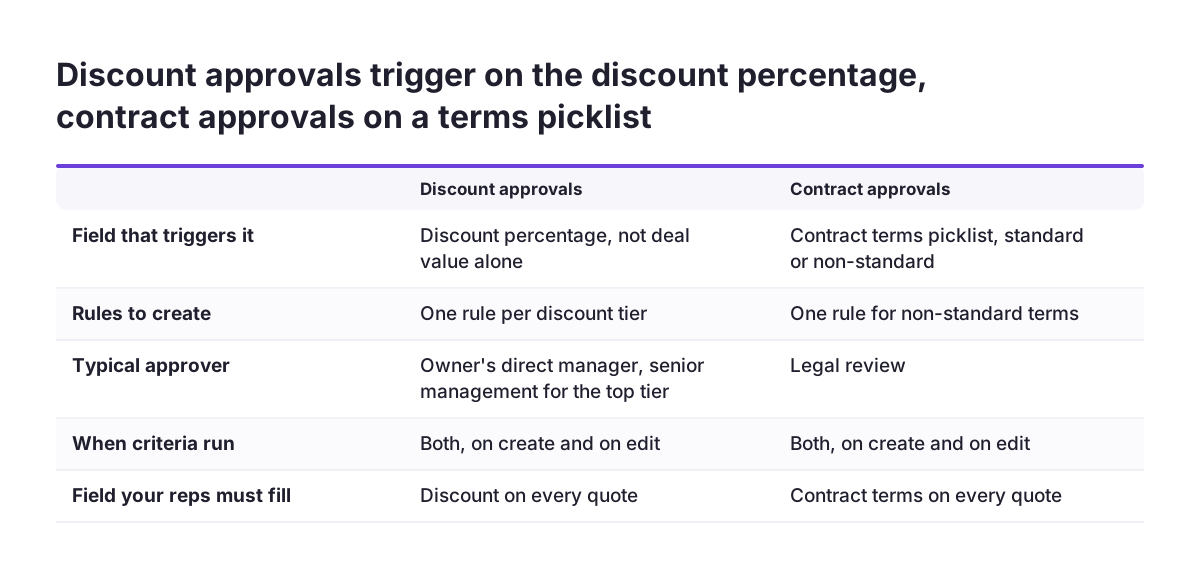
The entry criteria decide which deals pay the cost of a wait, so set them on fields your reps fill in reliably. Zoho CRM can trigger approval requests on deal value, discount percentage, field updates or record creation. A discount above a predefined threshold can be routed automatically to senior management.
For discounts, base the criteria on the discount percentage rather than the deal value alone. A large deal at list price rarely needs a manager. A small deal at a deep discount often does. If your policy has tiers, create one rule per tier, each with its own approver.
For contracts, you need a field that says whether the terms are standard. A picklist such as "Contract terms" with the values Standard and Non-standard works well. The approval criteria then check for Non-standard. Your reps must set that field honestly, so explain why it exists.
Set the execution condition to Edit or Both, not Create alone. Discounts often rise late in a negotiation. A rule that only checks new records will miss a discount added a week later.
Keep an eye on the limits. One third-party guide puts them at 10 active approval processes per module on Enterprise, with up to 5 rules each. It gives 50 processes per module on Ultimate. Few companies need that many. If you are near the limit, your discount policy is probably too complicated for your reps to follow.
Choosing approvers: role hierarchy, groups and delegates
Zoho CRM lets you assign approvers by Manager, User, Role, Group or Owner. You can also use hierarchy levels: level 1 is the record owner's direct manager, and level 2 is the manager above. Approvals can follow either the Role Hierarchy or the Reporting Hierarchy. Pick the one your organisation keeps up to date.
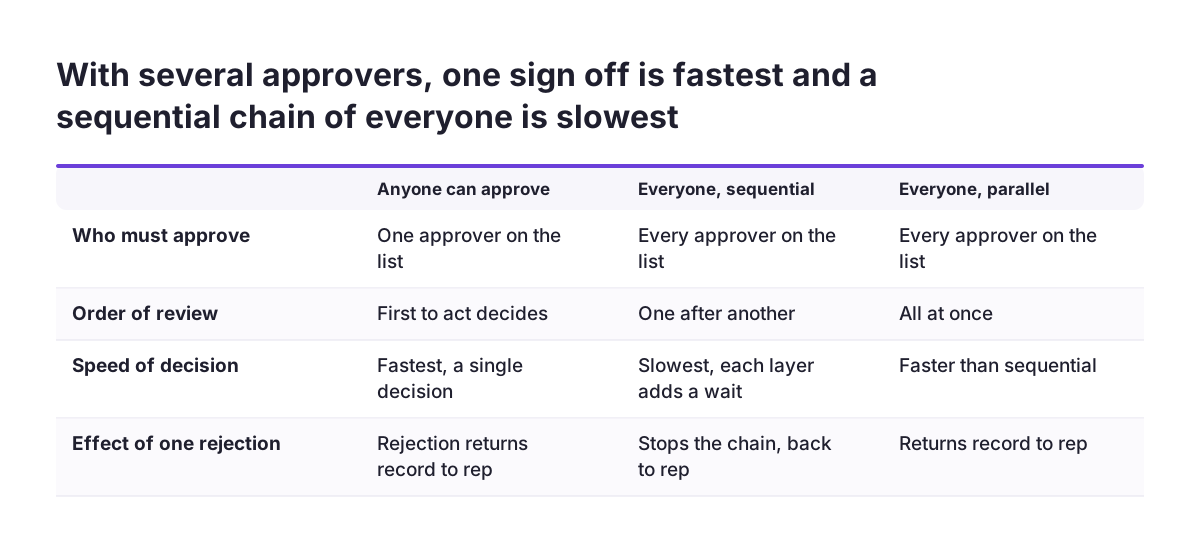
With several approvers, you choose whether anyone on the list can approve or everyone must. When everyone must approve, the order is either sequential, one after another, or parallel, all at once. Each extra layer slows the decision and frustrates reps. Two levels cover most discount policies.
Delegates matter more than most teams expect. An approver can delegate a request, but Zoho CRM does not reassign a pending approval on its own when the approver is away. Requests routed to inactive users or the wrong roles stall. At Svennis we name a group or a role as the approver wherever a policy allows it, rather than one person. Before go-live we also deactivate a test approver on a sandbox deal to confirm the request still reaches someone who can act.
An approver can act on a record even without normal access to it. You do not need to widen record sharing just so a finance director can approve a discount.
Worked example: discount and contract approvals on the Quotes module
This worked example sets up three rules on the Quotes module for a sales team with a two-tier discount policy and a legal review. The thresholds are examples only; use your own policy values. "Approval status" and "Contract terms" are custom fields you create first.
Open the approval process settings in Zoho CRM. Horilla gives the path Settings > Automation > Approval Process. Some guides describe it under Process Management, so the label may differ in your account. Choose the Quotes module and set the execution condition to Both.
| Rule | Criteria | Approvers | On approval | On rejection |
|---|---|---|---|---|
| 1. Moderate discount | Discount above 10% and up to 20% | Level 1, the owner's direct manager | Approval status set to Approved; email to the rep | Task for the rep to revise the quote |
| 2. Deep discount | Discount above 20% | Level 1, then level 2, everyone, sequential | Approval status set to Approved; email to the rep and finance | Task for the rep; email with the reason |
| 3. Non-standard contract | Contract terms is Non-standard | A "Legal review" group, anyone can approve | Approval status set to Legal cleared | Task for the rep to return to standard terms |
Test each rule on a dummy quote before you switch it on. Raise the discount on an existing quote to check the Edit trigger. Then confirm the right person receives the request on desktop and on mobile.
Rejection handling that keeps sales moving
A rejected approval should tell the rep exactly what to change, so the deal comes back quickly instead of dying quietly. On rejection, Zoho CRM captures a rejection reason and notifies the submitter. Make that reason useful: agree with approvers that every rejection names the acceptable discount or the clause to change.
In a multi-level approval, a rejection at any level stops the chain and returns the record to the rep. A rejected quote at level 1 never reaches level 2. That is usually what you want, because the senior approver only sees requests the first manager already supports.
Rejected records can be resubmitted within a set window. Build your rejection actions around that path:
- a task for the rep with a due date, so the revision is tracked
- an email that includes the approver's comment
- a field update that marks the quote as needing revision
Plan for one gap. Horilla's comparison marks recall actions as not specified for Zoho CRM, while Salesforce lets users withdraw a request. If a rep spots a mistake after submitting, the practical route in Zoho CRM is to ask for a rejection and resubmit. Our Zoho CRM and Salesforce comparison covers other differences between the two.
Approval history on the record: your audit trail for discounts and contracts
Zoho CRM keeps the approval history inside the module, on the record itself. It shows who requested approval, who reviewed it, the decision, any comments and the timestamp. Each request carries a status of pending, approved or rejected. When an auditor or a finance controller asks why a customer received a deep discount, the answer sits on the quote.
The history is only as good as what people write into it. An approval with no comment proves that someone clicked a button. An approval with a short reason, such as matching a competitor's offer, shows the decision was considered. Ask approvers to comment on every approval above your highest threshold.
Three habits keep the record usable for later audits:
- approve inside Zoho CRM, by email notification or mobile app, never by chat message or phone call
- keep approvers as named users or groups, so the history shows real people
- avoid editing the approved discount afterwards, which would separate the history from the final price
If you are moving to Zoho CRM from another system, decide early whether past approvals travel with the deals. Our guide to migrating to Zoho CRM without losing sales history covers what to bring across.
Contracts and Zoho Sign: closing the gap between approval and signature
An approval only protects margin if the approved version is the one the customer signs. The Zoho community shows this gap in practice. One user with Zoho Sign wanted a sales manager's approval before a quote could go out through the "Send with Zoho Sign" button. That user could not find a way to prevent the button from being clicked. Another user asked whether a quote can be held until a manager approves it.
The television network in Zoho's use case solved the order of events with automation. A Deluge function runs when a request is approved. It creates the quote in the Quotes module and updates the deal stage automatically. The company connected Zoho Sign to Zoho CRM through Zoho's Marketplace to send quotes from CRM records, which stops quotes being altered after approval.
The lesson for your setup: let the approval create or release the document, rather than relying on reps to wait. Use an on-approval action, such as a field update or a function, to mark the quote as ready to send. Train reps to send only quotes in that state.
If your contracts need clause tracking, renewals and versioning beyond a single sign-off, a dedicated tool fits better. See our page on Zoho Contracts for contract lifecycle management.
Approval processes for companies selling across several EU countries
A company selling in several EU countries usually runs one Zoho CRM account with sales teams in each market. That affects how you design approvals. Discount policies often differ by country, and so do the managers who own them.
Build the approver structure on the hierarchy, not on individual names. If each country manager sits above their reps in the Role Hierarchy, a level 1 approval reaches the right manager automatically. A rep in one country never waits for a manager in another. Where a central finance or legal team approves everything above a threshold, use a group so the request does not depend on one person's holiday.
Language and time zones add delay that a single-country team does not feel. Approvers can act from the email notification or the mobile app, which helps when the approver travels between offices. Keep rejection reasons short and concrete, because the rep may read them in a second language.
Finally, treat the approval history as part of your commercial records in every market. One consistent process across countries gives auditors the same trail wherever the deal was signed. For planning a multi-country Zoho CRM setup, see our Zoho CRM implementation page.
Next steps to set up your first Zoho CRM approval process
Start with one approval process, prove it on real quotes, and add rules only when the first one runs cleanly. A small, trusted process beats a complete one that reps work around.
- Write your discount policy as thresholds and owners on one page, before touching Zoho CRM.
- Confirm your edition supports the approval levels you need.
- Create the fields the criteria depend on, such as discount percentage, Contract terms and Approval status.
- Check that the Role Hierarchy or Reporting Hierarchy matches who really approves today.
- Set up one rule on Quotes or Deals with the execution condition Both.
- Configure the approval and rejection actions, including a task for the rep on rejection.
- Test with a dummy quote, including an approver who is away, and read the approval history afterwards.
- Switch the rule on for one team, review the first few weeks of approvals, then extend it.
If your approvals need to connect with Blueprint stages, Zoho Sign or contract management, plan that design before you build. Our Zoho CRM implementation service describes how we set these up with European sales teams.
Sources
- Zoho Community: Approval Process, Word of the day #85
- Zoho Community: Require approval before sending any quote
- Zoho Community: Hold a quote until the manager reviews and approves it
- Horilla: A Comparative Guide to Approval Processes in Zoho CRM and Salesforce
- Zoho: TV Network Automates Deals and Approvals Using Zoho