
Validation rules and mandatory fields in Zoho CRM: which layer to use
Validation rules and mandatory fields in Zoho CRM do different jobs. The right choice depends on when a value becomes necessary and how the record enters the system. Mark a field mandatory only when every record needs it from the first save. Use layout rules when a field becomes required under a condition. Use validation rules to check that a value is correct, not just present.
The second half of the decision matters just as much. Imports, webforms, API writes and custom functions do not meet these layers the way a person on the edit page does. Some rules block an integration outright. Others are skipped without any warning.
This guide explains each layer from first principles. It puts the choice in a table, works through one example and ends with a test plan. The sources are Zoho's own help article on validation rules, Zoho's Kaizen developer post on layout rules, and Zoho community threads where admins report what broke. Where a statement comes from a community post rather than Zoho documentation, the text says so.
The three enforcement layers in Zoho CRM, defined
Zoho CRM gives you three ways to make data entry stricter, and each one answers a different question. All three sit on a page layout. A page layout is a template where you add, choose and arrange the fields and sections a module displays. Because enforcement lives on the layout, the same field can behave differently on two layouts.
The three layers are:
- Field-level mandatory. A mandatory field is a field a user must fill before the record can be saved on that layout. It answers the question: is this value always required?
- Layout rules. A layout rule is a set of criteria you define to modify the layout of a module. Its actions are Show Fields, Show Sections, Set Mandatory Fields and Show Subforms. It answers the question: is this value required under a certain condition?
- Validation rules. A validation rule is a rule set up for a specific field. It compares the input with criteria or a function, and shows an error or an alert when the entry is invalid. It answers the question: is this value correct?
Blueprint, the Zoho CRM process feature, can also make a field mandatory during a process step. Treat it as a fourth source of enforcement. Its interaction with validation rules causes some of the surprises described later in this guide.
Validation rules in Zoho CRM: preferences, limits and permissions
Validation rules in Zoho CRM check one field, called the primary field, against conditions you define. Zoho's help article uses a Discount field as its example of a primary field. To create rules, a user needs the Modules Customization profile permission. Team module admins can create rules for their own team modules.
Stop with error or Allow by alert
Each rule has a validation preference. Stop with error prevents the record from being saved. Allow by alert shows a warning and saves the record once the user confirms. Zoho says the alert option is being released in phases, so it may not appear in your account yet.
How much one rule can hold
According to the Zoho CRM help article on validation rules, one rule can hold up to 10 primary conditions. Each primary condition can have five secondary conditions, and each secondary condition five criteria. Each secondary condition carries one error or alert message.
Function-based rules
A rule can also call a function instead of plain criteria. A function-based rule handles complex business logic and can check data from other applications. Two trade-offs come with it. Function-based rules do not yet work with the validation preference and error location options. The "Field verify and save" option is also missing from Canvas Form View pages.
Where rules apply and where they cannot
Validation rules run in create, quick create, edit, quick edit, convert (single and mass) and Kanban view. They also carry over in copy customization and Sandbox. They are not supported for multi-select lookups, multi-picklists, multi-user fields, formula fields, auto-number fields, image upload fields and multi-line fields.
Layout rules for conditional mandatory fields, and their limits
Layout rules make a field mandatory only when a condition is met. That makes them the right tool for stage-dependent data. A field can stay optional while a record is new and become required once a picklist changes. The rule applies on create, edit and view pages. Only users with the Customize Zoho CRM profile permission can open the feature.
Each layout rule starts from a primary field, the field whose value triggers the rule. A condition can hold up to five criteria, combined with AND or OR. Zoho's Kaizen post on layout rules in Zoho CRM lists several restrictions worth knowing before you design anything.
The restrictions on layout rules are:
- The Record Owner field and multi-select picklist fields cannot be the primary field of a rule.
- Layout rules cannot be used on Auto Number, Lookup, Multi Select Lookup, User Lookup, Formula, File Upload and Multi Line fields.
- The primary field of one rule can appear in the Show Field and Set Mandatory Fields actions of other rules. It cannot be the primary field of a second rule.
The last point shapes how you chain conditions. If two decisions depend on the same field, put both outcomes in one rule. Do not try to build two rules on that field. Plan the trigger fields first and the dependent fields second.
Where enforcement stops: imports, webforms, API writes and functions
Enforcement in Zoho CRM is built around a person working on a page. Records arriving by other routes meet each layer differently. Each route has its own behaviour, and some of it is undocumented outside community threads.
Imports and webforms
Layout rules are not available for records created through import, webforms or the lead convert page. For validation rules, Zoho says a field update through a workflow rule, Blueprint, API, import or webform takes precedence over the rule. Webform records that meet the validation rule criteria go to manual record approval instead.
API writes
An API call that names no layout gets the standard layout by default. Mandatory field layout rules apply to an API write only when the input JSON includes the apply_feature_execution key. Zoho supports this for the Insert, Update and Upsert Records API from v2. When the rule is not satisfied, the call fails with a MANDATORY_NOT_FOUND error. The Show Field, Show Section and Show Subform rules are always bypassed through the API.
Custom functions
A community post reports that updating a record through a custom Deluge function bypasses validation rules. The same post notes that a function can trigger workflows and blueprints, but not validation rules.
Blueprint
When a validation rule and a Blueprint validation cover the same field with different conditions, the Blueprint validation wins. This holds while the record sits in that blueprint. One community user reports that a validation rule stopped working once the same field was made mandatory in a Blueprint.
Choosing the enforcement layer: a decision table
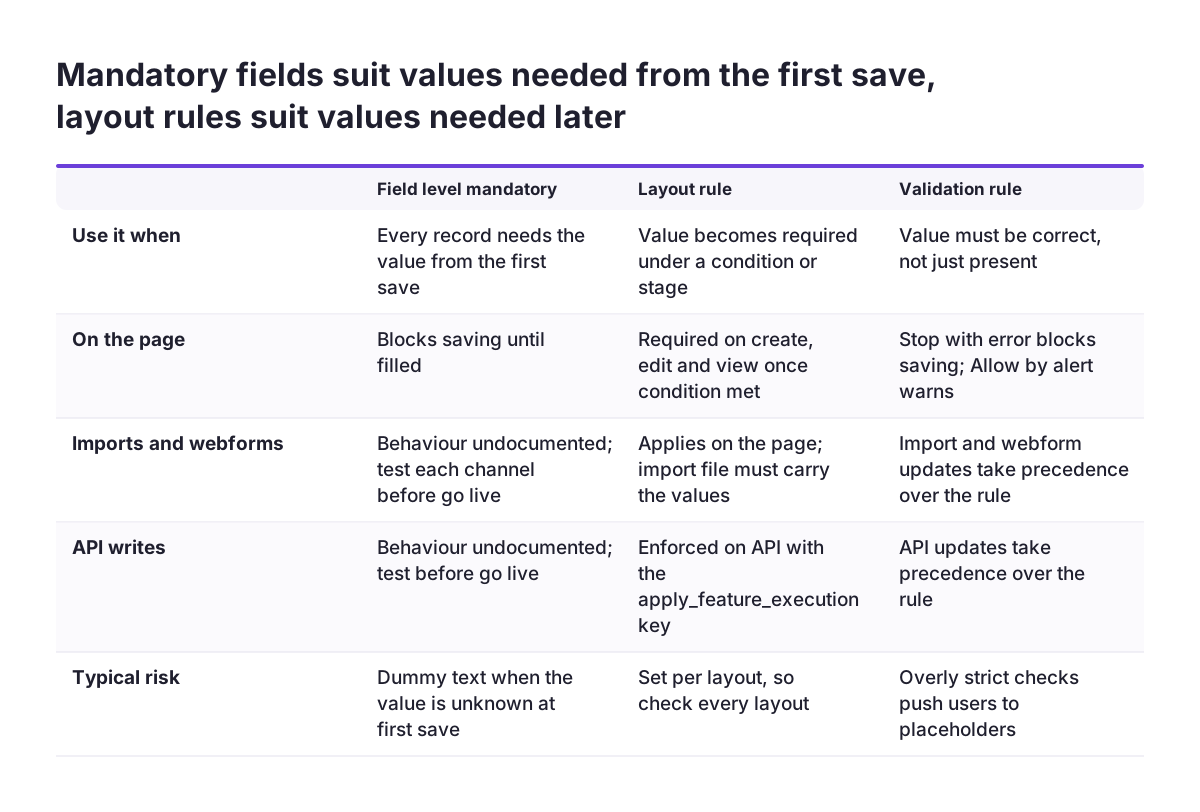
The choice between layers comes down to two questions. When does the value become necessary? And through which channels do records arrive? The table below sets the layers side by side, using the behaviour Zoho documents for each one.
| Layer | Use it when | On the page | Imports, webforms and API |
|---|---|---|---|
| Field-level mandatory | Every record needs the value from the first save | Blocks saving until filled | Not described in the sources; test each channel before go-live |
| Layout rule, Set Mandatory Fields | The value becomes required under a condition or stage | Required on create, edit and view pages once the condition is met | Not applied to import, webforms or lead convert; API only with apply_feature_execution |
| Validation rule, Stop with error | A wrong value causes real damage downstream | Prevents saving | Workflow, Blueprint, API, import and webform updates take precedence; webform matches go to approval |
| Validation rule, Allow by alert | A value is unusual but sometimes legitimate | Warns, then saves after confirmation | Same precedence as above; option still rolling out |
| Function-based validation rule | The check needs complex logic or data from another application | Checks on save; no preference or error location options | Same precedence as above |
Read the last column before you rely on any layer. A rule that protects the edit page can leave a gap wherever an integration or an import writes the same field. For those channels, put the check in the integration or the import file itself.
Worked example: format checks and a conditional section in the Accounts module
This worked example sets up the Accounts module with one validation rule per real problem and one layout rule. The field names follow examples from Zoho's community posts.
Step 1: block special characters in Account Name
A Zoho community post describes special characters that users add at random to name fields. The post says such characters cause problems with automations, merge fields and integrations. Its fix is a validation rule on the Account Name field. The rule lists every character that is not allowed, with a customised error message shown on the field. Use Stop with error here, because a broken name breaks every email merge downstream.
Step 2: check the format of a customer reference
Another community user needed a text field to start with "DLM-" and also be 15 characters long. The user could set either check alone but not both. One rule has room for both checks, since a secondary condition holds up to five criteria. Write one error message that states both requirements, so the user fixes the value in one attempt.
Step 3: make a section required at the right time
Create a layout rule with a picklist such as Account Type as the primary field. When the value you choose is selected, use Show Sections and Set Mandatory Fields to reveal and require the fields that only that type needs. Those fields stay out of the way for everyone else.
Step 4: decide what to leave out
Do not try to validate a multi-line address field or a lookup. Zoho does not support validation rules on multi-line fields. A community user also reports that validation criteria cannot use lookup fields.
Over-enforcement: strict forms that people work around
Over-enforcement happens when you demand data that the user does not have yet, or block saving for values that are merely unusual. People respond by entering whatever the form accepts. The record saves, but the field now holds a placeholder that looks like real data.
At Svennis we see this pattern when we review existing setups. A field made mandatory on the first save gets filled with dummy text, and every report built on that field becomes unreliable. The fix is usually to move the requirement to a layout rule tied to the stage where the value is actually known.
Three habits keep enforcement useful rather than obstructive:
- Require a value at the stage where the person entering the record can know it, not earlier.
- Use Allow by alert for values that are unusual but sometimes correct, where your account has the option.
- Write error messages that tell the user exactly what a valid value looks like.
The opposite failure matters too. Community users have asked for validation on multi-select picklists and for a way to validate subform totals. When Zoho cannot enforce a check natively, do not force it through a workaround that confuses users. Keep that check in a report or a review step until a supported option exists.
Testing enforcement rules before go-live: Sandbox, imports and API writes
Test enforcement rules in Zoho CRM against every channel that writes records, not only the edit page. Validation rules are supported in Sandbox and in copy customization. You can build and try them away from live data, then move them across.
A practical test plan covers four channels:
- The page. Create and edit records on each layout. Confirm every error message appears where expected and reads clearly.
- Import. Run a small test import. Layout rules do not apply to imported records, so check whether the file itself delivers the values your conditional fields expect. If you are moving data in from another system, plan this alongside your migration to Zoho CRM.
- Integrations. Decide whether each integration should send
apply_feature_execution. With the key, missing values returnMANDATORY_NOT_FOUNDand the write fails. Without it, the record saves without those fields. ERP and shop connections such as SAP Business One with Zoho CRM or PrestaShop with Zoho CRM need that decision made explicitly. - Automation. Run each workflow, Blueprint and custom function that updates a validated field. Updates from these sources can override validation rules.
Record the outcome per channel. That list becomes the reference when someone later asks why a record got through.
Companies selling across EU countries: one rule set per market layout
A company that sells in several EU countries should not apply one country's data format to every record. Company identifiers, phone formats and address conventions differ between member states. A validation rule written for one country's identifier will reject valid records from another.
Zoho CRM makes this manageable because validation rules are layout-specific. The same field can carry different rules on different layouts. A practical pattern is one layout per market, or per group of markets with the same formats. Each layout gets the format checks that fit that market only.
A format check confirms only that a value looks right, not that it exists. For some identifiers you can check against an official register instead. In Romania, for example, the fiscal code can be checked against the tax authority's records with ANAF validation for Zoho CRM. That check is specific to Romanian companies. Keep it on the layout for that market rather than on every account.
Language also matters in a multi-country team. Error messages are the only instruction a user sees when a save fails. Write each message in the language the users of that layout work in.
Next steps for your Zoho CRM enforcement setup
Start with an inventory of what you already enforce, then move each requirement to the layer that fits it. The steps below take you from audit to a tested setup.
- List every mandatory field, layout rule, validation rule and Blueprint requirement per module and per layout.
- For each one, write down the stage where the value becomes known. Move anything required too early into a layout rule.
- Check each validation rule against the unsupported field types, and against any Blueprint validation on the same field.
- List every channel that writes to the module: page, import, webform, API and custom functions.
- Run the four-channel test in Sandbox before changing the live setup.
- Rewrite error messages so each one states what a valid value looks like.
If the inventory shows that rules and integrations need redesigning together, see how Svennis approaches Zoho CRM implementation in Europe, including layouts, rules and connected systems.
Sources
- Zoho CRM Online Help: Validation Rule
- Zoho Community: Kaizen #63 - Layout Rules in Zoho CRM
- Zoho Community: Trigger for Validation Rules
- Zoho Community: Validation Rule Not Working for Mandatory Field in Zoho Blueprint
- Zoho Community: Creating field validation rules to prevent special characters
- Zoho Community: Setting multiple validation rules on a text field/date field
- Zoho Community: Zoho CRM Validation Rule Using Lookup Field
- Zoho Community: Enable Validation Rule for Multi-Select Picklist Field
- Zoho Community: how to use validation rules in subform