
Svennis Partner Zoho Europe LogoSvennis
CRM Guide
Zoho Desk
Zoho CRM
Integration

Linking Zoho Desk tickets with CRM records step by step

A practical guide to linking Zoho Desk tickets with CRM contacts, accounts and deals, so sales sees open tickets and support sees deal context.

Svennis Cloud Solutions

Zoho Premium Partner
October 3, 202610 min read
Linking Zoho Desk tickets with CRM records step by step

Linking Zoho Desk tickets with CRM: what it does and why

Linking Zoho Desk tickets with CRM connects every support ticket to the Zoho CRM contact, account and deal it belongs to. Sales then sees open tickets before a call, and support sees deal context before a reply. You start the connection in Zoho Desk settings. After that you decide which records sync, in which direction, and who may see them.

Linking Zoho Desk tickets with CRM is the practice of attaching support records to sales records, so one customer has one shared history across both apps. Zoho Desk is cloud-based help desk software for managing customer support tickets. It offers ticket management, multi-channel support, automation and analytics.

The value is practical. A salesperson preparing a renewal should know about an unresolved complaint before calling. A support agent handling an angry email should know that the customer is in the middle of a large deal.

This guide assumes your sales team works in Zoho CRM. If you are still deciding which sales tool to use, read how Zoho Bigin compares with Zoho CRM first. The steps below follow the order a careful setup takes. First you decide direction, then you connect and filter. After that you match records, set permissions and test.

Sync direction: decide what flows from CRM to Desk and back

Sync direction is the first decision, because it settles which app owns each record. The Desk integration lets you choose which CRM data, such as contacts, accounts or deals, reaches Zoho Desk. Information can also travel back, for example customer feedback collected in Desk. If you skip this decision, both teams edit the same customer in two places and nobody knows which version is right. The table below gives a sensible starting point for each record type. Treat it as a checklist for your own design meeting, not as a fixed rule.
RecordStarting directionWho needs itCheck before go-live
ContactsCRM to DeskSupport agentsOnly customers, not every prospect
AccountsCRM to DeskSupport agents and team leadsAccount Type values are clean
DealsShown in Desk, owned in CRMAgents handling key accountsWhich agents may see deal amounts
TicketsOwned in Desk, visible to salesAccount managersTickets link to the right account
Customer feedbackDesk to CRMSales and managementWhere it lands on the CRM record
The pattern is simple. CRM owns who the customer is and what they are buying. Desk owns what went wrong and how it was fixed. Each app shows the other's data, but only one app edits it.

Connecting Zoho Desk to Zoho CRM in Desk settings

You connect Zoho Desk to Zoho CRM from the Desk side, in the Integrations area of Desk settings. An administrator of both apps should do the work, because the connection touches records in each. Follow these steps in order:
  1. Open Zoho Desk and go to Settings.
  2. Under the Integrations section, select Zoho CRM and click Connect.
  3. Choose which CRM data you want in Desk: contacts, accounts, deals, or a combination.
  4. Configure how agents see CRM data, for example by adding a related deals section to the ticket view.
  5. Open a few existing tickets and confirm that each shows the right contact, account and deal.
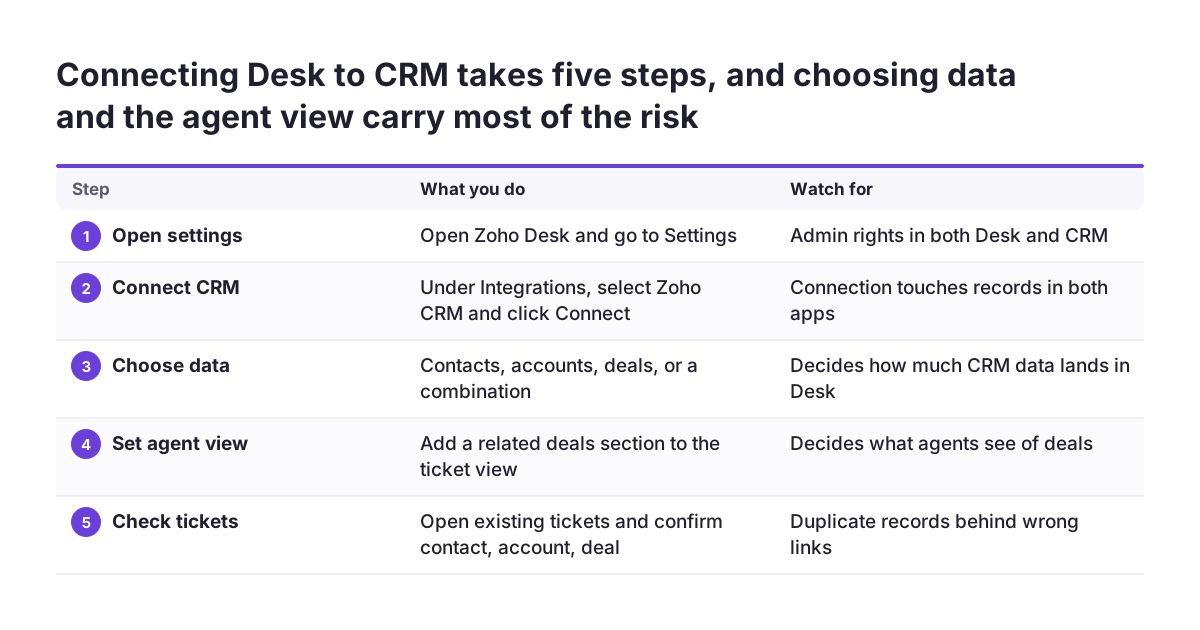
Steps 3 and 4 carry most of the risk. Step 3 decides how much CRM data lands in Desk. Step 4 decides what agents see on screen while they reply. Make both choices from the table in the previous section rather than accepting every option. Zoho Desk also lets different departments have different layouts and fields. If you run several support teams, plan the ticket view per department. A billing team and a technical team rarely need the same CRM context.
Connecting Desk to CRM takes five steps, and choosing data and the agent view carry most of the risk. What you do / Watch for. 1. Open settings: Open Zoho Desk and go to Settings / Admin rights in both Desk and CRM; 2. Connect CRM: Under Integrations

Choosing which CRM contacts appear in Zoho Desk

Only the contacts support actually serves should reach Zoho Desk. Prospects, past customers and cold leads add noise to agent searches and raise the chance of linking a ticket to the wrong person. The problem is common enough to appear in Zoho's own community. One user asked whether the CRM to Desk integration could import only contacts associated with accounts whose Account Type is Customer. The user put it plainly: "I don't want all of our prospect and past contacts in Zoho Desk." Before you connect, check what filtering your edition and integration settings allow. Do not assume a filter exists because you need one. If the filter you need is missing, you have two options. You can tighten the data in CRM first, or you can control the sync with your own automation, covered later in this guide. Either option depends on a reliable Account Type field. If account types are blank or inconsistent, no filter will separate customers from prospects. If your CRM data arrived from another system, clean those values first. Our guide on migrating to Zoho CRM without losing your sales history covers that clean-up.

Matching tickets to the right contact and account

A ticket is only useful in CRM if it is linked to the right contact and the right account. When the link points to the wrong record, the customer's support history is invisible to the salesperson who needs it. Duplicates are the usual cause. If the same customer exists twice in Zoho CRM, a ticket can attach to one copy while the account manager works on the other. The support history then splits across two records, and each record looks cleaner than reality. At Svennis we check CRM contacts and accounts for duplicates before we connect Desk. We do it first because a ticket linked to the wrong copy of a customer hides that history from sales, and it is tedious to repair afterwards. After go-live, keep checking the links. In Zoho Desk, the ticket timeline gives an overview of each ticket's history. A team lead can open a sample of new tickets each week and confirm three things:
  • The contact on the ticket is the person who wrote in.
  • The account is the company that person works for today.
  • Any deal shown belongs to that account and is still open.
A wrong link found in the first week is a single fix. One found after six months usually means a whole account history to untangle.

Worked example: an open complaint on an account with a renewal deal

Take a wholesale distributor with a key account that is up for renewal. The account exists in Zoho CRM with Account Type set to Customer, two contacts, and an open renewal deal. The CRM to Desk integration syncs contacts and accounts, and shows deals in a related deals section on the ticket view. The customer's purchasing manager emails support about a late delivery. Zoho Desk creates a ticket and links it to her contact record and to the account. When the agent opens the ticket, the related deals section shows the open renewal. The agent now knows that this complaint has commercial weight. The agent can assign the ticket to the right individual or department instead of leaving it in the general queue. On the sales side, the account manager plans a renewal call. Before the call, the manager opens the account in Zoho CRM and checks for open tickets against it. When the late delivery shows up, the manager raises it first instead of being surprised by it. Use this scenario as your acceptance test. Create one test ticket from a known customer contact. Confirm that the Desk view shows the right account and deal. Then confirm that the account manager can see the ticket from the CRM side. If any of the three checks fails, fix the setup before you roll it out.

Permissions: what agents see of deals and what sales see of tickets

Permissions decide whether the integration helps or leaks information. Before you add a related deals section to the ticket view, decide which agents should see deal names, stages and amounts. Many support agents need to know only that a deal is open, not its value. Agents on key accounts may need more. Zoho Desk lets different departments have different layouts and fields. Use that to give each support team the CRM context its work requires, and no more. The same question applies in the other direction. Ticket content can include complaints, personal details and internal notes. Decide whether every salesperson should read full ticket threads, or whether a summary of open tickets per account is enough. Agree the answer with the head of sales and the head of support together, because each will judge it differently. Write the decisions down in a short table: role, what that role sees in the other app, and who approved it. That record matters when someone joins, changes role or leaves. It also matters when a customer asks who in your company could see their data. Review the table whenever you add a department or change a layout.

Linking records through the Zoho Desk API

Linking through the Zoho Desk API is the route when the standard integration cannot express your rules. Examples include syncing only some contacts, or linking records created by another system. Plan this route carefully, because the API does not always mirror what the interface does. One user in Zoho's community reported this gap. Desk records linked through the interface carry zohoCRMAccount and zohoCRMContact parameters, but the user could not set them through the Desk API. Treat that as a warning to test the exact fields you need before you design around them. Another community question asked whether a direct link to a ticket can be built from the ticket number alone, or whether the API is needed. Small details like this decide whether an automation is a quick job or a larger one. If you use an automation platform, n8n is one example. n8n connects to Zoho Desk through its HTTP Request node, which makes custom API calls to the endpoint URLs you provide. n8n states that this needs an understanding of basic API terminology and concepts. A workflow can run on an app event, a schedule, a webhook call, another workflow, an AI chat or a manual trigger.
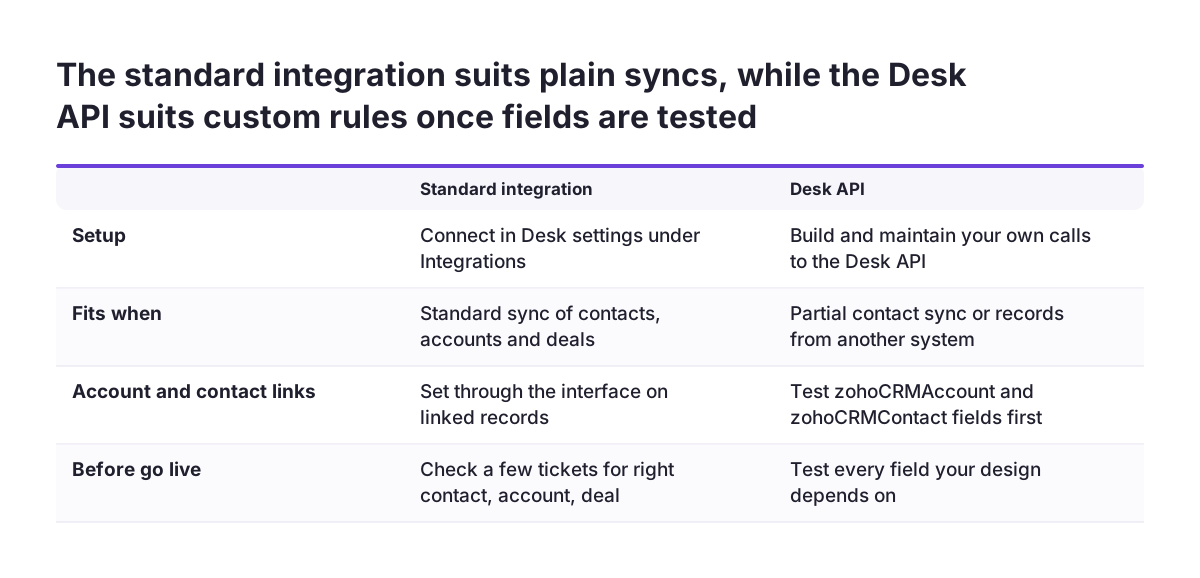
The standard integration suits plain syncs, while the Desk API suits custom rules once fields are tested. Standard integration / Desk API. Setup: Connect in Desk settings under Integrations / Build and maintain your own calls to the Desk API; Fits wh

Tickets that should become CRM leads

Some tickets are sales opportunities in disguise. A customer asks about an upgrade, or a new contact at an existing account asks for a quote. You need a clear rule for what happens to those tickets. Zoho Desk tickets can be linked to contacts, leads or vendors. Whether an agent can turn a ticket into a new CRM lead directly is a separate question. A user asked exactly that in Zoho's community: can support agents turn a help desk ticket into a Zoho CRM lead? Check what your setup supports before you promise it to the sales team. Whatever the mechanics, settle three rules in advance:
  • Which ticket types count as sales interest, such as upgrade or quote requests.
  • Who creates the lead, the agent or a salesperson alerted by the agent.
  • How the ticket stays linked, so the lead keeps its support context.
Without these rules, agents either ignore sales signals or forward them by email, outside both systems. Either way the signal never reaches the pipeline, and nobody can report on how many support conversations turned into revenue.

What linking Desk and CRM means for a company in the EU

For a company in the EU, linking Desk and CRM is also a GDPR question. Each contact copied into Desk is one more place where personal data sits. It is one more place to cover when a customer asks for access to their data or for its deletion. Syncing only active customers, as described earlier, keeps that list short. Data location matters as well. Zoho runs separate data centres, and features are not always available in all of them. One example is Zoho Key Service, a way to use third-party large language models in Zoho CRM without API keys. Zoho lists it for the US, IN, AU, JP and CA data centres. Before you plan around any new feature, confirm it is available in the data centre your account uses. The same check applies to any automation tool between Desk and CRM. Ticket data passes through that tool on its way between the apps. n8n, for example, states that its hosted plans store data in the EU on servers in Frankfurt, Germany. It also offers self-hosting for full control. Rules can differ between member states, for example on customer communication or record retention. Agree with your own legal adviser what applies in each country you serve. Then record the answers alongside your permission table.

Next steps: test the link on a small set of accounts

The safest next step is a pilot on a small set of real customer accounts. Run it before you switch the integration on for everyone. Work through this order:
  1. Check CRM contacts and accounts for duplicates, and fill in Account Type on every account.
  2. Agree sync direction and permissions using the two tables in this guide.
  3. Connect Desk to CRM from Desk settings, with only the data you agreed.
  4. Run the worked example as an acceptance test on a few accounts.
  5. Review a sample of ticket links weekly for the first month.

Once tickets carry reliable CRM context, you have a sound base for later automation, including customer support drafting and routing. If you want to see how Svennis approaches helpdesk setups, read our page on Zoho Desk implementation. It covers the support side in more depth than this guide.

Sources

Found this helpful? Share it

LinkedInPost
Svennis Cloud Solutions

Svennis Cloud Solutions

Premium Partner

Zoho Premium Partner since 2011 with 200+ successful implementations across Europe. We specialize in CRM implementation, custom integrations, and business process automation - helping European businesses get the most out of the Zoho ecosystem.

Zoho Premium Partner - Since 2011

Ready to Transform Your Business?

Let's discuss how Zoho can streamline your operations. Book a free strategy call with our team - no commitment, just honest advice from 200+ implementations.