
Gmail and Outlook sync with Zoho CRM: three choices decide whether it is trusted
Gmail and Outlook sync with Zoho CRM is the connection that logs the emails your team sends and receives against the matching leads, contacts and deals in the CRM. Connecting a mailbox takes little time. Three setup choices decide whether salespeople trust that email history: the sync method, which mail gets logged, and who can see whose emails.
Email history in a CRM only has value when people believe it is complete. A rep who opens a deal and finds half the conversation missing goes back to searching their own inbox. A rep who finds private messages next to customer threads stops connecting their mailbox at all. Either way, the CRM timeline becomes something nobody reads.
The need behind the setup is usually simple. One Zoho One user on the Zoho community forum described it well. They wanted both a personal Gmail account and a Google Workspace account linked to Zoho CRM. Every email sent to or received from a CRM contact should appear on the timeline. In their words, they only wanted emails to or from people in the CRM contacts list, not every message in both accounts.
That request contains all three choices this guide covers. Which route connects the mailbox. Which messages qualify. And, implicitly, who else in the company sees them. The rest of this post works through each one, then sets out the privacy questions an EU company should settle before switching anything on.
Four ways to get Gmail or Outlook email into Zoho CRM
Zoho CRM accepts email through four broad routes, and each one logs a different share of your team's mail. The route you pick decides how much depends on each salesperson remembering to act.
Mailbox sync inside Zoho CRM
Mailbox sync means connecting the email account in the CRM's own settings, so messages flow in automatically. Zoho CRM has native integrations with Google Workspace and Microsoft 365. The forum user above already synced their Google contacts through the native Zoho Google CRM integration. Mailbox sync can also run over IMAP, a protocol that reads mail while leaving it on the server.
POP is an older protocol that downloads messages and usually removes them from the server, which suits sync poorly. Zoho has also announced that if your CRM email integration runs through POP, the Emails view in CRM moves to the new Zoho Mail interface.
Add-ins inside the mail client
An add-in is a small app inside Outlook or Gmail that shows CRM data next to an email. Zoho publishes one for Outlook. A third-party developer publishes a connector for Gmail. Both rely mainly on the user choosing what to save.
BCC dropbox address
A BCC dropbox is a CRM email address you copy in blind, so the message lands on the record. It depends entirely on the sender remembering. One forum user chose it after concluding they could not use POP without a Gmail address. They then reported that the BCC dropbox setup did not work when they tried it.
Sync method comparison: what each route logs and who does the work
The right sync method depends on how much email your team handles and how much you can rely on manual steps. The table compares the four routes on what reaches the CRM, who does the work, and the main risk to the trustworthiness of the email history.
| Route | What reaches Zoho CRM | Who does the work | Main risk to trust |
|---|---|---|---|
| Mailbox sync (native or IMAP) | Mail from connected folders, matched to records automatically | Admin sets it up once, each user authorises their mailbox | Too much gets logged if nobody sets limits |
| Zoho CRM for email (Outlook add-in) | Emails the user associates with a record | Each user, email by email | Gaps when people are busy or forget |
| Zoho CRM Connector for Gmail | Saved emails, plus optional background sync based on rules | Each user, unless background sync is on | Third-party app with wide account permissions |
| BCC dropbox | Only emails the sender copies in | Each user, on every message | Incomplete threads, especially replies from customers |
Most teams end up combining two routes. Mailbox sync gives the baseline, so the timeline is complete without effort. An add-in gives salespeople the CRM view inside their mail client, so they can act on a record without switching windows.
Feature availability also depends on your Zoho CRM edition and plan. Check the details in the guide to Zoho CRM editions and pricing before you promise a feature to the team.
The Zoho CRM for email add-in for Outlook and its limits at volume
Zoho CRM for email is Zoho's own Outlook add-in, and it suits salespeople who want CRM context while they read mail. The Microsoft Marketplace listing for Zoho CRM for email names Zoho Corporation Private Limited as publisher. The listing describes it as free, with no credit card required.
The add-in covers most daily CRM actions from inside Outlook:
- create new leads and contacts, and associate the open email with a CRM record
- see the full lead or contact details when an email is opened
- add tasks and events, log calls, and create deals, campaigns and notes
- convert leads to contacts, and edit or delete notes, events and tasks
It runs in the Outlook desktop and web apps and on Outlook for Android and iOS. The listing shows a rating of 4.3 from 2,974 ratings.
The limit is that associating email stays a manual act. On the Zoho forum, one company said its team had hundreds of emails a day to add to files and deals, which it found very time consuming. Part of that team kept the older add-in, where you search and add the email. The poster found the newer version a little more work. They also missed one detail: the older version automatically tagged an added email with the Outlook category "Added to Zoho".
That missing tag matters for trust. Without a visible marker, a salesperson cannot tell at a glance which emails are already in the CRM. Use the add-in for context and quick actions, and let mailbox sync carry the volume.
Gmail with Zoho CRM: native integration or the third-party Gmail connector
Gmail users can connect through Zoho CRM's native Google integration or install a third-party connector from the Google Workspace Marketplace. The native route keeps the setup inside Zoho. The connector adds an add-on inside Gmail itself.
The Zoho CRM Connector for Gmail is developed by iEnterprises, not by Zoho. Its listing, updated on 26 September 2025, describes these functions:
- save emails directly to Contacts and Leads from Gmail and Google Calendar
- reply to and compose messages using Zoho CRM email templates
- an optional background sync that matches email and calendar items to the right contact or lead
- rules for which emails get synchronised automatically
Rules for calendar items are listed as coming soon. The connector supports the Gmail app on iOS and Android and modern browsers including Chrome, Edge and Safari. The listing shows 10K+ installs and an average of 4.9 stars, but from only 10 reviews.
The connector can also draft replies with ChatGPT. The reply is generated as a draft that the user edits before sending. Treat that like any other use of AI for lead management: a person reads every draft before it reaches a customer.
The rules feature is the reason to consider the connector. It answers the forum request directly: sync mail with CRM contacts, and leave everything else in Gmail. Weigh that against adding a third party with access to your Google accounts.
Which emails Zoho CRM should log: customer threads, not the whole mailbox
Zoho CRM should log email with your leads, contacts and deals, and nothing else. A timeline full of newsletters, internal threads and personal messages is as untrustworthy as an empty one. Salespeople stop scrolling through it.
Settle four questions before you connect any mailbox:
- Folders: which folders sync, usually the inbox and sent mail, and whether other folders matter
- Matching: whether mail logs only when the address matches an existing lead or contact
- History: how far back the first sync reaches
- Personal mail: whether any personal accounts are connected at all
Matching runs on email addresses, so the quality of your contact data decides what lands where. A contact stored with an old address receives nothing. Two duplicate contacts split one conversation across two records. Decide which system holds the master copy of contacts before you turn on any contact sync, or duplicates multiply.
Start the first sync with a short look-back period. Check that the right threads landed on the right records, then extend it. If you are moving from another CRM, bring older correspondence across as part of the migration instead. The guide to migrating to Zoho CRM without losing sales history covers that step.
Personal mailboxes deserve a firm rule. The forum user wanted a personal Gmail linked alongside a work account. A filter limited to CRM contacts reduces the risk, but the safer default is work accounts only.
Who can see whose emails in Zoho CRM: decide before go-live
Email visibility in Zoho CRM is the rule that decides whether colleagues see the content of another user's logged emails, or only that an email exists. Settle it before the first mailbox connects. Changing it later means telling people that more, or less, of their mail is visible than they assumed.
Two needs pull in different directions. Shared visibility helps when a deal changes hands or a rep is away, because a colleague can read the thread and reply. Private visibility protects messages that should stay with one person, such as pricing negotiations or HR matters that reached a work inbox.
A workable policy answers three questions in writing:
- Is logged email shared by default, or private by default with sharing as the exception?
- Can managers read the content of their team's customer emails, or only activity counts?
- What happens to a leaver's logged emails and connected mailbox?
Tell the team the answers before they authorise their mailboxes. People connect a mailbox willingly when they know exactly who will see what. They quietly disconnect it when they find out afterwards.
At Svennis we connect a small pilot group first. We compare each pilot user's CRM timeline against their own inbox, and we confirm the visibility setting with them, before anyone else is switched on. That comparison catches missing threads, wrongly matched emails and visibility surprises while they still affect only a few people.
Email tracking and mailbox permissions for EU companies under GDPR
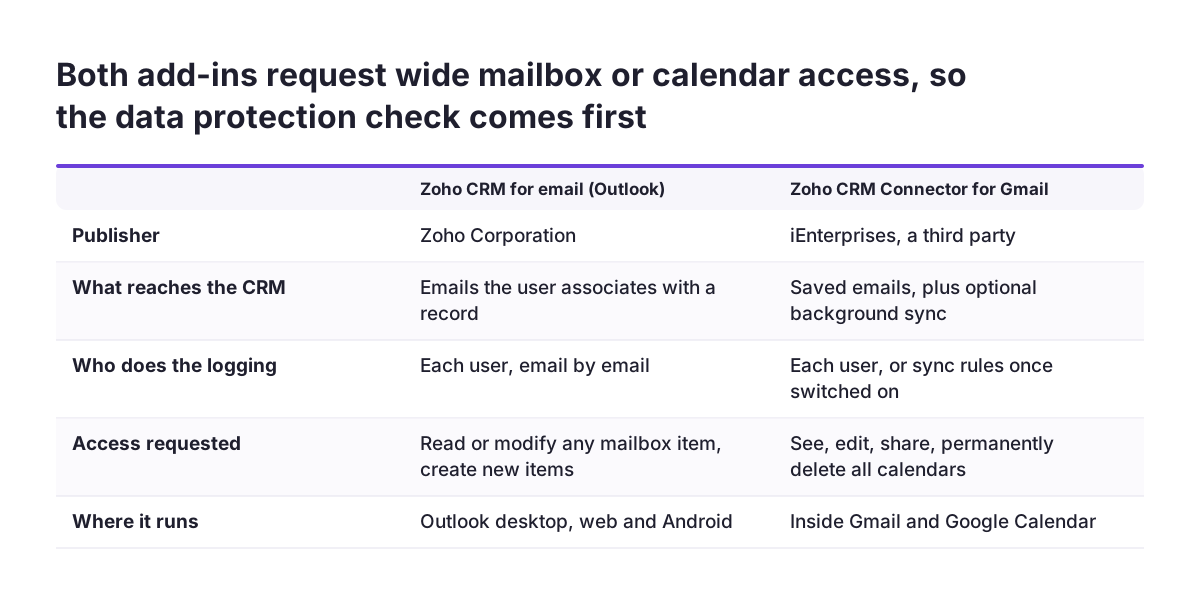
Email open tracking and mailbox add-ins both process personal data. An EU company should therefore decide on them with whoever handles data protection, before go-live. This guide does not set out the legal position under the GDPR. It lists the facts your data protection officer or adviser will ask for.
What the add-ins can access
The Microsoft listing states that Zoho CRM for email can read or modify the contents of any item in the user's mailbox and create new items. It can access the body, subject, sender, recipients and attachments of any message or calendar item, and send data over the internet. The Gmail connector requests permission to see, edit, share and permanently delete all calendars the user can access. Record these permissions in your processing records and in any assessment of the add-in vendors.
How open tracking works
Open tracking places a small invisible image, a tracking pixel, in each sent email. When the recipient's mail client loads that image, an open is logged against the CRM record. Many mail clients block remote images by default, so open counts undercount real opens. Do not judge a salesperson or a lead on open data alone.
Check in your own Zoho CRM account whether tracking applies to the whole organisation or can vary by user. Decide whether to enable it at all. Then document the decision alongside your other data security choices. Rules in individual member states can add requirements, so a company operating in several countries should confirm the position in each.
Worked example: setting up email sync for a mixed Gmail and Outlook sales team
This worked example shows the setup order for a sales team where managers work in Outlook and field reps work in Gmail on their phones. Zoho CRM can work with Google Workspace and Microsoft 365 at the same time, so nobody has to change mail provider.
- Write the policy first. Logged email is shared within the sales team by default. Managers see their team's customer threads. Only work accounts connect. Open tracking stays off until the data protection review is done.
- Clean the contacts. Remove duplicate contacts and update outdated email addresses, because matching runs on addresses.
- Connect pilot mailboxes. One manager connects Outlook and one rep connects Gmail through mailbox sync, with a short look-back period and matching limited to existing leads and contacts.
- Add the client tools. The manager installs Zoho CRM for email from Microsoft Marketplace to see contact details and log calls while reading mail. The rep tries the Zoho CRM Connector for Gmail on the phone app, after the team has accepted its permission scope.
- Compare and fix. Each pilot user checks several active deals against their inbox. Missing threads usually point to an address mismatch. Unwanted threads point to a matching rule that is too loose.
- Roll out. Connect the remaining mailboxes, extend the look-back period, and repeat the deal check with each new user.
Salespeople judge the result by the pilot. If the first two users find their real conversations on the right deals, the rest of the team connects willingly.
Next steps for connecting Gmail and Outlook to Zoho CRM
Connecting Gmail and Outlook to Zoho CRM goes well when the decisions come before the clicks. Work through these steps in order:
- Write a one-page email policy covering folders, matching, personal accounts, visibility and leavers.
- Take the add-in permissions and the tracking decision to your data protection contact, and record the outcome.
- Clean duplicate contacts and outdated addresses in Zoho CRM.
- Pick a sync method for each mail provider using the comparison table above, and confirm your edition supports it.
- Run a pilot with a few users and compare their CRM timelines against their inboxes.
- Roll out to the full team, then repeat the comparison after the first weeks of use.
If your team is still deciding whether it needs full CRM email features, compare the options in Zoho Bigin vs Zoho CRM first. If you want help planning the setup across mailboxes, countries and teams, the Zoho CRM implementation page explains how a project with Svennis runs.