
Deluge function on a Zoho CRM workflow: what it is and how it runs
To run a Deluge function on a Zoho CRM workflow, you write the function in the Automation category. You then add it to a workflow rule under Instant Actions, choose Function, and map each argument to a merge field. Zoho CRM calls it whenever the rule's conditions are met.
A Deluge function on a workflow rule is a short server-side script that Zoho CRM executes as one of the rule's actions. Deluge is Zoho's proprietary scripting language. Zoho's developer documentation calls it the most deeply integrated language for writing CRM Functions. A function does not run on its own. It runs only when something triggers it, and here that trigger is the workflow rule.
A workflow function runs asynchronously. Zoho CRM saves the record immediately and does not wait for the function to finish. The user therefore never sees a delay, and never sees an error either, which matters later in this guide.
This post is one of three on Zoho CRM automation with code. The other two cover the client script and the scheduled function. Here you get one complete worked example: when a deal moves to Closed Won, the function does the following.
- It creates a kick-off task for the deal owner.
- It totals the account's won deals and marks the account as a customer.
- It sets a flag so the work happens only once.
Choosing between no-code actions, client scripts, workflow functions and schedules
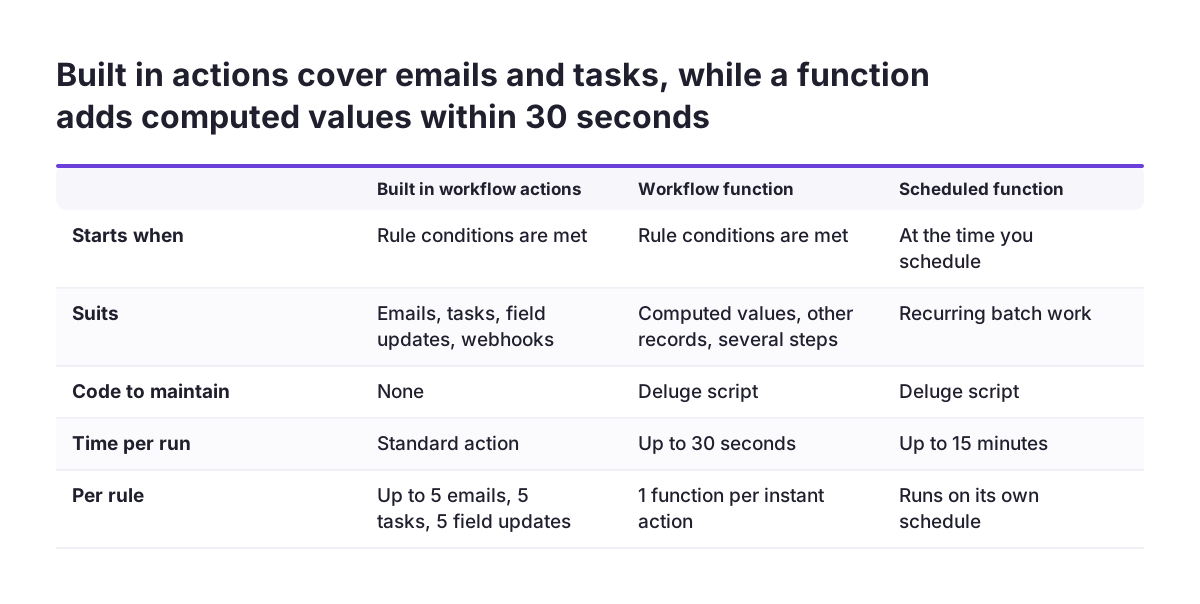
Start with the built-in workflow actions, and write code only when they cannot meet the requirement. Zoho's help centre describes workflow rules as a set of actions, such as email notifications, tasks and field updates, that execute when specified conditions are met. A rule can also call a webhook. Many requirements end there, with no code to maintain.
A Deluge function earns its place in five situations:
- You need a computed value.
- You need to read other records.
- You need conditional logic.
- You need several steps in one run.
- You need to reach another Zoho app, such as Zoho Books.
For the no-code side, a validation rule, a field update or task in a workflow, or a date-based workflow often does the job. The guide on when to use Zoho CRM workflows and when to use Blueprint covers that choice in more depth.
| Option | Runs when | Use it for |
|---|---|---|
| Built-in workflow action | A record event or date field meets the rule's conditions | Fixed field updates, emails, tasks, webhooks |
| Client script | The user works in the CRM interface | Behaviour on the page the user sees (separate post in this series) |
| Workflow function | A workflow rule fires; runs asynchronously, up to 30 seconds | Calculations, related records, multi-step logic, other Zoho apps |
| Scheduled function | At set intervals, independent of any user action; up to 15 minutes | Batch processing, synchronisation, clean-up |
Editions, permissions and the Automation category you need first
Deluge functions have full access on the Enterprise, CRM Plus, Ultimate and Zoho One editions of Zoho CRM. On Standard and Professional, the developer documentation says Functions are available only through Extensions. Check your edition before you plan any work in this guide.
The person writing the function needs the Manage Extensibility permission. It sits under Developer Permissions in the user's profile settings. You manage functions under Setup > Developer Hub > Functions. That page has five tabs: Functions, Gallery, Analytics, Failures and Credits. Only the org's admin users can see the Credits tab.
The function's category decides where it can be used. An Automation function can be associated with Workflow Rules, Blueprints and Approvals. It cannot be associated with Custom Buttons or Schedules. If you create the function in the wrong category, it will not appear when you add a Function action to your rule.
Zoho CRM Functions can be written in Deluge, Java, Node JS or Python. The language changes how arguments arrive:
- Java, Node.js and Python functions receive the trigger context automatically through basicIO, a standard input and output mechanism.
- Deluge functions receive nothing automatically. You declare each argument in the function and map it to a CRM field when you attach the function to the rule.
This guide uses Deluge, so the argument mapping step below is required, not optional.
Worked example: the Closed Won follow-up and the three custom fields it needs
The worked example reacts when a deal's stage changes to Closed Won. The Deluge function then does four things in one run:
- It creates a task called "Kick-off call" for the deal owner, due in three days and linked to the deal.
- It reads the account's deals and adds up the amounts of those marked Closed Won.
- It sets the account type to Customer, writes the total, and records today as the last won date.
- It ticks a flag on the deal so that a later save never repeats the work.
The example needs three custom fields. Create them before you write the function:
Follow_Up_Created: a checkbox on Deals, the flag that stops repeat runs.Won_Deals_Total: a currency or decimal field on Accounts.Last_Won_Date: a date field on Accounts.
These API names are examples. Zoho CRM generates the API name when you create a field, and yours may differ. The same applies to standard values the code compares or writes, such as the stage name Closed Won and the account type Customer. Your org may have renamed them. Check every one in Setup, where each module lists its fields and their API names, and edit the code to match.
The example is deliberately small. It shows the three things that trip implementers most often in one script: reading a related module, writing to a second record, and protecting against duplicate runs.
The complete Deluge function for the Closed Won follow-up, annotated
The script below is the complete function. Open Setup > Developer Hub > Functions, create a new Deluge function in the Automation category, declare one string argument called dealId, and paste the code in.
void automation.deal_won_follow_up(string dealId)
{
	deal = zoho.crm.v8.getRecordById("Deals", dealId.toLong());
	if(deal.get("id") == null)
	{
		info "Deal not found: " + deal;
	}
	else if(deal.get("Follow_Up_Created") == true)
	{
		info "Already processed: " + dealId;
	}
	else
	{
		// 1. Follow-up task for the deal owner, due in 3 days, linked to the deal
		taskMap = Map();
		taskMap.put("Subject","Kick-off call: " + deal.get("Deal_Name"));
		taskMap.put("Due_Date",zoho.currentdate.addDay(3).toString("yyyy-MM-dd"));
		taskMap.put("Owner",{"id":deal.get("Owner").get("id")});
		taskMap.put("What_Id",{"id":dealId});
		taskMap.put("$se_module","Deals");
		info zoho.crm.v8.createRecord("Tasks",taskMap);
		// 2. Roll won deals up to the account
		account = deal.get("Account_Name");
		if(account != null)
		{
			accountId = account.get("id");
			related = zoho.crm.v8.getRelatedRecords("Deals","Accounts",accountId.toLong(),1,200);
			total = 0.0;
			for each d in related
			{
				if(d.get("Stage") == "Closed Won" && d.get("Amount") != null)
				{
					total = total + d.get("Amount").toDecimal();
				}
			}
			accMap = Map();
			accMap.put("Account_Type","Customer");
			accMap.put("Won_Deals_Total",total);
			accMap.put("Last_Won_Date",zoho.currentdate.toString("yyyy-MM-dd"));
			info zoho.crm.v8.updateRecord("Accounts",accountId.toLong(),accMap);
		}
		// 3. Mark the deal so a re-save never creates a second task
		info zoho.crm.v8.updateRecord("Deals",dealId.toLong(),{"Follow_Up_Created":true});
	}
}
The first line converts dealId with toLong(). Workflow merge variables always pass values to Deluge as strings, so the conversion is needed before the record lookup. The two early branches stop the run if the deal is missing or already processed. Each info line writes a response to the execution log, which is where you will read the results.
These are the lines you are most likely to change:
- The field API names
Follow_Up_Created,Won_Deals_TotalandLast_Won_Date, to match your org. - The stage text
"Closed Won"and the value"Customer", if your org uses different values. addDay(3)and the task subject, to set your own due date and wording.- The last two arguments of
getRelatedRecords: page 1 with up to 200 records. An account with more deals than that needs further pages.
Testing the Deluge function with Run before any workflow rule calls it
Test the function on its own before you attach it to a workflow rule. In the function editor, use Run and enter the id of a real deal as the dealId value. The output shows the response of every info line: the new task, the account update and the flag update.
Treat every save as a change to production. Zoho's Deluge guide states that Deluge functions have no draft and deploy workflow. Every save in the editor immediately updates the live function. Java, Node.js and Python functions do have a separate draft step, but Deluge does not.
A test run also changes real data. Run creates an actual task and updates an actual account. Use a deal you set up for testing, then delete the task and reset the flag afterwards.
Two features make mistakes recoverable:
- The Revisions tab keeps the last 30 versions of a function, newest first. Each Deluge save creates a new revision, so you can compare or return to earlier code.
- Clicking a function name opens the Glance view. It has five tabs: Overview, Analytics, Revisions, Logs and Failures. Logs is where the
infooutput of live runs appears.
Analytics can lag behind. The management documentation notes that org-wide analytics data may take up to 15 minutes to reflect. Check the logs rather than the charts when you want to confirm a single run.
Attaching the Deluge function to a workflow rule on Deals, step by step
You attach the function in the workflow rule, not in the function editor. Zoho's documentation is explicit that the association always happens in the trigger's configuration. For the worked example, follow these steps:
- Go to Setup > Automation > Workflow Rules and create a rule on the Deals module.
- Choose a record action as the trigger and select Edit. You cannot change the trigger type later by editing the rule, so choose carefully.
- Add the condition: Stage is modified to Closed Won. Leave the option to repeat the rule switched off.
- Under Instant Actions, choose Function and select
deal_won_follow_upfrom the Automation functions. - Map the argument:
dealId= Deals > Deals Id, using the merge field picker. - Save the rule, move a test deal to Closed Won, and read the Logs tab of the function.
A few workflow rules shape the design. An instant action can hold at most one custom function, alongside up to five email notifications, five tasks, five field updates, one webhook and one create record action. Functions, tasks, alerts and webhooks run in parallel, while field updates, tags and convert run in sequence. Do not write a function that depends on a task created by the same rule.
Two trigger details are worth knowing. A rule triggered by deletion can only use email notifications, webhooks and functions. Edit and delete triggers do not fire when records are auto-merged, although they do fire for manual merges.
Common pitfalls: string arguments, duplicate runs, triggered records and silent failures
Most workflow function problems come from four pitfalls. Each one is easy to prevent once you know it exists.
Arguments arrive as strings
Every workflow merge variable reaches Deluge as a string, including ids, numbers and dates. Convert values before you use them, as the example does with dealId.toLong(). Forgetting the conversion is a common reason a lookup finds nothing.
Duplicate work on a re-save
A function is idempotent when running it twice gives the same result as running it once. The Follow_Up_Created flag provides that: the second run sees the flag and stops. At Svennis we create the flag field and set it on historic won deals before the rule goes live, so the first bulk edit does not produce kick-off tasks for old deals. The same step matters if you migrate to Zoho CRM with your sales history and import deals that are already won.
Records created by code and other workflows
The zoho.crm.createRecord task accepts an options map with the key trigger. Its values are workflow, approval, blueprint and orchestration. Without the map, only approvals, blueprints and orchestration run, so the new task does not fire workflow rules on Tasks. An empty list stops all scripts.
Errors the user never sees
In workflow-triggered functions, an unhandled error fails silently from the user's perspective. The error appears only in the execution logs. Check the Failures tab under Setup > Developer Hub > Functions regularly.
API limits and daily credits that apply to a workflow function
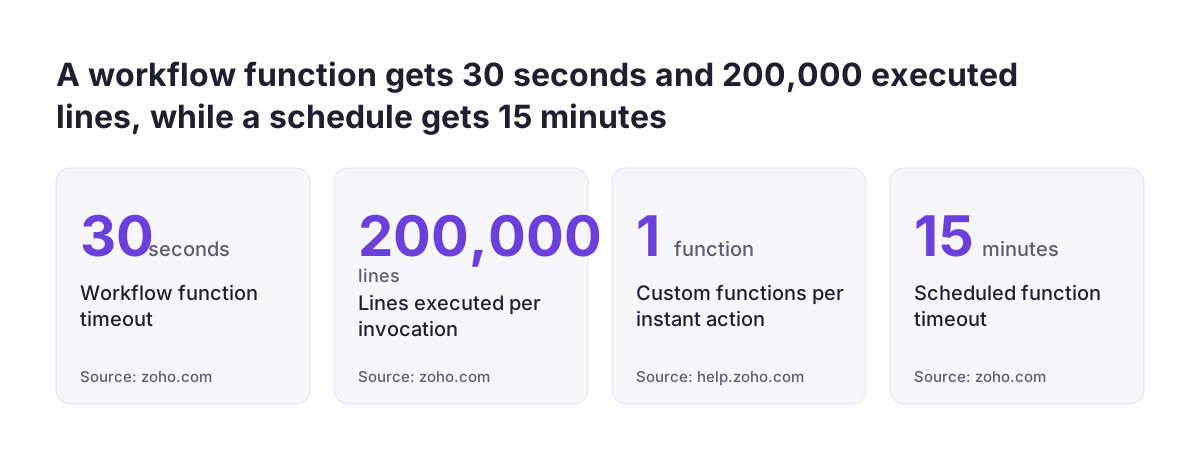
A workflow function must finish within 30 seconds, the timeout for the Automation category, which covers Workflow, Blueprint and Approval functions. Zoho forcefully terminates any function that exceeds its category's timeout. A single invocation may also execute at most 200,000 lines. That counts lines the runtime actually runs, including loops and branches, not the lines in your source.
Every Deluge function execution consumes one credit. Credits reset on a 24-hour rolling window, and the allowance depends on edition and user licences.
| Edition | Daily credits | Maximum |
|---|---|---|
| Enterprise / Zoho One | 20,000 free + 500 per user licence + add-on credits | 400,000 (200,000 free and 200,000 add-on) |
| CRM Plus / Ultimate | 20,000 free + 1,000 per user licence + add-on credits | Depends on user licence count |
| Professional (through Extensions) | 5,000 free + 200 per user licence | 20,000 |
| Standard (through Extensions) | 5,000 free + 200 per user licence | 15,000 |
Zoho's pages disagree on this point. The workflow rules help page still lists custom function calls as 20,000 per day or 200 per user licence, whichever is lower. The developer documentation on Functions platform limits and quotas gives the credit model above. Treat the developer documentation as current.
External calls are a separate budget. Each zoho.crm.createRecord execution sends an API request that counts against external calls. Only executions that get a response count. A call inside a loop that runs five times costs five calls, so the example keeps every zoho.crm call outside its loop.
What a workflow function means for a company operating across the EU
For a company in the EU, a Deluge workflow function mostly behaves the same in every country. Three details still deserve attention.
First, data centre handling is automatic. The zoho.crm tasks in the example need no SDK, imports or connection setup. When you call other Zoho services with invokeAPI, Deluge resolves the service domain from your organisation's data centre. You therefore do not hard-code a regional address into the function.
Second, daily limits do not all reset at the same moment. The workflow help page states that per-day limits, such as the email notification limit, are calculated on Pacific time. For a team in Europe, that day boundary falls during the working morning. Function credits use a 24-hour rolling window instead.
Third, the execution logs hold whatever your info lines print. The example prints the full deal map when a lookup fails. Under GDPR, keep personal data in logs to what you need for troubleshooting.
Multi-country orgs also rename things. Stage names, picklist values and account types are sometimes translated or adapted per market, and the code compares exact text. Before you push won deals into a national invoicing tool with custom code, check whether a ready integration exists, such as SmartBill with Zoho CRM for Romanian invoicing.
Next steps for your first Deluge workflow function
Your first workflow function should go live in a controlled order. The steps below follow the worked example and fit most first functions:
- Confirm your edition supports Functions with full access, and that your profile has Manage Extensibility.
- Write down the requirement and check whether a built-in field update, email, task or webhook already covers it.
- Create the custom fields, including a flag field, and note their real API names.
- Create the function in the Automation category, adapt the field names and values, and save.
- Test with Run on a test deal, then clean up the task and the flag.
- Create the workflow rule with the right trigger, since you cannot change it later, and map every argument.
- Watch the Logs and Failures tabs for the first days of live use.
Keep a short record of each function: what triggers it, which fields it writes and which flag guards it. Deleting a function that is associated with CRM components breaks those components. The record tells the next administrator what depends on what.
If you want your automation reviewed alongside the rest of your setup, the Zoho CRM implementation service for European companies covers workflows, functions and data design together.
Sources
- Configuring Workflow Rules, Zoho CRM Help
- Create Record in Zoho CRM, Zoho Deluge Help
- Managing Functions, Zoho CRM Developer Tools
- Functions: Deluge Guide, Zoho CRM Developer Tools
- Associate Functions with Zoho CRM, Developer Tools
- Functions: Platform Limits and Quotas, Zoho CRM Developer Tools
- Functions: Triggers and Associations, Zoho CRM Developer Tools