
Zoho CRM client script: when to use it and when not to
A Zoho CRM client script is the right tool when a person is filling in a record and needs instant feedback. Typical cases are a warning, an auto-filled value, or a field that becomes mandatory because of another field. A client script is the wrong tool for a rule that must always hold, because it only guards the screen it is attached to.
A client script is a piece of JavaScript that runs in your user's web browser instead of on Zoho's servers. It reacts to events such as opening a page, changing a field or clicking Save. Zoho's Client Script overview describes it in exactly those terms.
This guide is one of three posts on Zoho CRM automation with code. The other two cover the function on a workflow rule and the scheduled function. The decision rule across all three is short:
- Use a client script when the feedback must appear on screen while someone types or clicks Save.
- Use a function on a workflow rule when logic must run after a record changes, beyond what a field update can do.
- Use a schedule when work must happen at a set time, whether or not anyone touches a record.
Before any of the three, check the no-code option. Often a validation rule, a workflow field update or task, or a date-based workflow does the job with nothing to maintain.
No-code options come first: validation rules and workflows
A validation rule is often all you need, and it takes no code. A validation rule checks a field value when a user saves a record. It can either stop the save with an error or allow it after an alert. Zoho's validation rule help article uses a rule that caps a discount on Deals at 15% as its example.
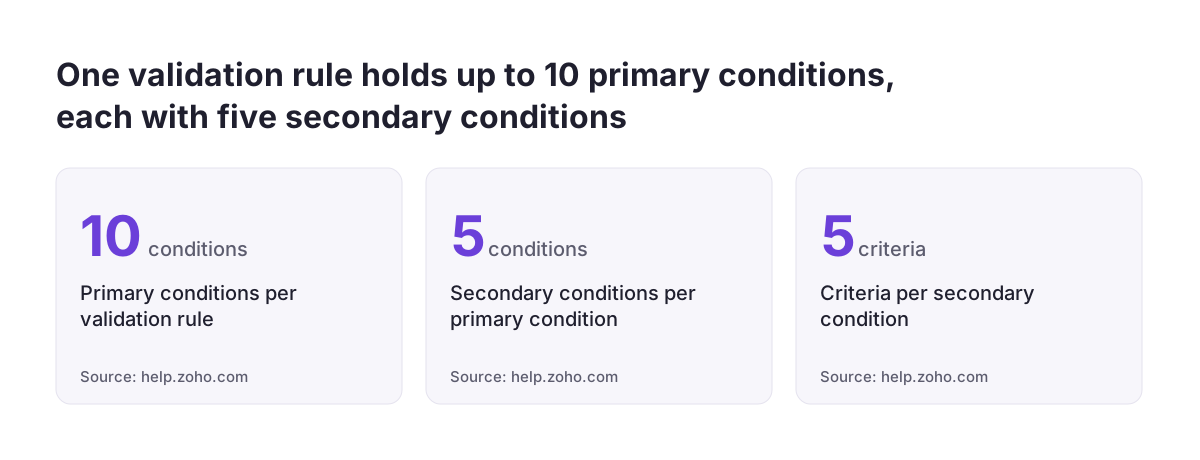
Validation rules cover more screens than a client script. According to Zoho, they apply in create, quick create, edit, quick edit (Ajax), single and mass convert, and Kanban view. They are layout-specific, so the same field can have different rules on different layouts. A rule can hold up to 10 primary conditions, each with five secondary conditions.
Validation rules also have gaps that you should know about:
- Creating them requires the Modules Customization profile permission.
- The "Allow by alert" option is being released in phases and may not be in your account yet.
- They do not support multi-select lookups, multi-picklists, formula fields, auto-number fields or multi-line fields.
- If a workflow rule, Blueprint, API, import or webform updates the field, that update takes precedence over the rule.
Workflow field updates, tasks and date-based workflows are the other no-code tools to consider. Use them when something should follow automatically once a record matches your criteria. Reach for code only when these tools cannot express what you need.
Decision table: client script, validation rule, workflow, function or widget
The right Zoho CRM automation tool depends on two questions. Who needs the result, and when? And which routes into the CRM must the rule cover? The table below compares the options on both questions.
| Tool | Use it when | What it does not cover |
|---|---|---|
| Validation rule (no code) | A field must meet a condition before a user saves | Field updates by workflow, Blueprint, API, import or webform take precedence |
| Workflow field update or task (no code) | Something should follow once a record matches criteria | Feedback while the person is still typing |
| Client script | A person needs feedback on screen, while typing or on Save | Any record that does not pass through that page and layout |
| Function on a workflow rule | The logic is too complex for a field update and runs when a workflow fires | Feedback before the user clicks Save |
| Scheduled function | Work must run at a set time, whether or not a record changes | Anything that must react at the moment of a change |
| Widget | You need a custom interface, not just rules on the standard form | Simple rules that a validation rule or client script already handles |
The client script row carries the key caveat. Records that arrive by API, import, webform, mass update or workflow never pass through the browser page, so the script never sees them. That matters for shops and other systems that push records in automatically. Our page on Zoho CRM for e-commerce describes that kind of setup.
Where a client script runs: editions, pages, events and limits
Client Script is available in the Professional, Enterprise and Ultimate editions of Zoho CRM. The profile you work from needs Developer Permissions enabled. If you are still choosing between the pipeline tool and the full CRM, our Zoho Bigin vs Zoho CRM comparison covers the difference.
Scripts can be configured on these pages: Create, Clone, Edit, List (Standard), Detail (Standard), Detail (Canvas), Create (Wizard) and Edit (Wizard). Quick Create is the page to check. The developer FAQ states: "currently Client Script in Zoho CRM cannot be executed in Quick Create Page." Scripts also run in the iOS and Android mobile apps, and automatically in Zoho CRM portals.
An event is a user action in the CRM that triggers the script. On the Create, Clone and Edit pages, the three page events are onLoad, onChange and onSave. onSave fires after Save is clicked but before the record is saved, and return false stops the save. A field onChange fires when the user leaves the field. An onType event fires as the user types. There are also subform events, button events and the Blueprint beforeTransition event.
The limits from Zoho's developer documentation are these:
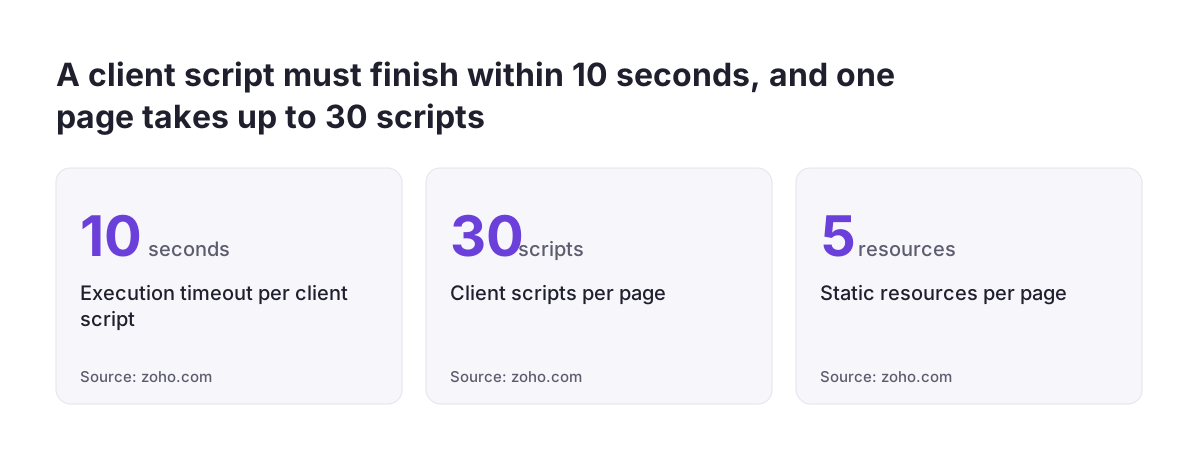
- Each execution times out after 10 seconds.
- You can create up to 30 client scripts per page.
- A script runs only on the layout you choose, so each layout needs its own copy.
- You can attach up to 5 static resources, meaning uploaded JavaScript files, per page.
- Only JavaScript is supported, with core features up to ES7.
- Every ZDK Web API call counts against your daily API limits.
ZDK, the Zoho Development Kit, is the library of client and web APIs that scripts use for screen operations and REST calls.
Worked example setup: a reason required for discounts above 15%
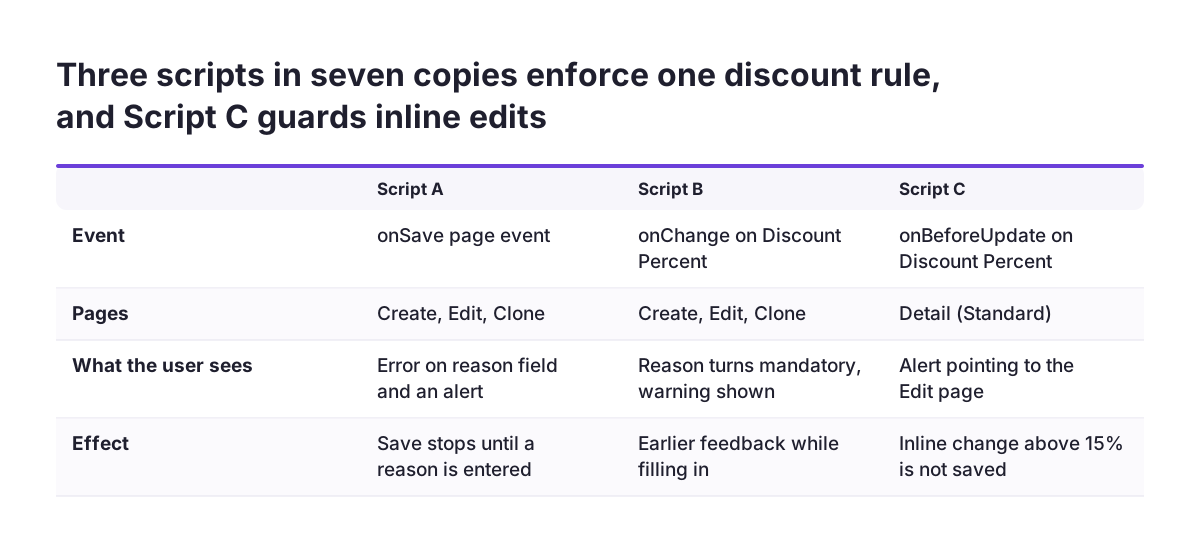
The worked example enforces one sales rule on Deals: a discount above 15% needs a written reason. The rule uses three scripts, installed as seven copies across pages. Follow these steps in order:
- Create two custom fields on the Deals module. The first is a number field labelled Discount Percent. The second is a text field labelled Discount Reason. The example uses custom fields because Zoho lists the standard Discount field as unsupported for field events.
- Check the API names under Setup. This guide uses
Discount_PercentandDiscount_Reason, but your org may generate different names. The same applies to stage names such as Closed Won if you extend the rule later. - Go to Setup, Developer Hub, Client Script and click +New Script. Choose the category Module, the module Deals, the page Create and the layout Standard. Then choose a page event, onSave, and paste Script A.
- Repeat step 3 for the Edit page and the Clone page.
- Create Script B on the same three pages as a field event. Select the field Discount Percent and the event onChange.
- Create Script C on the Detail page (Standard) as a field event on Discount Percent, using onBeforeUpdate.
- Test each script with Run in the editor, enable it, then test as a user without admin rights.
If your Deals module has more than one layout, repeat every step for each layout. A new layout starts with no scripts at all.
Script A: block the save when a large discount has no reason
Script A runs on the onSave page event and stops a deal from saving when the discount exceeds 15% without a reason. Paste it into the script created for the Deals Create page, Standard layout, event onSave. Then paste the same code on the Edit and Clone pages.
var discountField = ZDK.Page.getField('Discount_Percent');
var reasonField = ZDK.Page.getField('Discount_Reason');
var discount = Number(discountField.getValue()) || 0;
var reason = reasonField.getValue();
if (discount > 15 && (!reason || String(reason).trim() === '')) {
    reasonField.showError('A discount above 15% needs a reason.');
    ZDK.Client.showAlert(
        'This deal has a ' + discount + '% discount. Add a reason before saving.',
        'Reason required',
        'OK'
    );
    return false; // stops the record from being saved
}
The first two lines fetch the fields from the page. Number(...) || 0 treats an empty discount as zero, so the script never compares text with a number. The reason counts as missing if it is empty or contains only spaces.
When the rule fails, the script does three things. It shows an error under the reason field, opens an alert with a title and an OK button, and returns false. Zoho's events documentation confirms that return false in an onSave script prevents the save.
You will probably change four things in Script A. These are the two API names, the threshold of 15, and the message texts. Translate the messages into the language your sales team works in.
Script B: make the reason mandatory as soon as the discount changes
Script B gives earlier feedback than Script A. It runs when the user leaves the Discount Percent field and marks Discount Reason as mandatory when the value exceeds 15%. Paste it into a field event script on Discount Percent, event onChange, on the Create, Edit and Clone pages.
var reasonField = ZDK.Page.getField('Discount_Reason');
var needsReason = (Number(value) || 0) > 15;
reasonField.setMandatory(needsReason);
if (needsReason) {
    ZDK.Client.showMessage('Discounts above 15% need a reason.', { type: 'warning' });
}
The argument value holds the new value of the field that triggered the event. Zoho recommends using it rather than reading the field again. setMandatory switches the reason field between required and optional, so lowering the discount lifts the requirement. The message appears as a warning, not an error.
Script B does not replace Script A. A field onChange event warns the user, but by itself it does not stop a save. The onSave script is what enforces the rule.
If you later add rules for several fields on the same page, consider one alternative. Zoho's best-practice guidance recommends a single script on the page onChange event, using if or switch conditions, instead of many field scripts. The lines to change here are the API name, the threshold and the message.
Script C: close the inline edit gap on the Detail page
Script C stops users from bypassing the rule through inline editing on the record's Detail page. Without it, a user could open a saved deal, click the discount value and type 20. The Create and Edit scripts would never run. Paste Script C into a field event script on the Detail page (Standard), field Discount Percent, event onBeforeUpdate.
if ((Number(value) || 0) > 15) {
    ZDK.Client.showAlert(
        'Discounts above 15% need a reason. Use Edit and fill in Discount Reason.',
        'Use the Edit page',
        'OK'
    );
    return false; // stops the inline change being saved
}
The script checks the new value. If it exceeds 15%, the script shows an alert and returns false, so the inline change is not saved. The alert sends the user to the full Edit page, where Scripts A and B guide them through adding a reason.
Script C blocks rather than fixes, for a reason. The developer FAQ states that setting field values with setValue() is not supported on the Standard or Canvas Detail pages. Note that Script C blocks every inline discount above 15%, even when a reason already exists. That is deliberate, because it keeps the logic simple. Adjust the threshold and the message text to match your own rule.
Testing a client script before your users see it
Test every client script in the editor first, then as a real user, then against the routes it cannot cover. The editor's Run option opens the page with your script attached. Log output appears in the Messages panel, and you can try ZDK calls in the Terminal section. Treat a Run as a live session: assume anything a script writes during a Run touches real data.
After enabling the scripts, work through these checks:
- Log in as a user without admin rights and create a deal with a 20% discount and no reason. The save should stop.
- Type 10% and then 20% in the discount field. Watch the reason field switch to mandatory and back.
- Edit and clone an existing deal, and confirm the same behaviour on both pages.
- Open a saved deal and change the discount inline to 20%. Script C should block it.
- Repeat the first check in the mobile app, where client scripts also run.
- Import a test deal with 20% and no reason. The import succeeds, which shows you the gap the scripts leave.
The last check matters most. If the import gap is unacceptable, add a server-side backstop. That could be a validation rule where it fits, or a function on a workflow rule that flags or corrects the record. The Client Script setup page lists each script's name, size, last editor and status, which makes it easy to review what is live.
Pitfalls we see when client scripts are built without a plan
Most client script failures come from treating the script as a data rule rather than a screen aid. A client script is not a security control. It shapes what a person sees on one page and layout, and every other route into the CRM ignores it.
The recurring mistakes, all documented in Zoho's developer pages, are these:
- Relying on a field onChange script alone, without onSave to stop the save.
- Adding a new layout and forgetting that it needs its own copy of every script.
- Using browser features such as
setTimeout,setInterval,addEventListenerorwindow.localStorage, which are not supported. - Calling an outside service whose domain is not on the Trusted Domains list.
- Making slow API calls that hit the 10-second timeout. Zoho suggests showing a loader while the script waits for a response.
- Expecting to validate before a record is deleted. You can disable the delete button, but pre-delete validation is not possible.
At Svennis we keep a register of every client script, recording its module, page, layout and event. We check that register whenever someone adds a layout, because that is where a rule most often stops running without anyone noticing.
Script order is another quiet trap. Reordering applies only within one event on one page of a module, so check the order per event rather than assuming it is global.
What client scripts mean for companies operating across the EU
For a company selling in several EU countries, client scripts multiply along with layouts. Teams often split Deals or Leads into layouts per country or language. Each of those layouts needs its own copy of every script. Messages are written into the code, so decide which language each layout's messages use.
Client scripts do not protect personal data. Because a script only runs in the browser, it cannot serve as the control that keeps records compliant with GDPR. Access rights, profiles and server-side rules do that work. A client script can remind a user to fill in a field, but it cannot guarantee that the field is filled.
Customers can meet your scripts too. Client scripts run automatically in Zoho CRM portals and are enabled by default for newly created user types. Write any message a customer might see in plain language, and test the portal as well as the main CRM.
Plan for records that arrive without a person present. Examples include national tax-ID checks, shop orders and ERP syncs. If you are planning to migrate to Zoho CRM with your sales history, remember that imported records never pass through a client script. Clean or validate that data before and after the import, not on the screen.
Next steps for your first Zoho CRM client script
Start with one rule that your team currently enforces by hand, and ask whether a validation rule already covers it. If users need feedback while typing, write the client script. If the rule must hold for imports and integrations as well, add a server-side check.
A practical order of work looks like this:
- Confirm that your edition is Professional, Enterprise or Ultimate, and that your profile has Developer Permissions.
- Write the rule down in one sentence, including the threshold and the fields it touches.
- Check your field API names under Setup and create any custom fields you need.
- Build the onSave script first, then the onChange feedback, then the Detail page guard.
- Test as a non-admin, on mobile, on inline edit, and with an import.
- Record every script's module, page, layout and event, so a new layout never loses its rules.
If you would rather have the scripts, validation rules and workflows designed together from the start, see how we approach Zoho CRM implementation in Europe.