Client and partner portals in Zoho CRM: the short answer
Client and partner portals in Zoho CRM give external people a login to a controlled slice of your CRM data. The built-in portal is usually enough when clients or resellers only need to view and update their own records. A custom Zoho Creator portal or a third-party builder earns its cost when you need one login across several apps or full control over the design.
A portal in Zoho CRM is a feature that extends your CRM account to contacts, vendors, partners or custom modules. Each portal user sees only the modules and fields you provide. Zoho describes portals as "a self-service avenue through which your clients can access and manage their direct and related data in Zoho CRM."
The hard part is the decision, not the switch. You decide which records each type of outside user may see, and which actions they may take. You also decide which internal fields must never leave the building. The configuration follows from those answers.
This guide covers that decision in order. It starts with who a portal can serve, then moves to the controls Zoho gives you and a worked example. It ends with the mistakes that expose internal data and a comparison of the three portal options.
Who a Zoho CRM portal can serve: contacts, vendors, partners and custom modules
A Zoho CRM portal can serve four kinds of outside user. Zoho's knowledge base article on CRM portals says portals let administrators "extend CRM access to their contacts, vendors, or partners, and custom modules." Each group usually needs something different from you.
The four groups break down as follows:
- Contacts: clients who check the status of their own orders, cases or applications.
- Vendors: suppliers who confirm deliveries or update their own details.
- Partners: resellers or installers who register opportunities or submit requests on behalf of end customers.
- Custom modules: any group you model yourself, such as members, students or franchisees.
Portal users can do more than read. Zoho states that they can log in and access modules and web tabs. They can also create, update and add records "as permitted by your organization and defined by their permissions." The knowledge base adds that "in some cases, the portal users might also have access to edit records."
That last point is why the decision matters. A portal is not a read-only report. It is a door into your live CRM data, and every permission you grant applies to real records your sales and service teams rely on.
Deciding what portal users see and do, task by task
Start from the tasks an outside user must complete, not from the modules you happen to have. A client who wants to know where an order stands needs one module and a handful of fields. A reseller who registers deals needs a form to create records and a view of the records they created.
For each portal user type, write down three lists before you open the settings:
- See: the modules and fields this user type must read to do the task.
- Do: the actions they need, such as create, update or add, and on which modules.
- Never: the fields that stay internal, such as margins, internal notes, credit flags or the names of other customers.
The "never" list is the one most teams skip. Zoho grants portal users access at field level. A field you forget to exclude is a field a client can read. Writing the list first turns field selection into a check rather than a guess.
Keep the "do" list short. Every create or update permission means outside data flows into records your team trusts. Where possible, let portal users submit new records and let your staff own the changes to existing ones. That keeps the audit trail clear and limits the damage from a mistaken edit.
Criteria-based data exposure: lookup, match with value and match with field
Criteria-based data exposure is Zoho's way of deciding which records a portal user sees beyond a simple lookup. Zoho defines it as "the ability to expose modules and data based on conditions that you use to control what data should be exposed and when." Zoho states it is available in all data centres.
Before this enhancement, portals served clients only with their own primary and related data through a lookup field. A lookup field is a field on a record that points to another record, such as a service request pointing to the contact who raised it. Zoho also noted that the earlier setup exposed "each stage a record goes through, unconditionally."
Two criteria types now sit alongside the lookup:
- Match with value: a record qualifies when a field meets a condition you define with a field, an operator and a qualifying value.
- Match with field: records in the primary and related modules are linked when two mapped fields hold the same value.
You can combine criteria and the lookup with "and/or" conditions. On the configuration page, the setting formerly called Filter by column is now called Linked as and conditions. That renamed setting is where you choose the lookup and add criteria. The full announcement is on Zoho's criteria-based data exposure page.
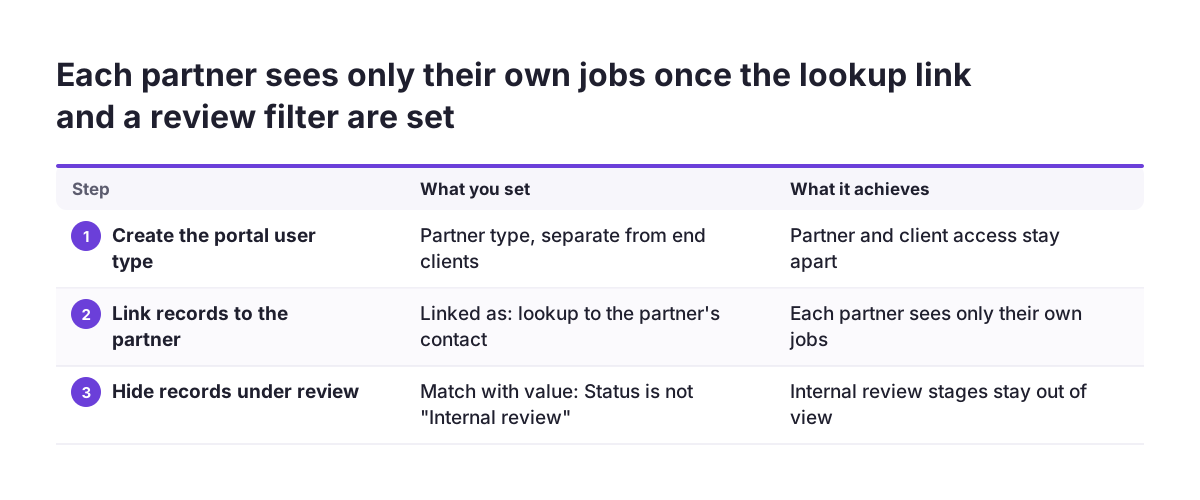
Worked example: a partner portal for service requests
Take a manufacturer that sells through installation partners and tracks jobs in a custom module called Service Requests. The names here are illustrative. The settings are the ones Zoho documents. The goal is that each partner sees and submits only their own jobs, and never sees internal review notes.
- Create the portal user type. Set up a user type for partners, separate from the type used by end clients.
- Link records to the partner. In Linked as and conditions for Service Requests, choose the lookup field that points to the partner's contact record.
- Hide records still under review. Add a match with value criterion: Status, the operator "is not", and the value "Internal review". Join it to the lookup with "and".
- Select fields. Give the partner type the job address, product, status and requested date. Leave out cost, margin and internal notes.
- Assign a wizard for new requests. Select a specific wizard for the module and give the partner user type permission to use it.
- Check public modules. Remember that Products is public to all portal users, so keep internal pricing fields out of it.
The result is a partner who logs in and sees their own open and completed jobs. Jobs your team is still reviewing stay hidden until the status changes. If you later group partners by region, a match with field criterion can link records through a shared region field.
Where portal permission setups typically go wrong
Most portal leaks come from assumptions carried over from internal CRM permissions. The portal has its own rules, and several behave differently from what an administrator expects. These are the mistakes to check for:
- Forgetting that Products is public. Zoho states that Products is accessible to all portal users, "irrespective of their relationship to that module." Internal cost or discount fields there are exposed.
- Exposing every stage. Without criteria, a record's progress through each stage can be visible. Add a match with value condition to hide early or internal stages.
- Relying on hidden buttons. Profile-based hide buttons do not apply in portals. Custom buttons do not appear there at all, so do not build portal steps around them.
- Granting edit rights by default. Edit access on an existing record lets a client overwrite data your team uses. Prefer create rights plus a status field your staff controls.
- One user type for everyone. Clients, vendors and partners need different fields. Sharing one type means the widest need sets the access for all.
The reliable defence is testing as the outside user. At Svennis we log in as a test portal user for every user type before any real client receives an invite. We then open each module and record to confirm that nothing from the "never" list appears. Reading the settings screen is not enough, because combined lookups, criteria and public modules interact in ways a settings page does not show.
Built-in portal, Creator portal or third-party builder: a decision table
Three routes exist for a portal on Zoho data: the built-in Zoho CRM portal, a customer portal on a Zoho Creator app, and a third-party portal builder such as ZPortals. The table compares them on the points that usually decide the choice.
| Point | Built-in Zoho CRM portal | Zoho Creator customer portal | Third-party builder (ZPortals) |
|---|---|---|---|
| Data shown | CRM records directly | Data in your Creator app | Zoho app data, per vendor |
| Access control | Modules, fields, lookup and criteria | Public, Private or Restricted access; Customer or Custom permissions | Field and section layout similar to Zoho, per vendor |
| Login across apps | Separate from Books and Projects portals; SAML SSO listed for Enterprise | Login to the Creator app | Single sign-on across Zoho One apps, per vendor |
| Hosting | Zoho; custom domain linked to a portal add-on, per a user report | Zoho domain or custom domain | Your own website |
| Build effort | Configuration only | App building in Creator | No coding, per vendor |
The built-in portal fits most CRM-centred cases. Creator fits when the portal needs its own logic or screens. A builder fits when one client login must reach several Zoho apps. ZPortals published plans from $49 to $399 per month in January 2024, priced by number of users.
When a Zoho Creator customer portal is worth building
A Zoho Creator customer portal is worth building when the portal needs screens, calculations or processes that CRM modules do not model well. Examples include multi-step applications with custom logic, or a portal that combines CRM data with data you keep only in Creator. Our separate guide on when to bring in a Zoho partner helps you judge whether to build this in-house.
The setup sits in the Creator app's Settings, under Customer Portal in the Users and Control section. Zoho's Creator help page on customer portals lists these choices:
- Access type: Public, Private or Restricted.
- Permission: Customer, or Custom for a new permission set you define.
- Hosting: Zoho's default domain or your own custom domain.
- Domain verification: a CNAME record, a TXT record or uploaded files, done after the portal page is created.
Three practical points save time. Trial accounts must upgrade before they can use a custom domain. You must confirm the primary email address of your Creator account before configuring the portal. Under Zoho's terms of use, only external users such as vendors may be added as portal users.
That help page is written for Creator 5. If your account runs Creator 6, follow the link on that page to the newer instructions.
Logins, single sign-on, mobile access and custom domains
Login friction is a complaint that comes up once Zoho portals are live. A Zoho One user reported that clients reach invoices through the Zoho Books client portal and projects through the Zoho Projects client portal. Moving between them needed "another URL another LOGIN."
Within Zoho CRM itself, you can reduce logins with single sign-on. Zoho documents how to enable SAML-based SSO for CRM portal users, with Enterprise among the supported editions. SAML is a standard that lets users sign in once through an identity provider your organisation already runs. Check which edition you hold in our guide to Zoho CRM pricing, editions and add-ons before you plan around SSO.
Custom domains need a check in Subscriptions. A Zoho One user could not link a CRM client portal to a custom domain. That user then found a "CRM Portal Users Add-on" listed in Subscriptions. Confirm what your plan includes before you promise clients a branded address.
Mobile access also deserves a test. A community user whose clients and vendors work in the field asked whether a mobile app for the CRM client portal was planned. That user pointed out that Creator and Connect have mobile apps. If your portal users work mainly on phones, test the portal on a phone before rollout.
What Zoho CRM portals mean for a company in the EU
For a company in the EU, a portal is a decision about personal data leaving your internal team. Contact details, order histories and support cases all become visible to outside users. Treat the "never" list from your planning as part of your GDPR documentation, not just a configuration note.
The main portal features are not limited by region. Zoho states that criteria-based data exposure is available in all data centres, and wizards in portals are live in all data centres. A company on the EU data centre can therefore use the controls in this guide. Some other Zoho CRM features do differ by data centre and edition. Check the release note of any new feature before you plan around it.
Data minimisation is the useful principle here. Show each portal user type the smallest set of fields that lets them complete their task. Criteria that hide records until a status changes support the same aim, because outside users see data only when they need it.
Scale changes the cost conversation, not the principle. A community user asked Zoho what a portal for 15,000 users on the Ultimate edition would cost. The answer depends on your contract. Plan the user count early, because a portal for every client is a different budget line from a portal for a few dozen partners.
Next steps: map portal user types before you configure anything
The first step is a one-page map of your portal user types, written before anyone opens the settings. For each type, list what they must see, what they may do and what they must never see. That map drives every later choice, from criteria to wizards to the build route.
Then work through this order:
- Decide whether the built-in portal covers the tasks, using the decision table in this guide.
- Configure one user type and one module first, with Linked as and conditions and any match with value criteria.
- Remove internal fields from Products and every other exposed module.
- Log in as a test portal user and check each record against your "never" list.
- Invite a small group of friendly clients or partners before you open the portal to everyone.
If your CRM data is still spread across spreadsheets or an older system, fix that first. A portal exposes whatever is in the records. Our guide to migrating to Zoho CRM without losing your sales history covers that groundwork. When you are ready to plan the portal with your wider setup, our Zoho CRM implementation page explains how we approach a full Zoho CRM project in Europe.
Sources
- Zoho CRM Knowledge Base: Portals
- Zoho Community: Criteria-based data exposure for portal users
- Zoho Community: Wizard support extended for portals
- Zoho Community: Client Portals Setup
- Zoho Community: Client Portal ZOHO ONE
- Zoho Community: CRM Client Portal mobile App?
- Zoho Community: Zoho CRM Customer Portal Pricing Question
- Zoho Creator Help: Setting up a Customer Portal
- ZPortals: The Customer Portal Builder for Zoho