
Custom modules and related lists in Zoho CRM: when they are the right structure
Custom modules and related lists in Zoho CRM are the right structure when one type of data has its own fields and its own life cycle. A second condition matters just as much: several of those records must belong to one contact, account or deal. In that case you create the custom module and give it a lookup field to the parent module. The parent then shows its child records as a related list.
The order of work is the important part. Decide which records belong to which parent before you create a single field. Teams that build the module first and think about relationships later end up copying the same data into several places. Those copies drift apart.
This guide follows a fixed path. It defines the terms, gives four tests for a new module and puts the structural options in one decision table. It then works through a real example from the Zoho community. It ends with the mistakes that appear when modules are bolted on without a plan, and the steps to take next.
Custom module, lookup field and related list: the terms defined
A custom module is a module you create in Zoho CRM to record data that the standard modules, such as Contacts, Accounts and Deals, cannot hold well. A custom module behaves like any other module. It has its own records, its own fields and its own list view.
A lookup field is a field on one record that points to a record in another module. In a community thread, an admin describes this setup directly. When he creates a new subscription, he can "choose the contact in a lookup field".
A related list is a list of records linked to the record you are viewing. Typical examples are the Contacts tied to an Account or the Tasks tied to a Deal. Zoho CRM provides related lists by default. A Contact, for example, already shows its Deals, Notes, Activities and Attachments.
How a lookup creates a related list
A lookup on the child record produces a related list on the parent record. In the community example above, the Subscriptions records appear in a related list on each contact because each subscription carries a lookup to Contacts. Another thread shows the same pattern with a University custom module. That module holds a lookup to Contacts, so University appears as a related list on the contact.
A custom related list is a different thing. It shows context-specific information alongside a record, pulled from another module, a third-party service or a custom integration. A query or a function powers it, and no lookup is involved.
Four tests for when data deserves its own custom module
Data deserves its own custom module when it passes most of four tests. If it passes only one, a field or a custom related list is usually the better choice. The examples in the Zoho community threads pass all four. They include subscriptions, events with attendees, universities linked to contacts and booked flights under a contact.
These are the four tests:
- Many per parent. One contact, account or deal can have several of these records at the same time.
- Own fields and own life cycle. The record has dates, statuses or owners of its own, independent of the parent.
- Worked on as a list. People need to search, filter, report on or act on these records, not only read them.
- Stored in Zoho CRM. The data originates in your CRM, or you must keep it there, rather than reading it from another system.
The fourth test is the one teams skip most often. If the data already lives in an ERP, a webshop or a public register, copying it into a custom module creates a second version to maintain. A query-powered related list can fetch that data at runtime instead.
A single value per parent fails the first test. A customer's preferred delivery day, for example, belongs in a field on the Account. It does not need a module with one record per account.
Choosing the structure: field, custom module, query or function
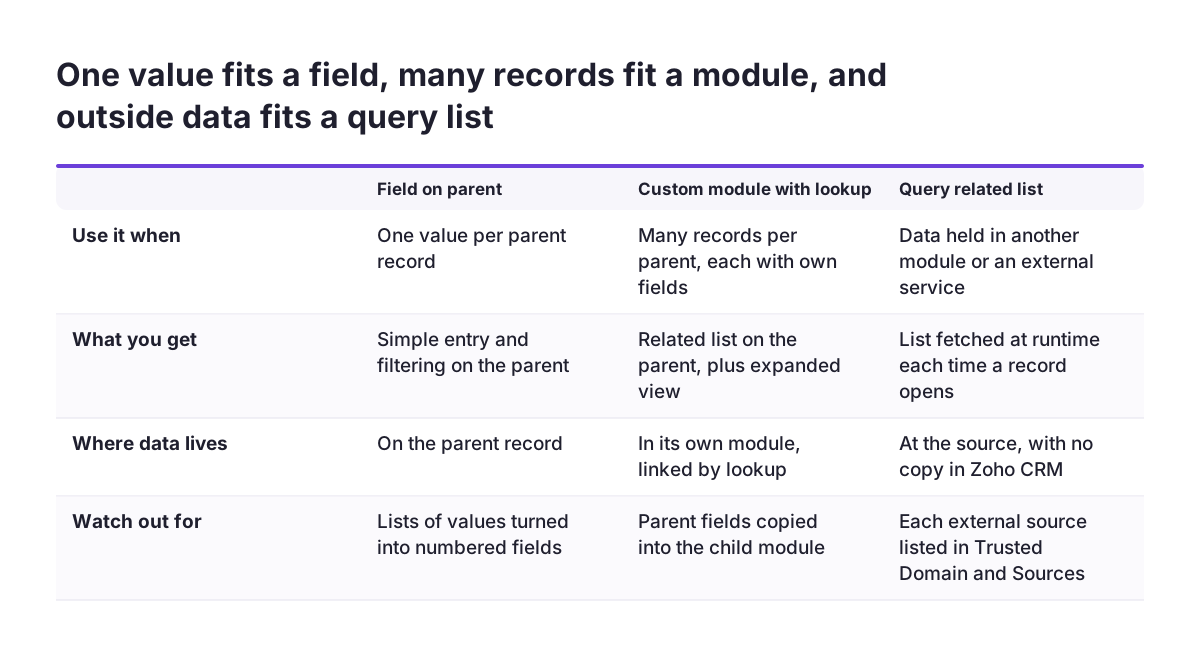
The choice comes down to five structures, and each one fits a different shape of data. The table compares them on when to use them, what you get and what to watch for. The facts on limits and support come from Zoho's own announcements in the sources.
| Structure | Use it when | What you get | Watch out for |
|---|---|---|---|
| Field on an existing module | One value per parent record | Simple data entry and filtering on the parent | Turning a list of values into numbered fields |
| Custom module with a lookup | Many records per parent, each with its own fields | A related list on the parent, plus the related list expanded view | Copying parent fields into the child module |
| Custom module with a multi-select lookup | One record links to several parents | Many-to-many links between records | The related list expanded view does not support multi-select lookup related lists |
| Query-powered related list | Data lives in another module or an external service | Live data fetched each time the record opens | External sources must be added to Trusted Domain and Sources |
| Function-powered related list | You need custom logic to select or combine records | Any output your Deluge function can build | The function must return a specific XML format |
Most companies need the second row for their core business objects. They need the fourth row for anything they only read. The third and fifth rows are for specific cases, so keep them for when a lookup or a query cannot do the job.
Worked example: a Subscriptions custom module linked to Contacts
A Subscriptions module linked to Contacts shows the whole pattern in one setup. The example comes from a Zoho community thread. In it, an admin called Michael keeps subscriptions in a custom module and shows them on each contact.
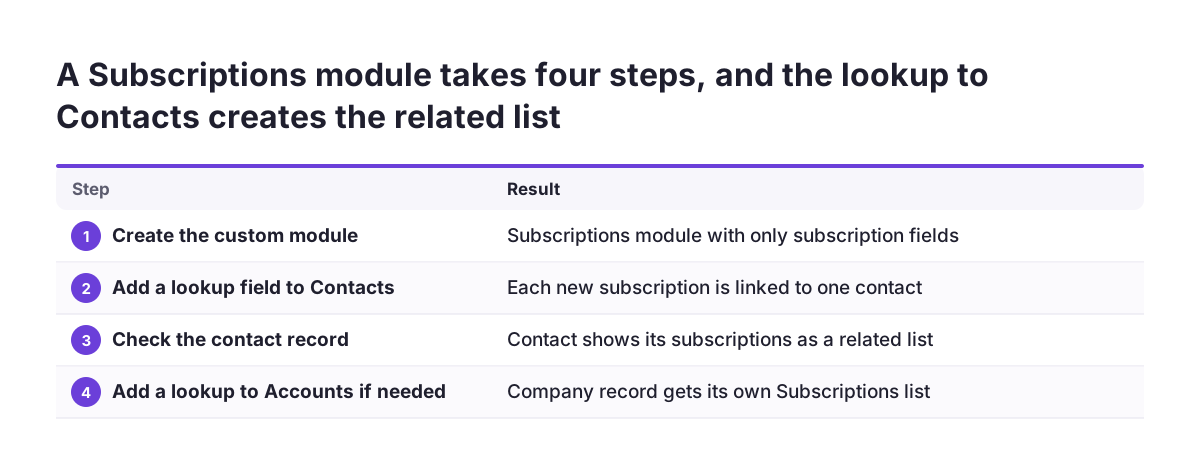
The setup runs in four steps:
- Create the custom module. Name it Subscriptions and add only the fields that describe a subscription itself.
- Add a lookup field to Contacts. When someone creates a subscription, they choose the contact in this lookup.
- Check the related list on the contact. Each contact now shows its Subscriptions records in a related list.
- Add a second lookup if accounts need the view too. A lookup to Accounts gives the company record its own Subscriptions list without retyping the account name.
A different community thread shows what happens without that link. An admin tried to add a custom module to Accounts through Select Unrelated Lists. Zoho CRM replied: "You have already added all your related lists for this module." The admin then asked how to link the custom module to account records. That message is a reminder to check the lookup before you look for the related list.
Flags on the parent record
Michael also wanted to know whether a contact has any subscription. He added a picklist called Related_to_Subscriptions with the values Yes and No. A function was meant to set it to Yes. Zoho CRM now lets you create custom rollup summary fields, which summarise data across related records. Look there before you write code to maintain a flag.
If you do need a function, attach it to a workflow rule. Open Setup, then Automation, then Workflow Rules, and add the function under Instant Actions. Workflow functions return void, so the record save completes independently of the function.
Query and function related lists for data you should not copy
Query-powered related lists show data from other modules or external services without storing a copy in Zoho CRM. Zoho announced that custom related lists "are now powered by Queries". Such a list fetches data at runtime, each time a user opens the record. Zoho's post even argues that queries can remove the need for some lookup fields.
Zoho's Kaizen post on queries in custom related lists works through an Orders module. Each order fetches post office data for its shipping code from an external service. A serializer then shows only the post offices with the delivery status "Delivery". To add a list like this, follow these steps:
- Open a record in the module, click the three-dot menu at the top right and select Add Related List.
- Choose Queries and pick your query from the list.
- For variable mapping, use merge fields so each record passes its own values to the query.
- If the query calls an external source, add that source to Trusted Domain and Sources so the call can run.
Function-powered related lists
Function-powered related lists run a Deluge function instead of a query. You add one through the Add a Related List link at the bottom of the related list tab, then select Functions. Zoho CRM requires the function to return a specific XML format. It can also display error messages in an error XML format. A public tutorial limits its search to a maximum of 10 records, so that the list does not flood the record with line items.
Data-model mistakes when custom modules are bolted on without planning
The most common data-model mistakes come from adding modules one request at a time, without a map of how they connect. Each mistake looks harmless on the day it is made. The cost shows up months later in reports, automations and integrations.
Copying parent fields into the child module
A child module that repeats the account name, address or industry as plain text holds a second version of the truth. When the account changes, the copies stay wrong. Keep the lookup and read the parent's fields through it.
Creating the module before deciding its parent
A custom module with no lookup has no related list on any parent. Users then search for records by name, and links between records exist only in people's heads.
Maintaining summary flags by hand
Picklists such as "has a subscription: Yes or No" go stale when someone forgets to update them. A rollup summary field, or a workflow function on the child module, keeps the flag tied to the real records.
Storing copies of external data
Importing data from another system on a schedule creates a sync job to monitor. A query-powered related list reads the source when the record opens.
At Svennis we sketch every module and every lookup on one page with the client before anyone opens the module builder. For each new field, we ask which module already holds that information, and that question removes most duplicates before they exist.
Working with related lists: 10 records, the expanded view and email templates
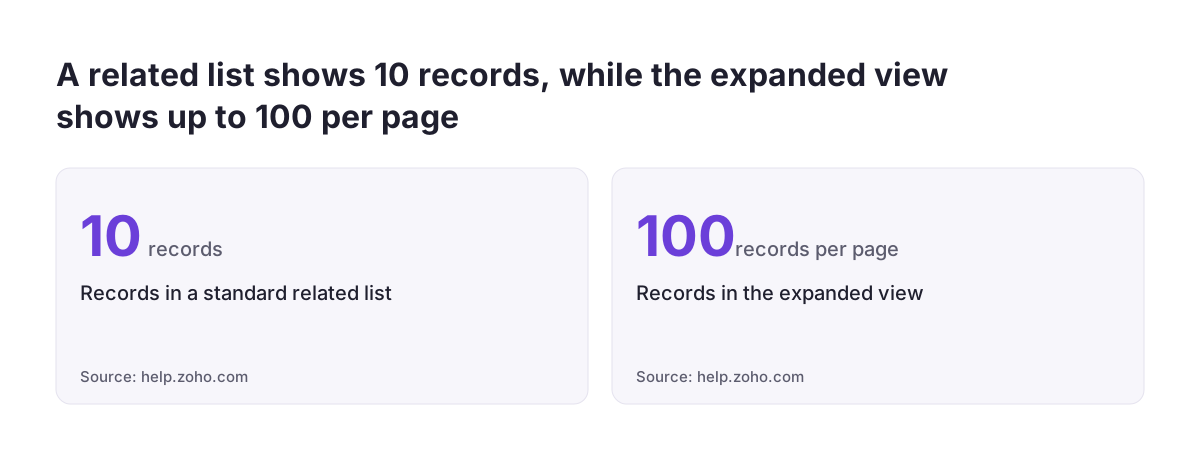
A standard related list in Zoho CRM shows 10 records linked to the record you are viewing. Before Zoho announced its enhancement, users could not filter or search within a related list. For a contact with dozens of subscriptions or event bookings, that made the list hard to use.
The Related List Expanded View is a full-width workspace you open from the Expand option at the top right of a related list. It offers these functions:
- Up to 100 records per page, without leaving the original record.
- A filter panel on any of the related module's fields, with the record count updating to match.
- A column chooser to pick which fields appear.
- Mass actions such as Send Email, Mass Update, Create Task, Change Owner, Mail Merge, Delete and Export Selected Records.
- Any custom buttons configured for the related list.
Zoho states that the expanded view works in all editions and modules where related lists exist. It covers lookup-based related lists but not multi-select lookup related lists. Zoho announced a phased rollout, so check whether your account already has it.
Related lists in email templates
Email templates cannot list related records yet, for example the flights booked under a contact. A moderation update in April 2026 said development had been slightly delayed and promised an updated date later. Until then, the options are Mail Merge or a custom function that replaces custom merge tags in a template. One community member reported promising results with the second approach.
What custom modules mean for a European company working across countries
A company trading in several EU countries feels the cost of a poor data model faster than most. Entities, languages and local registers multiply the number of places where data can be duplicated. The planning rules in this guide matter more, not less, when you work across borders.
Three points deserve attention:
- National registers are data to read, not copy. Company and tax details often come from public sources in each country. A query-powered related list, or an integration such as ANAF validation for Zoho CRM for Romanian company IDs, keeps the record tied to the source.
- External calls need approval. Every external source a query uses must be listed in Trusted Domain and Sources. Agree on that list with whoever owns IT security, because each entry is an outside connection.
- Personal data spreads with every module. Mark which custom modules hold personal data, such as attendees or subscribers. GDPR access and deletion requests must then reach those modules as well as Contacts.
Keep country-specific variants as fields or picklist values on one module wherever possible. A separate module per country splits reports and doubles every automation you build.
Next steps: map the relationships, then build in Zoho CRM
The next step is a one-page relationship map, drawn before anyone touches the module builder. Work through it in this order:
- List every type of record your team tracks today, including the ones in spreadsheets.
- Run each one through the four tests and place it in a row of the decision table.
- For each custom module, name its parent modules and the lookup that links them.
- For each field you plan to add, write down which module already holds that data.
- Check which features your edition includes in the guide to Zoho CRM pricing, editions and add-ons.
Two situations call for extra reading. If you are moving from another system, plan the modules before the import, as the guide on how to migrate to Zoho CRM without losing your sales history explains. If you still need to choose your platform, the comparison of Zoho Bigin and Zoho CRM shows which one suits your data.
When the map is ready and you want a second opinion on it, our Zoho CRM implementation service for European companies covers module design, lookups and the automations that depend on them.
Sources
- Zoho Community: Turn a custom module in to a related list
- Zoho Community: How to check if contact has a relation to custom module record
- Zoho Community: Related List Expanded View
- Zoho Community: Kaizen #190, Queries in Custom Related Lists
- Zoho Community: How to add a related list item via REST API for custom module
- Zoho Community: How to fetch custom related list records using the Zoho API
- Zoho Community: Related Lists in Email Templates
- GitHub: Custom Related List in Zoho CRM via Deluge custom function
- Zoho CRM Developer Docs: Associate Functions with Zoho CRM