Svennis Partner Zoho Europe LogoSvennis
Technical Guide
Zoho WorkDrive
Permissions
External sharing

Zoho WorkDrive folders, permissions and external sharing: plan them before migration

How to structure Zoho WorkDrive Team Folders, assign the five roles and choose the right external sharing method before migration, with a worked example and a checklist.

Svennis Cloud Solutions

Zoho Premium Partner
October 30, 20269 min read
Zoho WorkDrive folders, permissions and external sharing: plan them before migration

Plan Zoho WorkDrive folders, permissions and external sharing before files move

Zoho WorkDrive folders, permissions and external sharing come down to three decisions, and you should make all three before migration. First, decide which Team Folders exist and who may create them. Then decide which of the five roles each person or group holds. Finally, decide which external sharing method each kind of client or partner gets.

The order matters because WorkDrive grants access by default. Members added to a Team Folder automatically get access to all its files. If you migrate thousands of documents into a loosely planned structure, every member inherits access you never meant to give. Correcting that afterwards means auditing folder by folder.

This guide covers each decision in turn. It explains the folder types and the roles. It compares the external sharing options in a table and walks through one worked example. It ends with a review routine and an EU view of the risks. If you are still deciding whether WorkDrive fits your company at all, our overview of Zoho WorkDrive for teams covers the product itself.

Key WorkDrive terms: Team Folder, role and external share

Zoho WorkDrive is an online file management and content collaboration platform. Zoho describes it as built to help teams store, manage, share and work together on documents. A few terms recur throughout this guide, so here they are once. A Team Folder is a shared workspace in WorkDrive where team members create, store and share files. Users create one for a particular project or purpose. The person who creates a Team Folder automatically becomes its Admin. A role is the access level a member holds in a Team Folder. WorkDrive calls this its role-based permission system: admins use it to decide what users can and cannot do with a shared file or folder. There are five Team Folder roles: Admin, Organizer, Editor, Commenter and Viewer. An Org Group is a group created in Zoho One, Workplace or Zoho Directory. You can share files and folders directly with such a group instead of naming people one by one. External sharing means giving access to someone outside your WorkDrive team. WorkDrive offers several routes for this:
  • sharing by email, with an assigned access level
  • share links, with options such as passwords and expiration
  • permalinks, which are single links to a file or folder
  • download links, for download-only access
  • embed codes, for previews inside websites or portals
  • client users, a paid add-on for long-term external collaborators
Each route has different controls, and a later section compares them.

Public and private Team Folders, and who may create them

A Public Team Folder makes its stored data accessible to every team member. A Private Team Folder makes its files and folders available only to a specific set of people. For most companies, client work, HR files and finance documents belong in private folders. Company-wide material such as templates and policies suits a public one. By default, any member of a WorkDrive team can create Team Folders. Zoho's own tip page names two risks in larger organisations. Excess Team Folders can clutter storage space. People can also create two or more Team Folders for the same project, which causes confusion about where the current version lives. You can restrict folder creation centrally. Open the Admin Console from the bottom-left corner of the left pane. Then go to the Roles and Permissions tab in the Settings section. Toggle on Team Admins Only to stop other members from creating Team Folders. Alternatively, toggle on Anyone on the Team to allow everyone. You can set this permission for Public and Private Team Folders. During a rollout, we recommend restricting creation to Team Admins until the agreed structure exists. Once the folders match your plan, you can relax the setting if your teams need the freedom. Starting open and tightening later is harder, because duplicate folders already hold files by then.

The five Team Folder roles compared: Admin, Organizer, Editor, Commenter, Viewer

The five Team Folder roles range from full control down to view-only access. The key line for external sharing sits between Organizer and Editor. Organizers can share files outside the team, while Editors cannot. The table summarises what each role can do, based on Zoho's roles and permissions article.
RoleWhat the role can doTypical holder
AdminComplete control: add or remove members, manage Team Folder settings, move files outside the Team Folder. Only Admins can delete a Team Folder.One or two owners per folder
OrganizerAdd or remove members, move files within the folder, manage member permissions (but not assign Admin), share files outside the team, delete and restore contentProject or account lead
EditorCreate documents with the built-in Zoho Office Suite, upload local files, rename and edit all files and foldersDelivery staff doing the work
CommenterView files and add comments to start discussionsReviewers and approvers
ViewerView, copy, sync and download filesColleagues who need reference access
Two details catch people out. First, Viewer is not as restrictive as it sounds: a Viewer can copy, sync and download. Anyone who can download a file can pass it on outside WorkDrive. Second, Organizer is a sharing role. Give it only to people you trust to decide what leaves the company. The same line applies on the desktop. In WorkDrive TrueSync, the app that creates a virtual drive of your WorkDrive account on a computer, the Share option appears only for users with Organizer or a higher role in the Team Folder.

Direct sharing with members and Org Groups, beyond Team Folder roles

Direct sharing grants access to a single file or folder without adding someone to the whole Team Folder. Zoho recommends it in two situations. You may want to share with members or groups who are not part of the Team Folder. You may also want to give a different access level to one specific file or folder. Direct sharing uses its own set of file and folder permissions:
  • View: collaborators can only view the file.
  • View and comment: collaborators can view and comment, but not edit.
  • Share: collaborators can share, edit and comment on the file.
  • Organize (folders): collaborators can create, edit, organize and share files inside the folder, and comment.
  • Edit field values (Zoho Writer files only): collaborators can read the file and fill the fields assigned to them.
Sharing with Org Groups keeps access manageable as staff change. When a file or folder is shared with a Group, each member receives email and bell notifications. An email-enabled Workplace group is different: only the group address receives an email, not the individual members. Three behaviours are worth knowing. All members you add in one go receive the same access, so add people separately if they need different roles. If a member already has access and also gains a role through a group, the higher-ranking role applies. You can also set an expiration date and time to limit access to a specific period. Permissions, removals and expiry dates can be changed at any time from the Access dropdown in the Share dialog box.

External sharing methods compared: email, share link, permalink, download link, embed code

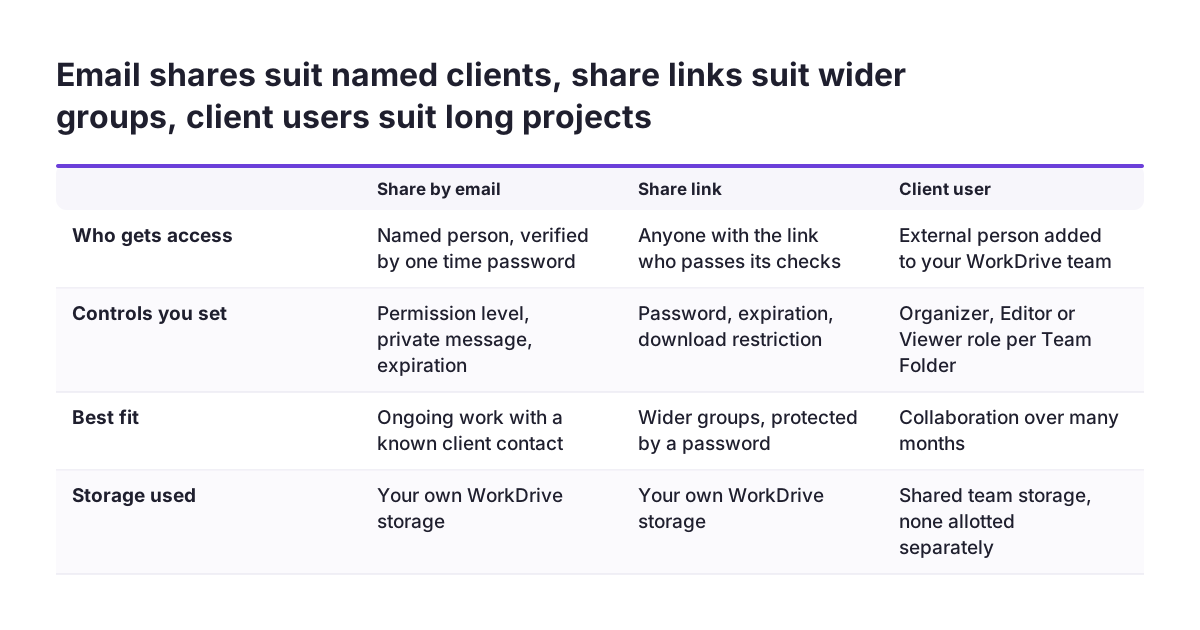
External sharing in WorkDrive offers five link-based or email-based methods, and they differ mainly in who can open them and what controls you get. The safest default for named clients is sharing by email. External users must verify their email with a one-time password before they can open what you shared. The table compares the methods using Zoho's share knowledge base and TrueSync article.
MethodWho can open itControls availableBest use
Share by emailNamed external people, verified by one-time passwordPermission level, private message, expirationOngoing work with a known client contact
Share linkAnyone who has the link and passes its checksPassword, expiration, download restrictions, request user detailsSending files to people you cannot name in advance
PermalinkDepends on visibility settingVisibility: Team Folder members and shared collaborators, anyone in the team, or anyone on the internetInternal references; external only by choice
Download linkLink holders, download onlyDownload limits, expirationFinal deliverables, no viewing or editing
Embed codeVisitors to the site or portalPreview within the pagePublic material on a website or portal
Permalinks default to the safest setting, Team Folder members and shared collaborators. External exposure starts only when someone switches visibility to anyone on the internet. Your rules should say who may make that switch. Share links with Request user data enabled ask for details such as name, email address and phone number every time. That gives you a record of access. It also means you collect personal data, which matters under GDPR. A share link with an expiration date becomes invalid after the set date, so set one by default.
Email shares suit named clients, share links suit wider groups, client users suit long projects. Share by email / Share link / Client user. Who gets access: Named person, verified by one time password / Anyone with the link who passes its checks / Ex

Client users, and why Zoho One rollouts need another route

Client users are external people added to your WorkDrive Team with limited roles and permissions. Zoho introduced the feature for organisations that collaborate with external users over a long period, giving 6 to 12 months as an example. You can add client users to the Team Folders they need and give them the Organizer, Editor or Viewer role. The feature has firm limits:
  • Client users cannot hold the Admin role in a Team Folder.
  • They cannot create Team Folders or join public Team Folders by themselves.
  • They have access to My Folders.
  • They use the shared team storage; no separate storage is allotted.
  • They work in the web and mobile apps (iOS and Android); WorkDrive Sync and TrueSync are not supported.
  • Their licences are bought separately as an add-on.
The most important limit for Zoho One customers comes last in Zoho's announcement. Client users are not yet supported for WorkDrive accounts that are part of the Zoho One, Workplace or Remotely bundle. If you are rolling out Zoho One, do not plan your client access around client users. Check the current status with Zoho before you decide. In practice, Zoho One companies give external partners access through email sharing with expiry dates. A share link with a password covers wider audiences. Either way, external access lives at file or folder level rather than as team membership. That is not a weakness. It keeps every external grant visible in a Share dialog, where you can change or remove it.

Worked example: a Private Team Folder for one client project

This worked example shows a WorkDrive setup for a services company delivering a project for a client. It uses only settings described in Zoho's help pages. Adjust the names to your own structure.

Folder structure and creation rights

  1. In the Admin Console, under Roles and Permissions, toggle on Team Admins Only for creating Team Folders.
  2. A Team Admin creates a Private Team Folder called Client Projects - Northwind Rollout. That person becomes its Admin.
  3. Inside it, create subfolders: 01 Contracts, 02 Working Files and 03 Deliverables.

Internal roles

  1. Add the project lead as Organizer, so one named person controls external sharing.
  2. Add the Org Group Delivery Team, created in Zoho One, as Editor.
  3. Add the finance manager separately as Viewer, because members added together receive the same role.

External access

  1. The project lead shares 02 Working Files by email with the client's project manager. The permission is View and comment, with an expiration date at the planned project end. The client verifies with a one-time password.
  2. For the final report in 03 Deliverables, the lead creates a download link with a download limit and an expiry date.
  3. 01 Contracts is never shared externally. Contracts go out for signature through a separate, agreed process.
The result is that only the Organizer and the Admin can open the folder to outsiders. Every external grant carries an end date. Finance can read without editing, and nobody has to remember to revoke access when the project closes.

Reviewing external shares after go-live

External shares need a regular review, because access granted for a project tends to outlive it. A Zoho community thread shows the demand. A user asked how to find every resource shared with external people, so they could review them periodically and disable the ones no longer needed. The same user wanted to see activity from external people trying to open shared files. Plan the review around the tools the help centre describes. The Shared with Me section lets each user see how items are shared, filter them by sharing type or file type, and update share settings. For the shares your organisation has created, the Access dropdown in each Share dialog is where you change permissions, remove access or move an expiry date. Expiry dates set at creation do much of the clean-up for you. When Svennis sets up WorkDrive in a Zoho One rollout, we write down each Team Folder's Admin, Organizers and external sharing method before any file is migrated. Where that step is skipped, we usually end up fixing open permalinks and unexpected Organizers file by file after go-live. A simple routine works for most companies:
  • Each Organizer reviews the external grants in their folders at every project close.
  • A Team Admin checks quarterly that Organizer roles still match current responsibilities.
  • Any permalink set to anyone on the internet needs a named owner and a reason.
The same discipline applies to reports you share from other Zoho apps. Our guide to sharing Zoho Analytics dashboards with permissions follows the same principle of named owners and limited audiences.

What WorkDrive sharing means for companies in the EU

For a company in any EU member state, WorkDrive permissions are part of how you protect personal data under GDPR. Client folders often hold contact details, contracts and correspondence. HR and finance folders hold more sensitive material. Every external share and every broad Team Folder membership widens the group of people who can reach that data. The settings in this guide map to everyday data protection practice. Private Team Folders and narrow roles limit access to the people who need it. Expiration dates stop access from lasting longer than the purpose behind it. One-time password verification for email shares ties access to a named person. Download links and download restrictions reduce copies circulating outside your control. One setting creates data rather than protecting it. The Request user data option on share links asks for name, email address and phone number at every access. That is personal data your company then holds. Decide with whoever handles data protection in your company whether you need it, and for how long you keep it. Rules beyond GDPR differ between member states and sectors, and this guide does not cover them. If you work in a regulated field, check with your legal or compliance adviser before you open folders to external parties. The same applies to accounting records, which many teams keep alongside Zoho Books; retention rules for those vary by country.

Next steps: a pre-migration checklist for WorkDrive permissions

Before you migrate files into WorkDrive, work through this checklist with the people who own each area of your business:
  1. List the Team Folders you need, and mark each one public or private.
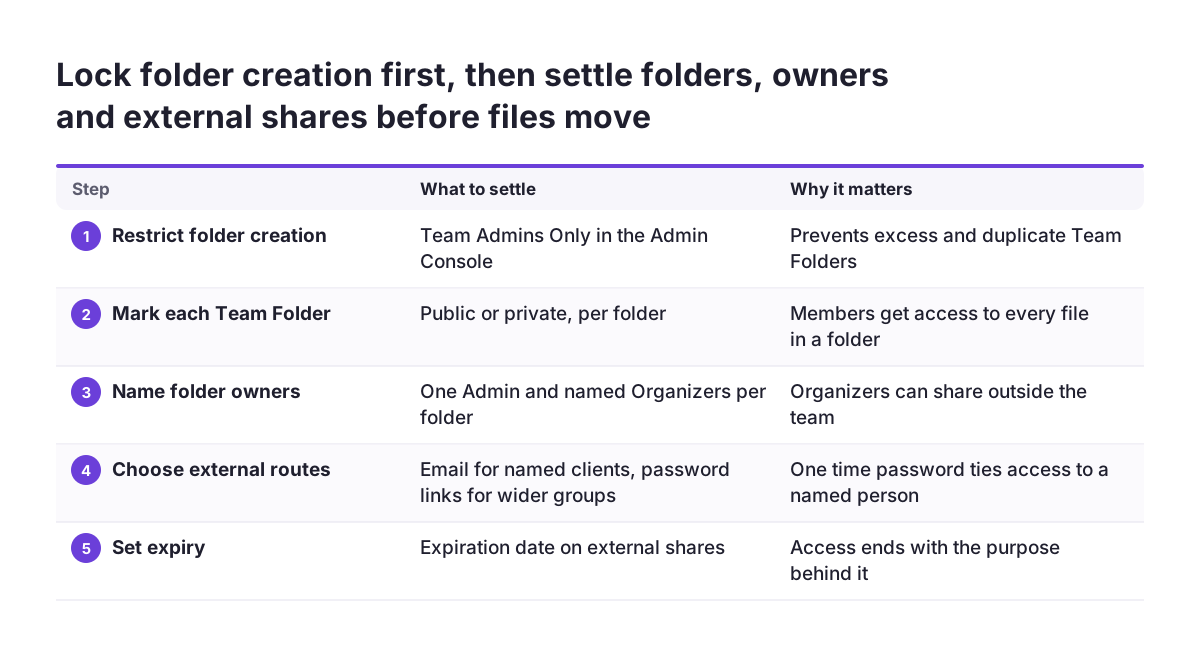
  2. Set Team Folder creation to Team Admins Only in the Admin Console until the structure is in place.
  3. Name the Admin and the Organizers for each folder, remembering that Organizers can share outside the team.
  4. Create the Org Groups in Zoho One or Zoho Directory, and assign roles to groups rather than individuals where possible.
  5. Choose an external sharing method per audience: email for named clients, share links with passwords for wider groups, download links for final deliverables.
  6. Make an expiration date the default for every external grant.
  7. If you run Zoho One, confirm with Zoho whether client users are available for your account before relying on them.
  8. Agree who reviews external shares, and how often.
Once the plan is on paper, migrate one department first and test it with a real external contact. Check that the one-time password, the expiry date and the permission level behave as expected. Then move the rest. If you want help applying this to your own folder structure, start with our Zoho WorkDrive implementation page, which explains how we set WorkDrive up as part of a wider Zoho rollout.
Lock folder creation first, then settle folders, owners and external shares before files move. What to settle / Why it matters. 1. Restrict folder creation: Team Admins Only in the Admin Console / Prevents excess and duplicate Team Folders; 2. Mark e

Sources

Found this helpful? Share it

LinkedInPost
Svennis Cloud Solutions

Svennis Cloud Solutions

Premium Partner

Zoho Premium Partner since 2011 with 200+ successful implementations across Europe. We specialize in CRM implementation, custom integrations, and business process automation - helping European businesses get the most out of the Zoho ecosystem.

Zoho Premium Partner - Since 2011

Ready to Transform Your Business?

Let's discuss how Zoho can streamline your operations. Book a free strategy call with our team - no commitment, just honest advice from 200+ implementations.