
Warehouses, barcodes and stock transfers in Zoho Inventory: the short answer
Warehouses, barcodes and stock transfers in Zoho Inventory stay accurate when you follow three rules. Create each physical location as its own warehouse. Choose the correct warehouse on every transaction that moves stock. Move goods between locations with transfer orders. Barcode scans help only when each scan lands on a transaction tied to the right warehouse.
Accuracy across locations depends less on the scanner than on that one habit. Every purchase, return, adjustment and transfer has to name a warehouse. Zoho's help page on ways to add goods to a warehouse in Zoho Inventory lists the transactions where you make that choice. This guide takes each of those points in turn.
After the transactions, the guide gives a worked example and a checklist table. It then covers what to watch when Zoho Inventory runs alongside Zoho Books and Zoho CRM. The guide sticks to what Zoho's help pages and community threads document. Where those sources say nothing, for example on scanner hardware, the guide says so rather than guessing.
What a warehouse is in Zoho Inventory, and what to decide before go-live
A warehouse in Zoho Inventory is a stock location whose quantities the system tracks separately from your other locations. A warehouse can be a large distribution centre, a shop stockroom or a van. What matters is that someone counts the goods there separately and needs to know what is on hand.
You have to decide the list of warehouses before anyone enters opening stock. Every later transaction depends on it. Name each warehouse the way your staff already refer to it, so nobody has to translate a code when receiving goods. Leave out a "warehouse" for a shelf or a zone unless you really need to count it on its own. Every extra location adds a choice to every transaction.
At Svennis we agree the warehouse list and names with the people who receive and pick goods before we load any opening stock. The mistake we see most often is opening stock loaded into one location and then spread out with inventory adjustments. That leaves a history nobody can audit later.
Before go-live, also decide who may create transactions for which location. A receiving clerk at one site should not have to pick from a long list of warehouses they never touch.
Five transactions that put stock into a Zoho Inventory warehouse
Stock enters a Zoho Inventory warehouse through five kinds of transaction, and each one asks you to choose the warehouse. Zoho's help page on adding goods to a warehouse lists these transactions:
- Purchase orders and bills: you select the preferred warehouse to which the purchased goods are delivered.
- Transfer orders: you issue a transfer order to move goods between warehouses.
- Sales returns: you select the warehouse where the returned goods are deposited.
- Inventory adjustments: you select the warehouse in which the stock for an item is adjusted.
- Composite item bundles: you select the warehouse to which new bundles are added.
The bundle rule needs a closer look. A composite item is a product sold as one unit but made from several other items, such as a gift box. Zoho calculates how many bundles you can create from the availability of the associated items in the selected warehouse. Components sitting in another location do not count.
The bundle rule has a practical consequence. If you assemble bundles in one place, the components must be in that warehouse first. Move them there with a transfer order before you create the bundles.
Purchase orders and bills in Zoho Inventory deliver to one warehouse each
A purchase order or bill in Zoho Inventory sends all its goods to one warehouse. Zoho's help page states that it is not possible to have each item on the order delivered to a different warehouse. This one rule shapes how you buy for several locations.
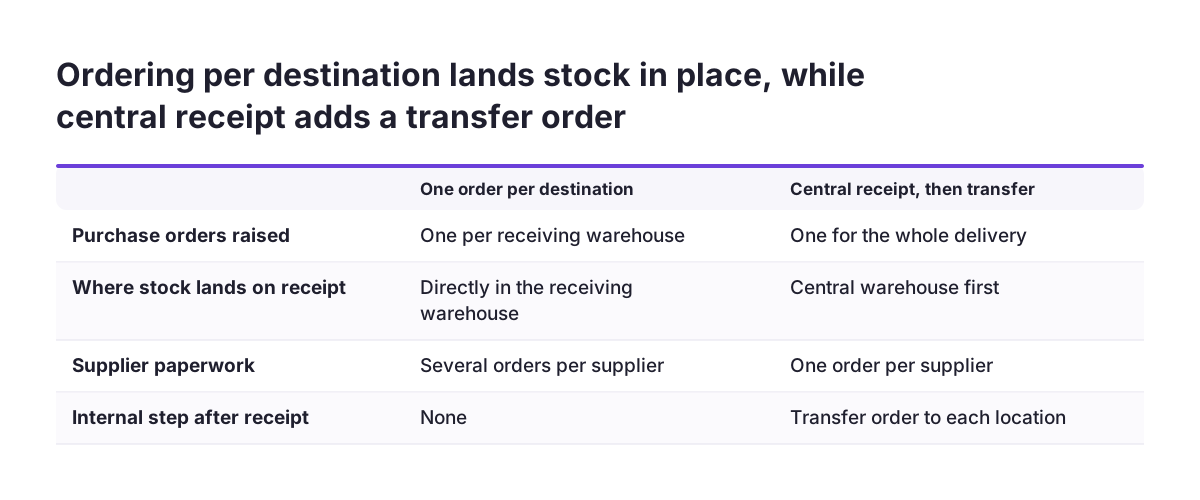
You have two workable patterns. Choose one and write it down, because staff will otherwise mix them.
Pattern one: split the order by destination
Raise one purchase order per receiving warehouse. Each order names its own warehouse, so stock lands in the right place the moment it is received. The cost is more paperwork with the supplier, who sees several orders instead of one.
Pattern two: receive centrally, then transfer
Raise one purchase order to a central warehouse and issue transfer orders to the other locations afterwards. The supplier sees one order. The cost is an extra step for every delivery, and stock looks short at the outlying location until the transfer is recorded.
Pattern one suits suppliers who deliver directly to each site. Pattern two suits a business where all goods physically arrive at one dock anyway. A mix of both, decided order by order, is where counts start to drift.
Stock transfers between warehouses in Zoho Inventory run through transfer orders
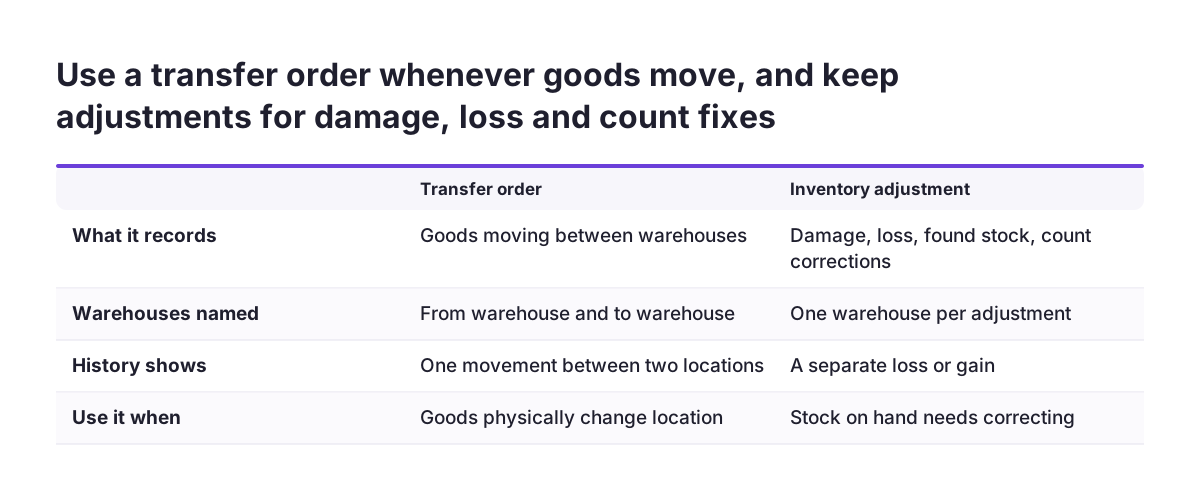
A transfer order is the Zoho Inventory transaction for moving goods from one warehouse to another. Zoho's help page describes it in one line: issue a transfer order to move your goods between warehouses. Use it every time goods physically change location.
The tempting shortcut is two inventory adjustments: reduce stock in one warehouse and increase it in the other. Avoid it. Two adjustments describe a loss and a gain, not a movement. Anyone reading the history later sees two unrelated corrections and cannot tell that goods travelled.
Keep inventory adjustments for what they are meant to record: damage, loss, found stock and count corrections. Each adjustment names the warehouse in which the stock is adjusted. A reviewer should therefore be able to read every adjustment as a real change in that location.
Transfers also matter for composite items. Bundle availability depends on the components in the selected warehouse, so a transfer is often the step that makes assembly possible. Record the transfer before the assembly, in the order things happened, and your history will match the shelves.
Barcode scanning in Zoho Inventory works only when each scan names a warehouse
A barcode scan in Zoho Inventory is only as accurate as the transaction it feeds. A scan identifies the item. It is the transaction, and the warehouse chosen on it, that decides where the stock goes. A perfect scan on a purchase order pointed at the wrong warehouse still produces a wrong count.
The Zoho sources used for this guide do not document barcode settings or scanner hardware. Check Zoho's current barcode help before you buy scanners or print labels. What you can decide now is the process around the scans:
- Give each item exactly one code, and never reuse a code for a different item.
- Label stock before the first count, so the count itself is scanned.
- Scan at the location that physically holds the goods, against a transaction for that warehouse.
- Test with one item through a full purchase, transfer and return before you label everything.
The test step catches most problems cheaply. One labelled item, moved through each transaction, shows whether your codes, your warehouse choices and your staff habits line up. Labelling an entire warehouse first and testing afterwards turns a small fix into a relabelling job.
Stock counts in Zoho Inventory: limits users have reported
Stock counts in Zoho Inventory have limits that users have raised in Zoho's community forum. In a thread on the Zoho Inventory stock count feature, one user wrote that they could not use it without assigning the count to a single person. Their team shares counting work, as most companies do.
The same user reported a second gap. They could not add extra fields to what the "counter" sees. The field they wanted most was the location where the item sits. These are one user's reports, not Zoho's documentation, so check the current behaviour in your own account before you plan around them.
If your account behaves as that user describes, plan counts so they fit:
- Split a large count into smaller counts, one per person.
- Keep each count to one warehouse, so the counter knows where they are.
- Give counters a printed or shared list of shelf positions, since the count screen may not show them.
After a count, post any differences as inventory adjustments in the warehouse that was counted. Never post them somewhere convenient. A correction in the wrong warehouse fixes one number and breaks another.
Worked example: a delivery, a transfer and a return across two warehouses
The worked example follows a business with two warehouses in Zoho Inventory. "Central" is the main store and "City" is a shop stockroom. The business has chosen pattern two from the purchasing section: receive centrally, then transfer.
- Purchase. The buyer raises a purchase order to the supplier and selects Central as the delivery warehouse. All items on the order go to Central, as Zoho allows only one warehouse per order.
- Receipt and bill. Central receives the goods, scanning them against that purchase order. The bill is recorded with Central selected as the warehouse.
- Transfer. City needs part of the delivery. Central issues a transfer order from Central to City. City scans the goods on arrival.
- Bundle. City assembles a composite item. Bundles are created with City selected, and Zoho counts only the components available in City.
- Return. A customer returns an item to the shop. Staff record the sales return and select City as the warehouse where the goods are deposited.
- Correction. One returned item is damaged. Staff record an inventory adjustment in City, not in Central.
Every step names a warehouse, and every warehouse matches where the goods physically are. That is the whole discipline. If any step picks the wrong location, both warehouses show the wrong figure until someone notices.
Checklist: where each Zoho Inventory transaction chooses its warehouse
The checklist table compares the six transactions that affect warehouse stock in Zoho Inventory. For each one it shows where the warehouse is chosen, what typically goes wrong and what to check. Use it when you train staff and when you review the first weeks after go-live.
| Transaction | Warehouse choice | What goes wrong | What to check |
|---|---|---|---|
| Purchase order and bill | One warehouse per document | Mixed destinations on one order | One order per destination, or a transfer afterwards |
| Transfer order | From and to warehouse | Adjustments used instead of a transfer | Every physical move has a transfer order |
| Sales return | Warehouse where goods are deposited | Return booked to the main store by habit | Warehouse matches where the customer handed goods back |
| Inventory adjustment | Warehouse in which stock is adjusted | Correction posted to a convenient location | Adjustment sits in the warehouse that was counted |
| Composite item bundle | Warehouse where bundles are added | Components held in another location | Components transferred in before assembly |
| Stock count | One count per warehouse, by your own rule | Counter cannot see item location | Shelf list given to the counter |
Review the inventory adjustment row first after go-live. A rising number of adjustments usually means another row is going wrong, such as returns booked to the wrong place.
Keeping Zoho Inventory consistent with Zoho Books and Zoho CRM
Zoho Inventory rarely runs alone, and two sync points deserve attention before go-live. The first is price books. A user in Zoho's community forum noted that Zoho does not sync price books between Zoho CRM and Books or Inventory. If your sales team quotes from CRM, decide which system owns prices and how the other gets updated.
The second is integrations through the API. Zoho deprecated Authtokens for authenticating API calls across its Finance suite of products, with the deadline extended to 30 August 2021. Any custom integration that still uses an Authtoken needs moving to OAuth. Ask whoever built your connections which method they use.
A smaller check concerns browsers. From 15 May 2024, Zoho Inventory no longer supports Firefox or Google Chrome versions older than 100. Warehouse PCs and scanning stations are often the oldest machines in a company, so check them first.
For the accounting side of the same setup, see our page on setting up Zoho Books. If managers want stock by warehouse in one report next to sales, our page on Zoho Analytics implementation explains how we approach reporting.
Warehouses in several EU member states: what to check locally
A company with warehouses in more than one EU member state should treat each country's location as its own warehouse in Zoho Inventory. Do this even when one team manages both. Goods crossing a border are a physical movement, and a transfer order records that movement clearly.
Tax and reporting rules for stock moved between member states vary, and the Zoho sources used for this guide do not cover them. Agree with your accountant in each country how a cross-border transfer should be treated before you record the first one. Do not assume that the rule you know from one member state applies in another.
Language is the other local question. Warehouse names, item names and printed labels are read by staff on the shelf floor. Choose names that the people in each location understand, and keep item codes language-neutral so a scan means the same thing everywhere.
Finally, keep your staff's access in mind. A person who only works in one country's warehouse should normally record transactions only for that warehouse. Restricting choices reduces the mis-booked returns and adjustments that the checklist table warns about.
Next steps for setting up warehouses, barcodes and transfers in Zoho Inventory
The practical next steps follow the order of this guide. Work through them before anyone loads opening stock:
- List every physical location you need to count separately, and name each as your staff already do.
- Watch Zoho's introduction to warehouse management webinar, which runs 17 minutes and 11 seconds.
- Choose one purchasing pattern: one order per destination, or central receipt followed by transfer orders.
- Write down the rule that every physical move is a transfer order, never a pair of adjustments.
- Test one labelled item through a purchase, a transfer, a bundle, a return and an adjustment.
- Plan stock counts per person and per warehouse, and check the count screen in your own account.
- Confirm that integrations use OAuth and that warehouse computers run supported browser versions.
Run the test with real staff in each location, not only with the person configuring the system. Their questions show where the warehouse choice is unclear.
If you want help with the setup itself, our Zoho Inventory stock and orders page describes how we implement it.