
One stock count for Shopify and WooCommerce orders in Zoho Inventory, in short
To run Shopify and WooCommerce orders in Zoho Inventory with one stock count, make Zoho Inventory the only place where SKUs and quantities are edited. Then connect each store through its own connector and let Zoho Inventory send stock back out to both shops. The connectors move orders reliably. The hard part is keeping one SKU list honest across two stores.
A shared stock count is one available quantity per product, held in Zoho Inventory and published to every sales channel. When a mug sells in either shop, both shops show the lower figure. Without it, you sell the same last unit twice.
Zoho describes the problem plainly in its Marketplace spotlight on WooCommerce for Zoho Inventory. Without an integration, orders land in WooCommerce and must be re-entered by hand into Zoho Inventory. That causes stock levels to fall out of sync. Zoho lists the results as stock errors, delayed fulfilment, duplicated admin work and poor customer experience.
This guide covers the full setup: connecting both shops, mapping products, prices and taxes, handling payment status, and a weekly reconciliation routine. It ends with a decision table on when the standard connectors are enough and when you need a custom integration. If you want the product overview first, see our page on Zoho Inventory for stock and order management.
What the Shopify and WooCommerce connectors for Zoho Inventory sync
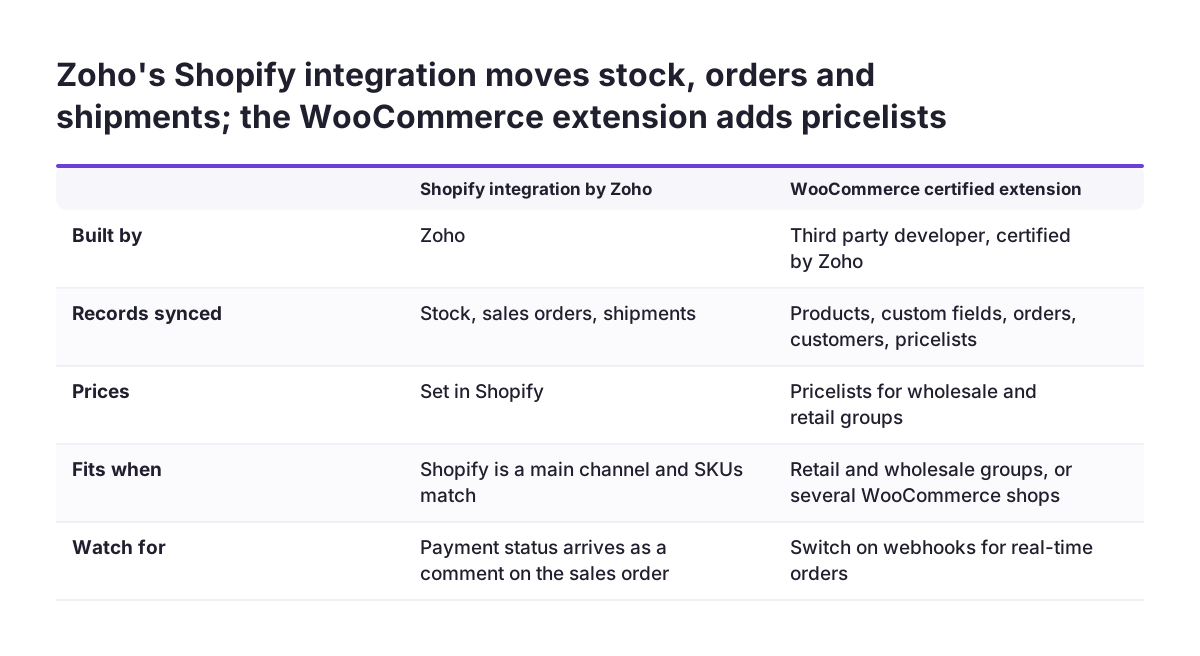
Zoho Inventory has a separate connector for each store, and they do not behave the same way. Zoho's own Zoho Inventory add-ons and integrations page lists a Shopify integration developed by Zoho. It syncs stock, sales orders and shipments.
The same page lists a WooCommerce integration. It keeps product data aligned, monitors stock movement and processes orders. Zoho's Marketplace blog also features a certified extension called WooCommerce for Zoho Inventory, built by a third-party developer. According to Zoho, it syncs these records between the two systems:
- products and custom fields
- orders
- customers and contacts
- pricelists, including wholesale and retail groups
The certified extension syncs either through real-time webhooks or through a scheduled background sync. A webhook is a message one system sends to another the moment a record changes. A scheduled sync checks for changes at set intervals instead. For a shared stock count, webhooks matter, because a gap between syncs is a window in which both shops can sell the same unit.
The extension also includes an AI-powered multi-store dashboard for several WooCommerce stores in one interface. That helps if you run more than one WooCommerce shop. It does not cover your Shopify store, which stays on its own connector.
A third route puts an order manager between the shops and Zoho Inventory. Base.com's WooCommerce and Zoho Inventory integration collects orders from all channels in one Order Manager. It then synchronises stock and prices from Zoho Inventory back out to the sales channels.
One SKU list in Zoho Inventory before you connect either store
A clean SKU list is the foundation of a shared stock count. A SKU (stock keeping unit) is the unique code you give each sellable item, for example one colour and size of one product. The connectors match store products to Zoho Inventory items. If the same mug carries one code in Shopify and a different code in WooCommerce, Zoho Inventory sees two items and keeps two stock figures.
Set three rules before any connector is switched on:
- Zoho Inventory holds the master list, and new SKUs are created there first.
- Every variant that a customer can buy has exactly one SKU.
- Both stores use that SKU character for character, with no extra spaces, prefixes or lowercase versions.
Export the product lists from both stores and compare them against Zoho Inventory in a spreadsheet. Fix mismatches in the stores, not by creating near-duplicates in Zoho Inventory. Items that exist in only one shop are fine, as long as they are deliberate.
At Svennis we freeze the SKU list in Zoho Inventory before either store is connected, and we push test orders through both shops before go-live. The mismatches we find at that stage are almost always codes typed slightly differently in the two stores, and they are far cheaper to fix before real orders arrive.
If you hold stock in more than one location, settle warehouses at the same time. Our guide to warehouses, barcodes and stock transfers in Zoho Inventory covers that part of the setup.
Connecting Shopify and WooCommerce to Zoho Inventory, step by step
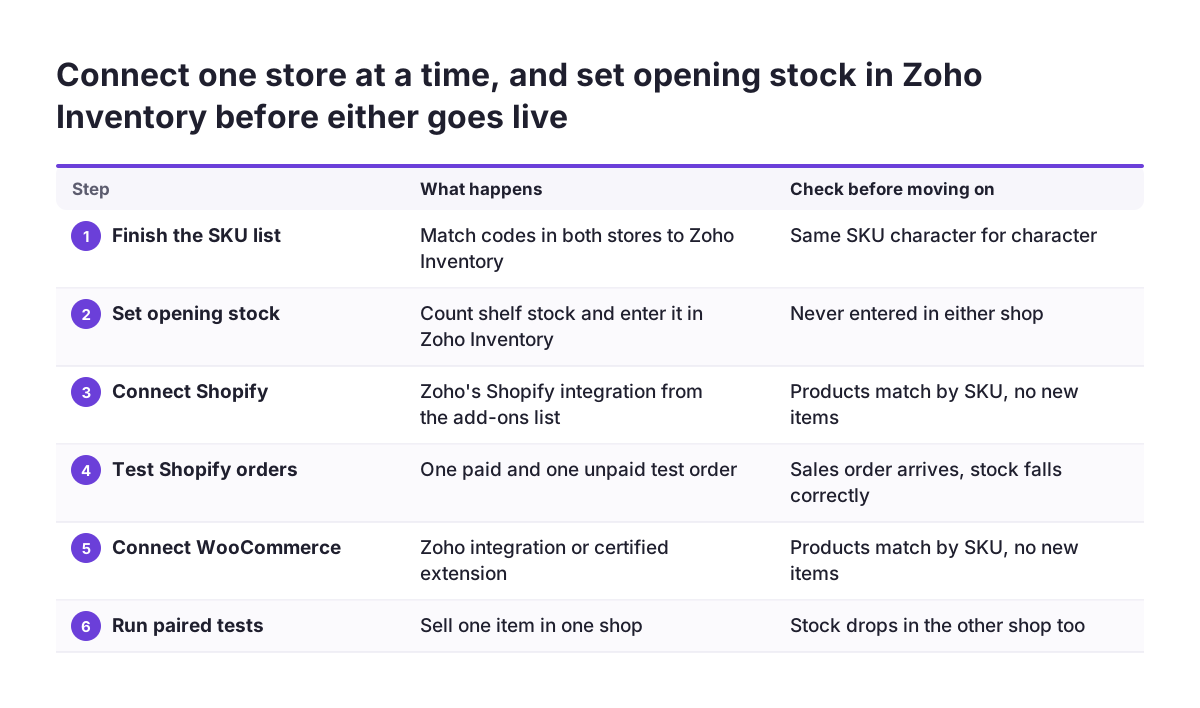
Connect the stores one at a time, so that any problem has only one possible cause. The order below keeps Zoho Inventory as the master from the first day:
- Finish the SKU list. Match the codes in both stores to Zoho Inventory, as described above.
- Set opening stock in Zoho Inventory. Count physical stock and enter it there, not in either shop.
- Connect Shopify. Use the Shopify integration developed by Zoho from the Zoho Inventory add-ons list. Check that products match by SKU rather than creating new items.
- Place test orders in Shopify. Use one paid order and one unpaid order. Confirm that each arrives as a sales order and that stock falls by the right amount.
- Connect WooCommerce. Choose either the WooCommerce integration listed on the add-ons page or the certified extension. If you use the extension, turn on real-time webhooks rather than relying only on the scheduled sync.
- Place test orders in WooCommerce. Then check that the stock change appears in Shopify as well.
- Close direct stock editing in both shops. Tell your team that quantities change only in Zoho Inventory.
Step six is the real test of a shared stock count. An order in one shop must lower the figure in the other shop. If it does not, find out why before you go live. Common causes are an unmatched SKU, a sync that runs on a schedule, or a product that one connector does not manage.
Keep a short log of each test order, with the store, SKU, quantity and stock figures before and after. The same log becomes your template for the weekly reconciliation later in this guide.
Mapping products, prices and taxes between the stores and Zoho Inventory
Product, price and tax mapping decides what Zoho Inventory records for each order. Products map by SKU, as covered above. Prices and taxes need their own decisions, because two shops often charge different prices for the same item.
Prices and pricelists
Decide which system owns each price. The certified WooCommerce extension syncs pricelists and keeps wholesale and retail groups consistent across both platforms. That suits a WooCommerce shop that serves trade buyers. Your Shopify prices are set in Shopify, so write down which store price belongs to which customer group.
Watch out if you also use Zoho CRM. A user in a Zoho community thread on Shopify, Zoho Commerce, Books and Inventory wrote that Zoho does not sync price books between Zoho CRM and Books or Inventory. Pick one place where prices are maintained and do not edit them in three.
Taxes
Treat tax mapping as something you test, not something you assume. For each tax rate you charge, place a test order in each store and compare the tax line in the shop with the tax on the sales order in Zoho Inventory. Ask your accountant to confirm the rates before go-live.
Custom fields deserve a check too. The certified WooCommerce extension syncs custom fields, so a field such as a delivery note or a trade customer number can reach Zoho Inventory. Agree which fields matter before you map them, or the sales orders will fill up with data nobody reads.
Payment status on Shopify orders in Zoho Inventory needs a clear rule
Shopify orders arrive in Zoho Inventory as sales orders whether or not they are paid. A user in the Zoho community thread on Shopify paid orders reports that the integration pulls both paid and unpaid Shopify orders in as sales orders.
Zoho documentation quoted in that thread explains why. Shopify supports paid, unpaid, partially paid and cash on delivery orders. The payment status of an inbound Shopify sales order appears as a comment under the sales order. That comment reads Paid, Unpaid, Partially paid or Cash on delivery.
A comment is easy for a person to read and hard for a process to act on. The same user could not find a way, through any Zoho API, to automatically mark invoices as paid when a Shopify order was paid. So decide the rule yourself and write it down. Typical choices are:
- pack and ship only orders whose comment reads Paid or Cash on delivery
- hold Unpaid and Partially paid orders until a person confirms payment
- record payment against the invoice by hand, or build a custom step for it
The rule matters for stock as well as for cash. An unpaid order that sits open still holds a claim on stock in your process. If it never gets paid, cancel it promptly so the units return to the shared stock count.
WooCommerce orders need the same thinking. Confirm during testing how payment status reaches Zoho Inventory through the connector you chose.
Worked example: one stock figure for a mug sold in two shops
Take a homewares seller with a Shopify shop for consumers and a WooCommerce shop for trade buyers. One product is a white 350 ml mug with the SKU MUG-350-WHT. Zoho Inventory holds the opening stock of 120 units, and both stores use exactly the same SKU.
The setup follows this guide. Shopify runs on Zoho's Shopify integration. WooCommerce runs on the certified extension with real-time webhooks switched on and a wholesale pricelist for trade customers.
On Monday morning three orders arrive:
- A consumer buys 2 mugs in Shopify and pays by card. The sales order shows the comment Paid.
- A café orders 10 mugs in WooCommerce at the wholesale price. The webhook sends the order to Zoho Inventory within moments.
- A second consumer orders 4 mugs in Shopify with cash on delivery. The comment reads Cash on delivery.
The warehouse follows the written payment rule and ships all three orders. After they are processed in Zoho Inventory, available stock for MUG-350-WHT is 104. The connectors carry that figure to both shops, so neither shop can promise the 105th mug.
Now picture the same morning with the WooCommerce shop using the code mug-350-white. Zoho Inventory would treat the café order as a different item. The Shopify shop would still show 114 mugs, which is 10 too many. A careful look at that one code during setup prevents the whole problem.
Native connectors or a custom integration: a decision table
The standard connectors are enough when your stores, products and payment flows are simple. You need more when you sell on marketplaces as well, when payment status must drive invoices automatically, or when business rules sit outside what any connector covers. The table compares the four realistic options.
| Option | What it covers | Choose it when | Watch for |
|---|---|---|---|
| Shopify integration developed by Zoho | Stock, sales orders and shipments | Shopify is a main channel and SKUs match | Payment status arrives only as a comment |
| WooCommerce integration or certified extension | Products, orders, customers, pricelists and custom fields | You serve retail and wholesale groups, or run several WooCommerce shops | Use webhooks, not only scheduled sync |
| Order manager such as Base.com | Orders from all channels, stock and price sync from Zoho Inventory, invoice export | You also sell on marketplaces such as Amazon or eBay | One more system to maintain; a 30-day free trial lets you test it |
| Custom integration on the Zoho Inventory API | Whatever rules you define | Payment status must drive invoices, or rules are unusual | OAuth authentication and ongoing maintenance |
Base.com makes a fair point on its own integration page: marketplace modules built into store platforms usually provide very limited functions. That is a reason to compare options before you add channels one connector at a time.
A custom integration must use OAuth. Zoho deprecated Authtokens for API authentication on 30 August 2021 across its Finance suite, and Zoho Inventory belongs to that suite. Any older script that still uses Authtokens needs rewriting.
Custom work also covers a gap the forum user hit: marking invoices as paid from the Shopify payment status. Budget for it only if manual payment matching costs you real time each week.
Weekly reconciliation of orders, stock and payouts across both stores
A weekly reconciliation catches sync failures before they turn into overselling or missing revenue. Connectors fail quietly: an expired connection, an unmatched SKU or a skipped webhook leaves no alarm in your shop. Set aside the same slot each week and work through this checklist:
- Order counts. Compare the week's orders in each store with the sales orders from that store in Zoho Inventory.
- Open payment states. List sales orders whose comment reads Unpaid or Partially paid. Chase or cancel them.
- Cash on delivery. Confirm that cash collected matches the orders delivered.
- Stock spot check. Pick your fastest-moving SKUs and compare the figure in Zoho Inventory, in each shop and on the shelf.
- Payouts. Compare what your payment providers paid out with the payments recorded in Zoho.
- New products. Check that every SKU added in either store also exists in Zoho Inventory.
Write down every difference and its cause. A pattern tells you where the setup is weak. Repeated gaps in one store point at that connector. Repeated gaps on new products point at the SKU rule.
Payouts belong in the routine because the money side drifts as easily as stock. Zoho Inventory integrates with Zoho Books, QuickBooks and Xero for accounting, according to the add-ons page. Reconcile in the system your accountant works in.
Once the routine is stable, build a report for it. A dashboard in Zoho Analytics can show orders per store, open payment states and stock differences each week, so the check takes minutes.
What selling from the EU changes for a two-store Zoho Inventory setup
Selling from the EU adds tax, language and data protection checks to a two-store setup. None of them changes the core rule of one SKU list in Zoho Inventory. Each one adds a test to your go-live list.
Tax across member states
Tax treatment can differ by the country you ship to, so test it per destination. Place one test order for each country you sell into, in each store. Compare the tax on the shop receipt, the Zoho Inventory sales order and the invoice in your accounting system. If you sell on several marketplaces, Base.com states it can issue invoices in different languages, with different numbering series and tax rates.
Languages
Many EU sellers run the same product in more than one language, for example a German and an English storefront. Product names can be translated per shop. The SKU must never be translated, because it is the key that joins both stores to Zoho Inventory.
GDPR and customer records
Customer data now lives in several systems. The certified WooCommerce extension syncs customers and contacts, and an order manager adds another copy. Under GDPR, your records of where personal data is processed should list each store, each connector and Zoho Inventory. Make sure a deletion request reaches every copy, not just the first one.
If you run Zoho Inventory alongside Zoho Books and Zoho CRM, check whether a bundle suits you better. Our page on Zoho One implementation explains what the suite includes.
Next steps for one stock count across Shopify and WooCommerce
Start with the SKU list, because every later step depends on it. Export products from both stores this week and compare them with Zoho Inventory. Count how many codes differ. That number tells you how much cleanup sits between you and a trustworthy stock figure.
Then work through these actions in order:
- Fix SKU mismatches in the stores and freeze the master list in Zoho Inventory.
- Choose the connector for each store, using the decision table above.
- Write your payment rule for Paid, Unpaid, Partially paid and Cash on delivery orders.
- Run paired test orders and confirm that a sale in one shop lowers stock in the other.
- Book a weekly reconciliation slot and keep a log of every difference.
Decide on a custom integration only after a few weeks of reconciliation. By then you will know whether payment matching or marketplace orders cost you enough time to justify one.
If you want help planning the setup, our Zoho Inventory implementation page describes how we approach stock, orders and store connections.
Sources
- Zoho Inventory: Add-ons and Integrations
- Zoho Blog: App Spotlight, WooCommerce for Zoho Inventory
- Zoho Community: Shopify order status "Paid" into Zoho Inventory sales
- Zoho Community: Push order from WooCommerce to Zoho Inventory
- Zoho Community: Zoho Commerce or Shopify for integrating Zoho Books and Inventory
- Base.com: Integrate WooCommerce with Zoho Inventory