
How Zoho Desk SLAs, escalations and business hours fit together
Zoho Desk SLAs, escalations and business hours work as one system. Business hours decide when the clock runs. The SLA sets the due time, and escalations decide who is told when a ticket nears or passes that time. Configure them in that order, and most early or missed escalations disappear.
A service level agreement (SLA) in Zoho Desk is a rule that sets response and resolution time commitments for tickets. It adds a due date to every ticket it applies to. Zoho also describes an SLA more widely as part of a contract. That contract defines the type and quality of service a provider agrees to give its customers. Inside Zoho Desk, SLAs are department specific and apply only to the Tickets module. Administrators create them.
The other two terms need the same precision:
- Business hours are the working times, set per timezone, that Zoho Desk counts as time on the clock. Holiday lists act as exceptions to them.
- An escalation is the action Zoho Desk takes when a ticket approaches or passes an SLA target. It can notify an agent or manager, reassign the ticket and change its priority.
This guide follows that dependency order. It covers business hours first, then SLA targets, then escalation levels. After that come a worked example, a checklist table and the common setup mistakes. Later sections cover the extra decisions for teams serving several EU countries, and breach monitoring after go-live.
Business hours and holiday lists come first, because every SLA clock reads them
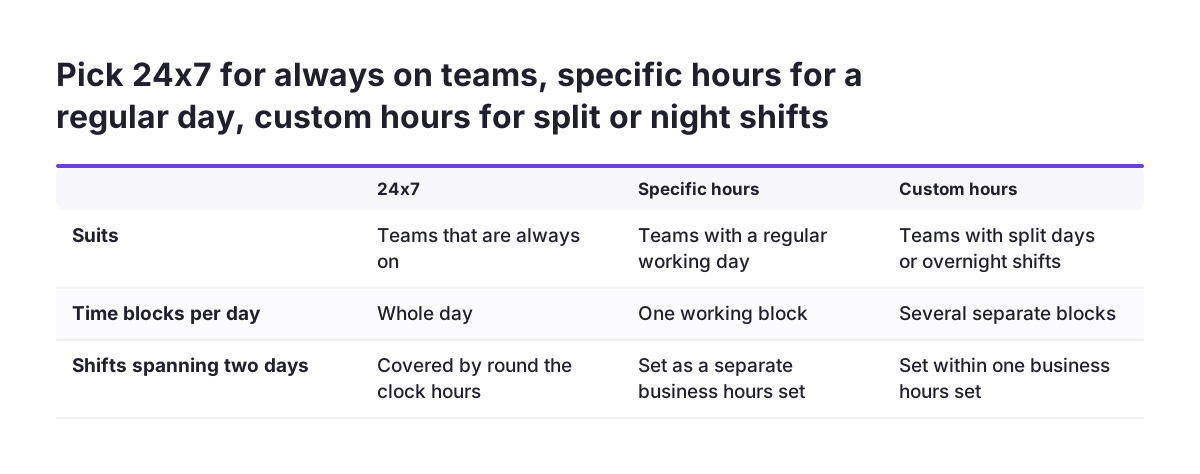
Business hours in Zoho Desk must exist before you build an SLA, because the SLA counts time against them. According to Zoho's help page on defining business hours and holidays, you can set business hours for a particular timezone in three ways:
- 24x7, for teams that are always on.
- Specific hours, for a regular working day.
- Custom hours, which allow several separate time blocks on one day and overnight shifts that span two days.
You can define multiple sets of business hours, so a day team and an after-hours team can each have their own. Business hours do more than drive SLAs. Approvals, workflows and blueprints that are time-bound also use business hours to calculate escalations and due dates.
Holiday lists
A holiday list defines non-working days that act as an exception to business hours. SLAs, blueprints and time-based rules skip those dates when they calculate due dates and trigger escalations. Recurring holidays fall on the same date every year, such as New Year on 1 January and Christmas on 25 December. Year-specific holidays cover the current year or the next two years.
A business hour can take at most two holiday lists. One holiday list can serve more than one business hour. Plan the dates carefully: once a holiday list is created and associated with business hours, its dates cannot be modified. Deleting a business hour later is also slower than it looks, because you must first dissociate the SLAs and time-based rules that use it.
SLA targets set response and resolution times for each ticket condition
An SLA target in Zoho Desk pairs a ticket condition, such as a priority, with a response time and a resolution time. Response time is the time within which the agent should respond once the SLA is executed. Resolution time is the time by which the ticket must be resolved and closed. In Zoho's own video walkthrough, you find the setting under Setup, then Automation, then Service Level Agreement.
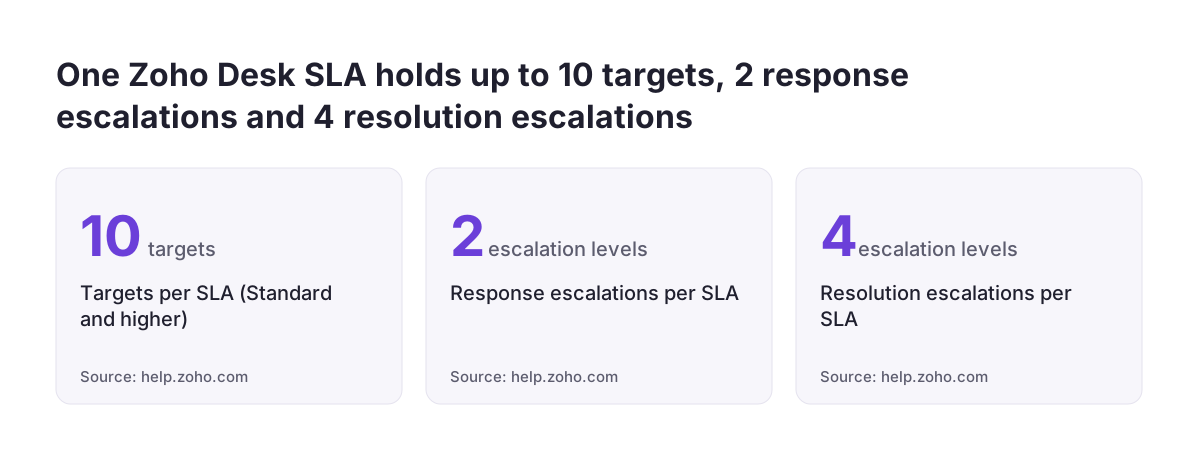
Zoho's SLAs and Escalations page explains that an SLA sets due times based on criteria such as the channel a ticket came from, the customer who raised it and the ticket status. The walkthrough adds targets by priority. Standard, Professional and Enterprise editions allow up to 10 targets per SLA. Free and Express editions do not offer multiple targets.
Three settings that change every due date
- Execution trigger. You can run the SLA every time a new ticket is created. If you select several execution options, the SLA resets for each update.
- Hours type. Each target uses either calendar hours or one of your configured business hours. Business hours make the SLA skip holidays and non-working days.
- Units. When you set a resolution time in days, the due date follows exact business days and ignores working hours.
One more rule matters for resolution targets. Zoho Desk treats a ticket as closed only when the default field "Ticket status" is set to "Closed". A custom status that your team reads as finished does not stop the resolution clock.
Escalation levels decide who is told about an overdue ticket, and when
Escalation levels in a Zoho Desk SLA tell the system whom to alert and what to change when a target is at risk. You can configure up to two response escalations and up to four resolution escalations per SLA. Zoho describes the outcome plainly: when SLA violations arise, Zoho Desk automatically escalates overdue tickets to the relevant manager or agent.
Each escalation level has three parts:
- Timing. The escalation can fire on time, or a set period before the deadline. Zoho's walkthrough uses 10 minutes before as its example.
- Recipient and message. You choose whether the agent or the manager is alerted, and you select the email template sent during the escalation.
- Ticket changes. On escalation, the ticket can be reassigned to another agent and its priority can be changed.
Resolution escalations are configured the same way as response escalations. Because you get four resolution levels, you can step up from the agent to a team lead and then to a manager as a ticket ages.
What escalations cannot do on their own
SLA escalations offer a fixed set of actions. A user on the Zoho community forum reports that SLA escalations only support fairly limited actions, such as changing the owner or priority. The same user describes a workaround. The escalation changes the owner to a specific group, that group assignment triggers a workflow rule, and the workflow runs Deluge. Treat that as a community pattern to test, not a documented feature.
Which SLA a ticket gets: Contract, Account or Global, and the automation order
Zoho Desk picks one SLA per ticket by checking three levels in order. According to Zoho's help page on understanding and setting up SLAs, it looks first for a valid Contract SLA, then for an Account SLA. If neither exists, it applies the Global SLA by default, provided the criteria are met.
Contract SLAs connect through support plans. When you create a contract and associate it with an Account, the support plan and the SLA mapped to it are associated with that Account automatically. A support plan is an extension of customer SLAs that lets you track the agreement and its status, and customers can follow their ticket status in real time.
Edition matters here. Customer-based SLAs are available only in the Professional and Enterprise editions. Contract or SLA management is available only in the Enterprise edition.
The order automations run in
When a ticket is created or updated, Zoho Desk applies automations in a fixed sequence:
- Direct assignment rules
- Workflow rules
- SLA
- Round robin rules (sequential, load balancing, then skill based)
- Blueprint
- Notifications
That sequence has a practical consequence. Workflow rules run before the SLA. So if a workflow sets the ticket priority, that priority is already in place when the SLA chooses its target. Keep priority-setting logic in workflows, and keep the SLA focused on time.
Worked example: one department, two priorities, two escalation levels
This worked example sets up a single support department with office-hours coverage. It uses the settings and target values from Zoho's own walkthrough. Replace the names with your own.
- Create the business hours. Add a set called "Support hours CET" using specific hours, Monday to Friday, in the Central European timezone.
- Create the holiday list. Add a recurring list called "Annual holidays" with 1 January and 25 December, and associate it with "Support hours CET". Check the dates first, because they cannot be edited after association.
- Create the SLA. Go to Setup, Automation, Service Level Agreement. Create "Standard support" in the Support department, triggered every time a new ticket is created.
- Add the targets. For High priority, respond within 2 hours. For Low priority, respond within 8 hours and resolve within 24 hours. For both targets, choose "Support hours CET" rather than calendar hours. Add the High-priority resolution time your customers have been promised.
- Add a response escalation. Fire it 10 minutes before the response deadline, alert the agent and pick a reminder template.
- Add a resolution escalation. Fire it on time, alert the manager, reassign the ticket to a senior agent and raise the priority.
- Save. Zoho Desk then adds a due date to matching tickets automatically.
Expect business-hours targets to stretch across calendar days. Zoho's help page gives an example: with a 50-hour resolution time, a ticket arriving at 10.00 on a Monday falls due the following Monday at 11.00. Explain this to your agents before go-live, so a 24-hour target counted in business hours does not surprise anyone.
Setup checklist for Zoho Desk SLAs, escalations and business hours
This checklist covers the Zoho Desk settings to decide before you activate an SLA. Each row also shows what goes wrong if you skip that setting. Work through the rows in order, because each setting depends on the one above it.
| Setting | Decision to make | Risk if you skip it |
|---|---|---|
| Business hours | 24x7, specific or custom hours, per timezone | SLA clocks run at night and at weekends |
| Holiday lists | Recurring and year-specific dates, at most two lists per business hour | Tickets breach on days nobody works; dates cannot be fixed after association |
| SLA execution trigger | New tickets only, or also updates | Several options reset the SLA on every update |
| Targets and hours type | Priority-based targets, calendar or business hours | One target for every ticket, or due dates that ignore your calendar |
| Response escalations | Up to two levels, timing, recipient, template | Agents learn about a missed response after it is already missed |
| Resolution escalations | Up to four levels, reassignment, priority change | Managers see overdue tickets only when a customer complains |
| Closed status | Agents set "Ticket status" to "Closed" | Resolution clocks keep running on finished tickets |
| SLA-violated view | A custom view for managers and supervisors | Nobody owns the list of breached tickets |
Edition limits apply on top of this checklist. Multiple targets need Standard or higher. Customer-based SLAs need Professional or Enterprise, and contract SLA management needs Enterprise.
Common mistakes that make tickets breach or escalate at the wrong time
Most wrong escalations in Zoho Desk come from a small set of setup choices, not from agents. These are the ones to check first.
Calendar hours on an office-hours team
Calendar hours count every hour of the day. A team working Monday to Friday then sees tickets from Friday evening breach before anyone logs in. Choose the business hours set that matches the team's real shifts.
Resolution targets in days
A resolution time in days follows exact business days and ignores working hours. Use hours when the precise time of day matters.
Several execution options selected
With several execution options, the SLA resets for each update. Due dates then move whenever a ticket changes, and reports lose their meaning.
Tickets never set to Closed
Only the default "Closed" status counts as closed. A custom finished status leaves the resolution clock running and triggers escalations on work that is already done.
Escalations that only fire on time
An escalation that fires exactly at the deadline tells the manager after the breach. Add an earlier level that fires before the deadline.
Holiday lists entered without a check
Holiday dates cannot be modified once the list is associated with business hours, so a wrong date stays in place. At Svennis we build business hours and holiday lists before any SLA exists. Before go-live, we raise a test ticket just before the end of the working week and check that its due date lands where the team expects.
Teams across several EU countries: time zones, national holidays and separate business hours
A support team that serves customers in several EU member states usually needs more than one business hours set in Zoho Desk. Each business hours set belongs to one timezone. Zoho Desk allows multiple sets, so a team in one timezone and a team in another can each have their own.
Holiday lists fit a two-layer pattern. Each business hour accepts at most two holiday lists, and one holiday list can serve several business hours. That allows one shared recurring list for dates every office closes, such as 1 January and 25 December. A second list per business hour then holds that country's own non-working days. Do not copy one country's calendar to every team, because each team should follow the days it actually works.
Departments and SLAs per country
SLAs are department specific. If you run one department per country or language, each department gets its own SLA, and each SLA target points to that team's business hours. If one department serves several countries, its SLA can still use only one business hours set per target. In that case, check that the chosen calendar matches the hours your customer contracts promise.
Year-specific holiday lists cover the current year and the next two years. Put a calendar reminder in place to add the following years before the lists run out. A missing year means SLA clocks run on days the office is closed.
Monitoring breaches after go-live with SLA-violated views and scheduled reports
Monitoring breaches in Zoho Desk starts with a custom view of SLA-violated tickets. Managers and supervisors can create this view, then handle the tickets directly or assign them to another team member. Make one named person responsible for that view each day. Otherwise it becomes a list that everyone can see and nobody works.
Zoho Desk also tracks the number of overdue tickets, SLA breaches and average response times. You can build custom reports on these metrics and have them delivered to your inbox automatically. Send them to the people who set the targets, so they review breach patterns on a regular schedule rather than after a complaint.
What breach patterns tell you
- Breaches clustered after weekends or holidays usually point to calendar hours or a missing holiday date.
- Breaches on one priority suggest the target is unrealistic for current staffing, or a workflow sets that priority too often.
- Breaches on tickets already answered often mean agents use a status other than "Closed".
When you need SLA data next to sales, billing or staffing data, built-in Desk reports reach their limit. Our Zoho Analytics implementation service covers dashboards that combine Desk data with other Zoho apps.
Next steps: set up Zoho Desk SLAs in a test department first
The safest way to set up Zoho Desk SLAs, escalations and business hours is to build them in one department, test them with real tickets, then copy the pattern to the others. Zoho Desk offers a 15-day free trial if you want to rehearse the setup outside your live account.
- Write down each team's real working hours, timezone and non-working days.
- Create the business hours sets and holiday lists, and check every date before you associate a list.
- Build one SLA with priority-based targets on business hours, triggered when a new ticket is created.
- Add one response escalation before the deadline and two resolution escalations, from agent to manager.
- Raise test tickets at awkward times, such as late on the last working day before a holiday, and check every due date.
- Create the SLA-violated view and a scheduled breach report before go-live.
If you are still comparing helpdesks, our comparison of Zoho Desk and Freshdesk for EU teams sets out the differences. When you are ready to configure departments, SLAs and escalation rules with help, our Zoho Desk setup service explains how we work.