
Zoho CRM schedules run a Deluge function at a set time, not on a record change
Zoho CRM schedules let you run a Deluge function on a timer. You write the function, and a schedule starts it at a set time or on a repeat, with no record event involved. Zoho defines Schedules as "automated user-defined actions, which can be performed through Functions either at a particular time or on a recurring basis." If a job should run every morning or every Monday, use a schedule. If it should run when a record changes, use a workflow rule.
A function is your own logic, which Zoho CRM lets you write in Deluge or Java to perform a customised action. A function never runs on its own. Zoho's developer documentation states that you must "associate it with a trigger to tell Zoho CRM when and where to execute it." A schedule is one such trigger.
A workflow rule is the other common trigger. A function on a workflow rule runs asynchronously: Zoho saves the record without waiting for the function to finish. That case has its own companion guide on the Deluge function on a workflow rule.
Try a workflow rule first, and use a schedule only for jobs across many records
A workflow rule without code often does the job a schedule would do. If you need one task on a deal when that deal meets a condition, check what a workflow rule can do before you write any Deluge.
A scheduled function earns its place when the logic depends on many records at once, or on the calendar rather than on a record. Typical cases are these:
- One run that looks at many records together, for example every open deal in the pipeline.
- Logic that depends on the day, such as running on weekdays only.
- Checks against other records before acting, such as never creating a second task while the first one is still open.
- Calculations across records, which COQL supports with the aggregate functions SUM, AVG, COUNT, MIN and MAX.
- A regular sync with another system.
Zoho's help centre names that last case directly: Schedules let you integrate CRM data with your website or intranet, third-party applications or other Zoho apps. A nightly exchange with an ERP, such as an SAP Business One and Zoho CRM integration, is a typical example.
The rule of thumb is simple. If the words "when a record" describe the job, start with a workflow rule. If "every night", "every hour" or "every Monday" describe it, a schedule is the better fit.
Editions, permissions and limits for Zoho CRM schedules, and where Zoho's pages disagree
Zoho CRM schedules need an edition where functions have full access. According to Zoho's limits page, that means Enterprise, CRM Plus, Ultimate or Zoho One. On Standard and Professional, functions are only accessible through Extensions. If you are still choosing a product, our comparison of Zoho Bigin and Zoho CRM sets out where each one stops.
Two permissions matter. To configure schedules, a user needs the Manage Workflow permission. To create and manage functions, a user needs the Manage Extensibility permission, found under Developer Permissions in the profile settings.
Zoho's help centre and its developer documentation do not agree on every limit. The table shows both.
| Limit | Help centre (Schedules) | Developer documentation |
|---|---|---|
| Schedules per organisation | Up to 10, active or inactive | 10 active (Custom Schedules page) |
| Run time per execution | 15 minutes | 5 minutes (Custom Schedules page) |
| Lines of execution per run | 200,000 | 200,000 |
| Manual Run Now | Twice per day | Twice per day |
| Start date | No more than 1 year ahead | No more than 1 year ahead |
The developer Custom Schedules page says: "Function should run within span of 5 mins." Design for the shorter figure and count inactive schedules towards the 10. Lines of execution count what the runtime actually executes, including loops and branches, not the lines in your source code.
Worked example: one task per stale deal, every weekday morning
The worked example in this guide is a scheduled function that nudges deal owners about stale deals. Every weekday morning, it finds open deals that nobody has modified in 14 days. It then gives the owner of each deal one task. It never creates a second task for a deal while the first one is still open.
The function works in three stages, and the order matters:
- It reads the deals that already carry an open task from this job, identified by a fixed subject prefix.
- It reads every stale open deal, page by page, and holds them in a list.
- Only then does it create tasks, skipping any deal from the first stage.
Reading everything first and acting afterwards keeps the run predictable. The query results do not depend on what the same run has just written. It also makes testing easy, because you can switch off the one line that writes and still see the full count.
The duplicate check has a second benefit. If a run fails halfway and you rerun it, deals that already received a task are skipped, because their open task now appears in the first stage.
The field API names in the code, such as Deal_Name, Stage, Modified_Time and What_Id, and the stage names Closed Won and Closed Lost, are examples. Check them in your own org under Setup before you run anything. A renamed stage breaks the filter without any error message.
Step 1: create a Zoho OAuth connection and a function in the Schedule category
The stale deal function reads data through COQL, so it needs a Zoho OAuth connection first. COQL, the CRM Object Query Language, lets you write SQL-like queries that fetch records from Zoho CRM using module and field API names. The function calls the COQL endpoint with the invokeurl task.
Create a Zoho OAuth connection with the read scopes the COQL documentation lists for your query. Give it the link name crm_coql, or change the name in the code to match yours. Zoho's COQL page notes that the ZohoCRM.settings.fields.READ scope is needed to retrieve field metadata. Without it, the API returns an OAUTH_SCOPE_MISMATCH error. The task creation uses zoho.crm.createRecord and does not go through this connection.
Next, create the function on the Functions page and choose the Schedule category. The category is not a label you can ignore. Zoho's developer documentation states that "a Function's category determines which triggers it can be associated with." An Automation function can be attached to workflow rules, Blueprints and Approvals, but not to Schedules.
Name the function stale_deals_nudge, which matches the code in the next section. You connect it to the schedule later, in the schedule's own settings. Zoho is explicit that the association always happens in the trigger's configuration, not inside the function editor.
The complete Deluge function for the stale deal schedule
The Deluge function below reads open tasks, reads stale deals and creates the missing tasks. Paste it into the editor of the Schedule function you created in step 1, replacing whatever the editor shows. Long query strings are split across lines with + so they stay readable.
void schedule.stale_deals_nudge()
{
    apiDomain = "https://www.zohoapis.eu";   // your data centre's API domain
    crmConn = "crm_coql";                     // connection link name
    staleDays = 14;
    orgTimeZone = "Europe/Berlin";            // your time zone, TZ database name
    closedStages = "'Closed Won','Closed Lost'";
    taskPrefix = "Stale deal: ";
    // weekday(): 1 = Sunday ... 7 = Saturday
    dayNo = today.weekday();
    if(dayNo != 1 && dayNo != 7)
    {
        cutoff = now.subDay(staleDays).toString("yyyy-MM-dd'T'HH:mm:ssXXX",orgTimeZone);
        headers = Map();
        headers.put("Content-Type","application/json");
        // 1) deals that already carry an open task from this job
        openTaskDeals = Map();
        tBody = Map();
        tBody.put("select_query","select What_Id from Tasks where (Subject like '"
            + taskPrefix + "%' and Status != 'Completed') limit 0, 2000");
        tResp = invokeurl
        [
            url :apiDomain + "/crm/v8/coql"
            type :POST
            body :tBody.toString()
            headers :headers
            connection :crmConn
        ];
        tRows = tResp.get("data");
        if(tRows != null)
        {
            for each t in tRows
            {
                if(t.get("What_Id") != null)
                {
                    openTaskDeals.put(t.get("What_Id").get("id").toString(),true);
                }
            }
        }
        // 2) read every stale open deal first, then act
        stale = List();
        offsets = {0,200,400,600,800};
        for each off in offsets
        {
            q = "select id, Deal_Name, Stage, Owner, Modified_Time from Deals"
                + " where ((Stage not in (" + closedStages + "))"
                + " and (Modified_Time < '" + cutoff + "'))"
                + " order by Modified_Time asc limit " + off + ", 200";
            qBody = Map();
            qBody.put("select_query",q);
            resp = invokeurl
            [
                url :apiDomain + "/crm/v8/coql"
                type :POST
                body :qBody.toString()
                headers :headers
                connection :crmConn
            ];
            rows = resp.get("data");
            if(rows == null || rows.size() == 0)
            {
                break;
            }
            stale.addAll(rows);
            if(resp.get("info").get("more_records") == false)
            {
                break;
            }
        }
        // 3) one task for the owner of each stale deal that has none yet
        created = 0;
        for each d in stale
        {
            dealId = d.get("id").toString();
            if(!openTaskDeals.containKey(dealId))
            {
                task = Map();
                task.put("Subject",taskPrefix + d.get("Deal_Name"));
                task.put("Owner",d.get("Owner").get("id"));
                task.put("Due_Date",today.toString("yyyy-MM-dd"));
                task.put("What_Id",dealId);
                task.put("$se_module","Deals");
                info zoho.crm.createRecord("Tasks",task);
                created = created + 1;
            }
        }
        info "stale: " + stale.size() + ", tasks created: " + created;
    }
}
Most readers change only the settings at the top of the function:
apiDomainis the API domain of the EU data centre. An org on another data centre uses that data centre's own API domain.crmConnmust match the link name of your connection.staleDayssets how many days without a change make a deal stale.orgTimeZonetakes a TZ database name, so the cutoff time matches your local clock.closedStageslists the stage values that count as closed in your pipeline.taskPrefixis the subject prefix the duplicate check searches for. Change it once, before the first live run, and never afterwards.
The offsets list sets how many pages of 200 deals the function reads. Five offsets cover up to 1,000 stale deals per run.
Step 2: test the stale deal function with task creation switched off
A first test of a scheduled function should read everything and write nothing. In the stale deal code, one line writes to the CRM. Put two slashes in front of it so it reads // info zoho.crm.createRecord("Tasks",task); and run the function from the editor.
The counter still increases with the line switched off. The final info line therefore tells you how many stale deals the queries found and how many tasks the function would create. Compare those numbers with a view of open deals in the CRM. If they are far apart, check the stage names and field API names before going further.
At Svennis we always run a new scheduled function this way first, with the write line commented out, and compare the logged count against a CRM view. A filter that matches far too many records, or none at all, shows up in that count before it creates a single task.
Test on a weekday. The code skips Saturday and Sunday, so a weekend test prints nothing at all, which looks like a failure but is not one.
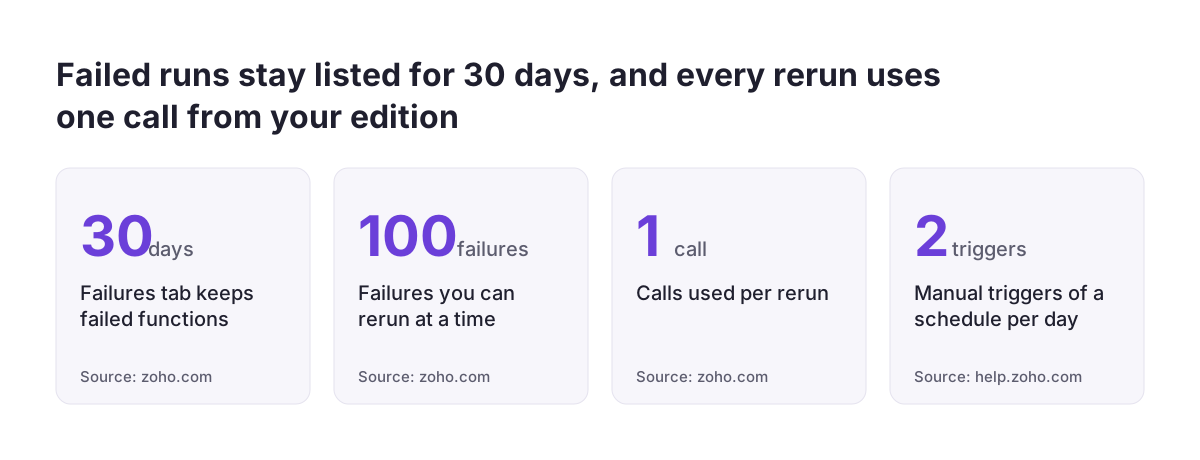
Test from the editor rather than with Run Now on the schedule. Zoho allows a schedule to be triggered manually only twice per day, so save Run Now for the final check. When the counts look right, remove the two slashes and save the function.
Step 3: create the schedule for 08:00 daily under Setup, Automation, Schedules
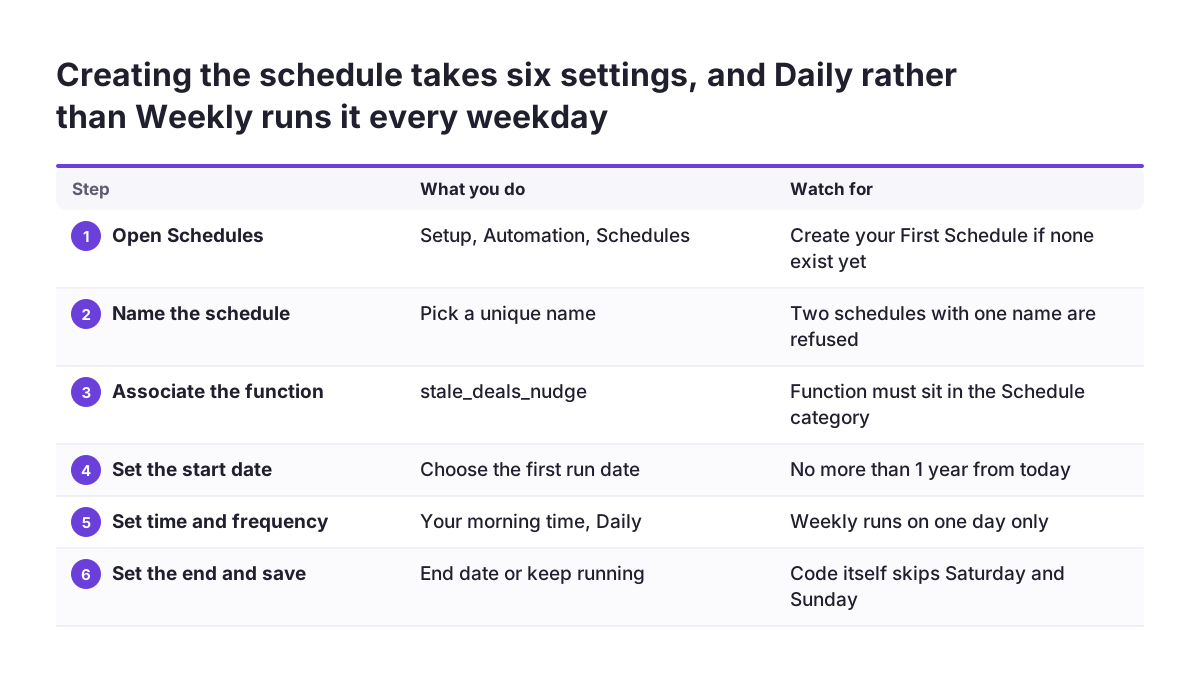
The schedule is where you tell Zoho CRM when to run the stale deal function. Follow these steps in Setup:
- Go to Setup, then Automation, then Schedules.
- Click Create your First Schedule, or create a new one if others exist.
- Give the schedule a name. Zoho does not allow two schedules with the same name.
- Associate the function
stale_deals_nudgefrom the Schedule category. - Set the start date. It must be no more than 1 year from the current date.
- Set the time to 08:00 and the frequency to Daily.
- Set when the schedule should end, or leave it running, and save.
Choose Daily rather than Weekly for a weekday job. A weekly schedule would run on one day only. The code itself skips Saturday and Sunday, so a daily schedule gives you Monday to Friday.
Check the frequency menu in your own org. Zoho's Custom Schedules page lists Once, Daily, Weekly, Monthly or Yearly. The Functions triggers page lists hourly, daily, weekly, monthly or custom intervals. Your menu shows which options your org actually offers.
Paging and API credits: how a scheduled loop multiplies calls
Every page a scheduled function reads is a separate API call, so a loop multiplies the cost of one call. Zoho's COQL overview sets the paging rules. The syntax is LIMIT offset, limit: the first number skips records, the second sets the page size. The default limit is 200 and the maximum is 2,000.
The stale deal query reads 200 deals per page, and the open task query uses the 2,000 maximum. Without an ORDER BY, COQL sorts by record ID in ascending order, so the deal query sets its own order. A COQL query can retrieve at most 100,000 records per unique criteria across calls. Beyond that, Zoho points to the Bulk Read API.
Calls inside loops add up. Zoho's Deluge documentation makes the principle plain: an invokeurl inside a loop that iterates five times consumes five calls, even though the task appears once in the script. A full run of the example makes up to six COQL calls, plus one task creation per stale deal. Each invokeurl call also fails with a socket timeout if the API takes more than 40 seconds to respond.
The function execution has its own budget. Zoho CRM governs functions with credits: every execution consumes one credit from a daily allowance that resets on a 24-hour rolling window. The allowance depends on your edition and number of user licences. On Enterprise and Zoho One the maximum is 400,000 credits, of which 200,000 are free and 200,000 are add-on credits. Separate daily Deluge task quotas apply across all functions in the org together.
Catching failed and silent runs: the Failure tab, Functions failures and reruns
A failed scheduled run appears in two places in Zoho CRM. The schedule's configuration page has a Failure tab, which keeps entries as long as they remain in the CRM audit logs. The Functions page has a Failures tab, which lists functions that were not executed. You can filter it by where the function ran and by its language.
Zoho lists the usual causes of a failure:
- A bug in the function.
- Wrong parameters passed to the function.
- Server issues such as an internal server error.
- A function that took too long to execute.
- An error in a third-party API.
Reruns need care. A rerun uses the old values, meaning the values present when the function first ran. Zoho warns this can cause duplicate actions if another automation changed the record in between. When a function fails several times, fix the code first and rerun only the latest failure. Each rerun costs one call, and a rerun keeps failing until the underlying fault is fixed.
A silent failure is worse, because the run completes and nothing appears in either tab. In the stale deal example, a missing connection scope means a COQL response without data. If the deal query returns nothing, the run creates no tasks. If the task query returns nothing, the duplicate check is empty and every stale deal gets a new task. Read the final info line after the first live runs, and look at the Failure tab and your credit use once a week.
What Zoho CRM schedules mean for a company in the EU
A company in the EU running Zoho CRM schedules has three practical points to settle: the data centre, the time zone and the calendar.
The data centre decides the API domain. The example code calls https://www.zohoapis.eu, the API domain for an org on Zoho's EU data centre. If your org sits on another data centre, the code must use that data centre's own domain, or the COQL calls fail.
The time zone decides what "08:00" and "14 days ago" mean. The code takes a TZ database name, such as Europe/Berlin. Use the name for the country where your sales team works. A company selling in several member states should remember that one schedule runs at one moment. A team one time zone east receives its tasks an hour later on its own clock.
The calendar decides which days count as working days. The code skips Saturday and Sunday only. Public holidays differ between member states, and the function knows none of them. If a holiday nudge would annoy your team, add a list of holiday dates to the day check before going live.
Under the GDPR you should also know which data your automations copy. The example copies the deal name into the task subject and assigns the task to the deal owner, so each task holds the owner's user ID and, if your deal names include a person's name, that name too.
Next steps: from a tested function to a schedule you trust
Moving the stale deal example into production takes a handful of concrete steps, in this order:
- Confirm your edition gives functions full access and that you hold the Manage Workflow and Manage Extensibility permissions.
- Count your existing schedules, active and inactive, against the limit of 10.
- Create the connection, then the function in the Schedule category, and adjust the settings at the top of the code.
- Check every field API name and stage value in Setup.
- Run a weekday test with the write line commented out and compare the count with a CRM view.
- Create the schedule at 08:00 daily and use Run Now once to confirm it.
- Review the Failure tab, the Functions failures and your credit use each week for the first month.
If the job turns out to be one task per record on a single condition, go back to a workflow rule without code. For a function that should react to a record change instead of a timer, the companion guide on the Deluge function on a workflow rule walks through that case.
If you want help designing schedules, integrations and automations across a wider CRM setup, see how we approach Zoho CRM implementation in Europe.
Sources
- Zoho CRM developer docs: Custom Schedules
- Zoho CRM help centre: Schedules
- Zoho CRM developer docs: Functions, Triggers and Associations
- Zoho CRM developer docs: Functions, Platform Limits and Quotas
- Zoho CRM developer docs: Function Failure and Rerun
- Zoho CRM API V8: Query (COQL) overview
- Zoho CRM API V8: Get Records through COQL Query
- Zoho Deluge help: invokeURL task for API calls