Zoho Flow for a small business: start with two or three re-keying workflows
Zoho Flow for a small business works best when you start small. Pick two or three workflows that stop your team typing the same data into two apps, build them, and watch them for a month. Leave the ambitious automation for later. Keep only the flows that save real time.
Zoho Flow is Zoho's integration and workflow automation tool. It connects the apps you already use and acts when something happens in one of them. Zoho's Zoho Flow solutions page says it helps whether you "want to integrate a few apps or build complex workflows across ecosystems and departments". A small business should begin at the "few apps" end. You can start on the free option that the same page offers.
This guide covers the building blocks first: triggers, actions and the apps Flow can reach. It then shows you how to find the re-keying worth removing and compares four starter workflows. A worked example follows, built from one of Zoho's own published flows. The guide closes with what to watch when a flow fails, what GDPR means for your flows, and when a flow has grown enough to justify a custom integration.
One principle runs through all of it. A flow should replace a manual step that someone already does every week. If nobody does the task by hand today, automating it rarely pays back the time you spend maintaining it.
Triggers and actions: how every Zoho Flow workflow is built
Every Zoho Flow workflow has one trigger and one or more actions. Zoho's own app pages put it simply: "A trigger kickstarts the flow", and "Actions are the automated tasks" that follow. A trigger is an event in one app, such as a new record. An action is something Flow then does in the same app or another one.
The BlueFolder listing in the Zoho Flow BlueFolder integration page shows how concrete these blocks are. BlueFolder is a field service management tool for small and midsize businesses. Its Flow triggers are shown below:
- Appointment added, when a new appointment is created
- Service request added, when a new service request is logged
- Item, customer and contract added, for new records of each type
The matching actions include creating a customer, creating an appointment, adding or updating a service request, and fetching a customer's details by ID. One listed flow joins a trigger to an action in another product. It "will create a new task on your Google Calendar when a new service request is created in BlueFolder."
Two other building blocks matter once you go past the basics. A webhook trigger is a web address that another system calls to send data to Flow. According to Zoho, it accepts "JSON, form data, and plain text". A custom function is a short script inside a flow.
Zoho says custom functions can "format data, call web APIs, send emails, and more". Most first flows need neither webhooks nor custom functions.
Which apps Zoho Flow connects, inside and outside Zoho
Zoho Flow connects Zoho's own apps with more than 1,000 other business apps. The Zoho Flow app directory describes "1000+ apps ready to connect in countless ways". The solutions page names Gmail, Calendar and Sheets from Google, plus WordPress plugins. It also covers automating workflows "across Zoho One and beyond".
You can filter the directory by Zoho, New, Popular, Premium and On-prem. The Premium label matters when you plan. Microsoft Dynamics 365 Business Central, Microsoft Dynamics 365 CRM and NetSuite are all listed as Premium integrations. Check the label on every app you intend to use before you design a flow around it.
The directory treats Zoho and non-Zoho tools alike. Zendesk and Zoho Desk, for example, both sit under the Customer Support and Helpdesk categories. A small business that runs a mixed stack can therefore start with Flow without moving everything into Zoho first.
If an app you rely on is missing, you have two routes. Zoho invites you to "Request an app" from the directory. Meanwhile, if the missing app can send data to a web address, a webhook trigger can receive that data in JSON, form data or plain text. Zoho's own example of this route is an enquiry system whose entries are "added and segmented in Zoho CRM through a webhook trigger in Zoho Flow."
Finding the re-keying worth automating first
Re-keying is typing data by hand into one app when it already exists in another. It is the best first target for Zoho Flow in a small business. The work is repetitive, the rule is clear, and mistakes are easy to spot. Each copied field also creates a chance for a typo that nobody notices until a customer complains.
The simplest way to find it is to ask people, not to study systems. At Svennis we ask each person to list everything they copy from one screen to another during a normal week. We then build the first flow for the task that appears on the most lists, because that flow gets used and trusted straight away.
Zoho's own examples show where re-keying usually hides. In a Zoho Flow post on daily tasks, sessions booked in Zoho Bookings update Zoho CRM automatically, and follow-up emails go out through Outlook. If appointments drive your business, our page on setting up Zoho Bookings covers the scheduling side. Another example in the same post sends new subscriptions in Zoho Billing to Zoho CRM, with announcements sent through Zoho Campaigns. Our Zoho Billing implementation page explains the subscription setup that such a flow reads from.
Leave out tasks that need judgement. A flow cannot decide whether a complaint deserves a refund. It can, however, make sure the complaint reaches the right person within seconds.
Four starter workflows for a small business, compared
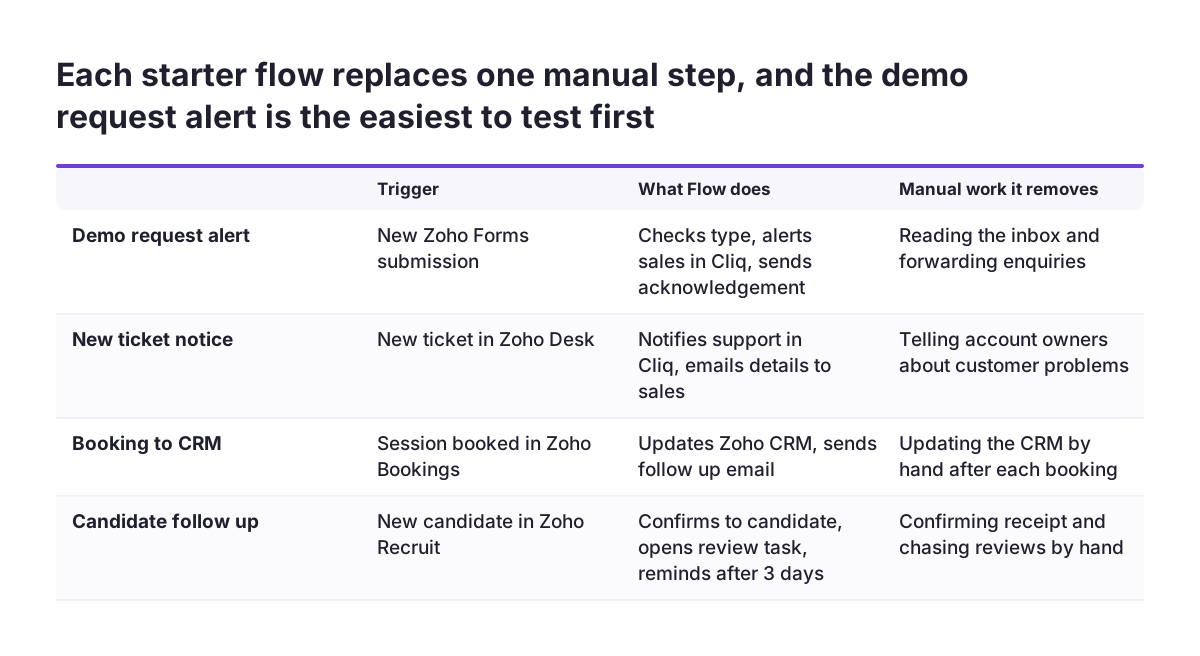
The four workflows below come from Zoho's published examples. Each one removes a manual step that small teams commonly repeat. The table shows the trigger, the actions Flow takes and the manual work each one replaces.
| Workflow | Trigger | Actions | Manual work it removes |
|---|---|---|---|
| Demo request alert | New submission in Zoho Forms | Check whether it is a demo request, alert sales in Zoho Cliq, send an acknowledgement email | Reading the inbox and forwarding enquiries |
| New ticket notice | New ticket in Zoho Desk | Notify the support channel in Zoho Cliq, email the ticket details to sales | Telling account owners about customer problems |
| Booking to CRM | Session booked in Zoho Bookings | Update Zoho CRM, send a follow-up email through Outlook | Copying appointments into customer records |
| Candidate intake | New candidate in Zoho Recruit | Email the candidate, create a review task in Zoho Projects, remind the recruiter after 3 days without an update | Confirmation emails and chasing reviews |
These rows also match the areas on Zoho's solutions page. There, Flow covers ticket routing, escalations and follow-ups for customer service, and lead management and task assignment for sales.
Before you build any of them, check whether a flow is needed at all. When both the trigger and the action sit inside Zoho CRM, the CRM's own automation may be enough. Our guide to Zoho CRM workflows and Blueprint explains that choice. Zoho Flow earns its place when data has to cross from one app to another.
Worked example: a Zoho Forms demo request routed to sales
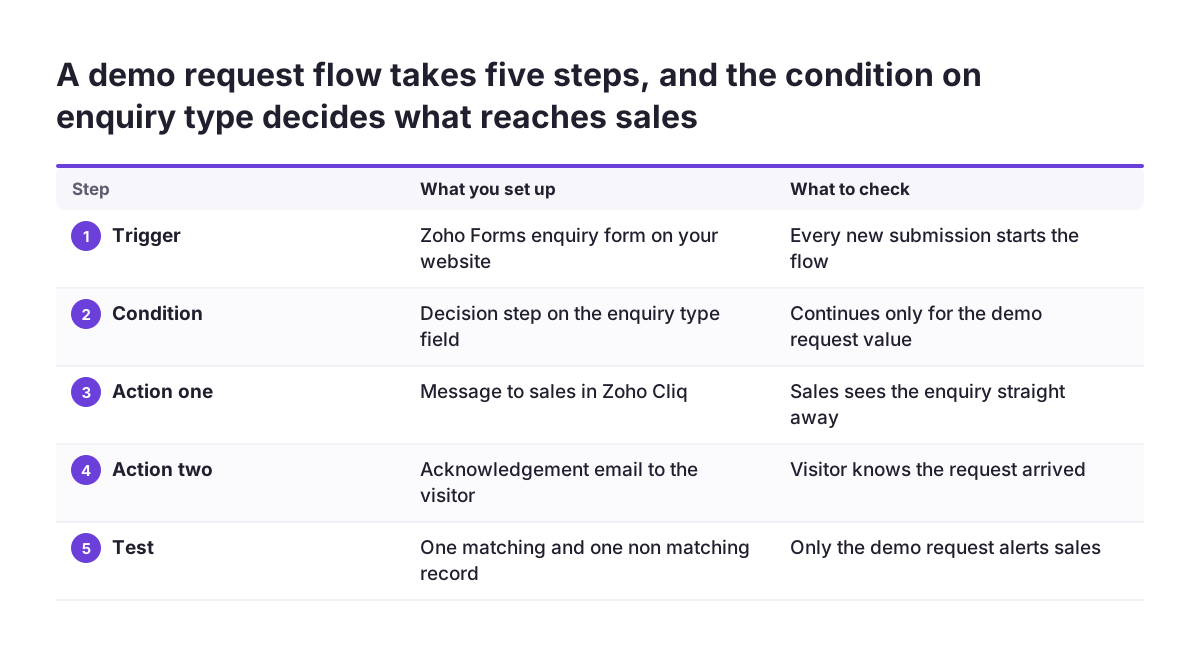
The demo request flow is a good first build because each step is visible and easy to test. Zoho describes it this way: "When a form gets submitted via Zoho Forms, Zoho Flow checks if it's a demo request. If so, it instantly alerts your sales team in Zoho Cliq and sends an acknowledgement email". Small businesses are one of the audiences Zoho Forms lists on its Zoho Forms solutions page. Building the flow takes five steps:
- Trigger: choose Zoho Forms and the enquiry form on your website. Every new submission starts the flow.
- Condition: add a decision step that checks the field where visitors choose the enquiry type. Continue only when the value is the demo request option.
- Action one: post a message to your sales channel in Zoho Cliq. Map in the name, company and preferred date so nobody needs to open the form.
- Action two: send the acknowledgement email to the address from the form. Say when the visitor will hear back.
- Optional action: add the person to Zoho CRM. A related Zoho example also backs each submission up in Zoho Sheet.
Test the flow with two submissions before you switch it on for real visitors. Send one marked as a demo request and one that is not. The first should produce a Cliq message and an email. The second should produce neither. If both behave correctly, the flow has replaced the daily habit of reading the inbox and forwarding enquiries by hand.
When a Zoho flow fails: what to watch and who checks it
A Zoho flow fails quietly unless someone is responsible for it. The data simply stops arriving. Your team may notice days later, when a customer asks why nobody replied. Give every flow a named owner before it goes live. That person checks the flow's run history on a fixed day each week.
Failures usually come from changes in the connected apps, not from Flow itself. Watch for these common causes:
- A field renamed or deleted in the source app, so the mapping no longer finds it
- A connection set up under one employee's account, which stops working when that person leaves
- A dropdown value changed, so a condition such as "demo request" never matches
- A required field in the target app that the flow does not fill
Two habits catch most of these early. First, connect apps through a shared admin account rather than a personal one. Second, write a one-line description of each flow: its trigger, its actions and its owner. When a colleague changes a form or a CRM layout, they can see which flows depend on it.
Repeat the two test submissions from your original build after any change to a connected app. It takes a few minutes and confirms that the flow still behaves as designed.
What Zoho Flow means for a small business in the EU
For a small business in the EU, each Zoho flow is a route that copies personal data from one system into another. Under GDPR, your company remains responsible for that data wherever the flow puts it. A demo request flow, for example, copies a name and an email address into Zoho Cliq and perhaps Zoho CRM. You should be able to say where those copies live and why.
Three practical habits keep flows easy to account for:
- Map only the fields the target app needs, rather than the whole submission.
- Keep the flow list from your failure checks, with every app each flow reads from and writes to.
- Be careful with sensitive forms. Zoho Forms lists healthcare uses such as consent forms and medical records, and that content should not land in a chat channel.
Member states add their own rules on top of GDPR in some areas, such as employee data and marketing consent. Do not assume that a rule from one country applies in all of them. If a flow touches candidates, staff or marketing lists, check the national requirements where you operate before you go live.
Language is the other EU factor. If you serve customers in several languages, build the acknowledgement email for each language your forms collect.
When a flow has outgrown Zoho Flow and needs a custom integration
A flow has outgrown Zoho Flow when keeping it working costs more effort than the re-keying it replaced. Most small businesses never reach that point with their first flows. The signs appear later, as flows gain branches, scripts and dependencies. The table below compares three levels of build across the questions that decide the move.
| Question | Zoho Flow as built | Flow with custom functions or webhooks | Custom integration |
|---|---|---|---|
| How many apps and steps? | Two or three apps, a handful of steps | Several apps, some reformatting of data | Many systems, chained processes |
| How complex is the logic? | One or two simple conditions | Scripts that format data or call web APIs | Logic that needs its own design and documentation |
| Does a ready connector exist? | Yes, in the app directory | No, but the app can send data to a webhook | No connector and no clean way to send data |
| What happens if a run fails? | Someone fixes it by hand | Someone fixes it, with more to check | Errors must be caught and retried automatically |
| Who maintains it? | A trained business user | Someone who can read the scripts | A developer or partner |
A useful test is the failure row. If a single missed run would cost you an order or an invoice, the flow is business-critical. Your stack may also have grown, for example with accounting in Zoho Books feeding other systems. In either case, plan a proper integration rather than adding more steps.
Next steps: list your re-keying, build one flow, review after a month
The next step is a short list, not a platform decision. Follow this order:
- Ask each person to note what they copy between apps during one normal week.
- Pick the two or three tasks that appear most often. Check whether each one crosses from one app to another.
- Look up every app in the Zoho Flow directory and note any marked Premium.
- Build the most common task first on the free option. Test it with one matching and one non-matching record.
- Name an owner, write the one-line description and set a weekly check.
- After a month, keep the flows that saved time, delete the rest and build the next one.
Revisit the comparison table whenever a flow gains a new branch or a script. That is the moment to ask whether it should stay in Zoho Flow. If you want to see how Flow fits with the rest of your Zoho apps, our Zoho Flow overview covers what it connects and how we approach setup.