
Query table or formula in Zoho Analytics: the short answer
The rule for Zoho Analytics query tables and formulas, with SQL, fits in three lines. Each tool computes at a different level:
- A formula column computes a value for each row and saves it as a new column in the table.
- An aggregate formula computes one numeric value for each record or group that a report shows.
- A query table builds a new data view from one or more tables with a SQL SELECT query.
A query table is a Zoho Analytics view that combines data from one or more tables in a workspace using standard SQL SELECT queries. Use one only when a report needs data reshaped, filtered, grouped or combined in a way that a lookup and a formula cannot give you. Everything else belongs in a formula.
This post is the second of three on Zoho Analytics. The first, "Zoho Analytics on Zoho CRM data: a first dashboard your managers will use", covers building the dashboard itself. A third will follow. This one covers the calculation layer underneath: when to write SQL, when to write a formula, and the code for both.
The examples use Zoho CRM sales data: deals, accounts, stages and closing dates. The same reasoning applies to any data you load into a workspace.
Four ways to calculate a metric in Zoho Analytics
Zoho Analytics gives you three types of formula and one SQL tool for defining metrics. Zoho's help page on creating metrics with formulas names the three formula types: Formula Column, Aggregate Formula and Report Formula. The query table sits alongside them.
Formula column
A formula column creates a new computed column in your data table from a formula expression. The result is saved as a new column, and you can use it in any report like any other column. You can combine logical, statistical, date and string functions with the operators +, -, / and *.
Aggregate formula
An aggregate formula always returns a numeric value. Zoho computes it for each data record or group in the report where you use it. Unlike a formula column, it is not added to the base table. It stays associated with the table you created it on, and you can use it in charts, pivot tables and summary views.
Report formula
A report formula uses basic arithmetic operators and a nested IF condition over the columns in one report. It works only within the report where you created it, not in other reports.
Query table
A query table runs a SQL SELECT over one or more workspace tables and saves the result as a new view. You can build further reports on it, and even build another query table on top of it.
Decision table: which calculation tool fits which job
Pick the tool by asking at what level the number is computed and where you need to reuse it. The table below compares the four options on the points that decide most cases, based on Zoho's help pages for formulas and query tables.
| Tool | Computes | Where the result lives | Reusable in other reports | Typical use |
|---|---|---|---|---|
| Formula column | One value per row | New column in the table | Yes | Closing year, quarter label, cleaned text |
| Aggregate formula | One number per record or group shown | Associated with the table, not a column | Yes | Won amount, win rate, year to date totals |
| Report formula | Arithmetic over report columns | Inside one report | No | A one-off ratio in a single chart |
| Query table | A new set of rows from SQL | New view in the workspace | Yes | Grouped, filtered or combined data a lookup cannot give |
Two rules of thumb follow from the table. If a number must be recalculated whenever the report's grouping or filters change, it is an aggregate formula, not a formula column. If you only need two tables side by side, you need a lookup, not a query table.
Zoho Analytics joins tables in two ways: auto-join and query table. Auto-join joins tables automatically when you create a report, provided a lookup column connects them. Zoho's page on joining tables explains how to define lookups. Save query tables for work that SQL genuinely does better.
Query table SQL rules: dialects, joins, CTEs and nesting limits
A query table accepts SELECT statements only, and Zoho documents firm limits on what they may contain. Knowing the limits before you write saves you a rejected query. The rules below come from Zoho's Query Tables help page and its supported SQL reference.
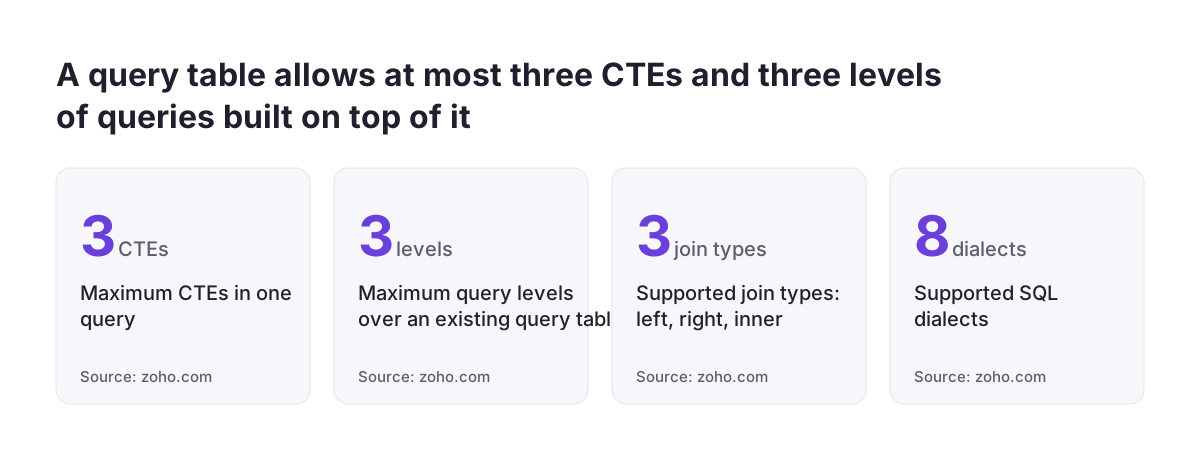
- Dialects: ANSI, Oracle, SQL Server, IBM DB2, MySQL, Sybase, Informix and PostgreSQL. Zoho recommends ANSI for better coverage and support.
- Joins: left, right and inner joins only, each with an ON condition.
- Subqueries: no correlated subqueries, meaning subqueries inside the WHERE clause.
- CTEs: a common table expression is a temporary result set you name inside a query and reference again. A query may hold up to three, all non-recursive.
- CTE restrictions: no PIVOT or UNPIVOT with CTEs, no subqueries inside CTEs and no CTEs inside subqueries.
- Nesting: at most three levels of queries over an existing query table.
- UNION: Zoho recommends UNION ALL, because plain UNION silently applies a distinct operation.
Some MySQL date functions are not supported. DATE_ADD, DATE_SUB, TIMESTAMPADD and TIMESTAMPDIFF all fail, as does SUBDATE with the INTERVAL syntax. In ADDDATE, pass the interval as a plain number, not as an INTERVAL expression.
In Zoho's own examples, table and column names sit in double quotes, as in "Deals"."Amount". Keep that habit. Many CRM column names contain spaces, such as "Closing Date", and the quotes keep them intact.
Worked example: won revenue per industry per quarter as a query table
Won revenue per industry per quarter is a good query table because it filters, joins and groups in one step. A lookup alone cannot filter to won deals and group them by a field from another table. The query below reads the Deals and Accounts tables that the Zoho CRM connector brings into a workspace.
Open a new query table in the workspace that holds your CRM data and paste this query into its SQL editor:
SELECT "Accounts"."Industry" AS "Industry",
       YEAR("Deals"."Closing Date") AS "Year",
       QUARTER("Deals"."Closing Date") AS "Quarter",
       SUM("Deals"."Amount") AS "Won Revenue"
FROM "Deals"
INNER JOIN "Accounts" ON "Deals"."Account Name" = "Accounts"."Id"
WHERE "Deals"."Stage" = 'Closed Won'
GROUP BY "Accounts"."Industry",
         YEAR("Deals"."Closing Date"),
         QUARTER("Deals"."Closing Date")
The query returns one row per industry, year and quarter, with the summed amount of won deals. Save it, then build a chart or pivot table on the new view like any other table.
Four lines are the ones you are most likely to change:
- 'Closed Won': replace it with your own won stage name, spelled exactly as in your CRM.
- "Industry": swap in any account field you group by, such as a region field.
- The ON condition: adjust it if your account column holds a name rather than an id.
- INNER JOIN: an inner join drops deals with no account. Use LEFT JOIN if you want those deals shown with an empty industry.
Check Deals or Potentials, and the account column, before you run the join
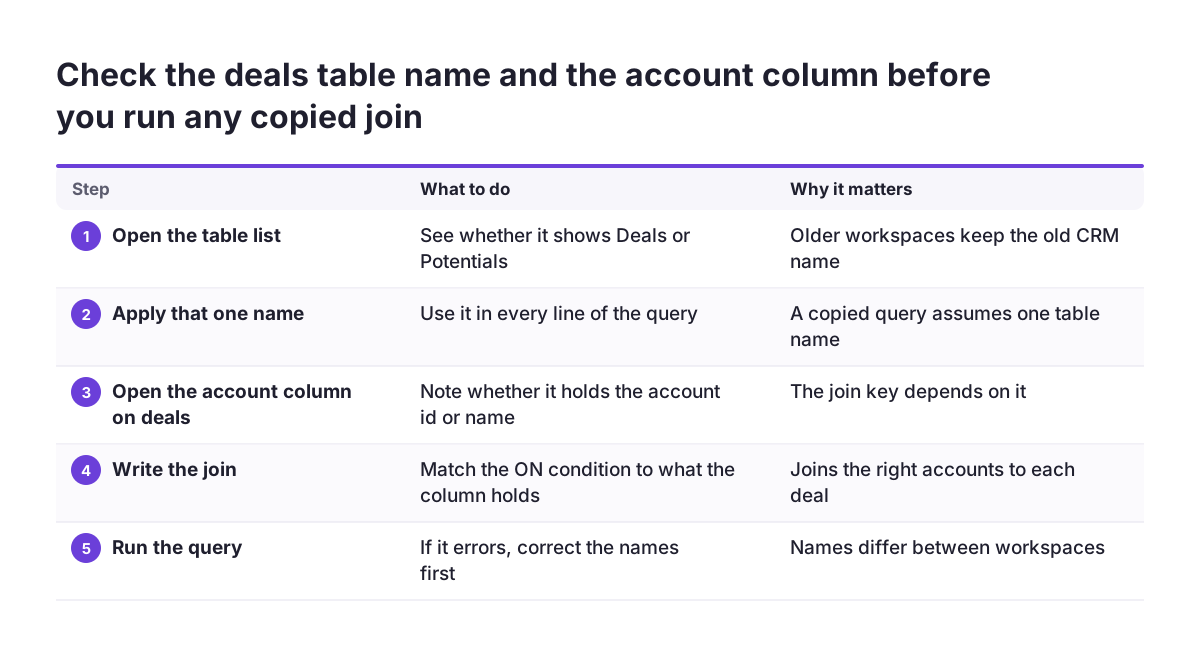
Table and column names differ between workspaces, so check them before you run any copied query. Zoho's own documented won amount formula names the table "Potentials", the old API name of Deals in Zoho CRM. Zoho's Solution for Zoho CRM Advanced Analytics uses the old name too, in query tables such as Potential Count by Month and Potential Conversion by Month.
Two checks come first:
- Open the table list in your workspace and see whether it shows Deals or Potentials. Use whichever name appears, in every line of the query.
- Open the deals table and look at the account column. Note whether it holds the account's id or the account's name, and write the join to match.
If the query errors, fix the names first. A wrong table name, a missing space in "Closing Date" or a join on the wrong column accounts for most first-run failures. Adjust the SQL logic only after the names match your workspace exactly.
At Svennis we open the source tables and copy the exact table and column names into the query before writing a single join. Names copied from an example are where a first query table usually breaks, and checking them first takes minutes.
The same check applies to formulas. An aggregate formula that references "Potentials" in a workspace that only has "Deals" will not save.
Aggregate formulas for won amount and win rate
Won amount and win rate belong in aggregate formulas because each is one number that must follow the report's grouping. An aggregate formula recomputes for every group a report shows. Group by owner and you get each owner's figure; filter to one quarter and the figure follows. Zoho's aggregate functions reference documents functions such as sumif, countif, count, distinctcount, ytd, qtd and mtd.
This is Zoho's own documented example for won amount. Add it as an aggregate formula on the deals table:
sumif("Potentials"."Stage" = 'Closed Won', "Potentials"."Amount")Replace "Potentials" with "Deals" if that is what your workspace shows, and 'Closed Won' with your won stage name.
The win rate formula below uses the same documented functions. It divides won deals by all closed deals and multiplies by 100. Add it as a second aggregate formula on the same table:
countif("Deals"."Stage" = 'Closed Won')
  / countif("Deals"."Stage" in ('Closed Won','Closed Lost')) * 100
Change the two stage names inside the brackets if your pipeline uses other labels for won and lost. Leave open deals out of the denominator, or the rate will drop every time sales adds a new opportunity.
For year to date, quarter to date and month to date totals, use ytd, qtd and mtd. Their fiscal_start_Month parameter takes a month number from 1 to 12. The parameter is mandatory only if you set a different fiscal start month in the workspace.
Formula columns for year and quarter, and how they differ from SQL QUARTER
A formula column is the right tool when every row needs its own derived value, such as the closing year of each deal. The result becomes a normal column you can group, filter and sort on in any report. Zoho documents formula column inbuilt functions in date, duration, numeric, string, logical, geo spatial and general groups.
These two documented date functions each go into their own formula column on the deals table. Add one column named Closing Year with the first line and one named Closing Quarter with the second:
year("Deals"."Closing Date")
quarter("Deals"."Closing Date")
Change "Deals" and "Closing Date" if your workspace uses other names.
The quarter mismatch
The two quarter functions return different values. In a query table's SQL, QUARTER returns a number from 1 to 4. In a formula column, quarter() returns a label such as Q3. A report that mixes the two will not line up, because 3 and Q3 are different values to a filter or a join.
Decide on one form per workspace. If your dashboards read from query tables, keep the number. If they read from base tables with formula columns, keep the label. Where you must combine both, convert one to match the other before you join or filter on it.
Modelling mistakes that break client reports
Most broken Zoho Analytics reports come from a handful of modelling mistakes, not from bad SQL. Each one below follows from how Zoho documents query tables, lookups and formulas:
- A query table that only joins. If the SQL does nothing but join two tables, define a lookup column and let auto-join do the work. Lookups need at least one common column, and Zoho suggests them from column names and data types.
- Per-row columns for ratios. A win rate in a formula column gives a value per deal, which means nothing. Ratios over groups belong in aggregate formulas.
- Report formulas you need twice. A report formula works only in its own report. If a second report needs it, rebuild it as an aggregate formula.
- Deep chains of query tables. Zoho allows three levels over an existing query table. Plan the chain so you never need a fourth.
- UNION instead of UNION ALL. Plain UNION removes duplicate rows silently, so two identical invoices become one.
- Deleting columns other views use. Zoho runs a dependency check and aborts a column deletion when dependent views exist. Find the dependents before you restructure.
- Two lookup paths between the same tables. A report can use only one configured path between two tables, so model one clear route.
Joins also default to left joins in auto-join. You can switch between left and right join through the View Relationships icon in the chart designer, if a report needs the parent table's full list.
What this means for a company in the EU: fiscal years, time zones, weeks and accented names
Companies across the EU hit four settings that Zoho's defaults do not match everywhere. None is a legal rule, but each quietly changes the numbers in a report.
Fiscal year
If your fiscal year does not start in January, set the fiscal start month in the workspace. Then pass fiscal_start_Month to ytd, qtd and mtd, where it becomes mandatory. Otherwise quarter to date totals follow the calendar, not your books.
Time zones
Date relative functions such as today(), now() and modified_time() always return GMT. Zoho advises convert_tz() with the right offset to match local time. Pass a time zone identifier rather than an abbreviation or fixed offset, because only identifiers handle daylight saving automatically.
Weeks and weekends
In query table SQL, WEEK assumes weeks start on Sunday. If your company counts weeks from Monday, pass a MODE as the second argument. In formula columns, business_days and business_hours treat Saturday and Sunday as the weekend unless you provide other weekend days.
Names with accents
European customer names often contain multibyte characters such as é, ø or ł. In SQL, LENGTH counts bytes, so those characters count more than once. Use CHAR_LENGTH when you need the number of characters.
Next steps: build one query table and two formulas on your own data
The quickest way to settle the query table or formula question is to build one of each on your own data. The order below takes an afternoon. It assumes a workspace that already syncs Zoho CRM:
- Write down the exact names of the deals and accounts tables and their key columns.
- Check whether the account column on deals holds the id or the name.
- Add the Closing Year and Closing Quarter formula columns. Confirm they fill for every row.
- Add the won amount and win rate aggregate formulas. Group a pivot table by owner to see them recompute.
- Paste the won revenue query into a new query table and fix the names. Chart the result by industry.
- Pick one quarter format, number or label, for every report.
Your invoice data may come from Zoho Books accounting or from subscriptions in Zoho Billing. Apply the same checks to those tables before you join them to sales data.
Your model may grow beyond a few query tables. You may also want the structure reviewed before managers rely on it. Our Zoho Analytics implementation and consulting page describes how we set up and check workspaces.
Sources
- Joining Tables, Zoho Analytics Help
- Creating Your Own Metrics with Formulas, Zoho Analytics Help
- Aggregate Functions, Zoho Analytics Help
- Formula Column In-built Functions, Zoho Analytics Help
- Zoho CRM Solution Queries, Zoho Analytics Help
- Supported SQL, Zoho Analytics CloudSQL
- Query Tables, Zoho Analytics Help