
Zoho CRM quotes, products and price books: build them in this order
Zoho CRM quotes, products and price books give correct prices when you build them in a fixed order. Start with one clean product record per item, holding its unit price and tax. Next, create one price book for each customer segment or contract, holding the agreed list prices. Finally, build quotes that pull those prices instead of having reps type them in. If you follow that order, most manual overrides disappear.
The order matters because each layer depends on the one before it. Zoho CRM includes five native inventory modules: Products, Quotes, Sales Orders, Purchase Orders and Invoices, as listed on Zoho's Configure, Price, Quote page for Zoho CRM. Quotes read from Products, and price books sit between the two.
Plan for one gap in Zoho CRM from day one. Zoho community users report that the rep chooses a price book for each quote line. A wrong choice on a single line therefore gives the customer a wrong price. This guide shows how to structure your data so that choice is hard to get wrong. It also shows where native price books stop and another tool takes over.
Products, price books and quotes: what each record holds
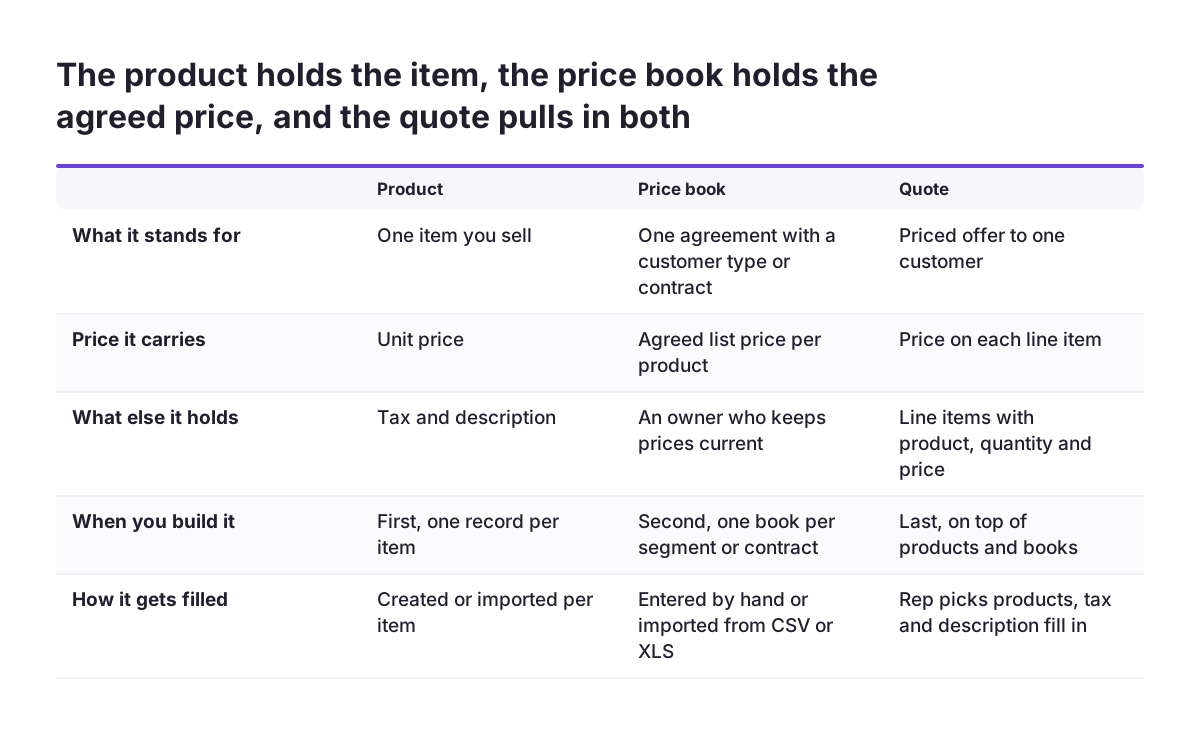
Pricing in Zoho CRM is carried by three record types. Each one has a single job:
- A product is the catalogue record for one item you sell. It holds the item's unit price, its tax and its description.
- A price book is a list of agreed prices for a set of products. According to Zoho's help page on price books, it lets you sell products at different prices based on the agreement terms with a particular type of customer.
- A quote is the priced offer you send to a customer. You store it in Zoho CRM by filling in the quote details form.
A line item is one row on a quote: one product, a quantity and its price. The line item is where the three records meet.
Zoho's help centre names two key prices in a price book, and one of them is the unit price from the product. The other is the list price, the figure that customers on that agreement pay. Community users describe this list price as driven by the agreed price book. A price book therefore lets you sell the same product at a different price to each customer type.
Price books come with Zoho-defined standard fields. One of these is the Price Book Owner, a lookup field that assigns the book to a user. You can create price books by filling in the form by hand or by importing CSV and XLS files from other sources.
Product records first: consistent names, unit prices and taxes
Clean product records are the foundation of correct quotes, because a quote can only use what the product catalogue holds. Zoho's help page on creating quotes states that you can add products to a quote only by choosing them from the Product Name drop-down. You cannot add them in any other way. If a product is missing, the rep cannot quote it properly.
Product names deserve a convention. The same help page notes that words separated by a space affect search results in the quote's product search. Names that start with a stable code, followed by a plain description, are easier to find than free-text names typed differently by each person. Agree the convention before you create or import the catalogue.
Tax and description belong on the product record, not on the quote. When a rep picks a line item, Zoho CRM fills in the taxes, the price book discounts and the product description automatically. Any error on the product therefore repeats on every quote that uses it. Fix it once in the catalogue and every new quote inherits the correction.
Keep exactly one record per item. Two records for the same item split the price books between them, and reps pick whichever one appears first. If you are bringing a catalogue from another system, clean it before the import. Our guide to migrating to Zoho CRM without losing your sales history covers how to prepare data for the move.
One price book per customer segment or per contract
A price book should match one commercial agreement. In a Zoho community thread, a user describes the common pattern: one price book for each customer level, or one for each contract with a specific company. That pattern keeps the link between a price and the agreement behind it clear.
Three design choices make price books usable on a busy sales team:
- Clear names. The rep sees the price book name on every quote line, so the name has to say which customers it serves.
- A named owner. The Price Book Owner field assigns each book to a user, who becomes responsible for keeping its prices current.
- A small number of books. Every extra book is one more option in the drop-down and one more chance to pick the wrong one.
At Svennis we name each price book after the customer segment it serves and give ownership to someone in sales management rather than to a rep. That way, the person who agreed the terms is the person who maintains the prices. It also means a rep reading the list on a quote line can tell at once which book belongs to which customer.
Contract price books need an end date in your process, even if you track it outside the record. A contract book that nobody retires stays in the drop-down after the agreement has lapsed. Reps can then keep quoting old terms without noticing. Review contract books whenever the agreement behind them is renewed or ends.
Worked example: a manufacturer with three price books
A manufacturer that sells through three channels shows how the setup works in practice. In one Zoho community post, a manufacturer in its first 30 or more days on Zoho CRM had created three price books. The three books served distribution, installers and end customers. Its quotes typically contain 10 to 15 different items.
Built in the order this guide recommends, the setup looks like this:
- Products. Each item gets one product record with its unit price, tax and description, named by a consistent convention.
- Price books. Three books are created, named Distribution, Installers and End customers. Each one holds the agreed list price for every product sold to that channel, and each has an owner.
- Account segment. Each account record shows which channel the customer belongs to, so the rep knows which book applies before opening a quote.
- Quote. For an installer account, the rep adds each product from the drop-down and selects the Installers book on every line.
The weak point is step 4. The poster reported that the price book has to be looked up separately for each item added to a quote. On a quote with 15 lines, that means 15 separate choices. The poster warned that customers could easily get the wrong price for one or more items. The next sections cover how to reduce that risk.
Building a quote in Zoho CRM: what fills in automatically
Zoho CRM fills in most of a quote line once the rep picks the product. According to Zoho's quote help page, choosing a line item brings in its taxes, price book discounts and product description automatically. Editing a value then changes any related values automatically. For example, a change in quantity updates the totals that depend on it.
The quote screen also helps with long offers in several ways:
- A single quote holds up to 200 line items.
- You can reorder lines by dragging and dropping them.
- You can clone a quote from the Quote Details page through the More icon and Clone.
Cloning is useful for repeat customers. A rep can start from the last accepted quote for the same account rather than rebuilding it line by line. Check every cloned line against the current price book, though. A clone copies the old offer, and the agreed prices may have changed since it was sent.
What Zoho CRM does not fill in for the rep is the choice of price book on each line. Everything else on the line follows from the product and the selected book. The quality of a quote therefore rests on two things: clean product records and the correct choice of price book. The rest of the calculation is automatic.
Stopping the wrong price on a quote line
The wrong price usually enters a quote through the price book choice or a typed-over list price. Zoho community users have asked for fixes to both. One request asks to link a price book to a customer, so that all pricing and quoting for that customer uses it automatically. Another asks to make the list price read-only when an agreed price book drives it.
Until those requests are met in your edition, combine process controls with checks:
- Segment on the account. Show the customer's channel or contract on the account record, so the right book is visible before the quote starts.
- Approval for exceptions. An approval process is a Zoho CRM automation tool for automating approvals. Approvers handle requests in My Jobs, a single place for pending requests. Consider using it for quotes that need a manager's sign-off.
- A price check report. A Zoho moderation update on 16 February 2024 confirmed that you can pull a report with price books data. A regular report lets the price book owner spot quotes that do not match the agreed books.
- Test quotes per segment. Before go-live, build one quote for each price book and compare every line with the agreed price list.
Assigning the price book automatically from the account requires custom development, so it is a decision to weigh against how often errors actually happen. Start with the checks. Then measure how many quotes go out with a mismatch.
Where native price books stop: volume breaks, reporting and CPQ
Native price books cover segment and contract prices, but some pricing needs go beyond them. One community user calls Zoho CRM price books "basic at best". The same user points out that Zoho Books and Zoho Inventory price lists include volume breaks, and asks for a sync between Books and CRM. That user also notes that Zoho CRM, Zoho Books and Zoho Inventory store information in different ways.
Configure, Price, Quote (CPQ) is a CRM feature with pre-configured product rules and dynamic pricing for building tailored quotes. Zoho's CPQ page says the feature is in Early Access mode. CPQ calculates list prices and discounts from the product selected and the quantity entered. Its product rules can add complementary products to a quote and can qualify on several criteria across modules.
| Pricing need | Where it lives | Watch out for |
|---|---|---|
| One standard price | Unit price on the product | Duplicate products with different prices |
| Prices per segment or contract | A price book per agreement | Wrong book chosen on a quote line |
| Volume breaks by quantity | Price lists in Zoho Books or Zoho Inventory | Data stored differently from CRM price books |
| Rules, bundles and add-ons | CPQ in Zoho CRM | Early Access status |
Reporting has a limit too. A single report that combines Products and Price Books data was marked as an Idea in February 2024 to gather votes. Another user wrote that price books seemed merely informational. Zoho's quote help page, however, states that price book discounts populate on the quote line.
Quote templates, sending and conversion to sales orders and invoices
A quote template can only show what the quote record holds. That is why the work on products and price books decides whether the document a customer receives is correct. With CPQ, Zoho's CPQ page says you can share quotes with customers using custom templates.
Automated sending has one detail worth knowing. A reply in the Zoho community explains that a Zoho CRM custom function can send a quote to the related contact automatically. The quote then arrives as inline email content, not as a PDF attachment. Decide whether that format suits your customers before you automate the step.
An accepted quote becomes the next document through conversion. On the Quote Details page, click Convert and select Sales Order or Invoice. If your quote has custom fields, map them to the matching fields in the sales order or invoice before you convert. You can also convert many quotes at once from the list view with Mass Convert. By default, the new documents are assigned to the users who own the quotes.
If you invoice from Zoho Books rather than from the CRM, the hand-off works differently. Our guide to setting up the Zoho CRM and Zoho Books integration explains how the two systems share records and where the edges are.
What this means for a company selling across the EU
A company selling into several EU member states should treat tax and price as separate settings. Zoho CRM fills in the taxes on each quote line from the product. That means the tax settings on your products decide what every quote shows. VAT rates and rules differ between member states, so never configure one country's treatment as if it applied to every customer.
Agreed prices often differ by market as well as by channel. Because a price book represents agreement terms with a particular type of customer, a country market can be that type. Keep the number of books in check, though. A book for every channel in every country quickly fills the drop-down, and the wrong choice becomes more likely on each line.
Agree the tax setup with your accountant or tax adviser before you build the catalogue. Then test one quote for each country you sell into. When invoices are issued in Zoho Books, the accounting side carries its own tax configuration. Our Zoho Books setup page describes how we approach that part.
Language is the other practical point. Product descriptions populate on the quote automatically, so a customer reads whatever text the product record holds. If you quote in more than one language, decide early how the catalogue handles descriptions. Fixing them product by product after go-live is slow.
Next steps to set up Zoho CRM pricing for your team
The setup goes fastest when you decide the commercial structure before you touch Zoho CRM. Work through these steps in order:
- List your segments and contracts. Write down every customer type or contract that has its own agreed prices, and keep the list short.
- Clean the product catalogue. Settle on one record per item, a naming convention, unit prices, taxes and descriptions.
- Build the price books. Create one book for each segment or contract, give it a clear name and an owner, and enter it by hand or import it from CSV or XLS.
- Mark the segment on accounts. Make the applicable book visible before a rep starts a quote.
- Test one quote per price book. Compare every line with the agreed price list before go-live.
- Decide on the gaps. Choose where volume breaks, rules and invoicing will live: CRM price books, Zoho Books, CPQ or a mix.
- Map fields before conversion. Match custom quote fields to sales order and invoice fields.
If you want help structuring the catalogue and price books for a multi-segment or multi-country sales team, our Zoho CRM implementation page explains how we work and how to start a conversation.
Sources
- Zoho CRM help: Price Books
- Zoho CRM help: Creating Quotes
- Zoho Community: Price book functionality enhancement
- Zoho Community: Associate Price Books and Accounts for Quote Generation
- Zoho Community: Pull Price Book and Product info in a single report
- Zoho Community: Update CRM Price Books to include volume discounts
- Zoho Community: Price book - just informational?
- Zoho CRM: Configure, Price, Quote (CPQ)