What invoice capture in Zoho Books with Autoscan does
Invoice capture in Zoho Books with Autoscan means sending supplier invoices into Zoho Books as files and letting the software read them. You then review a pre-filled bill instead of typing it in. Autoscan is the text recognition engine built into Zoho Books. It reads an uploaded PDF or image, extracts vendor details, amounts and line items, and pre-populates a new bill.
Autoscan is a form of AI document processing. Like any such tool, it produces a draft that a person still has to check. Zoho introduced it as part of the Documents feature, which it described as a document hub, receipt auto-scanning and accounts payable automation in one.
A few terms used throughout this guide:
- Documents module: the file hub in Zoho Books where uploaded and emailed files are stored.
- Documents Inbox: its main folder. It holds every uploaded or emailed document that is not yet attached to a transaction.
- Bill: the payable record of a supplier invoice in Zoho Books.
- Purchase order (PO): the order you sent the supplier before the invoice arrived.
This guide covers the purchase side only. Sales invoices generated from deals are covered in our guide to setting up Zoho CRM and Zoho Books together. Switching Autoscan on is quick. The real work lies in matching, exceptions and a review routine, so those take up most of what follows.
Before you switch it on: prepare the data Autoscan matches against
Autoscan fills in a bill from what it reads, and Zoho Books then suggests matches against records you already have. According to the Zoho Books Documents help page, the module suggests matches for new bills and expenses using the rules Vendor Name, Date and Amount. Those suggestions are only as good as your vendor records.
- Vendors: merge duplicates. Make sure each vendor record carries the name the supplier actually prints on its invoices.
- Chart of accounts: decide which expense accounts should be used for each type of purchase, so reviewers can correct coding consistently.
- Purchase orders: raise POs in Zoho Books for goods you order. Without them, there is nothing to match against.
- People: decide who uploads, who reviews and who approves. The Admin sets folder-level access for other users. Only the Admin and users with the Manage Folder permission can create folders.
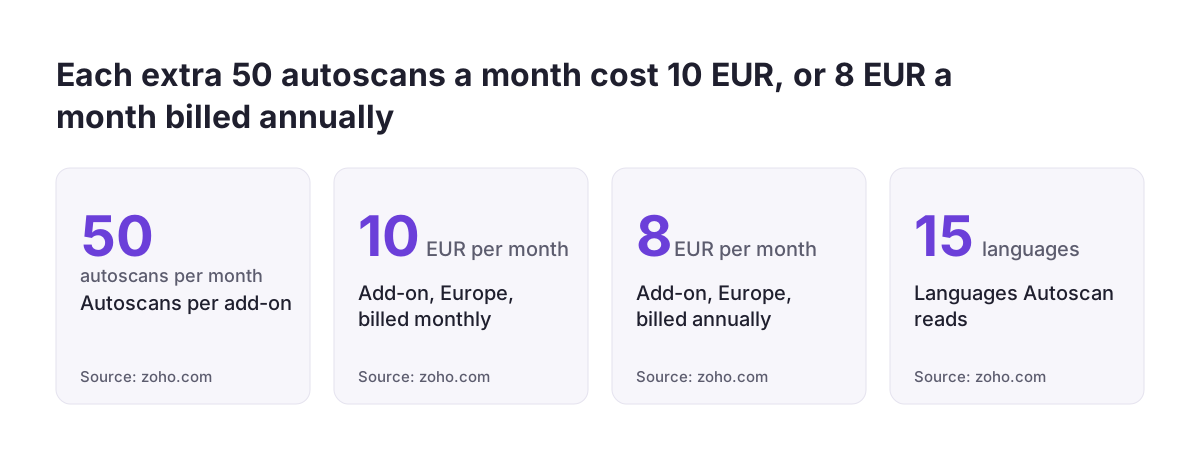
Cost is the other item to settle. Autoscan is available by default on all Zoho Books plans. Once the free scans are used up, you buy an add-on of 50 autoscans per month. Zoho lists that add-on in Europe at EUR 10 per month, or EUR 8 per month billed annually. Count your monthly supplier invoices before you decide how many add-ons you need.
For comparison, Zoho's help for Autoscan in Zoho Invoice describes enabling it from the folder icon in the Expenses module: you agree to the terms and click Enable Autoscan. If you only send invoices and do not manage payables, the lighter Zoho Invoice may be enough. For supplier bills, POs and approvals, you need Zoho Books.
Getting invoices in: email, upload and vendor portal
Zoho Books has three main ways to receive bills: email forwarding to the document inbox, manual upload, and vendor portal submissions. The Documents module generates a unique email address for your organisation. Your vendors, customers and accountant can email documents straight to the Documents Inbox. You can also upload files from Evernote, Dropbox, Box, Google Drive, OneDrive or Zoho Docs.
For most companies, email is the route to standardise on. Give suppliers the Documents address, or forward a shared accounts payable mailbox to it. That way invoices arrive without anyone downloading and re-uploading them.
One invoice per file
Autoscan treats a whole file as one document. A PDF that combines three invoices produces one garbled bill instead of three clean ones. Zoho Books does not split batched PDFs natively, and splitting them by hand becomes a bottleneck at volume. Ask suppliers who send monthly batches to send one invoice per PDF instead.
File quality
Autoscan does not deskew pages, enhance contrast or upscale resolution before reading them. It cannot use vendor-specific extraction templates either. On Zoho's original announcement, one commenter complained that photographed receipts were so low in resolution they could barely read them. The supplier's original PDF is almost always a better input than a phone photo of a printed copy. Stick to PDF, JPG or PNG files.
Reading the scan result and handling exceptions
After a document is uploaded, Autoscan captures data such as the date, amount and merchant name. It fills these in when you create the transaction, and it also extracts line item details. Zoho's help for Zoho Invoice lists four statuses a scanned file can have: Scan in progress, Processed, Unreadable, and This file cannot be auto-scanned. The Zoho Books help uses the same Unreadable status: the scan failed because of illegible data, an image that cannot be interpreted, or an unsupported language.
A Processed status only means the scan finished. It does not mean the bill is correct. Some invoices regularly need manual correction:
- Invoices with nested line items.
- Invoices with more than one tax rate on a single line.
- Invoices with unusual formatting.
- Combined PDFs holding several invoices.
- Documents in a language Autoscan does not support.
Do not clear what you have not filed
One setting deserves a warning. According to the Zoho Books help, once a document is cleared from the inbox, it cannot be retrieved. Attach every document to its bill, or move it into a folder, before you remove it from the Documents Inbox. You can attach documents to bills, expenses and almost any other transaction, so the source file always stays with the entry it supports.
For Unreadable files, do not type the bill from a poor image. Ask the supplier for the original PDF first. You end up with a better record, and you learn which suppliers need a different sending arrangement.
Matching bills to purchase orders and vendors
Matching is where scanned data becomes trustworthy. When a bill comes in through the document inbox, Zoho Books can suggest a matching PO based on vendor name and invoice amount. It is a suggestion, not an automatic link. Someone must confirm it, and that confirmation is a control point, not a formality.
Once a bill is linked, the PO status tracks what has been invoiced. After a partial bill, the PO moves from Open to Partially Billed, and the remaining quantities stay visible on it. When all line items are billed, it moves to Billed. A PO that stays Partially Billed for a long time is worth a look: either goods are still due, or an invoice went astray.
Two-way and three-way matching
Three-way matching checks a supplier invoice against both the original PO and the goods receipt, so discrepancies are caught before payment. The native Books suggestion compares vendor and amount. The line-by-line comparison of quantities and rates is done by your reviewer. Zoho's BillPay add-on adds structured checks before a bill moves to approval: it confirms a PO exists and matches quantities and rates.
Documents can also be matched to transactions in the bank feed, or attached to transactions created earlier. This helps when a supplier was paid by card before the invoice arrived. You attach the invoice to the existing entry instead of creating a second bill.
Approvals and workflow rules before a bill counts
To enable bill approvals, go to Settings > Preferences > Purchase Approvals and switch on the toggle. It turns on approval routing for all purchase transactions: bills, purchase orders and expenses. Plan it with that scope in mind, because your purchasing team will see approvals on POs as well.
The sources in this pack disagree on routing. One guide states that bill approvals route only by transaction type and amount thresholds, not by vendor, category or department. Another describes routing by amount thresholds or vendor categories. Test what your organisation actually offers before you design a process around vendor-based routing. Amount thresholds are the safe common ground.
Workflow rules that support review
Workflow rules can fire when a bill is created, approved or becomes overdue. They can send email alerts, update custom fields and trigger webhooks. Three rules are useful for scanned bills:
- An email alert to the reviewer when a new bill is created.
- A custom field such as "Scan checked" that the reviewer sets, so reports can show bills nobody has looked at.
- An alert to the approver when a bill becomes overdue.
Keep payment out of scope for now. Automating the actual sending of payments to vendors needs configuration beyond the default setup. Get capture and approval stable first.
Worked example: a German supplier invoice against an open PO
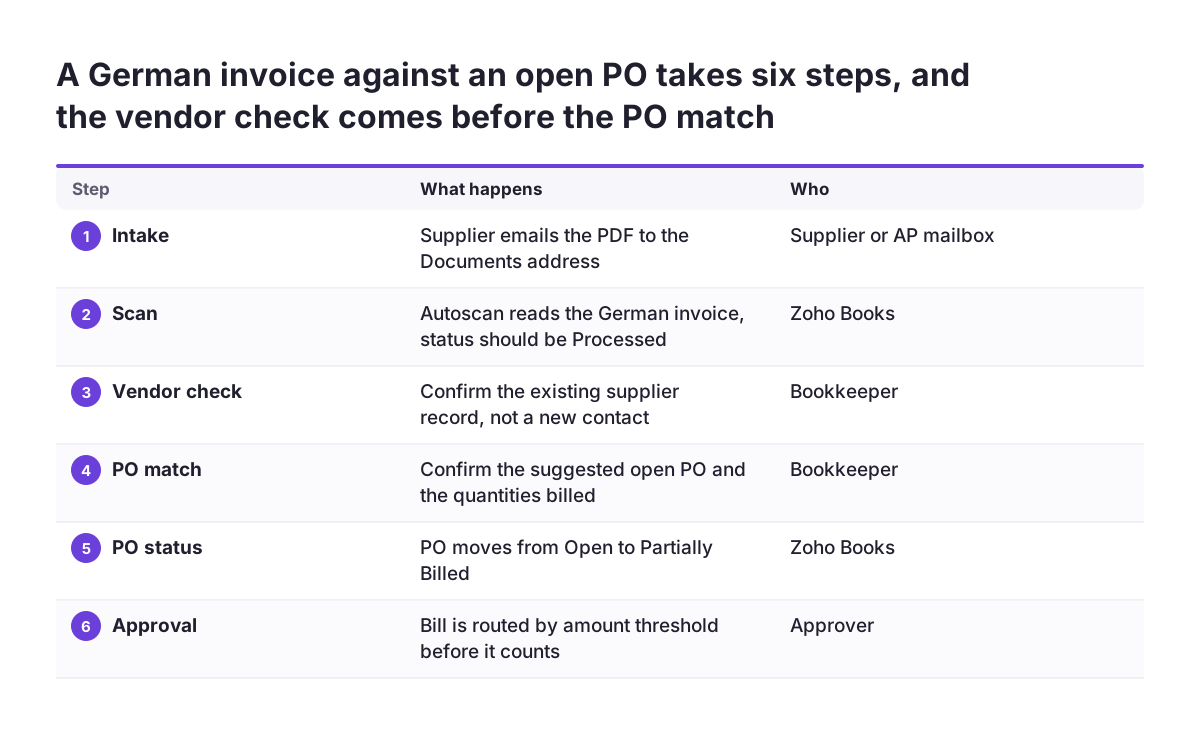
Suppose you ordered packaging from a supplier in Germany through a PO in Zoho Books, and the PO shows Open. The supplier delivers part of the order and emails a PDF invoice written in German. Here is the path that invoice should take.
- The supplier emails the invoice to your organisation's Documents address, or your accounts payable mailbox forwards it there. It appears in the Documents Inbox.
- Autoscan reads it. German is one of the 15 supported languages, so the file should come back Processed.
- You open the document and create a bill. Check first that the vendor was matched to your existing supplier record, not created as a new contact.
- Zoho Books suggests the open PO for that vendor. Before you accept it, compare each invoice line with the PO: quantity delivered and unit rate.
- Check the account on each line against your chart of accounts. Then check the tax treatment. If a line carries more than one tax rate, correct it by hand.
- Save the bill with the PDF attached. With Purchase Approvals enabled, it goes to the approver set for its amount threshold.
- After approval, the PO shows Partially Billed. The undelivered quantities stay visible for the next invoice.
- When you pay the supplier, match the payment in the bank feed to the bill.
If the scan had come back Unreadable, the right move at step 2 would be to ask the supplier for a clean original PDF, not to key the bill in from a blurred copy.
What the bookkeeper still checks on every scanned bill
Autoscan removes the typing. It does not remove the judgement. The table below lists the checks that stop scanning errors from reaching the ledger, and where each one tends to fail.
| Check | Why it matters | Typical failure |
|---|---|---|
| Vendor | Matching and supplier history depend on it | Name variant creates a new contact |
| Invoice number and date | Due dates and duplicate control | Order number read as invoice number |
| Total amount | Drives PO suggestion and approval threshold | Poor image misreads digits |
| Line items | Needed for PO quantities and rates | Nested lines merged or split |
| Account coding | Decides where the cost lands in reports | Default account left in place |
| Tax per line | VAT reporting depends on it | Several rates on one line |
| PO link | Keeps PO status accurate | Suggestion accepted without comparing lines |
| Attachment | Source evidence stays with the bill | Document cleared from inbox unattached |
| Not already billed | Prevents paying twice | Supplier emails the same invoice again |
When Svennis sets up bill capture for a client, we keep the bookkeeper's line-by-line check of account and tax on every scanned bill until their corrections have become rare. Only then do we move to spot checks. Cutting review before that point is where we see coding errors slip into the ledger unnoticed.
What this means for a company in an EU country
Language is the first practical question. Zoho Books Autoscan handles documents in 15 languages: English, Swedish, Spanish, Portuguese, Dutch, Italian, French, German, Danish, Chinese, Norwegian Bokmal, Russian, Malay, Thai and Vietnamese. Suppliers who invoice in a language outside that list, such as Polish, Finnish or Czech, may return Unreadable scans. Plan for manual entry, or ask those suppliers for bilingual invoices. Behaviour also differs between products: Zoho's help for Zoho Invoice says its autoscan is optimised only for English documents.
Tax is the second question. If you buy from several member states, your invoices will carry different VAT treatments, and lines with more than one tax rate need manual correction. Scanned tax values are a starting point, not a decision. Set up tax codes in Zoho Books as your accountant confirms them for each country you buy from, and have reviewers apply those codes. Do not rely on what the scan read.
Banking is the third. If your bank can forward statements by email, Zoho Books accepts them in CSV, PDF, XLS, TSV, OFX, QIF or CAMT.053 format. That makes it easier to match paid bills to bank transactions. Check which of these formats your bank supports before building the month-end routine around it.
Finally, access. Supplier documents can contain names, bank details and contract terms. Use folder-level access and the upload, view and management permissions so that only the people who process payables can see them.
A month-end routine for scanned bills
A short, fixed routine at month end catches what daily review misses. Run it in this order, before you close the period.
- Empty the Documents Inbox properly. Every document should be attached to a transaction or moved to a folder. Do not clear anything you have not filed, because cleared documents cannot be retrieved.
- Resolve Unreadable files. Chase originals from suppliers, then enter or rescan those bills.
- Review Partially Billed POs. For each one, confirm whether the remaining goods are still due or an invoice is missing.
- Match the bank feed. Link supplier payments to bills, and attach any invoices that arrived after a card payment.
- Clear approvals and overdue bills. Use the overdue workflow alert to find bills still waiting for an approver.
- Spot-check coding. Take a sample of scanned bills and recheck account and tax, especially from suppliers with complex invoices.
- Check scan usage. Compare the month's volume with your add-on allowance of 50 autoscans per month per add-on, and adjust before you run short.
If you want this routine to show up on a dashboard, for example unreviewed bills by supplier or open PO balances, Zoho Analytics can report on Zoho Books data. That lets the finance lead see backlog without opening each record.
Next steps
You can have a working capture process within a few weeks if you take the steps in order and keep full review in place at the start.
- Clean your vendor list and chart of accounts. Merge duplicate suppliers and agree which accounts each purchase type uses.
- Set up intake. Share the Documents email address with suppliers or forward your accounts payable mailbox to it. Ask batch senders for one invoice per PDF.
- Estimate volume and cost. Count a typical month of supplier invoices and decide how many 50-scan add-ons you need.
- Enable Purchase Approvals. Set amount thresholds, and add workflow alerts for new and overdue bills.
- Run a month with full review. Use the checklist table on every bill and note which suppliers cause corrections.
- Adopt the month-end routine. Only move to spot checks once corrections are rare.
If you are planning Zoho Books from scratch, or want your payables process reviewed before scaling capture, see our Zoho Books setup page for how we approach accounting implementations.
Sources
- Zoho Books Help: Documents
- Zoho Blog: Finally! A document hub, receipt auto-scanning, and accounts payable automation all in one
- Zoho Community: Finally! A document hub, receipt auto-scanning, and accounts payable automation all in one
- Zoho Invoice Help: Autoscan Receipts
- Invoice Data Extraction: Zoho Books Bill Automation
- Zerentry: How to Automate Invoice Entry in Zoho Books