Zoho Bookings appointments into Zoho CRM: the short answer
To get Zoho Bookings appointments into Zoho CRM without duplicates, turn on the built-in Zoho CRM integration in Zoho Bookings. Then choose the data sync rule that checks existing records before it creates new ones. Each booking then updates the matching lead or contact, and the appointment lands in the Meetings module. You only need a custom step when a booking must also attach to a specific deal, or when it must follow matching logic of your own.
The Zoho Bookings to Zoho CRM integration is the native connection that pushes customer details from each booking into a CRM module you choose. It also adds the appointment itself to the Meetings module. According to Zoho's help page on the Bookings and CRM integration, the integration is available on all Zoho Bookings plans. Super admins and admins can set it up.
One detail matters before you start. Zoho states that this help page applies to Bookings 2.0 only, and a separate page covers Bookings 1.0. Check which version your account runs, because the settings described in this guide follow the Bookings 2.0 documentation.
What the native integration syncs: customer records and meetings
The native Zoho Bookings integration sends two kinds of data to Zoho CRM. Customer booking details go automatically to a CRM module you select, such as Leads or Contacts. The appointment information goes directly to the Meetings module.
Field mapping follows a firm split. The default fields (name, email and phone number) can be mapped to any module. Event-type-specific fields can be mapped only to the Meetings module. An event type is the service or meeting a customer books, and its specific fields are the custom questions you add to that booking form.
The split has a practical effect. If your booking form asks "How many employees does your company have?", the answer sits on the meeting record, not on the lead or contact. Your sales team will see it when they open the meeting. A report built on the Leads module will not show it unless you add a further step.
Zoho also notes that only three fields can be mandatory in the selected CRM module. Before you pick a module, open its layout in Zoho CRM and count the required fields. If your Leads module requires more than three fields, choose another module or relax the extra requirements before you connect Bookings.
Plan limits: which CRM modules and fields sync on each Bookings plan
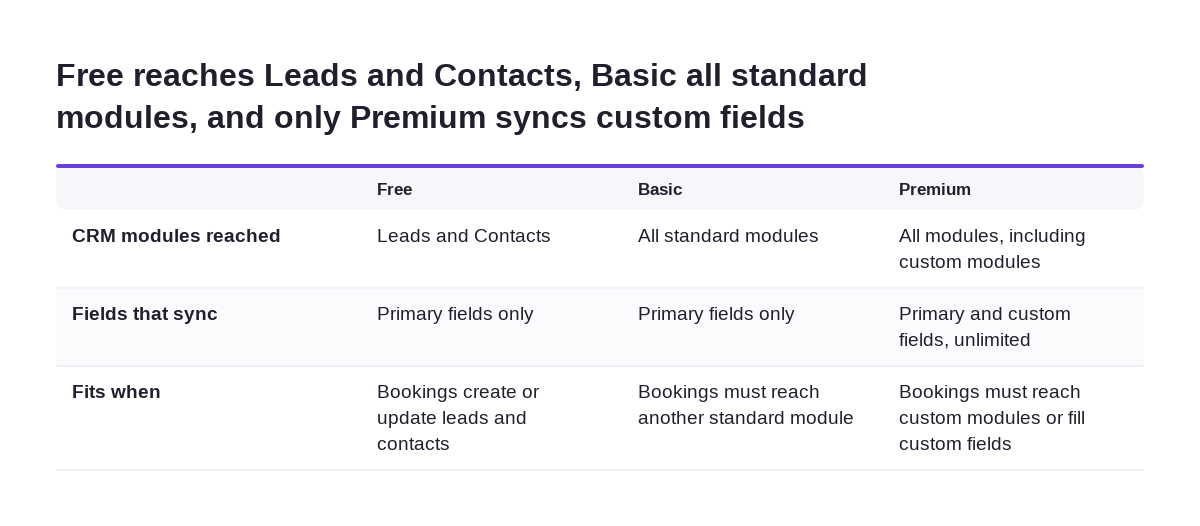
Your Zoho Bookings plan decides which CRM modules the integration can reach and which fields it can fill. The integration itself is on every plan, but the depth of the sync is not. The table below compares the three plans listed on Zoho's help page.
| Plan | CRM modules you can sync to | Fields that sync |
|---|---|---|
| Free | Leads and Contacts | Primary fields only |
| Basic | All standard modules | Primary fields only |
| Premium | All modules, including custom modules | Both primary and custom fields (unlimited) |
Three conclusions follow for most companies. If you only need new bookings to create or update leads and contacts, the Free plan covers the record sync. If you want bookings to reach another standard module, you need at least Basic. If your form collects custom answers that must land in custom fields, or your company uses a custom module for appointments, you need Premium.
Decide this before you design your booking forms. Adding ten custom questions to an event type only pays off if your plan can carry those answers into Zoho CRM.
How duplicate checking works: email first, then phone, then name
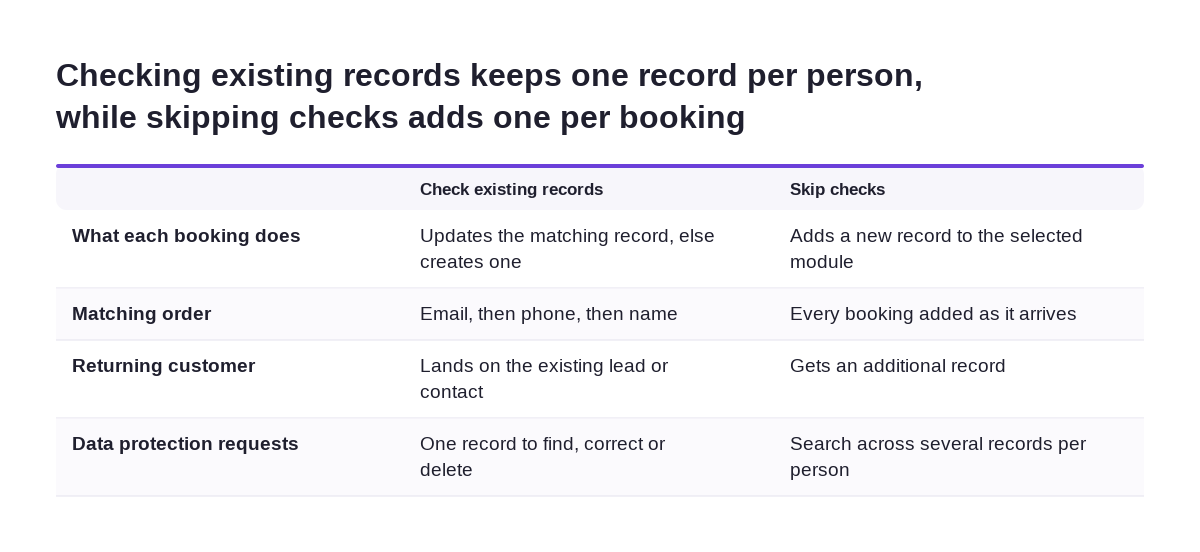
The native integration prevents duplicate records by checking three values for uniqueness: email address, then phone number, then name, in that order. When a booking arrives, Zoho Bookings looks for an existing record with the same email. If it finds none, it tries the phone number, and then the name.
That check only runs if you choose the right data sync rule. Zoho Bookings offers two:
- Checks existing records to update; else, creates a new record. This rule updates a matching record and only creates a new one when no match exists.
- Skip checks and add record to the selected module. This rule adds every booking as a new record, with no duplicate check at all.
For almost every sales or service team, the first rule is the right default. The second rule creates a fresh record for every repeat customer, which splits their history across several entries.
The matching is only as good as the data already in your CRM. If two contacts share one email address, or old records hold outdated emails, the check has nothing reliable to match against. Clean those records first, the same way you would when you migrate to Zoho CRM and keep your sales history.
Setup order: admin connection first, then each user
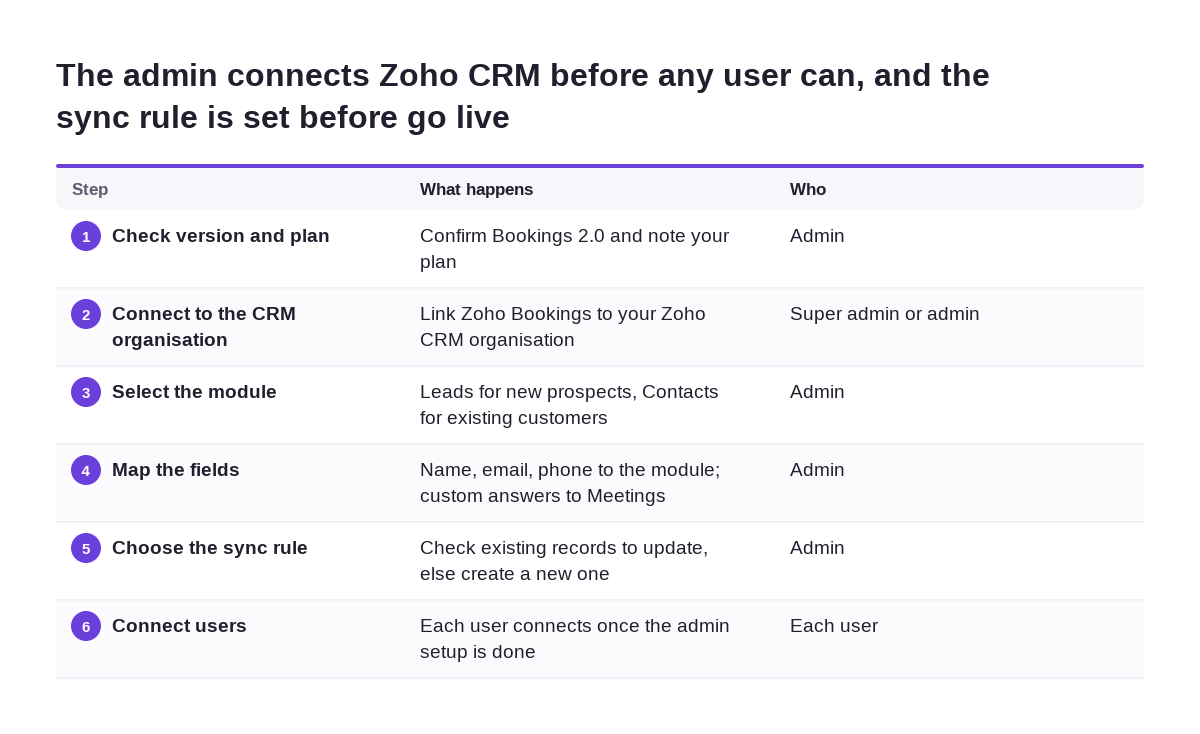
The Zoho Bookings integration has an admin part and a user part, and the order matters. Zoho states that the super admin or admin must first integrate Zoho CRM with Zoho Bookings. Only then can individual users connect.
A workable setup order looks like this:
- Confirm your Bookings version is 2.0 and note your Bookings plan.
- As super admin or admin, connect Zoho Bookings to your Zoho CRM organisation.
- Select the CRM module that should receive customer details, usually Leads for new prospects or Contacts for existing customers.
- Map the default fields (name, email, phone number) to the module, and map any event-type custom fields to the Meetings module.
- Choose the data sync rule that checks existing records before creating new ones.
- Make sure every staff member who takes bookings is added to the Zoho CRM organisation, then have each of them connect.
Step six catches many teams. A Bookings user who is not in the Zoho CRM organisation cannot connect, so their appointments will not follow the same path. Check the user list in both apps before you announce the go-live.
Keep a note of which admin made the connection in step two. That person matters later, as the section on disconnection explains.
Worked example: a returning prospect books a discovery call
A worked example shows how the settings combine. Take a training company that runs a "30-minute discovery call" event type in Zoho Bookings. The booking form asks for name, email, phone and one custom question: "Which course are you interested in?"
The admin has made these choices:
- Module for customer details: Leads.
- Default fields mapped: name, email and phone number to the matching Leads fields.
- Custom question mapped to a field in the Meetings module.
- Data sync rule: checks existing records to update; else, creates a new record.
Anna Weber books a call with anna.weber@example.com. The integration checks the Leads module for that email first. Anna downloaded a brochure last month, so a lead with her email already exists. The integration updates that lead instead of creating a second one. A new meeting appears in the Meetings module with her course answer on it.
Now suppose Anna had used a private email this time. The email check finds nothing, so the integration tries her phone number next. If the phone number matches her existing lead, the booking still lands on the right record. If neither matches, the integration checks the name. Only when all three checks fail does it create a new lead.
The example also shows the limit. The meeting carries her answer, and the lead is updated, but nothing in this setup attaches the call to an open deal.
Calendar blocking, booking from Zoho CRM, and disconnecting safely
The integration also works in the other direction for calendars. Events in Zoho CRM sync to Zoho Bookings and block the matching time slots. By default, when the CRM integration is enabled, CRM events are blocked in the Bookings calendar to prevent conflicts with existing bookings. A sales rep with a CRM meeting at 10:00 will therefore not be offered for a customer booking at 10:00.
Booking appointments from inside Zoho CRM
Your team can also book appointments for customers without leaving Zoho CRM. To do that, you have to install the Zoho Bookings for Zoho CRM plugin in your CRM. Without the plugin, bookings only arrive in the CRM from the Bookings side.
What happens when you disconnect or a connection is revoked
Disabling the integration does not delete what it already synced. Customers synced while the integration was enabled are kept in Zoho CRM. Appointments for new customers stop syncing from that moment.
If the connection is revoked, only the admin who set up the integration can reauthorise it. When that admin leaves the company, nobody else can restore the connection with their account. Agree in advance which admin owns the connection, and document it alongside your other system access.
When the native integration needs a custom step, and which one to use
The native integration needs a custom step when a booking must do more than update a lead or contact and create a meeting. The Zoho help page describes pushing booking details to a module and appointments to Meetings. It does not describe attaching a meeting to a specific open deal, or choosing between several deals for one contact. That is where most teams need extra logic.
Zoho Bookings offers custom functions for this. Custom functions perform custom actions during Zoho Bookings events, and you can use them to integrate with Zoho CRM and other third-party services. A third-party automation tool is the other route. Connecto, for example, offers a template that creates a CRM meeting for a new service appointment when the booking email matches an existing contact. That template uses a webhook, Zoho Bookings, Zoho CRM and storage, and runs in 13 steps.
| Approach | What it handles | When it fits |
|---|---|---|
| Native integration only | Updates or creates a lead or contact, adds the meeting, checks email, phone and name | Bookings that only need to land on the right person |
| Native integration plus a Bookings custom function | Custom actions on Bookings events, such as linking to a deal | You want the logic inside Zoho |
| Third-party workflow tool | Matching on contact email, booking status changes, custom API calls | You already run other automations in that tool |
Connecto's Zoho Bookings connector also lists actions such as rescheduling to another time or staff member, fetching details by booking ID, and setting a booking to cancelled, completed or no-show.
Testing the Bookings to CRM sync before your team relies on it
Test the Zoho Bookings to Zoho CRM sync with real cases before you share the booking link publicly. A wrong sync rule or a missing field mapping is easy to fix on day one. After a few hundred bookings, it becomes a clean-up job.
At Svennis we make two test bookings before go-live: one with an email that already exists in the CRM and one that does not. We then check that the first updated the existing record and the second created exactly one new record, because that shows at once whether the sync rule prevents duplicates.
A short test checklist covers the rest:
- A booking with a known phone number but a new email lands on the existing record.
- The custom question answers appear on the meeting in the Meetings module.
- A CRM event blocks the matching slot on the Bookings page.
- Each staff member who takes bookings has connected their own account.
- Rescheduling a test booking updates the meeting rather than adding a second one.
Delete the test records afterwards, or mark them clearly, so they do not distort your pipeline reports.
What the Bookings to CRM sync means for a company in the EU
For a company in the EU, every booking that flows into Zoho CRM carries personal data covered by GDPR. Name, email and phone number arrive with each appointment, along with any answers to your custom questions. Decide which questions you really need before you add them to the form, because each one becomes stored data in your CRM.
The sync rule matters for data protection as well as for sales. With duplicate checking on, one person has one record, so you can find, correct or delete their data in one place. With the "skip checks" rule, the same person can sit in several records, and a request about their data means hunting through all of them.
Companies that trade in several EU countries should also look at how phone numbers are entered. The integration checks phone number second, after email. If one country team stores numbers with an international prefix and another without, the phone check may miss a real match. Agree one format across your booking forms and your existing CRM records.
Language is the last point. If you run booking pages in several languages, map the same fields from each form to the same CRM fields. That keeps one record structure, whichever page the customer used.
Next steps: from first connection to a working booking flow
Your next step is to compare what your bookings need to do with what your plan allows. Start with three questions. Which CRM module should a new booking reach? Do your custom answers need to sit on the lead or contact, or is the meeting enough? Must each booking also link to a deal?
If the answers are "Leads or Contacts", "the meeting is enough" and "no", the native integration on a suitable plan does the job. Set it up in the order above, choose the sync rule that checks existing records, and run the two test bookings. If a booking must reach a deal or a custom module, plan the custom step before go-live rather than after.
For the scheduling side, our page on Zoho Bookings setup and appointment scheduling explains how we configure event types, staff and booking pages. If the CRM structure behind it still needs work, see how we approach Zoho CRM implementation in Europe.