Zoho Cliq channels and bots bring CRM and Desk events into team chat
Team chat, channels and bots in Zoho Cliq work best when channels follow your teams and customers. Bots then post Zoho CRM and Zoho Desk events into those channels. Create one channel per team, one announcement channel and an external channel for each key customer. Then let the CRM bot, the Deskbot and workflow alerts deliver the events people must act on.
Zoho Cliq is Zoho's team chat app. Zoho groups its features into messages, channels, audio and video, search and security, and integrations. The integrations area turns Cliq into part of your Zoho setup rather than another messenger. A sales rep can pull a deal from Zoho CRM without leaving the chat. A support agent can see a ticket summary from Zoho Desk in the same window.
Cliq becomes a working tool only when two decisions are made deliberately. The first decision is how channels are structured. The second is which notifications go into chat at all. This guide covers both, in the order you would set things up.
Channels, bots, bot menus and Deskbot: the Zoho Cliq terms used in this guide
A Zoho Cliq channel is a shared conversation that a defined group of people joins. It can host a team discussion, an organisation-wide announcement, or a conversation with clients and customers. External channels are Cliq channels used to collaborate with people outside your organisation, such as clients and customers.
A Cliq bot is a chat participant that acts on your behalf. Zoho describes bots that send notifications and alerts to a team. They also act when you @mention them in a conversation, collect data through forms and monitor other tools through webhooks. A webhook is a link that lets another system push an event to the bot the moment it happens. Bot menus are quick actionable shortcuts for getting things done from a bot.
Bots that come with Cliq
Cliq ships with several bots. Taz is the built-in personal assistant: it sends invites for calendar events, saves files, notes and links, and sends reminders. Zia, Zoho's AI bot assistant, can send event invites, update invitee status and create a group conversation with all invitees. The @Poll Bot runs polls in any conversation, and the @Feeds Bot sends digests for a personal news feed.
Deskbot is the bot that carries Zoho Desk notifications into Cliq. Zoho's bot page says it gives access to ticket information and sends ticket summary notifications.
Structure Zoho Cliq channels by team, by customer and by announcement
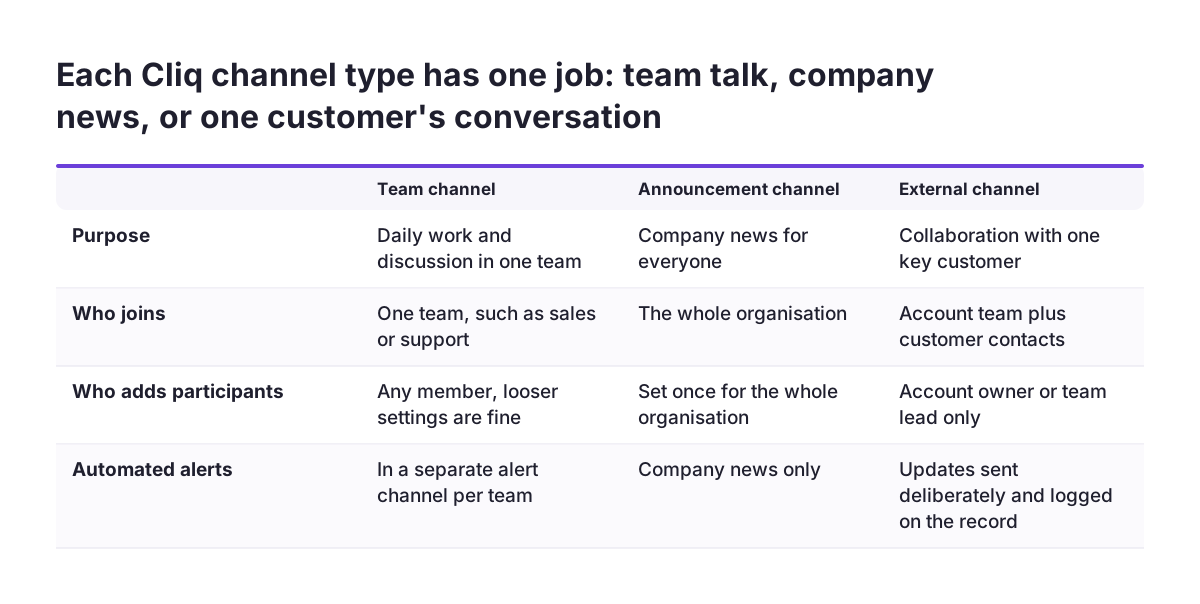
A Zoho Cliq channel structure that lasts has three layers: team channels, one announcement channel and external customer channels. Zoho's channel page supports all three uses. Keeping them separate stops a customer conversation from getting lost in internal chatter.
Team channels
Give each team that works together daily its own channel, such as sales, support or finance. Zoho's CRM integration page suggests sales teams use Cliq channels to brainstorm, discuss sales strategies and share information from Zoho CRM. Put automated alerts in a separate alert channel per team, so human conversation stays readable.
One announcement channel
Cliq lets you make an announcement-only channel open to everyone in the organisation. Use it for company-wide news, updates and announcements. Because only designated people post, people actually read it.
External channels per customer or partner
Zoho states that you can add vendors, partners and prospective customers to Cliq channels. Create one external channel per key account or partner, never one shared channel for all of them. Name these channels with a clear prefix so nobody mistakes them for internal ones.
Interest groups and clean-up
Employees can also create channels for interest groups that are not about work. Zoho notes that you can remove or delete channels when they are no longer needed. Review the channel list every quarter and archive project channels once the project closes.
Zoho Cliq channel permissions and the team-based channel limit
Zoho Cliq channel permissions decide who can change a channel. According to Zoho, you control who edits the channel information, adds participants, hosts group calls and changes the channel type. Set these before you invite anyone, not after the first mistake.
Permissions matter most on external channels. If any member can add participants, a colleague can bring another customer into the wrong conversation. Restrict adding participants and changing the channel type to the account owner or a team lead.
The limit on team-based channels
A team-based channel is linked to departments, groups or teams in your organisation, so membership follows those structures. A feature request on Zoho's community forum states that Cliq limits a team-based channel to four associated departments, groups or teams. The requester asks Zoho to raise or remove that limit. The figure comes from a user request, not from Zoho's documentation, so check it in your own account.
If a channel must reach more than four teams, you can create a broader group that contains them or use separate channels. The requester notes that the limit pushes organisations with many teams towards multiple channels. Plan your departments and groups before you build channels on top of them.
Zoho CRM inside Cliq: the CRM bot, the /zcrm shortcut and message actions
The Zoho CRM integration puts customer data into Cliq in three ways: a CRM bot, a slash command and message actions. All three are described on Zoho's Cliq and Zoho CRM integration page. Together they mean a rep rarely has to switch windows during a conversation about a deal.
The CRM bot
The CRM bot sends instant reminders for customer meetings. You can add notes to CRM records through the bot. You can also bring the bot into a conversation to pull the information you need.
The /zcrm shortcut
Typing /zcrm in Cliq pulls up data from your Zoho CRM account. Zoho says you can fetch prospect data, generate reports or locate dashboards this way. You can then share the result with specific colleagues or teams through direct messages or channels. A sales manager can drop a pipeline dashboard into the team channel before the weekly meeting.
Message actions
Message actions attach a Cliq message as a note to a CRM record. When a colleague confirms a discount or a delivery date in chat, the rep attaches that message to the deal. The decision then lives in Zoho CRM, where anyone looking at the record will find it.
Agree one rule with the team. Any decision that changes what you promise a customer gets attached to the CRM record. Chat is where the decision is made, and the CRM is where it is kept.
CRM alerts into Cliq sales channels with custom workflows
Custom workflows send automated Zoho CRM alerts into Cliq sales channels at key moments. Zoho names three examples: a prospect signs up, a major deal closes, or a lead is assigned. These are events where speed or shared awareness matters, which is why they suit chat.
Decide the trigger for each alert before you build it. "Major deal" needs a definition your team agrees on, such as a deal amount or a strategic account flag. Without a threshold, every closed deal triggers a post. Within a few weeks people mute the channel.
Where each alert should land
Not every alert belongs in a shared channel. A lead assignment matters mainly to the person who received the lead, so send it to that person directly. A major closed deal is news for the whole sales team and belongs in the alert channel.
What a good alert contains
Each alert should answer three questions at a glance: what happened, to which record, and who should act. Include the record name and the owner, and link back to the CRM record. A post that forces people to search the CRM for context saves nobody time.
Post automated alerts in a dedicated alert channel next to the team channel. People can then follow the alerts closely or check them in batches, without losing the human conversation.
Zoho Desk inside Cliq: Deskbot ticket notifications for agents
Zoho Desk connects to Cliq through Deskbot, which brings ticket information and ticket summary notifications into chat. Zoho's bot page describes access to ticket information through @Deskbot. Agents can check a ticket without opening Zoho Desk in another tab.
Deskbot notifications reach the individual agent, not a channel. That makes them easy to miss when a new agent starts. Put a Deskbot check on your agent onboarding checklist: on day one, the new agent confirms that a ticket notification arrives in Cliq. When an agent leaves or moves team, review their Deskbot access as well.
Deskbot covers personal notifications. Team-level events such as escalations need a decision of their own about whether they go to a shared support channel. The decision table later in this guide covers that choice.
Custom Cliq bots: menus, forms, webhooks and @mentions
A custom Cliq bot is worth building when the marketplace bots do not cover a workflow you run daily. Zoho states that you can build fully customised bots that connect with your tool stack and automate workflows. A custom bot has four building blocks.
- Bot menus give users one-click shortcuts, such as "my open deals".
- Forms collect data and then act on it, for internal surveys, polls or task assignment.
- Webhooks let the bot monitor another tool and post when something changes.
- @mentions pull the bot into a conversation to perform a task or fetch data.
The connection owner must be in the channel
One community report shows a failure worth knowing about. A user built a bot that posted a card to a Cliq channel whenever someone posted on a Zoho Connect group wall. The bot sent nothing until the user who set up the connection was added to that channel.
At Svennis we make the account that owns a bot's connection a member of every target channel. Then we post a test message to each one before anyone relies on the bot, because a bot that silently posts nothing looks exactly like a quiet day.
Which Zoho notifications belong in Cliq chat, which in email and which on the record
A notification belongs in Cliq chat when someone needs to act on it soon. It belongs in email when it is formal or must reach people outside your Cliq organisation. It belongs on the CRM or Desk record when it is a decision you will need later. The table applies that rule to the events covered in this guide.
| Event | Where it goes | Why |
|---|---|---|
| Lead assigned in Zoho CRM | Bot message to the lead owner | Only one person must act, and speed matters |
| Major deal closed | Sales alert channel | Shared news for the team, no individual action |
| Prospect signs up | Sales alert channel | Whoever is free can follow up quickly |
| Customer meeting coming up | CRM bot reminder | Personal and time-bound |
| Ticket summary from Zoho Desk | Deskbot notification to the agent | Addressed to one agent |
| Decision made in a chat about a deal | Note on the CRM record via message actions | Must outlive the conversation |
| Company news | Announcement-only channel | Everyone reads it, few should reply |
| Formal message to a customer | Email, logged in the CRM | The customer may not be in Cliq |
Review the table after the first month. Any alert channel that people have muted is posting events that should be targeted, batched or removed.
Worked example: a sales and support team set up in Zoho Cliq
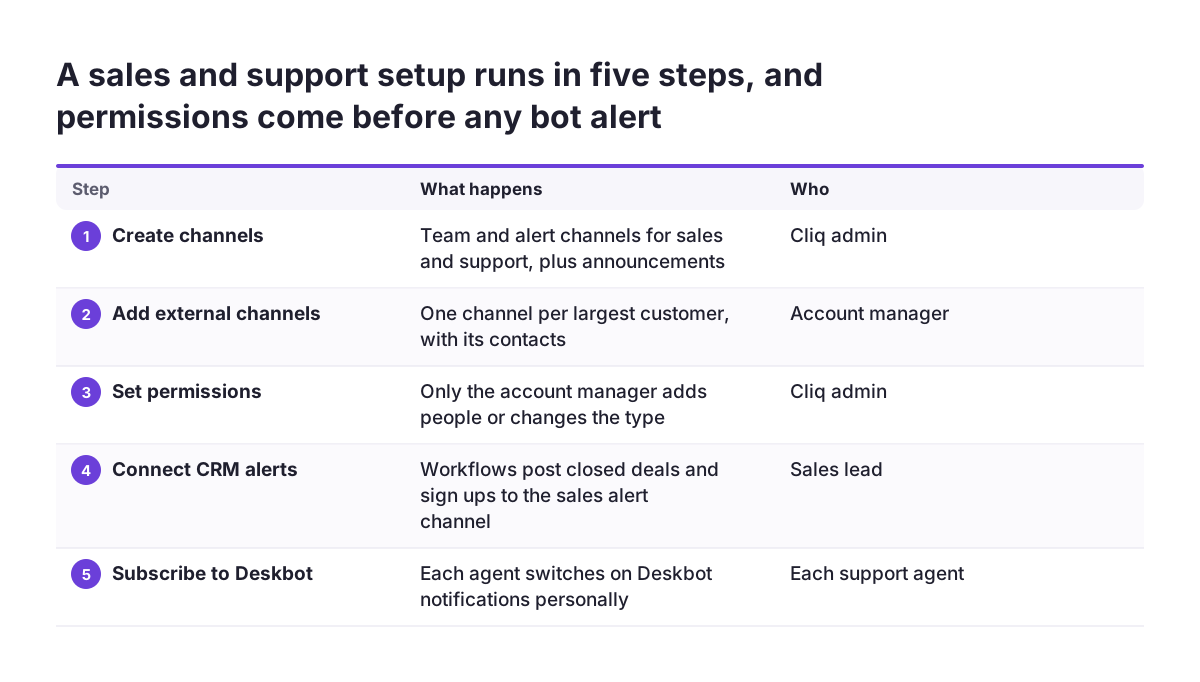
This worked example sets up Zoho Cliq for a company with a sales team using Zoho CRM and a support team using Zoho Desk. The channel names are illustrative. The features and commands come from Zoho's pages cited in this guide.
- Create the channels. Set up
#salesand#sales-alerts, then#supportand#support-alerts. Add#announcementsas an announcement-only channel open to the whole organisation. - Add external channels. For the two largest customers, create
#ext-customernamechannels and add the customer contacts. - Set permissions. On external channels, allow only the account manager to add participants and change the channel type.
- Connect Zoho CRM alerts. Build custom workflows that post closed deals above your agreed threshold to
#sales-alerts. Lead assignments go to the lead owner only. - Teach two habits. Reps use
/zcrmin#salesto pull the deal under discussion. They attach any agreed change to the CRM record with message actions. - Connect agents to Deskbot. Each support agent confirms that a ticket notification arrives in Cliq.
- Test every bot post. Check that the connection owner is a member of each alert channel, then trigger one test event per alert.
After this setup, a rep sees a new lead in a direct message and opens the CRM record from the link. The sales manager reads closed deals in #sales-alerts without asking for updates. Support agents get ticket summaries in Cliq instead of searching their inbox.
What a Cliq setup means for a company in the EU: GDPR, external channels and languages
For a company in the EU, every bot message that names a customer is another copy of personal data under GDPR. A Cliq alert that repeats a contact's full details puts those details in a chat history, alongside the CRM record where they belong. Design alerts to carry the record name and a link, not the whole record.
External channels deserve the most care. Vendors, partners and prospective customers you add to a channel can read everything posted there, including anything a bot posts. Never point an automated CRM or Desk alert at an external channel.
Your data protection contact should know which Zoho events now flow into chat and who can read them. That review is quicker when the channel list follows a clear structure and the notification table from this guide is the agreed rule.
Teams across several countries
Companies with teams in several EU countries often mix languages in chat. Agree one working language for shared alert channels and channel names, so search works for everyone. Local teams can keep their own discussion channels in their own language. Deleting channels you no longer need, as Zoho allows, also keeps old conversations from lingering longer than your retention approach intends.
Next steps for setting up Zoho Cliq channels and bots
Start Zoho Cliq with structure, then add bots one event at a time. A setup that begins with every possible alert switched on is usually muted within weeks. These steps keep the rollout in a sensible order:
- List your teams, your key external contacts and the company news you broadcast today.
- Create team channels, alert channels, one announcement-only channel and external channels, then set permissions.
- Check how many departments or groups each team-based channel needs to reach.
- Write your own version of the chat, email and record table from this guide.
- Connect Zoho CRM with two or three workflow alerts, and teach
/zcrmand message actions. - Add a Deskbot check to agent onboarding.
- Test every bot post with the connection owner in the channel, and review muted channels after a month.
If you want to see how Cliq fits with the rest of your Zoho apps, start with our overview of Zoho Cliq business chat for team communication. If you are weighing an AI assistant that answers in chat for your support team, the sister site's page on AI for customer support explains the options.