
Expense claims and approvals in Zoho Expense: the short answer
To set up expense claims and approvals in Zoho Expense so they post cleanly to Zoho Books, fix three things in order. First, decide how receipts are captured. Second, set the policy rules that warn about or block a claim. Third, define who approves which report. Get those right and only checked, categorised claims in the right currency reach your ledger.
An expense claim is a request from an employee to be repaid for a business cost they paid personally, backed by a receipt. Zoho Expense groups claims into expense reports. An approval flow is the sequence of people who must approve a report before it is reimbursed.
The order matters because each step cleans the data for the next one. A receipt read correctly gives the policy rules something reliable to check. A report that passed the rules gives the approver less to correct. An approved report gives Zoho Books an entry nobody needs to fix later.
This guide is written for a team that claims in several currencies. It covers four things:
- receipt capture
- policy rules
- approval models and multi-level flows
- the handover to Zoho Books
It also walks through a worked example and gives a checklist you can use before you open the system to staff.
Receipt capture in Zoho Expense: scanning, OCR and categories
Receipt capture in Zoho Expense is the first setup decision, because every later check depends on the data read from the receipt. Zoho lists four ways for receipts to arrive:
- autoscan
- automatic forwarding
- bulk import
- import from other cloud applications
Zoho Expense then stores the receipts digitally in your account. The mobile app on Android and iOS can scan receipts and turn them into expense reports.
Zia is Zoho's AI assistant and document intelligence, and Zia does the reading. According to Zoho, its optical character recognition (OCR), software that turns an image of text into data, extracts receipt information in more than 38 languages. It identifies the merchant name, date, vendor details, transaction amount, currency and tax information. This is AI document processing applied to one narrow task: turning a photo into a structured expense.
Zia also suggests the expense category. In Zoho's own example, a hotel transaction becomes an accommodation expense and an Uber receipt becomes transportation. For a team claiming in several currencies, the currency field is the one to watch, because it determines how the amount is read everywhere downstream.
Corporate cards and mileage
Corporate cards can be connected to Zoho Expense, assigned to specific employees and their feeds fetched. Zia matches card transactions to uploaded receipts using merchant information, dates and amounts. It also identifies card expenses that were paid but never submitted. Mileage can be added in four ways, from Android, iPhone or Apple Watch.
Expense policies in Zoho Expense: limits that warn or block
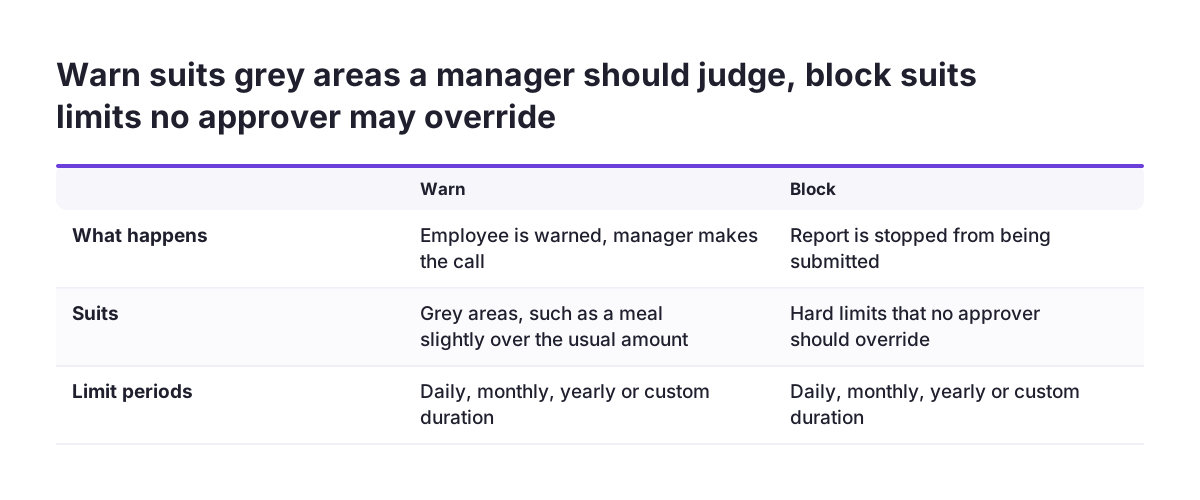
An expense policy in Zoho Expense is the set of rules a claim must meet before it can be reimbursed. Custom policies set the limits employees are allowed to spend. Each rule can either warn the employee or block the report from being submitted when the rule is broken. Limits can run daily, monthly, yearly or over a custom duration.
Choose between warn and block deliberately, rule by rule. A warning suits grey areas where a manager should make the call, such as a meal slightly over the usual amount. A block suits hard limits that no approver should be able to override.
Zia adds a second layer on top of your rules. When an expense violates company policy, Zia identifies it, explains why and suggests a correction before the employee submits. Zoho lists the issues Zia can flag:
- duplicate claims
- missing receipts
- weekend expenses
- excessive meal claims
- travel limit violations
- unauthorised merchants
- currency inconsistencies
For a multi-currency team, the currency inconsistency check is the one to keep switched on. Duplicate and missing-receipt flags matter just as much for the ledger, because both create entries that finance later has to reverse.
Per diem allowances work through rules rather than receipts. Zoho Expense calculates them from rules you define by country compliance requirements and location.
Simplified or custom approvals: which approval model fits
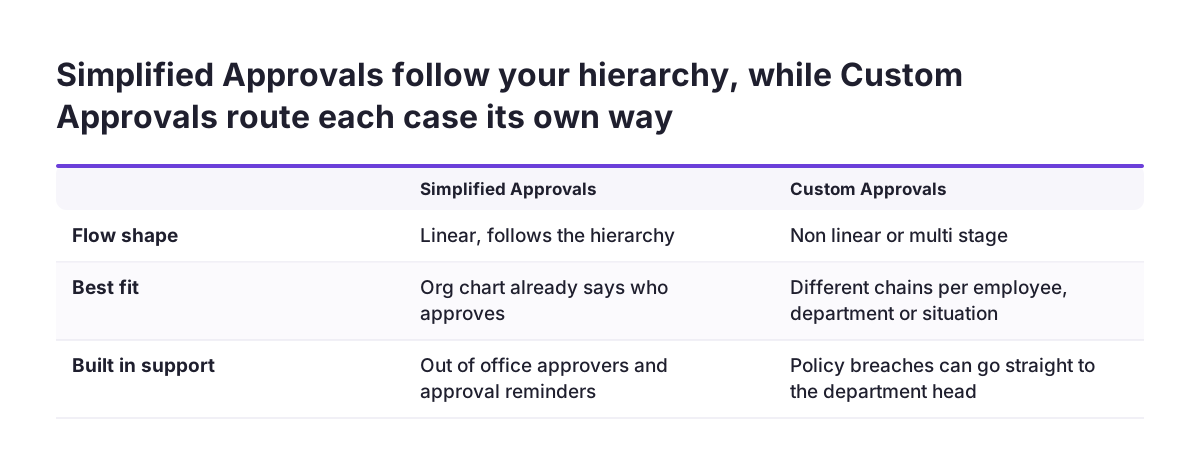
Zoho Expense offers two approval models, and the choice depends on whether your organisation chart already describes who approves what. Simplified Approvals are default approvals for organisations with a linear, hierarchical flow, and they support out-of-office approvers and approval reminders. Custom Approvals are non-linear or multi-stage flows. They are designed so the right set of people oversee each transaction.
Approval flows are not limited to expense reports. The Zoho Expense approval management page lists four objects that can have approval flows: expense reports, trips, advance payments and purchase requests. The table compares the four controls that decide where a report goes.
| Control | What it does | Fits when |
|---|---|---|
| Simplified Approvals | Default linear approvals with out-of-office approvers and reminders | Your reporting lines are your approval lines |
| Custom Approvals | Non-linear or multi-stage flows for different people or situations | Approvers depend on department, trip type or policy breaches |
| Policy rules | Warn about or block submission when a limit is broken | A limit should stop the claim before any approver sees it |
| Zia routing | Sends pre-approved expenses to reimbursement and escalates exceptions | You want high-value reports and exceptions to reach a senior approver |
Zia's routing works alongside both models. Zoho says Zia routes pre-approved expenses straight to reimbursement. It escalates exceptions and high-value reports to the appropriate approver under your company policy. When Zia detects unusual behaviour patterns, it notifies the finance team for human verification.
Building a multi-level approval flow in Zoho Expense
A multi-level approval flow sends one report through more than one approver before reimbursement. Zoho's November 2016 post introducing custom approval describes the older pattern in other tools. There, an employee could submit to only one person, and every report followed one chain: A, then B, then C, then D. Custom approval in Zoho Expense lets you design different chains for different employees, departments or situations.
Zoho's own examples show the patterns worth copying:
- A report from an employee who broke company policy goes directly to the department head.
- An employee working from a different office is routed by a workflow set up in advance, so nobody changes the reporting manager by hand.
- Trips are approved before employees record any expenses, and trip approval rules are assigned to employees automatically.
- Domestic travel requests go straight to the travel team, while international requests go to the manager first and then the travel team.
To build your own flow, work through these steps in order:
- List the situations that need a different approver: policy breaches, high-value reports, international trips, project costs.
- Name the approver for each step, and a backup for each approver.
- Keep Simplified Approvals for everything that follows normal reporting lines.
- Add custom rules only for the exceptions on your list.
- Add trip approval rules so travel is approved before money is spent.
- Submit a test report for each situation and confirm it reaches the right person.
Fewer rules are easier to maintain. Every custom path is one more thing to update when someone changes role.
Approval pitfalls: absent approvers and managers approving their own reports
Two problems reported by users in Zoho's community deserve a test before you go live. In a thread on multilevel report approvals, a user reported that a report stopped when the first approver was away. It did not move on to the second approver. The same user asked whether several people could share the first approver's place, so that any of them could approve.
The safeguard is in Zoho's own feature list. Default approvals in Zoho Expense support out-of-office approvers and approval reminders. Configure a backup for every approver whose absence would stall the chain, especially over holiday periods when claims pile up.
The second problem concerns delegates. In another thread, a user wanted a report submitted by a delegate on a manager's behalf to go to that manager for review first. The user reported that the manager then approved their own report automatically. Any flow where an approver can also be the submitter needs a test case.
Both reports come from users, not from Zoho, and behaviour can differ with your configuration. That is the reason to test rather than assume. Build one test report for an absent approver and one for a delegate submission. Then confirm in each case who actually approved the report.
Worked example: a cross-border trip claimed in a second currency
A worked example shows how receipts, policies and approvals fit together for a team claiming in several currencies. Take a sales manager visiting a client in another country, paying the hotel and meals in a currency other than the company's base currency. The claim moves through seven steps:
- Trip request. Because the trip is international, the custom workflow sends the request to the manager first and then to the travel team.
- Receipt capture. The manager scans the hotel receipt in the mobile app. Zia reads the merchant, date, amount, currency and tax, and categorises it as accommodation. A taxi receipt from Uber lands under transportation.
- Policy check. A dinner over the meal limit triggers a warning, not a block, so the approver will see it. A receipt in a currency that does not match the expense is flagged as a currency inconsistency.
- Report. Zoho Expense can group expenses into reports by trip, project or client engagement. With expense report automation switched on, it adds the expenses to a report and submits it.
- Approval. The line manager approves. If the manager is away, the configured out-of-office approver takes over. The flagged meal is escalated under company policy.
- Reimbursement. The approver or an admin approves the report and processes the reimbursement.
- Settlement. The settlement is synced onward to payroll or accounting software.
Zoho Spend's help centre names the same pattern in its own screens. There you open Travel & Expense, then Expenses, and click + New Expense. You mark the Claim Reimbursement check box and click Save and Close, then add the expense to a report and submit it.
Handover to Zoho Books: what must be right before claims post
The handover to Zoho Books is only as clean as the approved data that reaches it. Zoho lists Zoho Books among the in-house applications Zoho Expense works with, alongside Zoho Invoice, Zoho CRM, Zoho People and Zoho Cliq. Reimbursement settlements can also be synced with payroll and ERP software. Whatever an approver signed off is what the ledger receives.
Before an approved report moves on, check these points:
- The category matches one your finance team agreed for the ledger.
- The currency on the expense matches the currency on the receipt.
- Tax information was captured from the receipt and is plausible.
- No duplicate or missing-receipt flag is still open.
- Corporate card transactions are matched to receipts, and paid but unsubmitted card expenses have been chased.
Finance teams often want approvals locked before data reaches the books. In Zoho's community, a user asked whether every Zoho Books transaction could require two levels of approval, so an accountant's approval could not later be modified. Running the multi-level approval in Zoho Expense, before anything posts, puts that control in the tool designed for it.
When Svennis sets up Zoho Expense inside a Zoho One rollout, we agree the expense categories with whoever owns the chart of accounts in Zoho Books before the first claim is submitted. We then push one test report from receipt to Books before staff get access. If you are still planning the accounting side, the Zoho Books setup page covers it. If sales data also flows into the ledger, read the guide to setting up Zoho CRM and Zoho Books together.
What this means for an EU company claiming in several currencies
For a company operating in the European Union, Zoho Expense brings three practical points: data protection, the choice of edition and country rules. Zoho states that Zoho Expense is GDPR compliant and ISO certified. Your company is still responsible, as controller, for how it uses the employee data in it. Receipts and trip records still show where your people were and what they spent. Decide early which finance roles can see full reports and which see only totals.
The edition question needs a check for your own country. Besides its global edition, Zoho Expense has dedicated editions for countries including the US, the UK, India, Canada, Australia, the UAE and Saudi Arabia. Check which edition Zoho offers for your country. If there is none, set your own country rules within the global edition.
Country rules differ across member states, so configure them per country rather than copying one. Zoho Expense calculates per diem allowances from rules you set by country compliance requirements and location. Set one rule for each country your staff travel to. Have your accountant in each member state confirm the rates and receipt requirements. Never assume one country's rules apply to the others.
Reporting closes the loop. Finance teams can build dashboards in Zoho Expense that track violations, spending by cost centre, seasonal trends and delayed reimbursements. To combine expense data with sales and accounting figures in one view, see Zoho Analytics implementation.
Next steps: setting up your claim and approval flow
The practical next step is a short written design before you change any settings. Expense claims and approvals in Zoho Expense are quick to configure. They are slow to correct once reports have already posted to Zoho Books. Work through this order:
- Write down the expense categories your finance team wants in the ledger, and the limits per category.
- Mark each limit as warn or block.
- List the approval situations: normal reports, policy breaches, high-value reports, international trips.
- Name an approver and an out-of-office backup for each step.
- Set per diem rules for each country your staff travel to, confirmed locally.
- Run test reports, including one with an absent approver, one from a delegate and one in a second currency.
- Check that each test report arrives in Zoho Books with the right category, currency and tax, then open the system to staff.
If you are not yet on Zoho Expense, Zoho offers a 14-day free trial, which is enough time to run these tests on real receipts. If you already have Zoho One, the app is available to switch on. For the scope of a full rollout, the Zoho Expense setup page describes what an implementation covers.
Sources
- How Zoho Expense automatically approves, reconciles, and reports expenses with AI (Zoho Blog)
- Approval Management, Zoho Expense
- Custom approval in Zoho Expense (Zoho Blog)
- Claim Reimbursement for an Expense, Zoho Spend FAQ
- Expense Reporting Software for Manufacturing, Zoho Expense
- Zoho Expense Report Multilevel Approvals (Zoho Community)
- Approval flow (Zoho Community)
- Zoho Books Approval (Zoho Community)