Kiosk Studio guided screens in Zoho CRM, answered in short
Kiosk Studio guided screens in Zoho CRM take a user through a task one screen at a time. They collect answers, branch on them and then update the CRM. You build them without code, and they suit tasks your team repeats daily. If the real job is controlling which stage a record may move to, a Blueprint is the better tool.
Kiosk Studio is a no-code builder in Zoho CRM for creating interactive, guided flows called kiosks, according to Zoho's Kiosk Studio guide. A kiosk is one of those flows. It can pull data from any module, present it on screen, collect input, make decisions and trigger actions in a single pop-up.
Zoho positions the tool for admins who want to streamline the actions users perform most often, without extensive technical knowledge. The feature started life as "Process Flows". Zoho renamed it Kiosk and moved it under Setup, then Customization.
Before kiosks existed, a guided process in Zoho CRM meant building custom buttons, widgets or extensions. Zoho notes that these took the admin's time and technical expertise. A kiosk replaces much of that work with configuration. This guide shows how to build one well, using a call log that sales reps fill in every day.
Screens, decisions, actions and GetRecords: the four building blocks of a kiosk
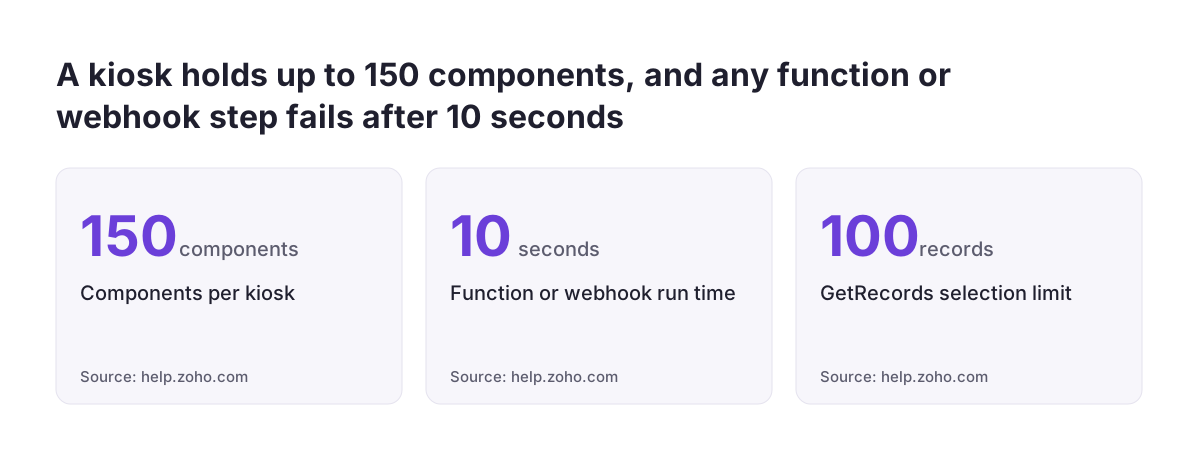
Every kiosk is built from four elements: screens, decisions, actions and GetRecords. You add them in a visual builder and connect them in the order the user should meet them. Zoho's FAQ caps a kiosk at 150 components in total, counting screens, actions and decisions.
- Screens are what the user sees and fills in: fields, instructions and data pulled from the CRM.
- Decisions create branches in the flow. A decision reads GetRecords results or fields from earlier screens, and it takes a "Default" path when no criteria match.
- Actions do the work. They can update fields in several modules, create records, trigger webhooks, execute functions, send emails and add notes.
- GetRecords fetches records from the CRM database based on criteria you set.
GetRecords has grown more capable. You can now fetch some records or all records from a module, and the screen has pagination, search and filters. The selection limit rose from 10 records to 100.
Two more terms appear throughout the builder. Merge fields are placeholders that pull in values from CRM records or user inputs when the kiosk runs. CurrentRecord is the record in focus when the kiosk opens from that record's detail view or list view. It is empty when the kiosk opens elsewhere, such as the home page.
Editions, kiosk limits and who can build a kiosk
Kiosk Studio is available in all paid editions of Zoho CRM: Standard, Professional, Enterprise and Ultimate. Early posts from Zoho list only Enterprise and Ultimate. Zoho has since extended kiosk creation to every paid edition, including Standard.
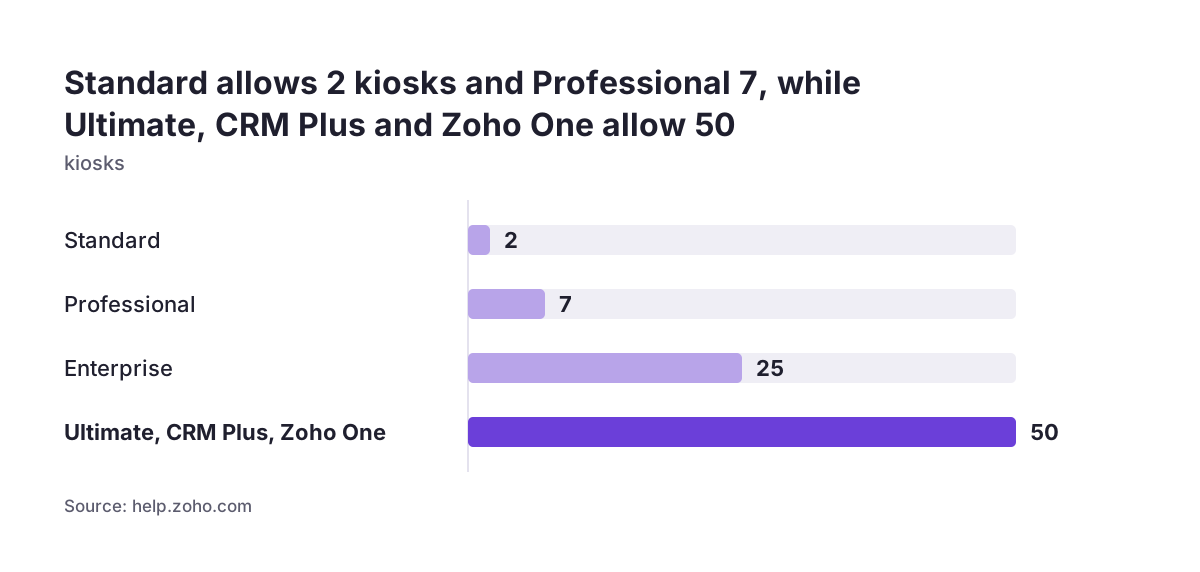
The number of kiosks you can create depends on your edition. Zoho's announcement gives 2 kiosks on Standard, 7 on Professional and 25 on Enterprise. Ultimate, CRM Plus and Zoho One allow 50. If you plan several guided flows, check this against your plan before you design them; the Zoho CRM editions and pricing overview sets out what else changes between tiers.
Building rights follow profile permissions. Zoho's FAQ says users can use and manage kiosks if their profile has either the Manage Automation or the Module Customization permission. There are no separate kiosk permissions per profile or role. In practice, anyone you trust to customise modules can also change your kiosks, so keep that group small.
Some newer features carry their own edition note. Note actions and dynamic visibility, for example, are available in all editions except the Free edition.
Worked example: a guided discovery call log for sales reps
A discovery call log is a good first kiosk because reps repeat it several times a day and often skip fields. Zoho lists call scripts for sales representatives among its example uses, alongside walkthroughs for offering discounts in line with company policy. Zoho's argument is simple: poor user experience in a CRM leads to poor process compliance and to data that never gets updated.
The example below uses names chosen for this guide. Adapt them to your own fields.
What the kiosk does
- Placement: a kiosk called "Log discovery call" on the Deals record detail page.
- Screen 1, Call script: the deal name and account shown through merge fields, then three questions. "Budget confirmed" is a yes or no pick list, "Decision maker on call" is a checkbox, and "Next step date" is a date field.
- Decision: if Budget confirmed is Yes, go to Screen 2a. Otherwise the Default path leads to Screen 2b.
- Screen 2a, Proposal details: expected value and requested discount.
- Screen 2b, Nurture reason: a pick list of reasons and a free-text comment.
- Actions: update the deal fields, add a note to CurrentRecord, and offer a Quick Create form for a follow-up record.
The rep sees only the questions that matter for their answer. The deal ends up with complete fields and a readable note.
Building the discovery call kiosk step by step
You build the discovery call kiosk in the Kiosk Studio builder under Setup, then Customization. Work in a sandbox, because Zoho supports kiosks there and actions fire on live data during a test run. The steps below follow the order the builder asks for them.
- Create the kiosk and set its Unified API Name. This identifier stays the same across every version of the kiosk, and Zoho now requires it. Pick something stable, such as
log_discovery_call, because Client Scripts use it to open the kiosk. - Add Screen 1. Insert merge fields for the deal and account, then the three question fields.
- Add the decision. Set the criterion on Budget confirmed and connect the Default path to Screen 2b.
- Add Screens 2a and 2b. Keep each screen short. Users cannot step back during a run today.
- Add the actions. Update the deal, then add a note. For the note, choose CurrentRecord as the target and build the title and content with merge fields.
- Add the follow-up. The create record action called "Via User Input" shows a Quick Create layout during the run, so the rep can create the record there and then.
- Order the actions. Actions can run in a defined sequence rather than all at once, so put the field update before the note.
Two settings catch people out. Note attachments only appear if a screen in the kiosk has a file upload field. And if a user lacks Create permission for the module, the Via User Input step is skipped and its values show as null.
Where to place a kiosk and how users open it
A kiosk can live in several places in Zoho CRM. Zoho's FAQ lists home pages, custom buttons, setup pages, the record detail view, Blueprint and Canvas. Zoho's guide adds list view pages. Put the discovery call kiosk where reps already work, which for most teams is the deal record.
Kiosks open in one of three ways: a Pop-up, a Flyout or a Callout. Since December 2025, Client Scripts can also launch a kiosk from anywhere in Zoho CRM, using its Unified API Name. External users can reach a kiosk too. You add it as a custom button and include that button in the Client Portal.
Dynamic visibility on record pages
Dynamic visibility shows or hides a kiosk on a record detail page based on field conditions. Before this change, the module and layout you chose applied to every record. You can now combine several conditions, for example showing the call log only while a deal is in an early stage.
Zoho evaluates these conditions when the record detail page loads, not when the kiosk runs. If a rep changes the stage while the page is open, the kiosk's visibility stays as it was until the page loads again. Design your conditions with that timing in mind.
Kiosk, Blueprint, Wizards or a custom widget: which tool fits the job
A kiosk fits when a user needs guidance through a task that may touch several records. A Blueprint fits when you must control how one record moves through its stages. Zoho's guide draws the line clearly: kiosks are not tied to any single record, while Blueprint and Wizards are.
| Tool | What it governs | Works on | Best fit |
|---|---|---|---|
| Kiosk | A guided flow of screens, decisions and actions | Data pulled from and written to multiple records across modules | Repeated tasks needing user input and judgement |
| Blueprint | How a record moves through stages, enforcing process compliance | A single record | Stage rules that must not be skipped |
| Wizards | Which fields appear when creating or editing a record | A single record | Simpler data entry on long layouts |
| Custom widget | Whatever interface a developer builds | Depends on the build | Needs beyond kiosk limits, at the cost of admin time and technical expertise |
The tools also combine. Zoho lets you launch a kiosk inside a Blueprint transition, so a user must complete the guided flow before the record advances. The discount walkthrough is a natural candidate: the Blueprint guards the stage, and the kiosk collects the justification.
Remember that Kiosk Studio is not an automation tool. It needs a person to run it. For work with no human step, use workflows. Zoho has also added Zia Agents inside Kiosk Studio for AI automation with human governance. Zia performs tasks and gathers information, while users review and approve each stage.
Kiosk limits to design around before go-live
Kiosk Studio has documented limits that shape how you design a flow. Zoho's FAQ is direct about them, and a few roadmap items show what is still missing. These are the ones that matter most for a sales kiosk:
- No audit trail: data entered in a kiosk cannot be audited or tracked.
- No reporting: there are no analytics or reports on kiosk interactions yet.
- No going back: users cannot return to an earlier screen during a run. Back and Pause buttons are on Zoho's roadmap.
- No cloning: you cannot clone a kiosk for deployment, so a second version is a rebuild.
- Time limit: a function or webhook in sequential actions that runs longer than 10 seconds is marked as failed.
- Data shape: JSONArrays are not supported in sequential actions at any level.
- Size: 150 components per kiosk.
Because entries are not tracked, write the important answers to fields or notes on the record, where normal CRM history applies. Because users cannot go back, put a summary screen before the actions run.
Community reports are worth reading too. One user on Zoho's forum described broken field re-ordering in the screen builder and webhook payloads that sent default pick list values instead of the custom ones. Test any webhook payload before you rely on it.
Testing a kiosk safely in a sandbox before publishing
Test every kiosk in a Zoho CRM sandbox first. Zoho's FAQ warns that actions run on real data during a Test Run, so a test email reaches a real customer if you test in production. Zoho supports kiosks in sandboxes so you can test there and then deploy.
At Svennis we run each new kiosk in the sandbox with one rep who does the task daily, before anyone else sees it. That rep finds the screen that asks too much and the branch nobody takes much faster than the person who built it.
A short test checklist for the discovery call kiosk:
- Run both branches of the decision and confirm that the Default path is reached when Budget confirmed is empty.
- Check that the note lands on the right deal, with merge fields filled in.
- Run the kiosk as a user without Create permission and confirm that the skipped step does not break the flow.
- Change the deal stage and reload the page to confirm dynamic visibility behaves as intended.
- Inspect any webhook payload for correct pick list values.
GetRecords now auto-loads its first screen without a manual refresh. If you tested an older kiosk and saw blank lists, test again.
What Kiosk Studio means for a company in the EU
Kiosk Studio is available to EU-hosted Zoho CRM accounts on the same terms as elsewhere. Zoho released Kiosk to all users in all data centres, and the later enhancements followed the same release plan. A company on Zoho's EU data centre does not wait for features.
The audit point deserves attention under the GDPR. Zoho states that data entered in a kiosk cannot be audited or tracked. If your records of processing or your internal controls rely on knowing who entered which personal data and when, make sure the kiosk writes that data to CRM fields or notes. Do not leave it only in the kiosk run.
Language is the other practical point for teams across several member states. A kiosk's screens hold the questions and instructions you write. If reps in different countries use different working languages, decide early whether one kiosk serves everyone or each team needs its own. Weigh that against your edition's kiosk limit, which runs from 2 on Standard to 50 on Ultimate.
Finally, keep national rules out of a shared kiosk. A discount walkthrough that reflects one country's commercial practice should say so on the screen, so colleagues elsewhere do not treat it as group policy.
Next steps for your first kiosk
Start with one task that every rep repeats daily and that often leaves fields empty. The discovery call log is a reasonable default. Write the questions on paper first, then map each answer to the field or note where it should end up.
- Confirm your edition and how many kiosks it allows.
- Check which profiles hold Manage Automation or Module Customization, and trim that list.
- Build the kiosk in a sandbox, following the steps in this guide.
- Test both branches with one rep, then publish on the record page with dynamic visibility.
- After a few weeks, ask reps which screen they would cut.
Zoho's recorded Kiosk Studio setup webinar is a useful companion, as is the 2026 Kiosk webinar series on basics and Zia Agents. If you are still moving data in, settle that first with our guide to migrating to Zoho CRM without losing sales history. When you want help designing kiosks around your sales process, our Zoho CRM implementation page explains how we work.
Sources
- Zoho CRM: Kiosk Studio tutorials, docs and resources
- Zoho Help: FAQs, Kiosk Studio
- Zoho Community: Introducing note actions and dynamic visibility in Kiosk Studio
- Zoho Community: Kiosk, process flows to guide CRM users through complex tasks
- Zoho Community: Power up your Kiosk Studio with real-time data capture, Client Scripts and more
- Zoho Community: Kiosk Webinar Series, Basics, What's New and Agents in Kiosk
- Zoho Community: Ask the Experts, Zoho CRM Kiosk Studio
- Zoho Community: Ask the Experts, Zoho CRM Kiosk Studio (admin overview)
- Zoho Community: Zoho CRM Kiosk issues