Backorders and drop shipments in Zoho Inventory, in short
Backorders and drop shipments in Zoho Inventory are two ways to sell items you do not have on the shelf. A backorder raises a purchase order from an out-of-stock sales order and holds that sales order until you record the supplier's bill. A drop shipment raises a purchase order that your supplier delivers straight to your customer.
A backorder is an order you place with your supplier for items you have committed for sale but cannot fulfil immediately. A drop shipment is a supply chain technique in which you do not keep the goods in stock. You pass the customer order and shipment details to a manufacturer or wholesaler, who ships the goods directly to the customer. Both definitions come from Zoho's own backorders help page and drop shipments user guide.
Both features look simple, but each one changes the status of your sales order and limits what you can do next. Most problems come from doing the steps in the wrong order. This guide walks through each flow, compares the two in a decision table, follows one worked example, and lists the setup mistakes that break the link between sales orders, purchase orders and your accounting.
Sales order statuses that backorders and drop shipments depend on
Sales order status is the key to both features, because Zoho Inventory checks it before it lets you backorder or drop ship. Four statuses matter in this guide.
- Confirmed: the sales order is accepted and can move forward. Zoho Inventory lets you drop ship only Confirmed sales orders.
- On Hold: the status a sales order takes once you create a backorder from it.
- Fulfilled: for a normal sales order, the status it reaches when its shipments have been delivered.
- Fulfilled through a drop shipment: the status a drop shipped sales order reaches when you raise the bill for its purchase order.
Two other documents sit around the sales order. A package is the record of goods you pack in your own warehouse for shipping. A bill is the supplier's invoice, recorded against the purchase order. Packages, invoices and bills are the documents that block or release the next step in each flow.
In practice, before you click anything, ask what already exists on the sales order. Is there an invoice? A package? An earlier backorder? The answer decides which option Zoho Inventory will offer you.
How a backorder turns a sales order into a purchase order
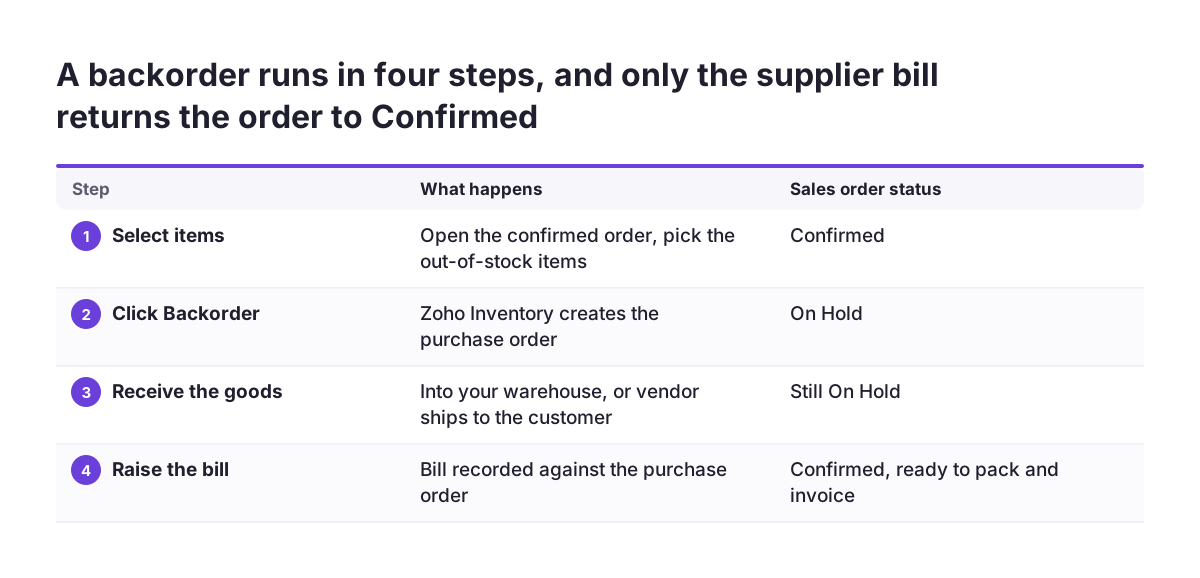
A backorder in Zoho Inventory is a purchase order raised directly from a sales order when the items are out of stock or committed to other transactions. Zoho's help page states that you can create backorders only if the items in the sales order are out of stock. The backorder flow runs in four steps.
- Open the confirmed sales order and select the items you want to backorder.
- Click Backorder. Zoho Inventory creates the purchase order and moves the sales order to On Hold.
- Receive the goods, or have the supplier deliver them to the customer directly, like a drop shipment.
- Raise a bill from the purchase order. The sales order status changes back to Confirmed, and you can pack and invoice it.
The backorder flow keeps the two documents linked. When you open a backordered sales order, you see the purchase order associated with it. Backorders also work for online sales orders, including orders fetched automatically from marketplaces.
The backorder flow also scales. The Bulk Backorder action creates a single backorder for several sales orders at once. That is useful when many customers wait for the same item from the same supplier, because you send one purchase order instead of many.
Zoho's help page also names two measures to watch: the percentage of items backordered and the number of backorder days. Zoho describes both as measures of your customer service quality and of how well you manage inventory.
On Hold status: what it blocks and what releases it
On Hold blocks both packing and invoicing: while a sales order is On Hold, you cannot raise any packages or invoices from it. Zoho's help page gives two windows for those documents. You raise them either before you create the backorder, or after the backorder process is fulfilled.
The bill is the only document that releases the order. According to a user post on the Zoho community forum, sales orders in On Hold status are released only when the bill for the purchase order is created. Marking the purchase order as received is not enough. The same user asked Zoho to release the sales order on receipt instead, as a setting or a feature enhancement. Treat the bill as the trigger until Zoho changes that.
This has a direct consequence for your team. If goods arrive on Monday but the supplier's bill is recorded a week later, the sales order stays On Hold for that week. The warehouse cannot pack it, and sales cannot invoice it. The physical stock and the order status drift apart.
Plan two things around the On Hold status:
- Decide whether part of the order should ship or be invoiced first, and do that before you backorder.
- Agree who records supplier bills against backorder purchase orders, and how quickly after the goods arrive.
How a drop shipment sends the order straight from the supplier
A drop shipment in Zoho Inventory creates a purchase order that tells your vendor to deliver straight to your customer, so the goods never enter your warehouse. Zoho allows drop shipping only for Confirmed sales orders that have no invoices or packages associated with them.
When you start a drop shipment, a pop-up asks whether you want to drop ship the sales order partially or completely.
- Partial dropshipment lets you drop ship selected items from the sales order and handle the rest from your own stock.
- Complete dropshipment sends the whole order through the vendor. It is available only when the sales order has no backorders, invoices or packages.
Zoho Inventory then fills in the new purchase order for you. It fetches the item details and the Dropship To details from the sales order. You find the purchase order under the Dropshipments tab of the sales order, and you can mail it to your vendor from there. If several sales orders are for the same customer with the same delivery address, you can tick them and drop ship them together.
The rest of the drop shipment flow differs from a normal order in three ways:
- You create no package, because the vendor handles packaging, shipment and delivery.
- Raising the bill for the drop shipped purchase order moves the sales order from Confirmed to Fulfilled.
- You create the customer invoice from the invoices tab of the sales order, and it carries over all the sales order details.
Dedicated filters in the Sales Orders and Purchase Orders modules show you every drop shipped order in one list.
Backorder, drop shipment or ship from stock: a decision table
The right choice depends on where the goods physically go and what you have already done on the sales order. The table compares the three routes on the points that decide most cases. Every rule in it comes from Zoho's help pages for backorders and drop shipments.
| Question | Ship from stock | Backorder | Drop shipment |
|---|---|---|---|
| When does it apply? | Items are in stock | Items on the sales order are out of stock | Sales order is Confirmed, with no invoice or package |
| Where do the goods go? | Your warehouse to the customer | Your warehouse, or straight to the customer like a drop shipment | Vendor straight to the customer |
| Sales order status meanwhile | Confirmed | On Hold until the bill is raised | Confirmed |
| Do you create a package? | Yes | Yes, after the order is released | No |
| What completes it? | Delivered shipments | Bill on the purchase order, then you pack and ship | Bill on the purchase order moves the order to Fulfilled |
| Several sales orders at once? | Not covered here | Yes, with Bulk Backorder | Yes, same customer and same delivery address |
A simple rule of thumb follows from the table. Use a drop shipment when the goods should never touch your warehouse. Use a backorder when you want the goods in your own stock first, for checking, kitting or combining with other items.
Worked example: one sales order with stocked and out-of-stock items
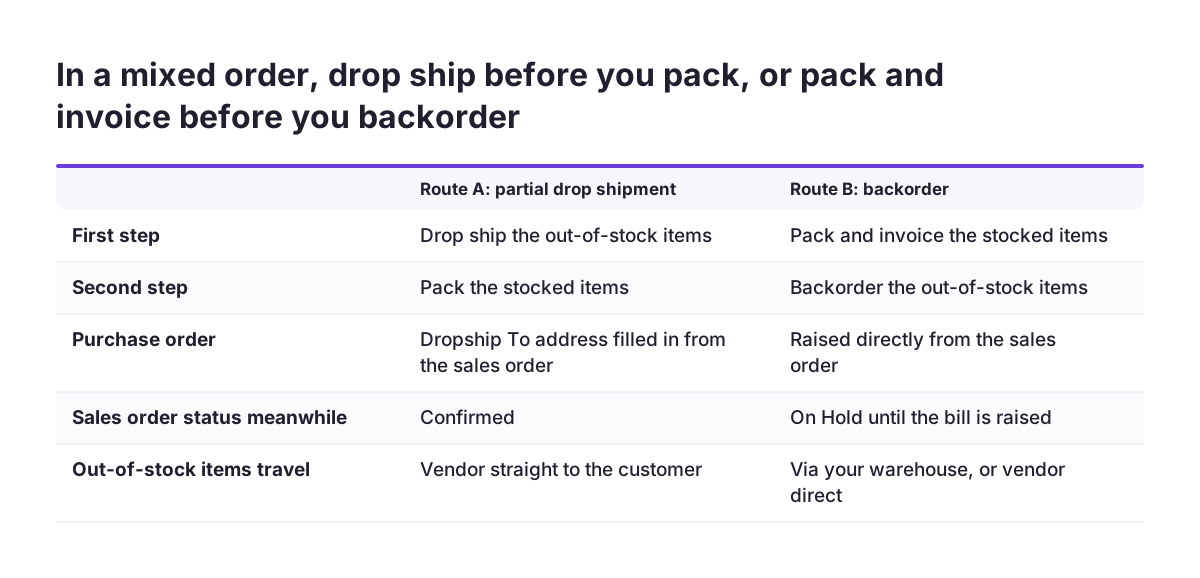
Mixed sales orders show why the order of steps matters most. Take an illustrative order from a customer in Ghent: 20 wall brackets you hold in stock and 5 control units you do not. You want the brackets to leave today.
Route A: partial drop shipment for the control units
Drop ship first, pack second. Confirm the sales order, then choose a partial dropshipment and select the 5 control units. Zoho Inventory creates the purchase order with the customer's Dropship To address already filled in. Mail it from the Dropshipments tab. Only then create the package for the 20 brackets, because a sales order with a package can no longer be drop shipped.
Route B: backorder the control units
Pack first, backorder second. Create the package for the 20 brackets and ship it. If you want to invoice the brackets now, raise that invoice too. Then select the control units and click Backorder.
The sales order goes On Hold, and nothing more can be packed or invoiced until you raise the bill from the purchase order. Once the bill is in, the order returns to Confirmed, and you pack and invoice the control units.
What decides between the two routes
Route A suits a supplier who ships to end customers and an item you never need to inspect. Route B suits an item you check, label or combine before dispatch. Route A also has a returns cost. A user on the Zoho community forum reports that you cannot create sales returns for your own inventory items on sales orders that mix drop shipped and stocked items.
Keeping sales orders, purchase orders and Zoho Books in sync
Sync between sales orders, purchase orders and accounting depends on recording each document at the right moment, not on a setting you switch on. With the Zoho Books integration, sales transactions you record in Zoho Inventory appear in your accounts in Zoho Books, as a LinkedIn overview of Zoho Inventory describes. The accounting therefore reflects whatever your team has, or has not, recorded in Inventory.
Three documents carry the sync in these flows:
- The supplier bill releases a backordered sales order and fulfils a drop shipped one. A late bill means a late status change and a late cost in your books.
- The customer invoice cannot be raised while a sales order is On Hold. Invoice before the backorder or after the bill, never in between.
- The purchase order links the sales order to the supplier. Raise it through the Backorder or drop ship action, not as a separate document, so the link exists.
If finance works in Zoho Books and the warehouse works in Zoho Inventory, both teams need the same picture of these rules. Our page on setting up Zoho Books covers the accounting side, and the existing post on Zoho CRM and Zoho Books covers how sales data reaches the books.
Returns close the loop. Zoho Inventory can issue refunds or credit notes for returned items, and those sales returns credit notes can be applied to future purchases. Check the mixed-order limitation above before you promise a return route to customers.
Setup mistakes with backorders and drop shipments we see most often
The most common mistakes with backorders and drop shipments in Zoho Inventory are about sequence and ownership, not configuration screens. These are the ones worth checking first.
Packing or invoicing too early
A package or invoice on the sales order removes the drop ship option entirely. An existing backorder removes the complete dropshipment option. Decide the fulfilment route before the warehouse touches the order.
Raising purchase orders by hand
A user on the Zoho community forum reports a problem with purchase orders raised by hand. Once a purchase order already exists for a product, a later sales order for it cannot be backordered. The same thread asks whether an order can be put on hold manually. Purchase orders raised outside the Backorder action leave sales orders with no link to their supply.
Leaving supplier bills for later
Sales orders stay On Hold until the bill is raised. Before go-live, Svennis agrees with the client's finance team who records supplier bills against backorder purchase orders, and how soon after delivery. We do this because that bill is the step that releases the waiting sales orders.
Expecting a ready-made backorder report
Users on the Zoho community forum have asked for a report of all backorders by sales order or customer. They want the quantities ordered and fulfilled on each line. They note that one sales order can have many backorder purchase orders. Plan your reporting rather than assume it exists. Zoho Analytics is one place to build it, including the backorder percentage and backorder days Zoho recommends tracking.
What backorders and drop shipments mean for a company trading in the EU
For a company selling across the EU, a drop shipment often means a supplier in one member state delivering to your customer in another. Zoho Inventory handles the document side: the Dropship To address travels from the sales order onto the purchase order, and the vendor ships. The legal and tax side of that delivery is yours to settle outside the software.
Two points deserve attention before you switch on drop shipping:
- Tax treatment. Who invoices whom, from which country, can change how a cross-border delivery is taxed. The rules depend on the countries involved, so confirm each supplier and customer combination with your tax adviser before the first order.
- Customer data on the purchase order. The purchase order you mail carries your customer's delivery details to your vendor. Ask your data protection lead whether your supplier agreements cover that transfer under your GDPR processes.
Backorders raise fewer cross-border questions, because the goods come to your own warehouse first. The trade-off is time: your customer waits while the order is On Hold. If you sell through marketplaces, remember that Zoho Inventory can create backorders for those online sales orders too. Keep your stated delivery times realistic for items that often end up backordered.
Next steps to set up backorders and drop shipments
Start by mapping which of your items are stocked, which are always bought to order, and which suppliers deliver to end customers. That map tells you where backorders fit and where drop shipments do. Then work through these steps in a test organisation or on a few real orders.
- Write down the fulfilment order for mixed sales orders: drop ship first, then pack; or pack and invoice first, then backorder.
- Agree who records supplier bills against backorder and drop ship purchase orders, and how quickly.
- Stop raising purchase orders by hand for items that have waiting sales orders.
- Decide whether drop shipped and stocked items may share one sales order, given the returns limitation users report.
- Set reorder points on your stocked items. A reorder point is a quantity threshold below which Zoho Inventory sends a restock reminder, which helps you backorder less often.
- Build a simple view of open backorders and drop shipments, using the dedicated filters in the Sales Orders and Purchase Orders modules.
If you are still deciding how Zoho Inventory should fit your warehouse and accounting, our Zoho Inventory implementation page explains how we approach stock and order setups.
Sources
- Zoho Inventory: Drop Shipments user guide
- Zoho Inventory: Backorders help document
- Zoho Inventory: Sales returns
- Zoho Community: Backorder process review, releasing On Hold sales orders
- Zoho Community: Manually backorder a sales order or change its status
- Zoho Community: Zoho Inventory backorder report
- Zoho Community: No sales returns on sales orders with drop shipped and inventory items
- Mladen Švraka (LinkedIn): Zoho Inventory, Optimize Your Inventory Management