Gantt charts, dependencies and baselines in Zoho Projects: how they fit together
Gantt charts, dependencies and baselines in Zoho Projects form one chain. You plan dated tasks on the Gantt view and link them with one of four dependency types. Once the plan is agreed, you save a baseline. Zoho Projects then shows end variance and slippage against that baseline as real dates move.
A Gantt chart is a visual representation of activities on a timeline. In Zoho's words, it gives project managers an overview of tasks, their sequence and the dependencies between them. A task dependency is the relationship in which the start or finish of one task relies on the start or finish of another.
The order matters more than any single setting. Dependencies make dates move together when one task slips. The baseline freezes the agreed plan so you can see how far reality has drifted from it. Skip either step and plan-versus-actual tracking stops meaning anything once work is live.
This guide follows one delivery project from first plan to drift report in Zoho Projects. If your projects start from a won deal in Zoho CRM, our separate post on moving a won deal to delivery covers that handover. This guide starts once the project exists.
The Zoho Projects Gantt view: what it shows and how to read it
The Task Gantt view in Zoho Projects shows task lists and tasks on the left and their schedule bars on the right. According to the Gantt Chart View help article, those bars show the actual schedule. Every date change you make on the right is the live plan, not a draft.
Zoho Projects provides two Gantt chart types: a milestone chart and a project timeline. A milestone is a checkpoint that groups tasks. The project timeline lays out tasks against dates. The chart also flags problems visually.
- Overdue work items are highlighted in red.
- Holidays and weekends are marked on the chart.
- The Critical Path, once enabled, identifies tasks whose delay will affect the entire project timeline.
Critical tasks are tasks that would have a cascading effect on the whole project if delayed. Turning on the Critical Path is the quickest way to see which bars deserve daily attention.
You can also reorder tasks by drag and drop when the view is grouped by Milestones or by Task List (Classic). Zoho saves the new order automatically. For a fast start, Zoho's Gantt chart page says you can turn existing projects into templates or choose from more than 20 predefined industry templates.
Plan requirements: baselines and the Timeline need the Enterprise plan
Baselines and the Timeline feature in Zoho Projects are available on the Enterprise plan, according to Zoho's help centre. Check your edition before you design a tracking process around them. A team on a lower edition can still plan on the Gantt view and link dependencies, but it cannot freeze a plan to compare against.
Zoho's Gantt chart page quotes a starting price of 5 USD per user per month and a 15-day free trial. That starting price is the entry point, not the Enterprise price. Read the current plan comparison before you commit. Our post on Zoho licences and plans, Zoho One or single apps explains how Zoho Projects editions sit inside the wider licence picture.
Permissions that control baselines
Access to baselines is governed by user profile permissions, not by project role alone. Two permissions matter:
- Create Baseline for Project lets a profile view, create and edit a baseline.
- Delete Baseline lets a profile delete one.
Give the delete permission to as few people as possible. Deleting a baseline removes it for all users, so one mistaken click erases the reference point for everyone on the project.
Four task dependency types in Zoho Projects, compared
Zoho Projects supports four types of task dependencies, and you can edit, delete or change the time lag between dependent tasks. A predecessor is the task another depends on. A successor is the task that waits for it. The definitions below come from Zoho's community post on setting task dependencies.
| Type | Short form | Rule as Zoho describes it |
|---|---|---|
| Finish-to-Start | FS | The successor can be opened only after the predecessor is completed. |
| Start-to-Start | SS | The successor can start once the predecessor starts. |
| Finish-to-Finish | FF | A predecessor can be completed only after the successor is completed. |
| Start-to-Finish | SF | The successor can be completed only when the predecessor starts. |
Finish-to-Start is the type most delivery plans lean on, because most work genuinely waits for earlier work. Start-to-Start suits tasks that run side by side once the first one begins. Finish-to-Finish fits tasks that must close together even though their durations differ.
Start-to-Finish is rare in practice. If you find yourself reaching for it often, the plan probably needs restructuring rather than more links. Use the simplest type that describes the real constraint.
Hard links, soft links and lag: how dates move when a predecessor slips
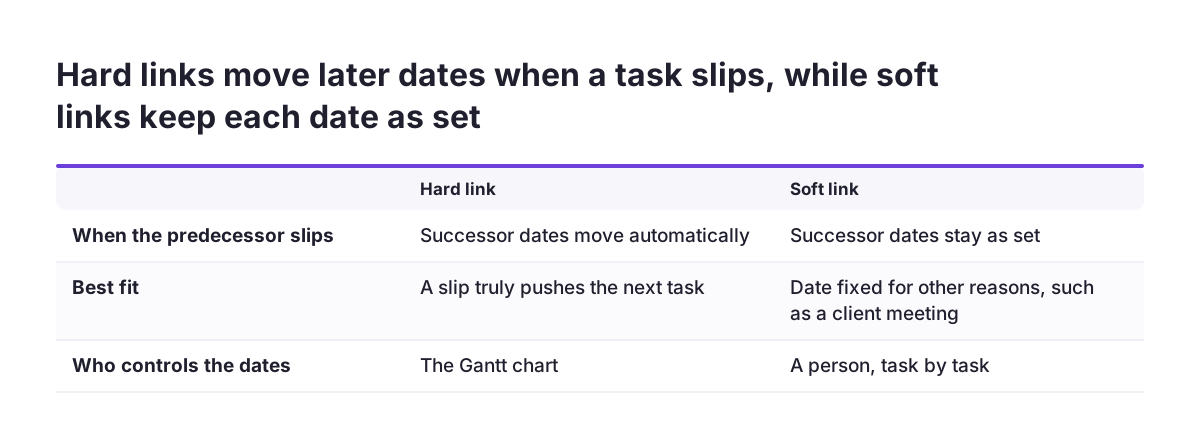
A hard link in Zoho Projects adjusts the dependent task's schedule automatically, while a soft link leaves it unchanged. That single choice decides whether your Gantt chart reacts to a delay or merely records the relationship. Hard links keep the plan honest; soft links keep a human in control of each date.
Use hard links where a slip in one task truly pushes the next. Use soft links where the dependency is real but the date is fixed for other reasons, such as a customer meeting. Mixing both is normal, as long as you know which is which.
Lag between dependent tasks
Lag is the time gap between a predecessor and its successor. Zoho's Gantt chart page states that you can edit, delete or modify the time lag between dependent tasks. Lag lets you model a waiting period, such as a review window, without creating a placeholder task.
Three places to set a dependency
Zoho Projects lets you set task dependencies from three places:
- List view: in the Predecessors column, search for the task or enter its Task ID, then press Enter or Return.
- Gantt view: click and drag from the end of one task bar to the start of another.
- Task details page: scroll to the Dependency section and click Add Predecessor.
The List view is fastest for bulk linking. The Gantt view is best when you want to see the effect immediately.
Worked example: planning a website rebuild on the Gantt view
A website rebuild makes a clear worked example, using the task names from Zoho's own dependency walkthrough. The project has a design task called UI Design and a build task called Frontend Development. You add a content task and a launch milestone around them.
- Create the structure. Add a task list for design and one for build. Put UI Design in the first and Frontend Development in the second.
- Date every task. Give each task a start and end date. A task without dates will be left out of any baseline later.
- Link UI Design to Frontend Development. On the Gantt view, drag from the end of the UI Design bar to the start of the Frontend Development bar. This creates a Finish-to-Start dependency.
- Choose the link strength. Make it a hard link, so a late design pushes the build dates automatically.
- Add a review gap. If design needs a sign-off period, set a lag on the dependency instead of adding a dummy task.
- Turn on the Critical Path. Check that the chain from UI Design through to launch shows as critical.
- Agree the plan, then save a baseline. Only once the dates are signed off.
Now suppose UI Design runs late. The hard link moves Frontend Development forward on the chart. The baseline still holds the original dates, so the comparison view shows exactly how far the build has moved.
Saving a baseline in Zoho Projects: the rules that decide what it captures
A baseline is a snapshot of the original schedule, which you can compare with the current schedule at any time to track deviation. You set it from the task Gantt chart. Several rules in the Zoho Projects baseline help article decide what that snapshot actually contains.
- A baseline is created from the open tasks available in the project.
- Tasks without start or end dates are not included.
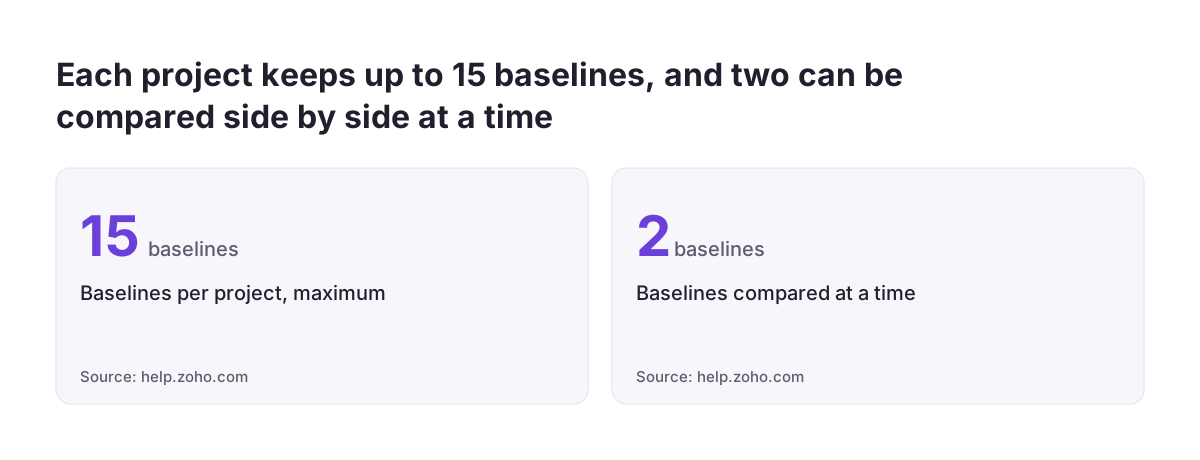
- Baselines are specific to a project, with a maximum of 15 per project.
- All users who are part of the project can access the baselines in it.
- Only project users can create a baseline; client users are restricted.
- Baseline reports can be saved or converted into PDF files.
The first two rules cause most trouble. A baseline saved too early misses undated tasks, so later drift on that work never shows. At Svennis we save the first baseline only after every open task has a start and end date and the plan has been signed off, because a baseline that silently omits undated work makes the drift report look better than the project really is.
Name each baseline after the event that created it, such as the signed plan or an approved change. With a limit of 15 per project, a clear naming habit keeps the list readable for everyone who can see it.
Reading drift against the baseline: end variance, slippage and the comparison bars
Drift in Zoho Projects is read through two measures, end variance and slippage, plus a bar comparison on the Gantt chart. Each answers a different question about a late project.
End variance and slippage
End variance tracks delay in task completion. It is the difference between a task's original estimated completion date and its current end date. Zoho's Gantt page describes it as the measure that identifies delayed tasks needing immediate attention.
Slippage tracks tasks that have not started yet. It is the difference between the baseline start date and the current start date. Slippage warns you about work that is already late before anyone has touched it.
The comparison bars
The comparison view uses colour to separate plan from reality. Gray bars represent the baseline, green bars represent current tasks and blue bars are subtasks. Where green sits to the right of gray, the task has moved later.
You can select any two baselines and compare them with the current open tasks in the project. This helps after an approved change. Compare the original plan, the revised plan and today, and you can separate drift the customer agreed to from drift nobody approved.
Read the measures together with the Critical Path. A large end variance on a non-critical task may not move the launch. A small slippage on a critical task usually will.
Limits to plan around: milestone bars, undo, export and deleted tasks
Several documented limits in the Zoho Projects Gantt chart affect how you work day to day. Knowing them in advance saves rework later.
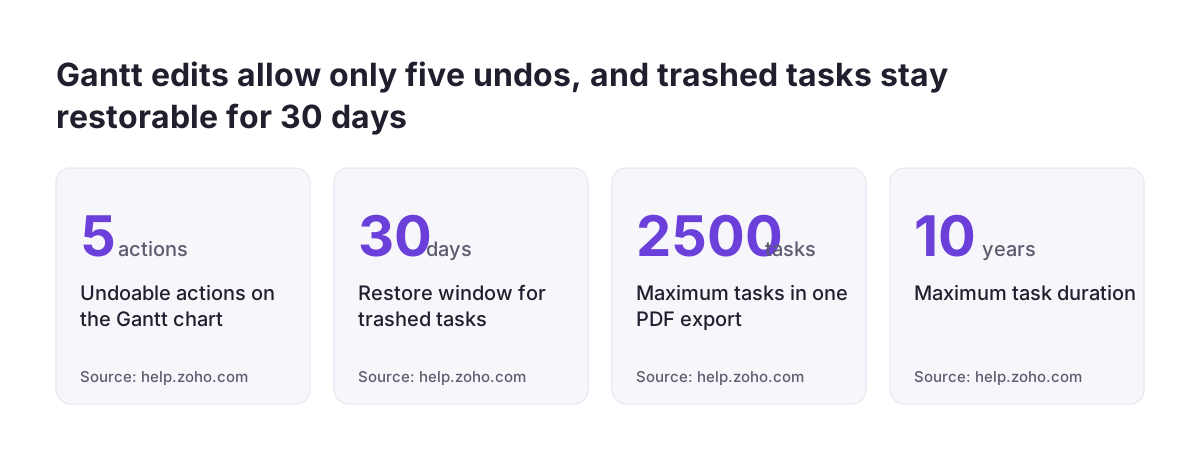
- Undo: you can undo the last five actions on the Gantt chart, as long as the workspace has not refreshed and you have not switched screens.
- Deleted tasks: trashed tasks move to the Recycle Bin and can be restored within 30 days.
- Task length: a task's duration cannot exceed 10 years.
- PDF export: a maximum of 2,500 tasks can be exported.
- Timeline: only zero-duration tasks are added by default, and unscheduled tasks cannot be added.
The PDF export range depends on the interval you choose. Zoho lists 4 months at the Days interval, 2 years at Weeks, 20 years at Quarters and 40 years at Years. For a long project, pick the interval before you export, or the file will cut off part of the plan.
Milestone bars that do not follow their tasks
One user on the Zoho community forum reported milestone bars stuck on the milestone's creation date rather than spanning its tasks. That user fixed it by manually adjusting the milestone bars to the task list dates. Check your milestone dates after building the plan, before you save the baseline.
What Gantt planning in Zoho Projects means for companies working across the EU
For a company with teams in several EU member states, the main planning risk is working days. The Zoho Projects Gantt chart marks holidays and weekends, and public holidays differ between countries. Before you trust a task duration, check which holidays the chart shows for the people doing that task.
Cross-border delivery also raises visibility questions. Every user who is part of a project can see its baselines, and client users cannot create them. That suits projects where a customer sits in your portal as a client user. Your customer can follow progress, while only your own team can freeze or change the reference plan.
Reporting to steering groups and customers
Baseline reports can be saved or exported as PDF. That gives you a dated record of the plan as agreed, which helps when a customer in another country questions why a date moved. Pair the PDF with the two-baseline comparison to show approved changes separately from slippage.
Budget in the right currency, too. Zoho's Gantt page quotes its starting price in US dollars. Confirm the price for your own Zoho account and edition, rather than converting the headline figure yourself.
Next steps: from a first Gantt plan to tracked delivery
The practical next step is to rebuild one live project in Zoho Projects using the order in this guide, then save its first baseline. Pick a project of modest size, so mistakes cost little.
| Check | What to confirm | Why it matters |
|---|---|---|
| Edition | The project's portal is on the Enterprise plan | Baselines and the Timeline need it |
| Dates | Every open task has a start and end date | Undated tasks are left out of the baseline |
| Dependencies | Each link has the right type and hard or soft setting | Decides whether delays move later dates |
| Critical Path | Enabled and showing the expected chain | Shows which delays move the end date |
| Milestones | Bars span their tasks | Avoids a misleading baseline |
| Permissions | Delete Baseline held by few profiles | Deletion removes it for all users |
Once drift tracking runs on one project, review end variance and slippage weekly for a month. Then decide whether to roll the setup out as a template. Zoho also states that project data can sync with Zoho Analytics, and our Zoho Analytics implementation page explains how that reporting layer is set up.
If you want help structuring templates, permissions and dependencies across many projects, our Zoho Projects implementation service describes how we work.