Remote support sessions with Zoho Assist and Desk start from the ticket
Remote support sessions with Zoho Assist and Desk start from the ticket itself. Your agent clicks once inside the Zoho Desk ticket and the customer receives an email. The session opens when the customer joins. When the session ends, its details and the agent's notes are added to the ticket's comments, so every connection is logged against that customer.
A remote support session is a live connection in which a technician views and controls a customer's computer or device from their own system to troubleshoot it. Zoho Assist is the Zoho product that runs these sessions. Zoho Desk is the helpdesk where your tickets live. If you are new to the helpdesk side, start with the overview of Zoho Desk as a customer support tool.
The link between the two products matters more than the remote control itself. A session started outside the ticket leaves no trace in the customer's support history unless an agent copies it across by hand. A session started from the ticket documents itself.
This guide covers three things. First, how a session is started and recorded on the ticket. Second, which Zoho Assist edition you need. Third, the consent and access settings a support team should decide before any agent connects to a customer's machine.
What the Zoho Desk integration records on the ticket
The Zoho Desk integration writes the session back to the ticket it was started from. According to Zoho's page on the Desk integration, once the session ends, the session details and your notes are added to the comments section of that ticket. Nobody has to paste a summary afterwards.
Agents can also update the ticket without leaving the session. From inside the remote support session they can do three things:
- mark the ticket status;
- edit the ticket resolution;
- add session notes.
This changes what a ticket history is worth. The next agent who opens the ticket sees what was done on the customer's machine, not just the email thread. A team lead reviewing a reopened ticket can read what the first agent changed before calling the customer again.
Session notes in Zoho Assist are not fixed once written. Zoho states that saved notes can be edited later and downloaded together with the session information. That helps when an agent remembers a detail after the customer has disconnected.
The ticket is often only one part of the customer record. If your support team and your sales team share customer data, the guide to linking Zoho Desk tickets with Zoho CRM explains how tickets connect to the customer records your other teams use.
Which Zoho Assist edition includes the Desk integration
Every Zoho Assist edition includes the Zoho Desk integration, including the Free plan. The editions differ in the number of technicians, session recording and webhooks. Zoho's Zoho Assist plan comparison lists one Free plan, three Remote Support editions and two Unattended Access editions. Unattended access means connecting to a device without a user at the other end.
| Edition | Desk integration | Technicians | Session recording | Webhooks |
|---|---|---|---|---|
| Free | Yes | One | No | No |
| Remote Support Standard | Yes | Limited | No | No |
| Remote Support Professional | Yes | Limited | No | No |
| Remote Support Enterprise | Yes | Limited | Yes | Yes |
| Unattended Access Standard | Yes | Unlimited | No | No |
| Unattended Access Professional | Yes | Unlimited | Yes | Yes |
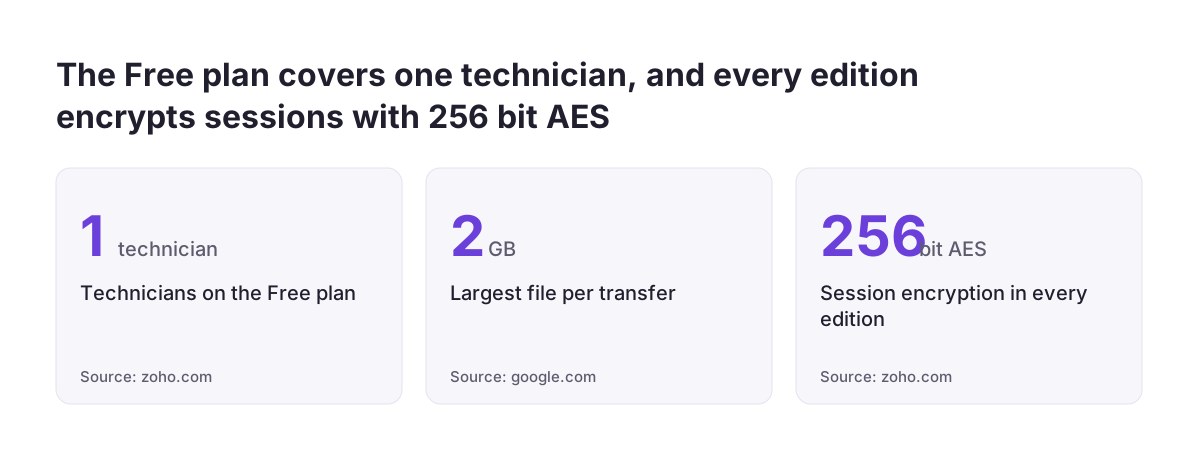
Some security basics are the same everywhere. All editions list TLS 1.2 transport security with AES-256-bit encryption, two-factor authentication and support for Windows, Mac and Linux. The comparison page does not state the technician limit for the "Limited" editions, so check it and current prices on Zoho's own pricing page before you buy.
Integrations with other helpdesks are narrower. Zendesk, ServiceNow, Freshdesk and Jira integrations are listed only for the paid Remote Support editions. If you are still choosing a helpdesk, the comparison of Zoho Desk and Freshdesk for EU teams sets out the wider differences.
Starting a Zoho Assist session from a Desk ticket, step by step
Starting a session from a Zoho Desk ticket takes one click once your administrator has connected the two products. Zoho describes Assist as completely web-based. Neither your support team nor your customer needs to install anything beforehand. Zoho also states that Assist works with all major proxies and firewalls.
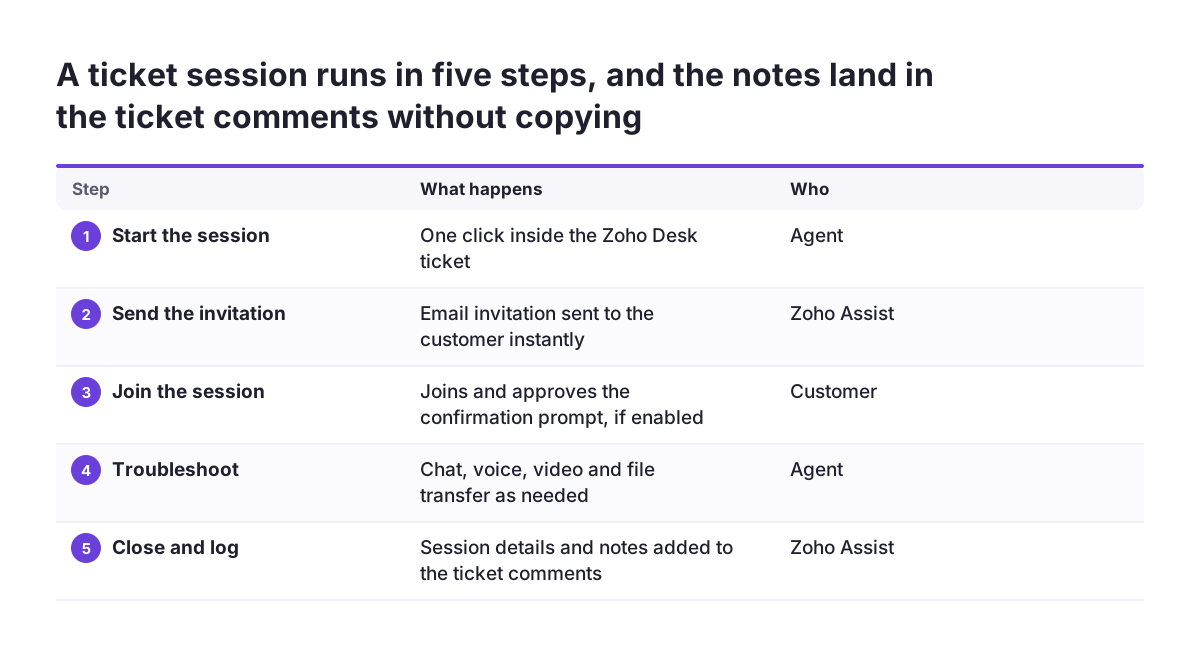
The sequence an agent follows from the ticket is short:
- Open the customer's ticket in Zoho Desk and start the remote support session from it with a single click.
- Zoho Assist sends the customer an email instantly with the invitation.
- Once the customer joins, start troubleshooting straight away.
- Work in the session with the built-in chat, voice or video chat, and file transfer as needed.
- Before you finish, mark the ticket status, edit the resolution and add session notes from inside the session.
- End the session. The session details and your notes appear in the ticket's comments.
Step five is where most of the value sits. An agent who closes the session without writing notes still leaves the session details on the ticket. Without notes, though, the comment says that a connection happened, not what fixed the problem.
Zoho states that the integration reaches remote computers, servers and iOS or Android mobile devices from the cloud. The same ticket route therefore covers a customer's laptop and their phone.
Starting a Zoho Assist session outside Desk: web, desktop and mobile
Zoho Assist sessions can also start without a ticket, from the web console, a desktop app or a phone. Zoho's help page on starting a Zoho Assist session lists each route:
- Web: log in at www.assist.zoho.com, click START NOW on the home page, and invite the customer once the new browser opens.
- Desktop: click the Download icon at the top right of the main window and download the technician app for your operating system.
- Android: install Zoho Assist from the Google Play Store, tap START NOW and use the "Invite Customer" page.
- iOS: install the Zoho Assist Remote Desktop app from the App Store, tap START SESSION and share the link or session ID.
The mobile app has an app lock. You enable it with biometrics or a PIN, and the app locks automatically after the time you specify. Switch it on for every technician who supports customers from a phone.
The Desk write-back Zoho describes is tied to sessions started from a ticket. A session started on any other route does not land in the customer's ticket history on its own. If your agents use these routes, require them to save notes in Assist and copy them to the ticket. Better still, make the ticket the default starting point and keep the other routes for genuine exceptions.
A worked example: one Windows ticket from first email to closed session
Here is how one ticket runs end to end with the Desk integration. A customer emails that her accounting software freezes at login on her Windows laptop. The email becomes a ticket in Zoho Desk and lands with an agent.
Connecting
The agent reads the ticket and starts a remote session from it with one click. The customer receives the email invitation and joins. A customised session confirmation prompt asks her to approve the connection, and she accepts. The agent can now view and control her shared screen.
Troubleshooting
The agent keeps the customer informed in the chat window. The laptop has two monitors, so he switches between them with one click. The application hangs, so he sends Ctrl+Alt+Del to the remote Windows computer. He then restarts the laptop in safe mode, and the session reconnects after the reboot. He transfers a log file from her machine to his own; Zoho Assist handles files up to two GB.
The problem turns out to need a colleague. The agent invites a second technician into the same session and hands it over to him. Zoho allows any number of technicians to be invited.
Closing
Before ending, the second technician marks the ticket status from inside the session. He edits the resolution to describe the fix and adds session notes. When he ends the session, the details and notes appear in the ticket's comments. The customer's history now shows what was changed on her laptop and by whom.
Consent and access rules to set before agents connect
Consent and access rules decide who may connect to a customer's machine, what the customer approves and what you can review later. Zoho's article on secure remote sessions makes the general point. Administrators should be able to specify who has access to which features and data.
These are the Zoho Assist settings to decide before the first live session:
- Session confirmation prompt: show a customised prompt so the customer explicitly approves each connection.
- Two-factor authentication: listed in every edition. Zoho also offers OTP verification, a one-time password sent to a registered device.
- Remote screen blackout: blacken the display at the customer's end while you work, so people near the machine cannot watch.
- Clipboard sharing: the clipboard is shared with the remote computer by default and can be disabled.
- Action log viewer: monitor what your technicians did during sessions.
- Session recording: available in Remote Support Enterprise and Unattended Access Professional only.
- Unattended access: connects to Windows and Mac devices with no user present, so limit it to devices where that was agreed in advance.
Write the rules down in one short policy before go-live. Agents who know the confirmation prompt is mandatory do not improvise when a customer is in a hurry.
Setup choices that decide whether agents use the integration
Whether agents actually use the Desk integration depends on a few setup decisions, not on the remote control features. Agents fall back to whatever is fastest under pressure. If starting from the ticket is not clearly the fastest route, the history stays empty.
Three choices make the biggest difference:
- The ticket as the only standard starting point. Keep the web and mobile routes for exceptions, and agree what an exception is.
- A fixed note format. Notes that always answer the same questions can be reused on the next ticket.
- A defined place in the process. Decide at which stage of a ticket a remote session is offered, and which status follows it.
At Svennis, we agree the note format with the support lead before go-live: the symptom, what the agent changed and what the customer should check. Where a team skipped that step, we found ticket comments that said only "fixed", and nobody could reuse the fix later.
If your support process already runs on fixed stages, the guide to Blueprints for support processes in Zoho Desk shows how to define them. Placing the remote session in that process tells agents when to offer it.
What remote support sessions mean for a company working in the EU
For a company in the EU, a remote support session is a moment when your agents can see personal data on a customer's screen. Emails, invoices and customer files may all be visible while the agent works. GDPR applies to that personal data, so treat sessions, notes and recordings as part of how you handle it.
Three practical points follow from the Zoho Assist features described above:
- Use the confirmation prompt so the customer approves every connection.
- Decide whether you need session recording at all, and who may watch the recordings, before you buy an edition that includes it.
- Keep session notes factual and limited to the fix, because they stay in the ticket's comments.
The action log viewer and the ticket comments give you a record of who connected and why. That record helps when a customer asks what your team did on their machine.
Rules on monitoring staff and handling recordings can differ between member states. If you support customers or employees in several EU countries, check national guidance with your data protection officer. Do not assume one country's practice applies everywhere. Zoho states that Assist connections use TLS 1.2 with 256-bit AES encryption, as listed in its remote desktop sharing overview.
Next steps: connect Zoho Assist to Desk and run a pilot ticket
The quickest way to prove the setup is one pilot ticket on an internal machine before any customer session. Work through these steps in order:
- Pick the edition. Use the table above to decide whether you need recording, webhooks or more technicians, then check prices on Zoho's pricing page.
- Connect Zoho Assist to Zoho Desk and confirm agents can start a session from a ticket.
- Switch on two-factor authentication, the session confirmation prompt and the app lock for mobile technicians. Decide on clipboard sharing.
- Agree the note format and the ticket status that follows a session.
- Open a test ticket, connect to a colleague's laptop, add notes and end the session. Check that the details and notes appear in the ticket's comments.
- Roll out to the team, then review a sample of tickets after the first weeks to see whether notes are useful.
If you want the integration configured and the access rules set for your team, the page on Zoho Assist setup with Svennis describes how that work is done.