Leave, attendance and time tracking in Zoho People: the setup order that works
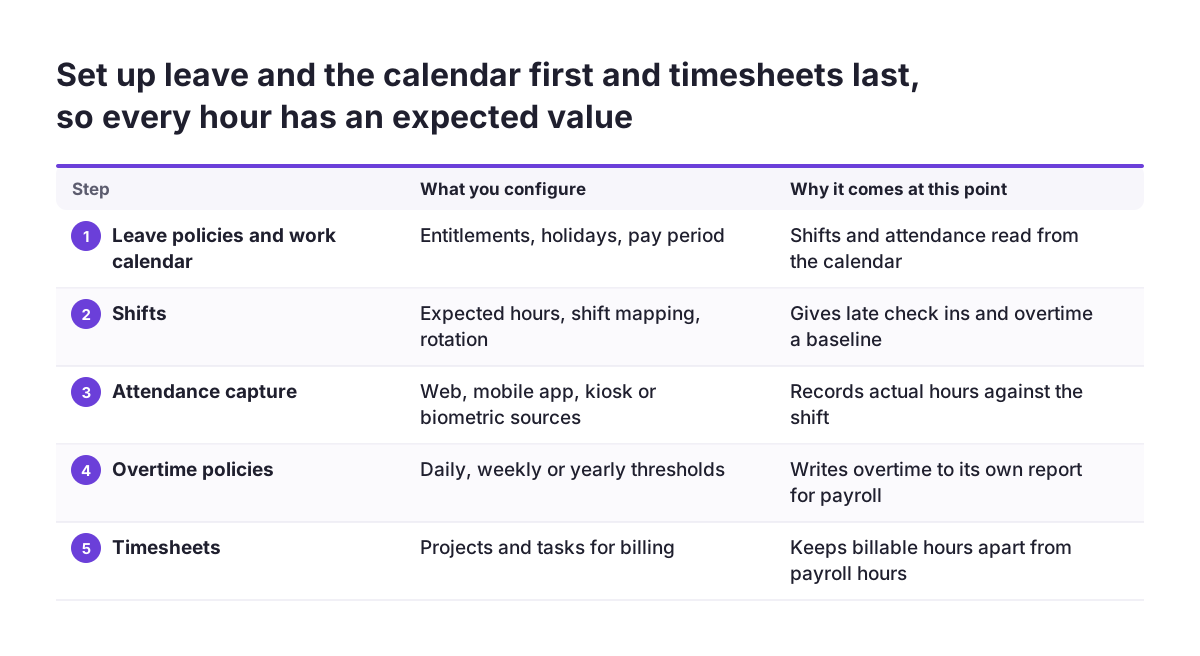
Set up leave, attendance and time tracking in Zoho People in a fixed order. Start with leave policies and the work calendar, then shifts, then attendance capture, then overtime rules, and timesheets last. That order gives every recorded hour an expected value to compare against before payroll or project billing reads it.
Three terms carry this guide. Leave is planned or approved absence, managed in the Leave Service. Attendance in Zoho People is the record of when each employee checks in and checks out, and from which source. Timesheets are the hours an employee logs against projects and tasks, which is what billing needs.
This post is part 2 of a three-part series on Zoho People for small and mid-sized employers. Part 1, setting up Zoho People for a growing company, covers the organisation structure, employee records and roles that everything here depends on. Part 3 covers performance reviews, HR reports and employee data under the GDPR.
Before you plan, check which edition you hold. Zoho's shift help page says the Shift service is included in all subscriptions. The location tracking page says that feature needs the Professional plan or higher. Confirm the rest against Zoho's current edition comparison, because features differ between plans.
Leave policies, entitlements and the work calendar come first
Leave policies come first in Zoho People because attendance, shifts and overtime all read from the work calendar. If the calendar does not know a day is a public holiday, the day looks like an absence. The Leave Service covers the whole cycle, from setting up leave policies to employees applying for leave and managers tracking it.
Administrators work in the Leave or Time Off Service settings. There you can:
- create leave policies with their own entitlements, applicability and restrictions
- customise a policy for an individual employee where a contract differs
- set up grant-based entitlements, where leave is granted on request rather than accrued
- set up the work calendar, holidays, the pay period and compensatory off (time off in return for extra hours worked)
- add exceptional working days, for example a Saturday that counts as a normal working day
Employees then use the Leave tab in the left bar. There they apply for leave and see their balance, holidays and shift details. They also raise regularisation requests, which correct an attendance entry, and compensatory-off requests. Managers approve leave, compensatory-off and regularisation requests, and can authorise leave grant requests.
Set the pay period in the Leave Service to match the period your payroll actually runs on. If the two differ, every export needs manual reconciliation. Leave service operations is the central place where administrators handle leave requests, compensatory off and holidays afterwards.
Shifts define the expected hours that attendance and overtime compare against
The Shifts service in Zoho People manages work shifts, shift mapping, shift rotation and tracking. A shift is the expected working pattern for an employee. Without one, Zoho People has nothing to measure late check-ins, short days or overtime against.
Since Zoho People 5.0, Attendance and Shifts are two separate services. The Shift module works even if the Attendance service is disabled. Zoho's help page says the Shift service is included in all subscriptions. It is enabled automatically as soon as any time and attendance service is switched on.
The roles divide cleanly:
- employees view their shift, mark attendance during shift hours and request a shift change
- managers can be authorised to map shifts and view their reportees' shifts
- administrators handle Shift Settings and Operations: creating shifts, rotations, shift allowance preferences, permissions and automations
You can also give selected employees administrative access to shift settings or data. A team lead who plans rotas can then work without full admin rights. Shift data also appears in the Attendance and Leave user services, so employees see their shift where they apply for leave.
Build rotations before you switch on check-in. Otherwise the first weeks of attendance data carry deviation alerts that reflect missing shifts, not real behaviour.
Attendance check-in methods: web, mobile app, kiosk or biometric device
Choose the attendance check-in method by what each source can prove. Zoho People accepts check-in from the web, the mobile app, a kiosk and biometric devices. You can require employees to check out from the same source they used to check in, which stops a kiosk check-in being closed from a phone at home.
| Source | What the location data is based on | Where it fits |
|---|---|---|
| Web browser | Browser location, which users can alter; above 3000 metres accuracy Zoho shows an IP-based location | Office and remote staff where location does not matter |
| Mobile app | Device GPS, which Zoho recommends as more reliable | Field staff whose work location matters |
| Kiosk, optionally with facial recognition | A fixed shared device; face match against the stored profile photo | Sites, depots and shop floors with a shared entrance |
| Biometric device | A registered attendance device on site | Sites that already run attendance terminals |
Three preferences in the check-in and check-out settings prevent bad data. One blocks attendance entries, regularisations, on-duty requests and hourly permissions on days with approved leave. Another blocks check-in and check-out commands from iOS assistants. A third sets up attendance deviation alerts for late check-in, early check-out, missed check-in, insufficient working hours and insufficient core working hours.
Zoho People also shows predicted check-in and check-out times, calculated from the last two months of attendance data. New employees see no prediction until enough data exists, so expect that in the first weeks.
Location tracking and facial recognition: collect only what you need
Location tracking in Zoho People records an employee's work location through the mobile app and the device's GPS. It runs only between check-in and check-out within shift hours. Employees must consent to sharing location and can disable location services on the device at any time.
The feature is available from the Professional plan. You enable it by emailing support@zohopeople.com, so it is never on by accident. You can then configure it at organisation level or inside a specific attendance policy. The organisation-level setting applies to every employee without a specific attendance policy. It is safer to switch tracking on only in a policy aimed at specific users, departments, employment types or designations.
Access follows the hierarchy. Employees see their own location data, reporting managers see their reportees' data, and administrators see the whole organisation's. Data exports for a single day in XLS, XLSX or CSV. With the app permission set to "While Using the App", location is captured only while the app is in use between check-in and check-out.
Facial recognition matches a captured image against the stored profile photo using AI before check-in or check-out. It works together with the kiosk, and Zoho recommends an anti-spoofing, depth-sensing device. Treat face matching and GPS as the most sensitive options. Use each only where it solves a real problem, such as proving presence at a client site, and not as a default for office staff.
Overtime policies feed an overtime report, not the attendance status
An overtime policy in Zoho People calculates overtime hours into its own report. It does not change attendance status such as Present or Absent, and it does not alter data in other reports. If payroll reads only the attendance report, it will never see the overtime.
A policy can apply by location, department, division or employment type. When an employee matches several policies, Zoho applies them in this order of priority:
- employment type, such as full-time, part-time or contractual
- department
- location
- division
Zoho's own examples show the thresholds you set. Daily overtime starts beyond 8 hours a day, weekly overtime beyond 40 hours per calendar week, and yearly overtime beyond 1,920 hours over 12 months. If you impose a maximum daily work hours limit, hours beyond it are not counted at all. Overtime is then calculated only between the expected hours and that maximum.
Rolling average notification rules can check up to the past 6 weeks, validated within the calendar year. Employees can always submit overtime after working it, because the Post Overtime method cannot be disabled. The report exports in XLS, XLSX or CSV.
Handle one setting with care: deleting an overtime policy permanently removes all overtime data for the employees it covered, and this cannot be undone. Deactivate or edit a policy instead of deleting it.
Timesheets for project billing, attendance for payroll, and missed check-outs
Timesheets and attendance answer different questions, so keep them apart. Attendance tells payroll how long someone worked. Timesheets tell billing which project the hours belong to. Zoho describes timesheets as letting managers create projects and tasks, employees record time against each project, and users raise invoices from them.
Decide early which system holds billable hours. If your invoices go out from Zoho Books, agree whether the hours travel from timesheets or are entered again, and name one owner for corrections. Zoho's blog lists payroll integration as a core feature of a time and attendance system. The design question is which report each payroll run reads: attendance, overtime, leave or all three.
Missed check-outs are the most common gap in attendance data. Zoho's community post describes a Custom Function, a small script in Zoho People, that fills in the check-out when an employee forgets. You configure a date-based workflow (a Reminder), create the function and map it to the workflow. For the previous day, set the Date of Execution to before 1 day under the Trigger Process.
The post gives two methods. The first, named "Auto-check Shift End Time" with the parameters recordid and erecno, sets check-out to the shift's end time. The second sets check-out to 8 hours after check-in. Both update the record only when the check-out field is blank. Prefer the shift-end method, and have managers review auto-filled days, because an assumed check-out is not a measured one.
Worked example: office staff and field technicians in one Zoho People account
This worked example shows the full setup order for a company with office staff and field technicians. The thresholds and intervals come from Zoho's own help pages. Adjust them to your contracts and national rules.
- Leave Service: create one leave policy per contract type, add the public holidays for each country to the work calendar, and set the pay period to the payroll period.
- Shifts: create an office shift and a field shift, set up the rotation for technicians, and let the field team lead map shifts for reportees.
- Check-in: office staff check in on the web; technicians use the mobile app; check-out must use the same source as check-in; attendance entries are blocked on approved leave days.
- Location: after support enables it, switch tracking on only in the technicians' attendance policy, with a 15-minute capture interval and automatic check-out after 4 consecutive capture failures.
- Overtime: one policy per employment type, with daily overtime beyond 8 hours and weekly overtime beyond 40 hours per calendar week.
- Timesheets: projects and tasks for billable client work, logged by technicians against each job.
Two automatic check-out rules in step 4 matter for payroll. When a check-out is automatic, the last successful location capture becomes the check-out time and location. You can also check employees out automatically, and notify chosen recipients, when the captured location falls outside the geo-restricted range. Tell technicians about both rules before go-live, so an early check-out on a remote site does not come as a surprise on the payslip.
EU working time records: what the C-55/18 judgment means for your company
EU employers need a system that measures each worker's daily working time. In Case C-55/18, CCOO v Deutsche Bank SAE, decided on 14 May 2019, the Court of Justice (Grand Chamber) held that a national law is not enough without such an instrument. The law must require an instrument that determines hours worked each day and each week objectively and reliably.
The facts show why a leave calendar alone falls short. Deutsche Bank used an absences calendar application that recorded only whole-day absences, such as holidays. The Court said that without a time-recording system, neither the hours worked nor the overtime can be determined objectively and reliably. The judgment cites a 2016 survey in Spain finding that 53.7% of overtime worked had not been recorded.
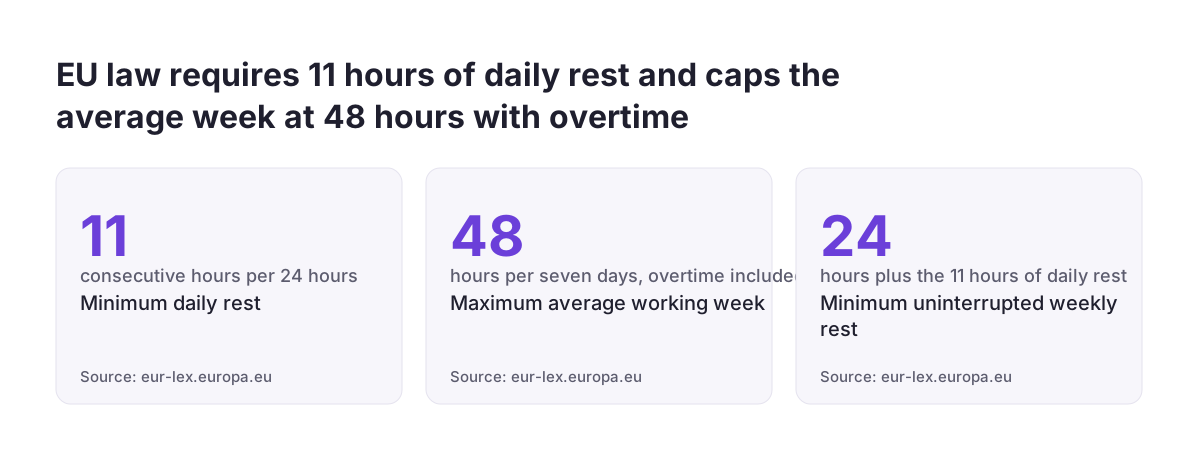
The judgment also restates Directive 2003/88. Every worker is entitled to 11 consecutive hours of daily rest per 24-hour period. Average working time per seven-day period, including overtime, must not exceed 48 hours.
Each member state applies the judgment in its own law. Check the national rule where your staff actually work, and build one attendance policy per country where the rules differ. When you design records, sort them into three groups:
| Record | Why you hold it | Setting in Zoho People |
|---|---|---|
| Daily check-in and check-out | Working time measurement under national law | Attendance, with deviation alerts |
| Leave, holidays, overtime | Payroll and entitlements | Leave Service and overtime report |
| GPS location, face image | Only where presence at a place must be proven | Location tracking in a specific policy; facial recognition at a kiosk |
Location belongs in the third group. Collect it only when the job needs it, and never outside working hours.
Common setup mistakes that break payroll and billing data
The mistakes that break payroll data in Zoho People are usually configuration choices, not software faults. These come up again and again:
- switching on check-in before shifts exist, so every day triggers deviation alerts
- expecting overtime to show in the attendance report, when it lives only in the overtime report
- deleting an old overtime policy and losing its overtime data for good
- enabling location tracking at organisation level, which covers everyone without a specific attendance policy
- relying on web check-in for field staff, whose browser location can be altered or fall back to an IP address
- letting auto-filled check-outs stand without review, so payroll pays assumed hours
The most costly mistake is going live without comparing the new data against what payroll actually pays. At Svennis we run a complete pay period with Zoho People in parallel to the old process, and reconcile its attendance, leave and overtime exports line by line before the old spreadsheets are switched off. That parallel period is where mismatched pay periods, missing holidays and wrongly applied overtime policies surface. It is far cheaper to fix them there than after a payroll run.
For the reconciliation, the overtime report and the location data both export to XLS, XLSX or CSV. If managers want those figures next to finance data on a dashboard, Zoho Analytics is the place to build it rather than more spreadsheets.
Next steps for setting up leave, attendance and time tracking
Start leave, attendance and time tracking in Zoho People with a written list of your contract types, countries and pay periods. Each item maps to a leave policy, a work calendar, a shift or an overtime policy. Then follow the order in this guide:
- confirm your edition, and email Zoho support if you need location tracking
- build leave policies, holidays and the pay period in the Leave Service
- create shifts and rotations before anyone checks in
- choose check-in sources per group of staff, and switch on the same-source and approved-leave restrictions
- check the national working time rule in each country where staff work
- add overtime policies per employment type, and point payroll at the overtime report
- run one pay period in parallel before you switch off the old process
If the organisation structure and employee records are not in place yet, go back to part 1 of this series first. For an overview of what the product covers and how Svennis implements it, see the Zoho People HR management and time tracking page. Part 3 of the series covers performance reviews, HR reports and employee data under the GDPR.
Sources
- EUR-Lex, Judgment in Case C-55/18, CCOO v Deutsche Bank SAE
- Zoho People help: Shift Service overview
- Zoho People help: Overtime Policy
- Zoho People help: Employee location tracking
- Zoho People help: Check-in and check-out and facial recognition preferences
- Zoho People help: Leave Service overview
- Zoho Blog: 5 benefits of tracking employee time and attendance
- Zoho Blog: Features to look for in your time and attendance system
- Zoho People community: Custom Functions for automatic check-out